

How to Type Emojis on Windows 11 Laptop and PC?
 Azaz Shaikh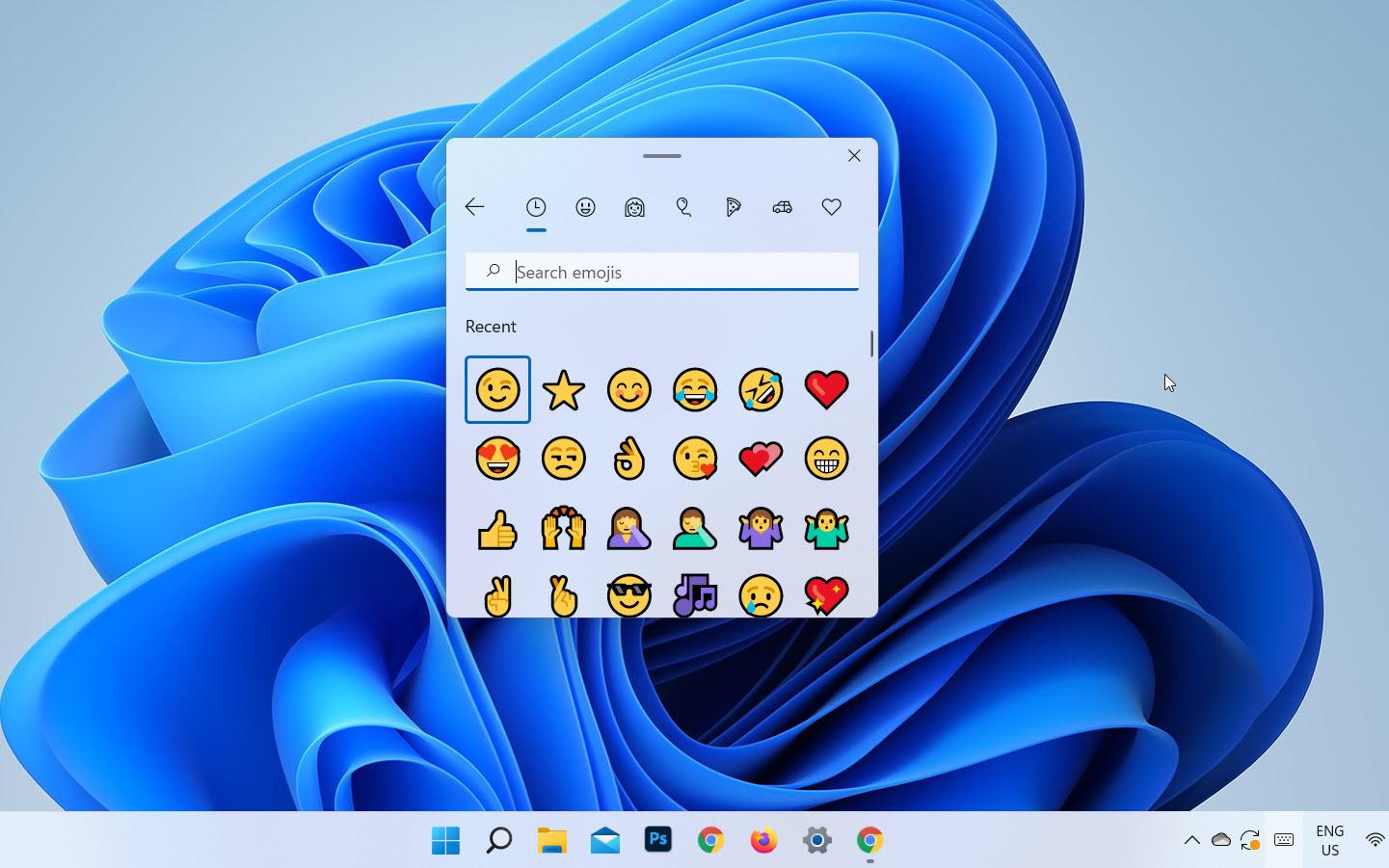
In this article, you will learn How to Type Emojis on Windows 11 laptops and PC. If your keyboard has emojis then you can express your expression. Most of the people are using emojis inside their texting. When someone uses emoji inside his messaging then it looks great. When you want to type emojis then your PC doesn’t have anything to type emojis. However, if your PC doesn’t have to type emojis then you will search on YouTube after that you are watching maybe it is not real. But don’t worry I am here to solve your problem. If you want to type emojis on Windows 11 then you need to read this article. So, without wasting any time let’s get has started.
Related Post: How to Clear the Cache on Windows 11 PC with Ease
Method 1: How to Use Emojis on Windows 11
This method is one of the easiest ways to use emojis. Follow the step to use emojis down below.
Step 1. First of all, if you want to open the section of emojis then you need to press Win Key + Full Stop (.) There is another way to open the section of emojis then hold Windows + Semi-Colon it means (;).
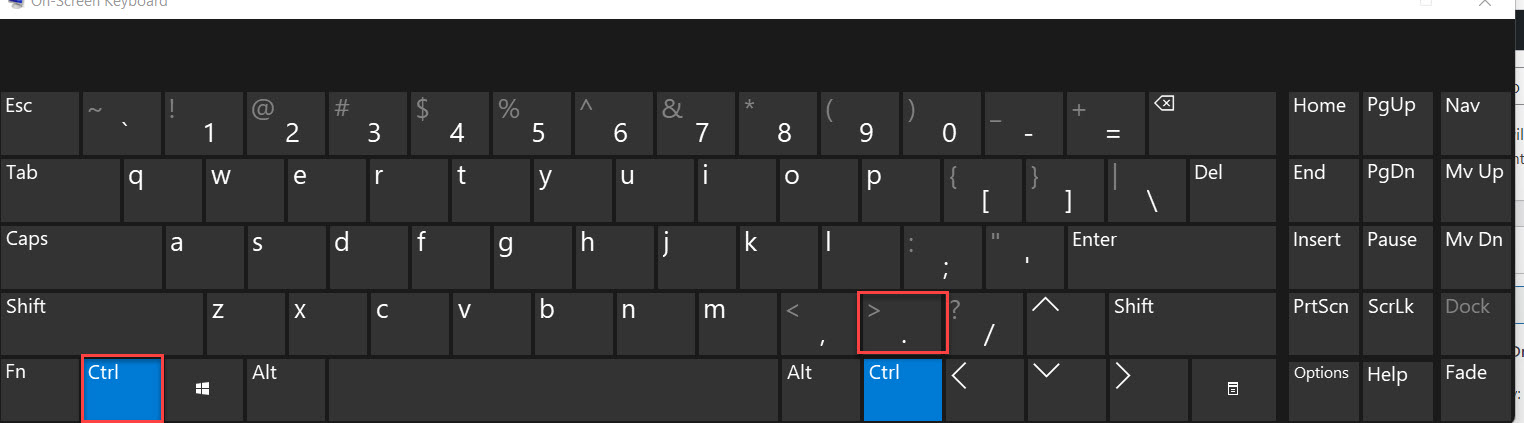 Win Key + Full Stop
 Step 2. Now, at the top simply click on the icon of emoji after that you will see much of emoji after that if you want to click on the Arrow to see more emoji.
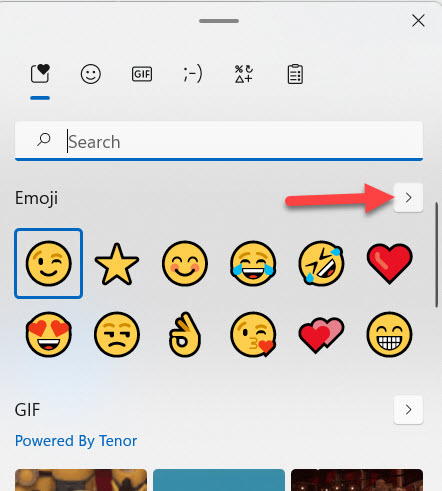 Click on the Arrow
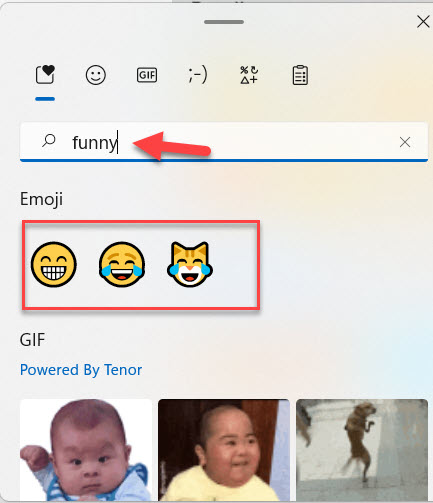
 Step 3. Next, tap on the Search Bar after that type any kind of emotion that you want for example funny, sleepy more things.
Method 2. How to Type Emojis in Windows 11 Laptop and PC
Step 1. At first, click on the Keyboard from the taskbar.
 Click on the Keyboard
 Step 2. When the keyboard is open after that click on the icon of emoji.
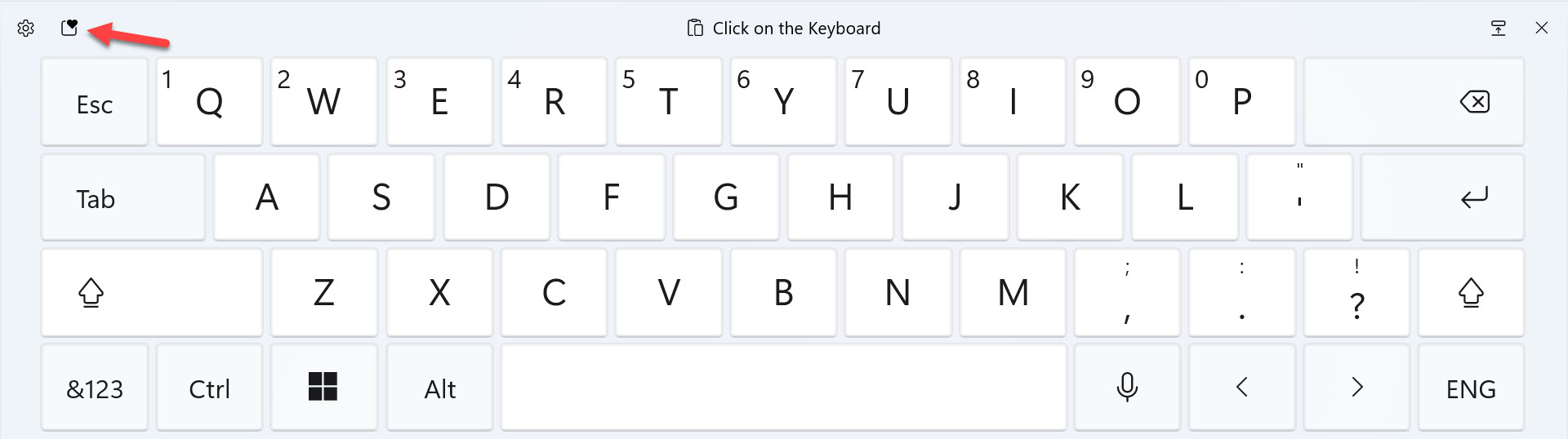 Icon of Emojis
 Step 3. At last, you will use that emoji that you want to use to send someone.
Related Post: How to Update Windows 11 to Latest Version on your PC
Bottom Line
It was all about How to Type Emojis on Windows 11 laptops & PC. I hope this article is very helpful for you to type emojis on Windows 11. From this article, you will get something good. This is the right place where you can easily solve your problem. After following these steps I hope you will not face any kind of problem. If you faced any kind of problem and if you have any type of suggestions then do comment.
Share This Article
In this article, you will learn How to Type Emojis on Windows 11 laptops and PC. If your keyboard has emojis then you can express your expression. Most of the people are using emojis inside their texting. When someone uses emoji inside his messaging then it looks great. When you want to type emojis then your PC doesn’t have anything to type emojis. However, if your PC doesn’t have to type emojis then you will search on YouTube after that you are watching maybe it is not real. But don’t worry I am here to solve your problem. If you want to type emojis on Windows 11 then you need to read this article. So, without wasting any time let’s get has started.
Related Post: How to Clear the Cache on Windows 11 PC with Ease
Method 1: How to Use Emojis on Windows 11
This method is one of the easiest ways to use emojis. Follow the step to use emojis down below.
Step 1. First of all, if you want to open the section of emojis then you need to press Win Key + Full Stop (.) There is another way to open the section of emojis then hold Windows + Semi-Colon it means (;).
Win Key + Full Stop Step 2. Now, at the top simply click on the icon of emoji after that you will see much of emoji after that if you want to click on the Arrow to see more emoji.
Click on the Arrow Step 3. Next, tap on the Search Bar after that type any kind of emotion that you want for example funny, sleepy more things.
Method 2. How to Type Emojis in Windows 11 Laptop and PC
Step 1. At first, click on the Keyboard from the taskbar.
Click on the Keyboard Step 2. When the keyboard is open after that click on the icon of emoji.
Icon of Emojis Step 3. At last, you will use that emoji that you want to use to send someone.
Related Post: How to Update Windows 11 to Latest Version on your PC
Bottom Line
It was all about How to Type Emojis on Windows 11 laptops & PC. I hope this article is very helpful for you to type emojis on Windows 11. From this article, you will get something good. This is the right place where you can easily solve your problem. After following these steps I hope you will not face any kind of problem. If you faced any kind of problem and if you have any type of suggestions then do comment.


