

How To Transfer Music From Computer To iPhone
 Azaz Shaikh
How To Transfer Music From Computer To iPhone. An iPhone can not only be used to make a call but can also be used as a powerful music player. With it, you can play wonderful songs anywhere in the world. If you have a large music collection on your laptop and want to listen to them on your iPhone, do you know how to transfer music from laptop to iPhone? Perhaps you are frustrated? This article will show you two methods to transfer songs from laptop to iPhone. A very simple and easy way you need to just follow the guided instructions.
How To Transfer Music From Computer To iPhone wireless?
The first method is How To Transfer Music From Computer To iPhone wireless. Then the second method is to transfer with iTunes. You have to follow some steps that I am going to show you.
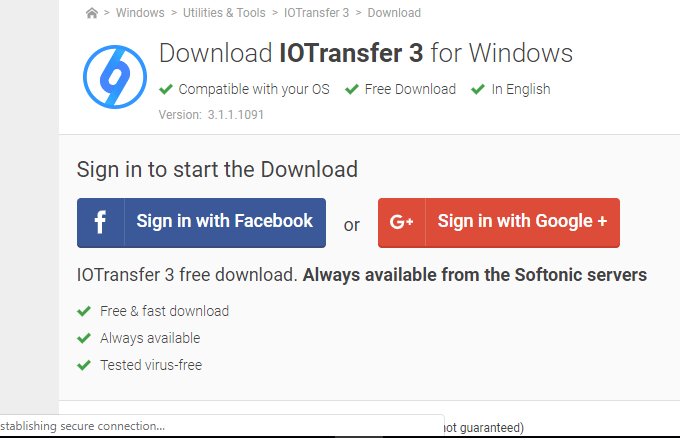
Step 1: In the first step, you need to download IOTransfer 3 from Google. Simply click on the click link below to download the software. Download it.
 iotransfer
 Step 2: After clicking on the given link. Then download it.
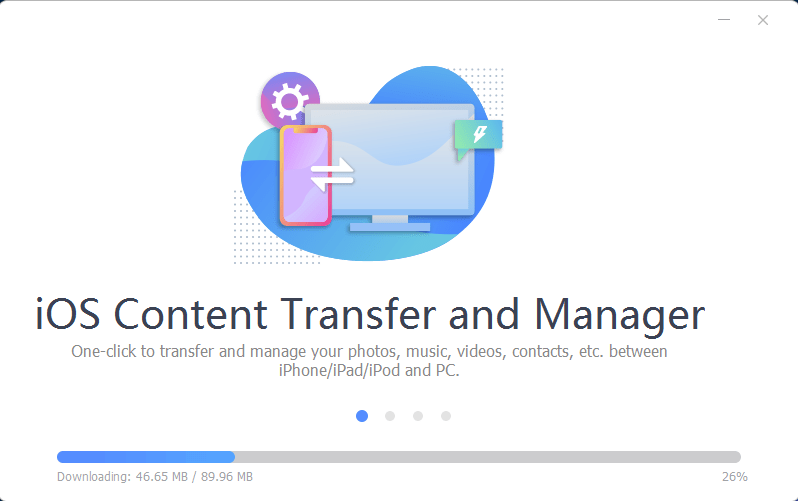
Step 3: I think the installation is very easy there won’t be need of me to guide you.
 Installing
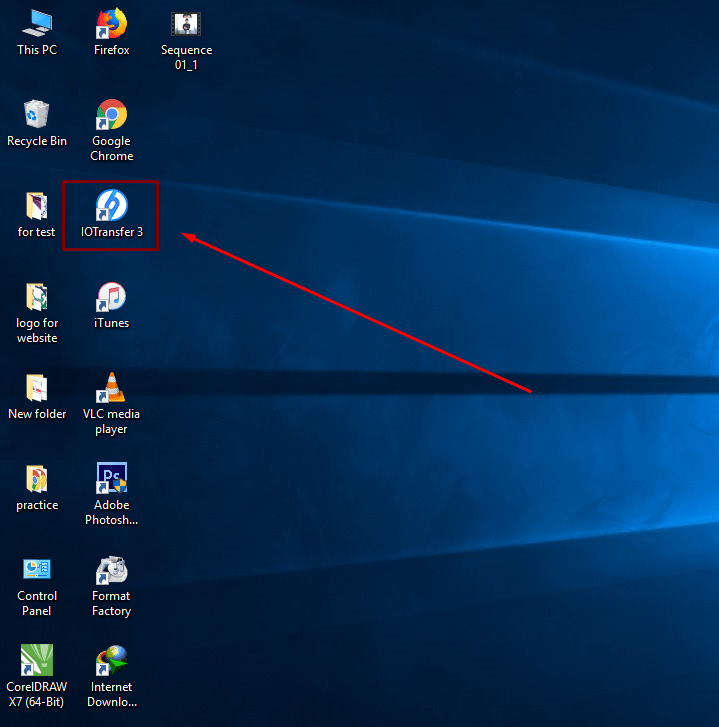
 Step 4: Once the installation is complete, Then open the software.
Step 5: Now, take your mobile in your hand then open the app store and write there Air Trans. And download it.
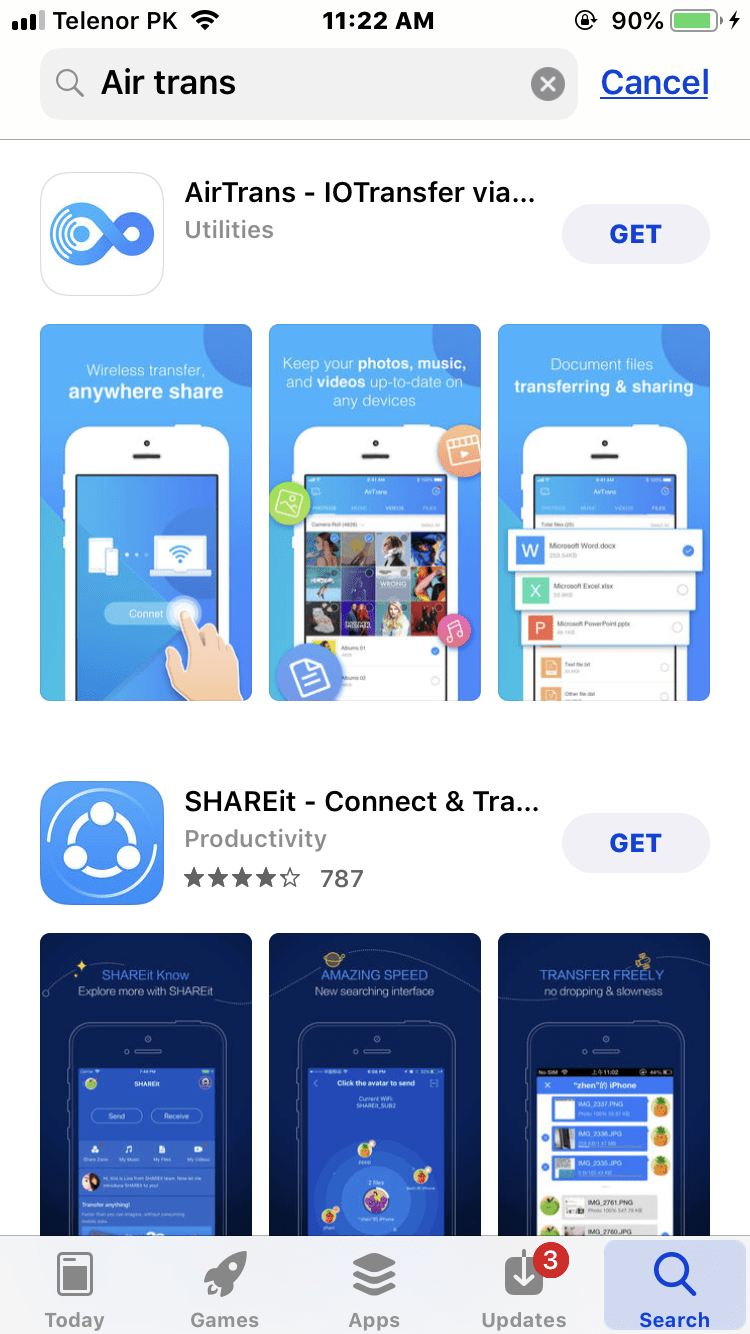
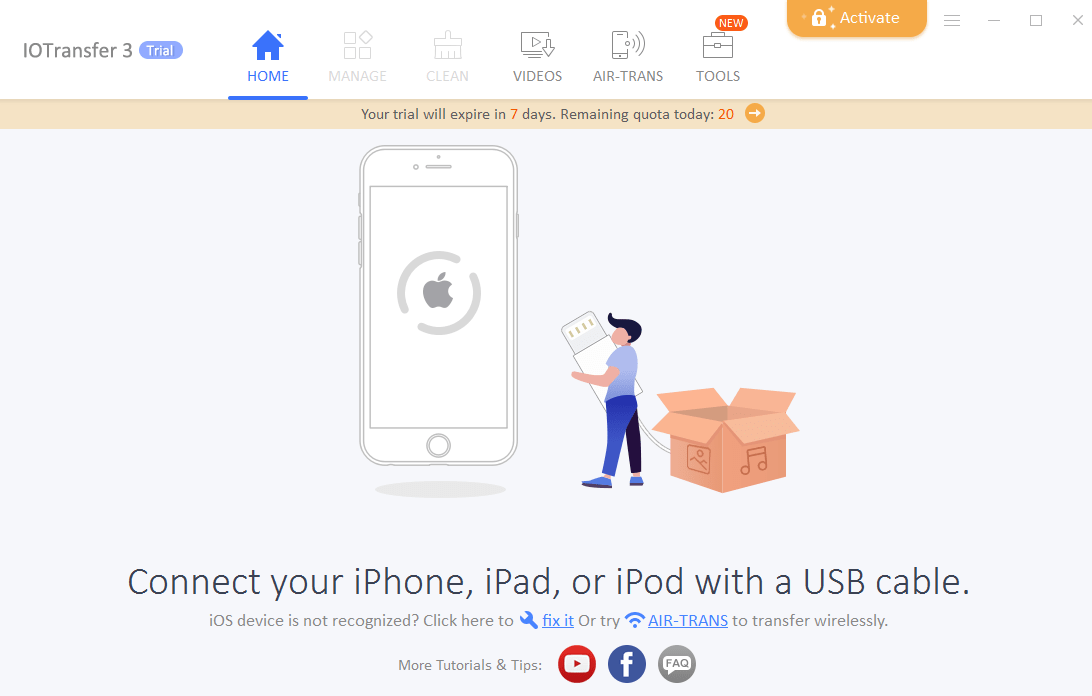
Step 6: Now open the software from your PC then open the app from your iPhone.
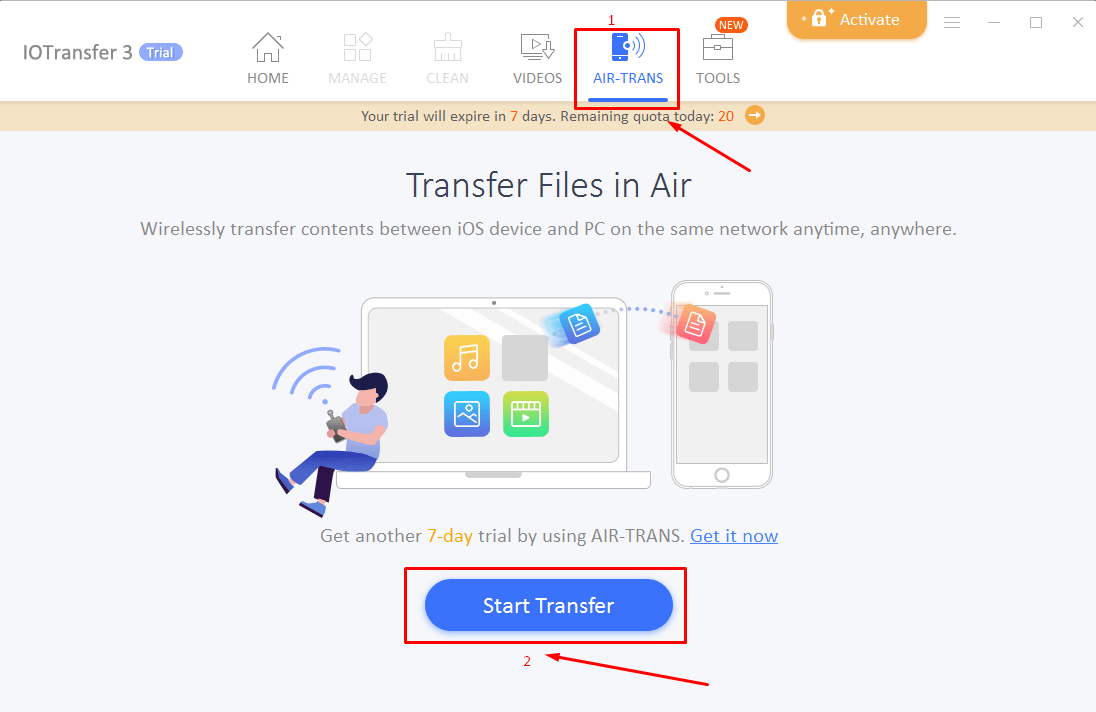
Step 7: In this step, click on the air trans then click on then start transfer.
Step 8: Open the air trans from your iphone.
Step 9: Now click on the name of your mobile. It automatically find you mobile.
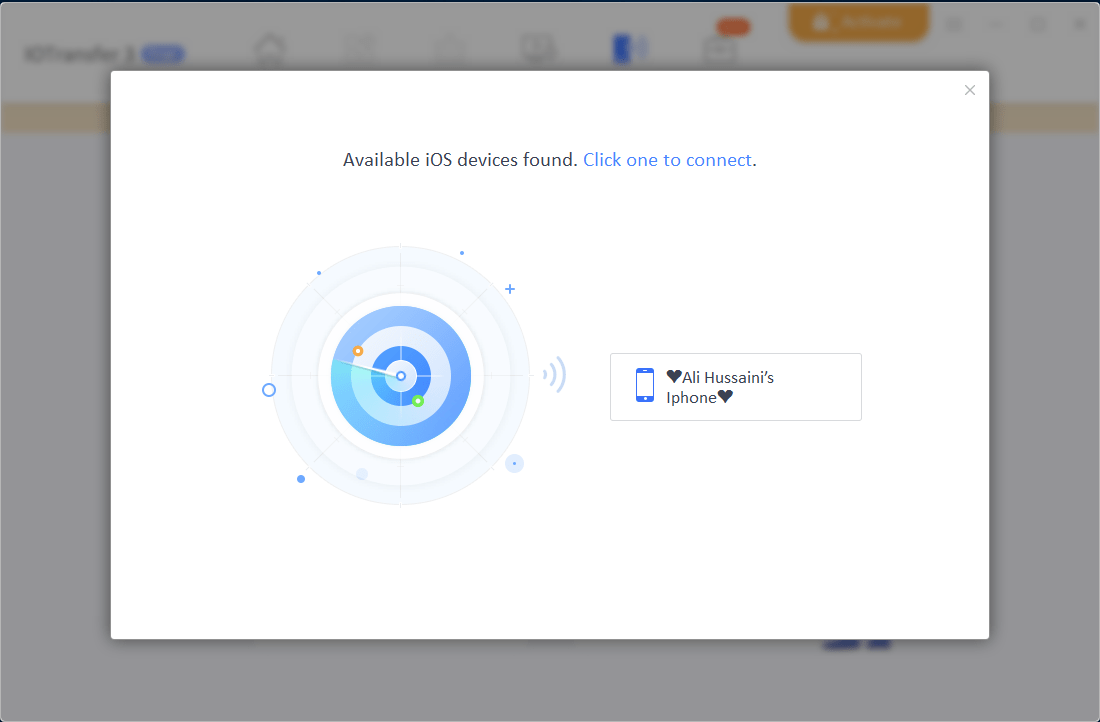
Step 10: Now allow you mobile to connect the computer to your mobile. Then it will be successfully connect.
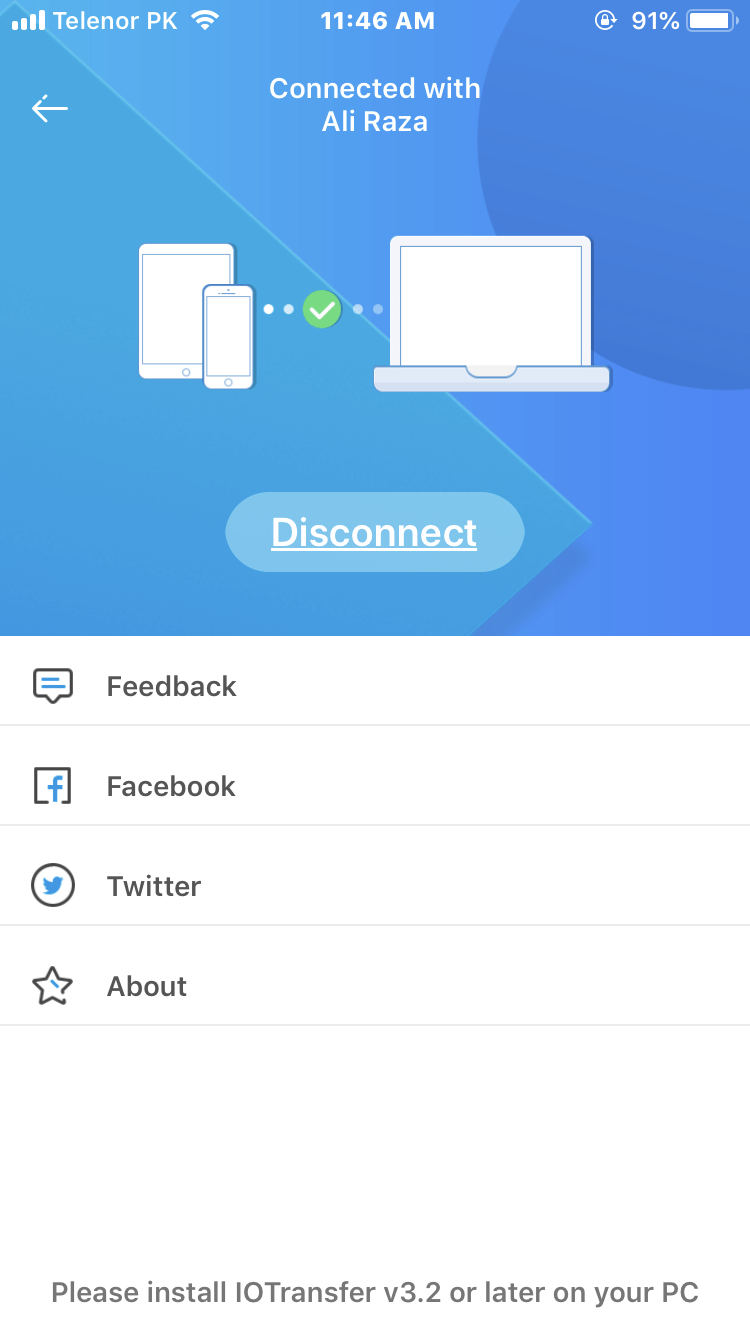
Step 11: Once It connect then click to “Send to iPhone”.
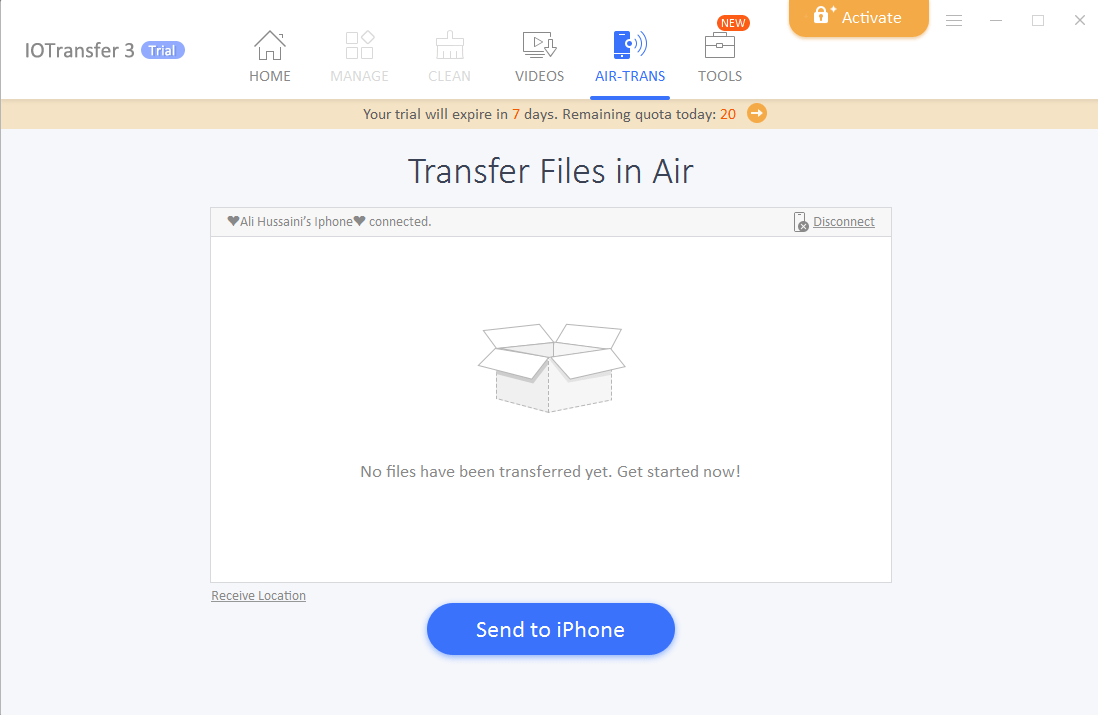
Send your favorite files fro your Computer to your iPhone.
How To Transfer Music From Computer To iPhone With Itunes?
Do you have the software of itunes on your computer if no then click on the link. download it
Step 1: Connect the charger to your computer then it will connect your mobile to the itunes automatically.
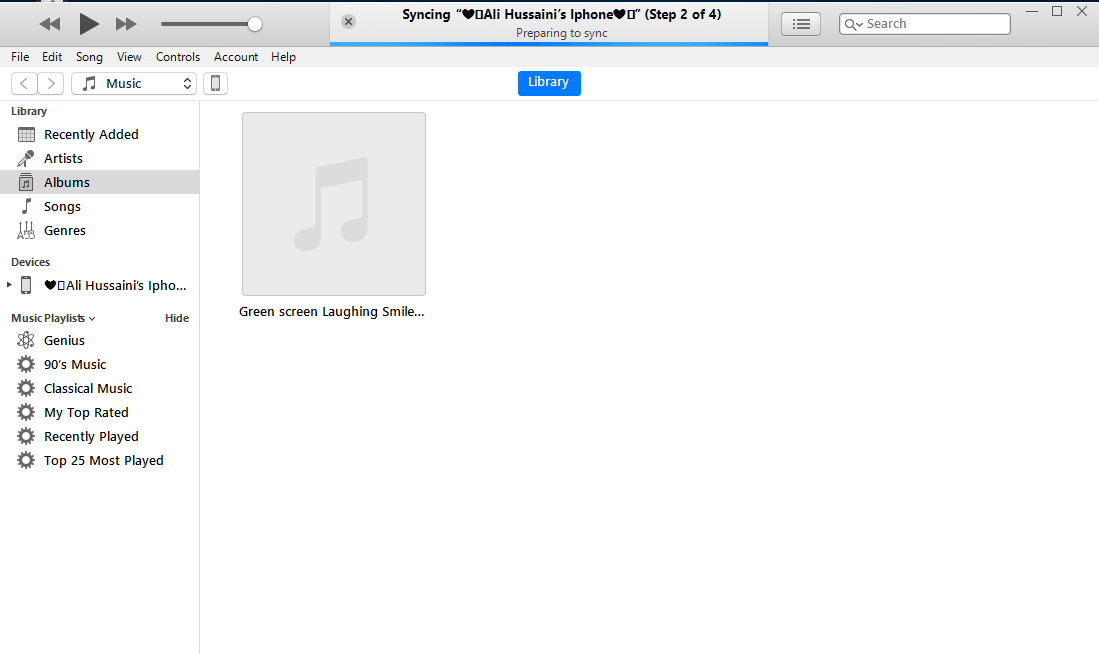
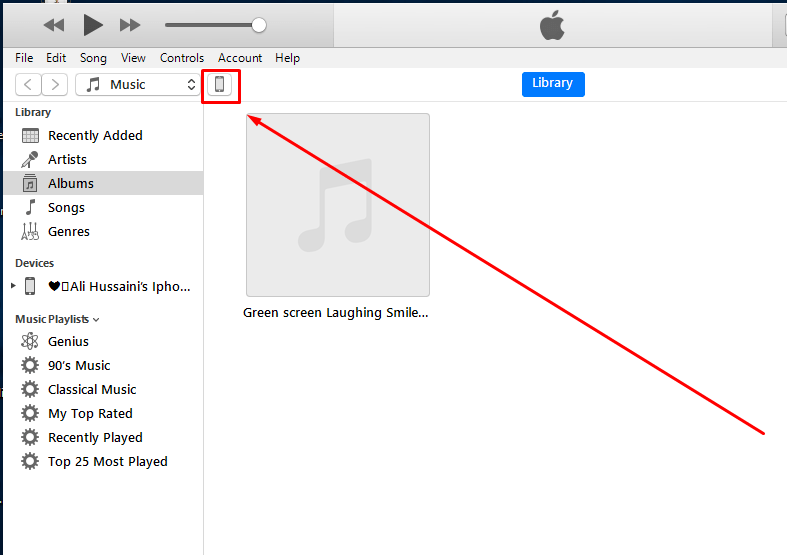
Step 2: Click on the mobile icon is on the top of the itunes.
Step 3: After that click on the moive, song. simply i will click on the songs.
Step 4: Then turn on the sync music. Then click on the done.

Step 5: Then drag the music into itunes.
Conclusion:
It was all about the How To Transfer Music From Computer To iPhone. If you face any problem direct comment then I will answer you as soon as possible. Daily we provide Best Tech Learning Point. thanks for visiting my site.
Share This Article
How To Transfer Music From Computer To iPhone. An iPhone can not only be used to make a call but can also be used as a powerful music player. With it, you can play wonderful songs anywhere in the world. If you have a large music collection on your laptop and want to listen to them on your iPhone, do you know how to transfer music from laptop to iPhone? Perhaps you are frustrated? This article will show you two methods to transfer songs from laptop to iPhone. A very simple and easy way you need to just follow the guided instructions.
How To Transfer Music From Computer To iPhone wireless?
The first method is How To Transfer Music From Computer To iPhone wireless. Then the second method is to transfer with iTunes. You have to follow some steps that I am going to show you.
Step 1: In the first step, you need to download IOTransfer 3 from Google. Simply click on the click link below to download the software. Download it.
iotransfer Step 2: After clicking on the given link. Then download it.
Step 3: I think the installation is very easy there won’t be need of me to guide you.
Installing Step 4: Once the installation is complete, Then open the software.
Step 5: Now, take your mobile in your hand then open the app store and write there Air Trans. And download it.
Step 6: Now open the software from your PC then open the app from your iPhone.
Step 7: In this step, click on the air trans then click on then start transfer.
Step 8: Open the air trans from your iphone.
Step 9: Now click on the name of your mobile. It automatically find you mobile.
Step 10: Now allow you mobile to connect the computer to your mobile. Then it will be successfully connect.
Step 11: Once It connect then click to “Send to iPhone”.
Send your favorite files fro your Computer to your iPhone.
How To Transfer Music From Computer To iPhone With Itunes?
Do you have the software of itunes on your computer if no then click on the link. download it
Step 1: Connect the charger to your computer then it will connect your mobile to the itunes automatically.
Step 2: Click on the mobile icon is on the top of the itunes.
Step 3: After that click on the moive, song. simply i will click on the songs.
Step 4: Then turn on the sync music. Then click on the done.
Step 5: Then drag the music into itunes.
Conclusion:
It was all about the How To Transfer Music From Computer To iPhone. If you face any problem direct comment then I will answer you as soon as possible. Daily we provide Best Tech Learning Point. thanks for visiting my site.
![How To Fake GPS Location on iPhone Without Jailbreaking [2023]](/_next/image?url=https%3A%2F%2Fwriteflow-media.s3.amazonaws.com%2Fsites%2F16%2Fmedia%2F2025%2F10%2Fgps-location-feature-wlaR2F.webp&w=3840&q=75)
![How to Schedule Emails on iPhone and iPad [2022]?](/_next/image?url=https%3A%2F%2Fwriteflow-media.s3.amazonaws.com%2Fsites%2F16%2Fmedia%2F2025%2F10%2Fschedule-emails-on-iphone-and-ipad-min-L1Jrg6.jpg&w=3840&q=75)