How to Install macOS Catalina 10.15.1 Beta 1 on Mac
 Azaz Shaikh
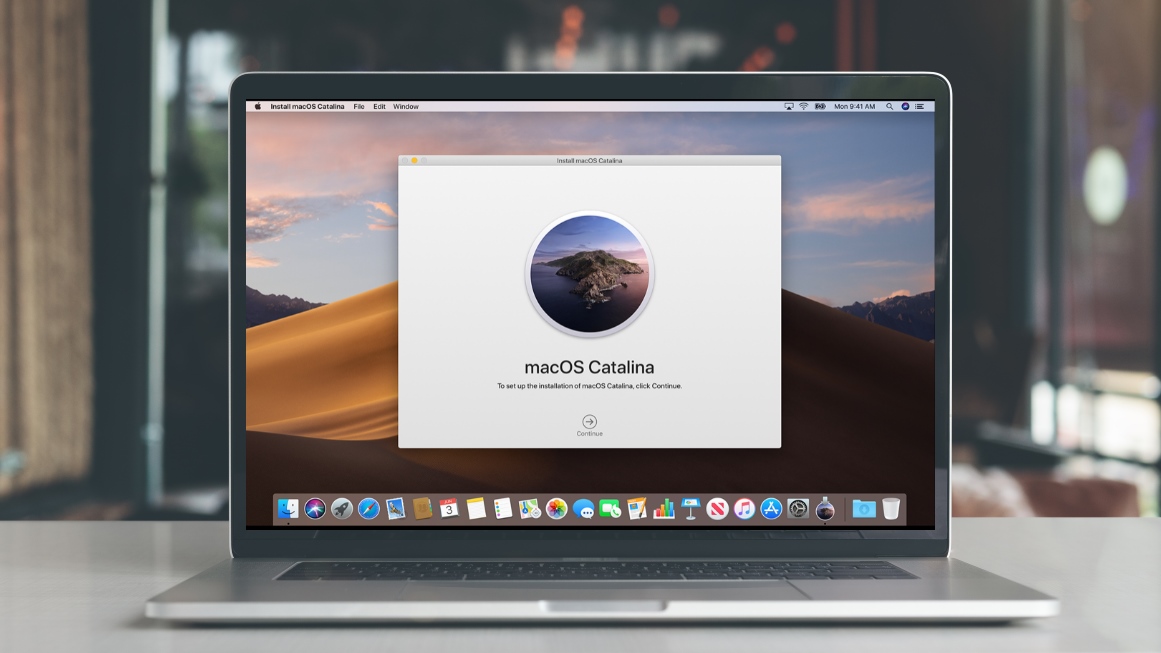
In this article, you will learn How to Install macOS Catalina 10.15.1 Beta 1 on Mac. 2019 is the year of Mac and it has released the new Mac version by the name of macOS Catalina. macOS Catalina now allows users to experience Apple Music, Podcasts, and Apple TV app. Now, Apple has just seeds macOS Catalina beta 10 for developers. If you are a developer and want to test it. It will be the best and very interesting to use the macOS Catalina 10.15.1 beta. And remember one thing you have to have a developer account. Then you can go ahead and explore the beauty and amazing feature of macOS Catalina especially 10.15.1. Here is how to install it on your Mac. And make sure that you have all the backups of the file which is in your Mac.
The developer beta 10 of macOS Catalina may contain a few bugs and some issues, and you have to deal with them. However, you can report such bugs to Apple on its forum. And for the macOS Catalina 10.15.1, you need to follow each and every step in order to install macOS Catalina 10.15.1 Beta.
How to Install macOS Catalina 10.15.1 Beta 1 on Mac
Step 1. On your Mac web browser, and open the developer.apple.com. Apple may ask you to log in with your developer account.
Step 2. After that, click on the Download button, which is located at the upper right corner.
Step 3. After entering your developer account details, scroll down and click on Install Profile.
Step 4. Go to the Downloads folder then double-click macOS DeveloperBetaAccessUtility.pkg in order to run macOS Catalina 10.15.1.
Step 5. After that, once the download completes, you will be alerted to install it. Click on Continue and Agree to Terms and Conditions. Then, click on the Install.
Install macOS Catalina 10.15.1 Beta on your Mac.
When you install the macOS Catalina 10.15.1 Beta 1 from your developer account then follow the instruction in order to install that on your Mac.
Step 1. Your Mac will be restart in order to install macOS Catalina 10.15.1.
Step 2. After your Mac has restarted, macOS will be installed.
Step 3. Then, click the Apple logo in the top left corner, click on the Select System Preferences and click on Click Software Update.
Step 4. Here you can see the macOS 10.15.1 Catalina dev beta option. Click Upgrade.
Step 5. And click on the Continue, be Agree with the license and agreement, then click on the Install in order to use macOS Catalina 10.15.1. The installation process will start. It will be a smooth and normal run.
Related:
- How to Create a Bootable macOS Catalina USB Installer
- How to Install macOS Catalina Beta without Developer Account.
Final Words:
That’s all about How to Install macOS Catalina 10.15.1 Beta 1 on Mac. So, I hope that it will be a great experience and fun while using macOS Catalina 10.15.1 beta. Therefore, if this is article helped you or if you face any sort of problem then feel free to comment below. Don’t forget to comment on your feedback and suggestion about this article.
Tagged
Share This Article
In this article, you will learn How to Install macOS Catalina 10.15.1 Beta 1 on Mac. 2019 is the year of Mac and it has released the new Mac version by the name of macOS Catalina. macOS Catalina now allows users to experience Apple Music, Podcasts, and Apple TV app. Now, Apple has just seeds macOS Catalina beta 10 for developers. If you are a developer and want to test it. It will be the best and very interesting to use the macOS Catalina 10.15.1 beta. And remember one thing you have to have a developer account. Then you can go ahead and explore the beauty and amazing feature of macOS Catalina especially 10.15.1. Here is how to install it on your Mac. And make sure that you have all the backups of the file which is in your Mac.
The developer beta 10 of macOS Catalina may contain a few bugs and some issues, and you have to deal with them. However, you can report such bugs to Apple on its forum. And for the macOS Catalina 10.15.1, you need to follow each and every step in order to install macOS Catalina 10.15.1 Beta.
How to Install macOS Catalina 10.15.1 Beta 1 on Mac
Step 1. On your Mac web browser, and open the developer.apple.com. Apple may ask you to log in with your developer account.
Step 2. After that, click on the Download button, which is located at the upper right corner.
Step 3. After entering your developer account details, scroll down and click on Install Profile.
Step 4. Go to the Downloads folder then double-click macOS DeveloperBetaAccessUtility.pkg in order to run macOS Catalina 10.15.1.
Step 5. After that, once the download completes, you will be alerted to install it. Click on Continue and Agree to Terms and Conditions. Then, click on the Install.
Install macOS Catalina 10.15.1 Beta on your Mac.
When you install the macOS Catalina 10.15.1 Beta 1 from your developer account then follow the instruction in order to install that on your Mac.
Step 1. Your Mac will be restart in order to install macOS Catalina 10.15.1.
Step 2. After your Mac has restarted, macOS will be installed.
Step 3. Then, click the Apple logo in the top left corner, click on the Select System Preferences and click on Click Software Update.
Step 4. Here you can see the macOS 10.15.1 Catalina dev beta option. Click Upgrade.
Step 5. And click on the Continue, be Agree with the license and agreement, then click on the Install in order to use macOS Catalina 10.15.1. The installation process will start. It will be a smooth and normal run.
Related:
- How to Create a Bootable macOS Catalina USB Installer
- How to Install macOS Catalina Beta without Developer Account.
Final Words:
That’s all about How to Install macOS Catalina 10.15.1 Beta 1 on Mac. So, I hope that it will be a great experience and fun while using macOS Catalina 10.15.1 beta. Therefore, if this is article helped you or if you face any sort of problem then feel free to comment below. Don’t forget to comment on your feedback and suggestion about this article.