How to Share Apps Without Internet Using Play Store Option
 Azaz Shaikh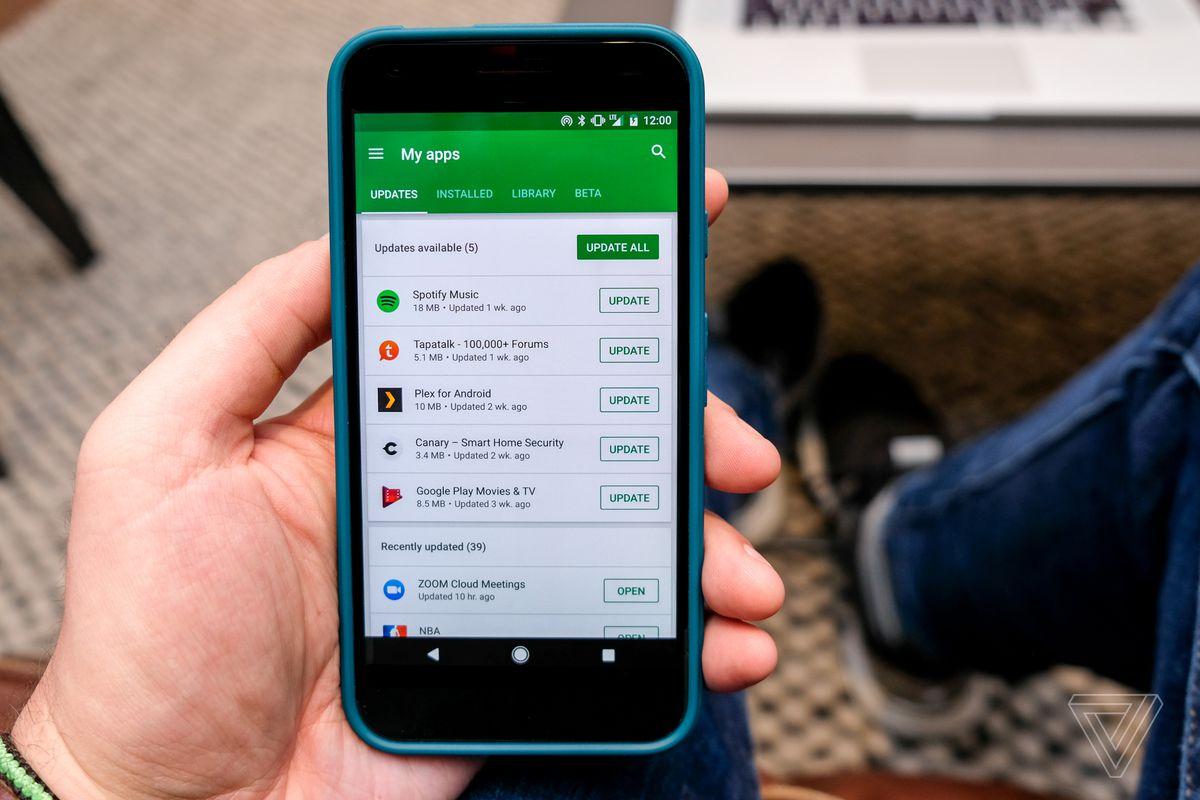
If you want to share any kind of app then use the Google play store. The feature of the share option is a very great option to share any app. This feature is released in December because the people who want to share his app then must use the feature of the Google play store. With this feature of the Google play store, you don’t need any internet o share your apps. The apps sharing option is a very amazing option for sharing your apps. You don’t need any third-party app to share your apps. If you want to share your apps then must read this article. From this article, you will learn How to Share Apps Without Internet Using Play Store Option.
Without the feature of the Google play store, you share your document, photos, videos with the help of Zapya and SHAREit. Both apps is free for all the users who want to share the information. And both apps if you want to share your information then you don’t need any internet connetion.
Share Apps Without Internet Using Play Store Option
Step 1. At first, open your Google Play Store then click on the Three Horizontal Lines.
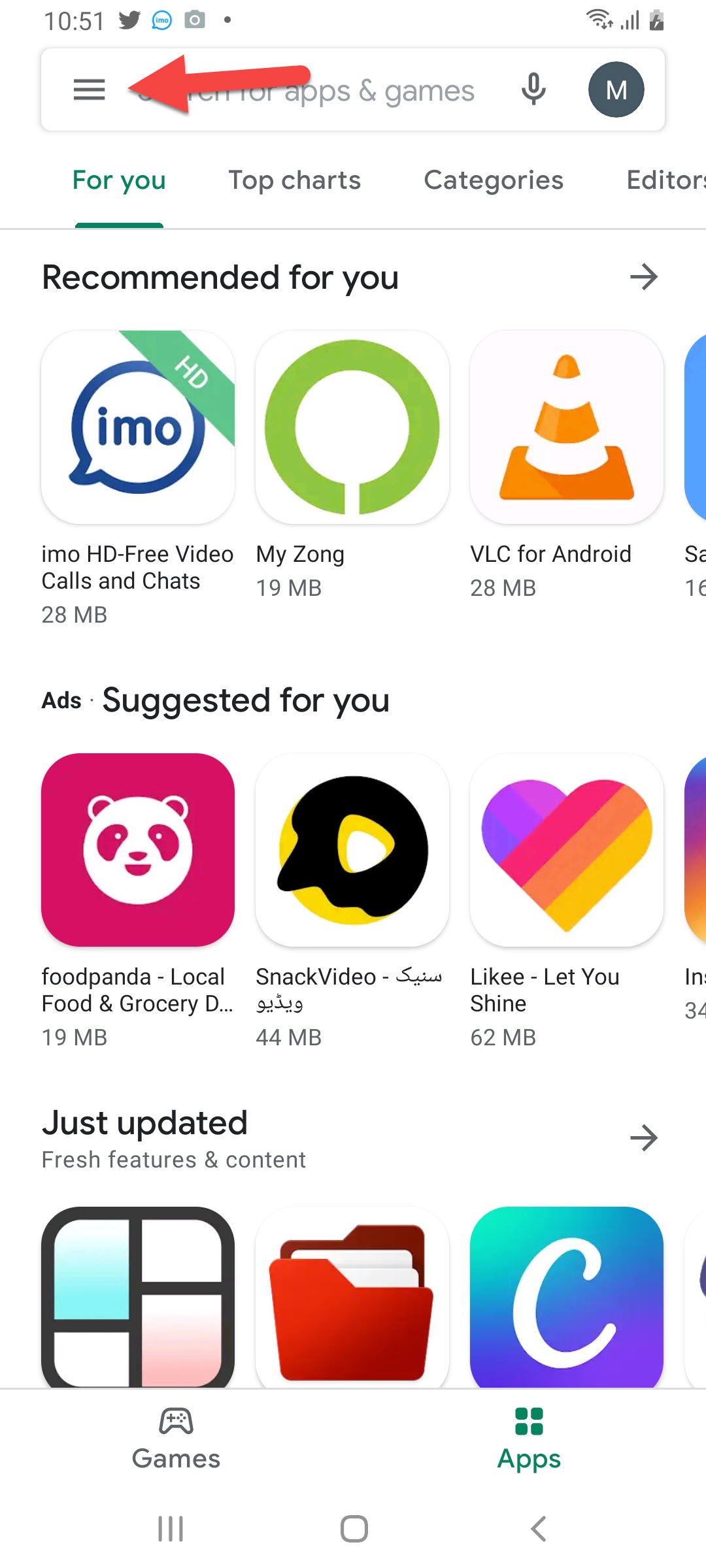 Click on the Three Horizontal Lines
 Step 2. Tap on the My Apps & Games.
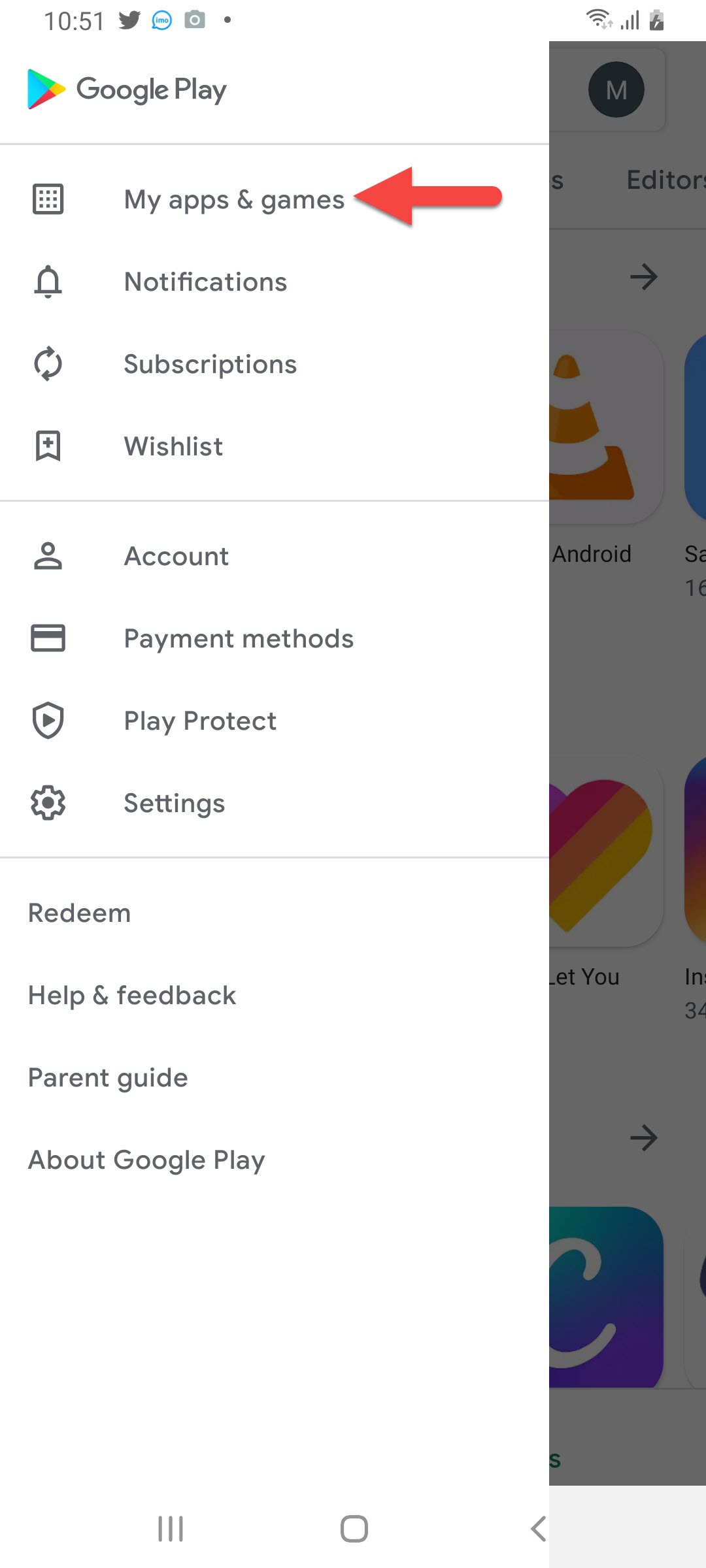 Tap on the My Apps & Games
 Step 3. Now, tap on the Share then click on the Send.
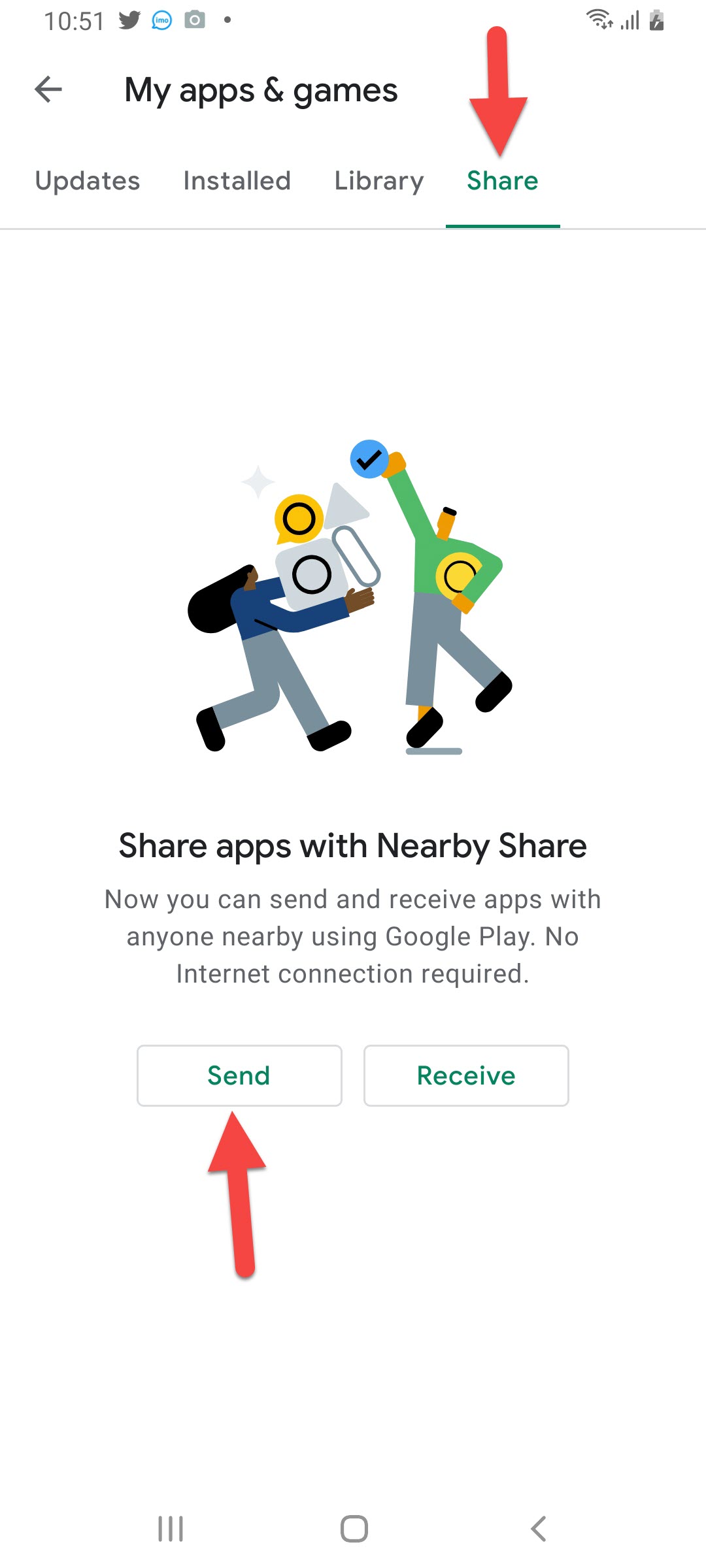 Click on the Send
 Step 4. Next, select the App or Apps that you want to send then click on the Send.
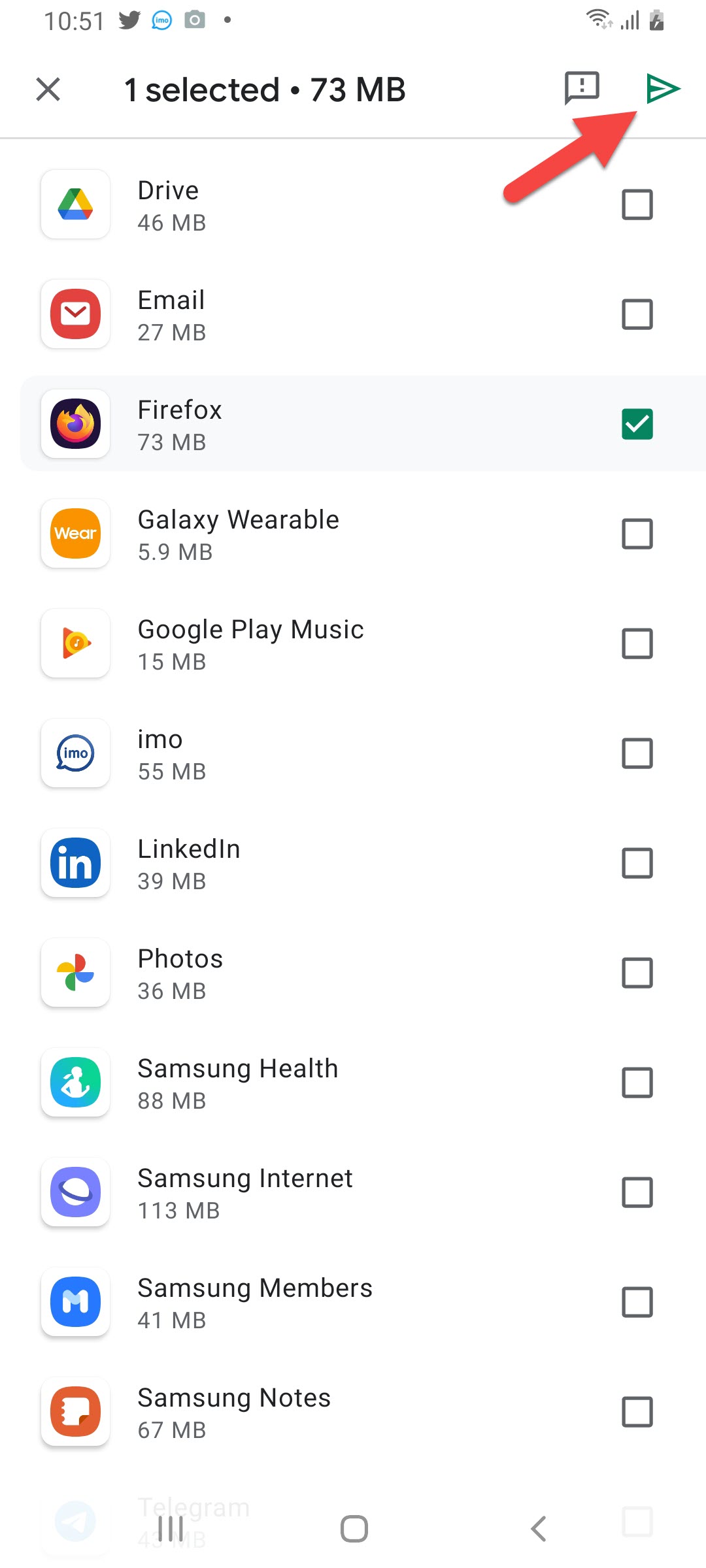 Click on the Send
 Power On Your Another:
Step 1. Launch Google play store then tap on the Three Horizontal Lines.
Tap on the Three Horizontal Lines Step 2. However, Click on the My Apps & Games.
Click on the My Apps & Games Step 3. Click on the Share then click on the Receive.
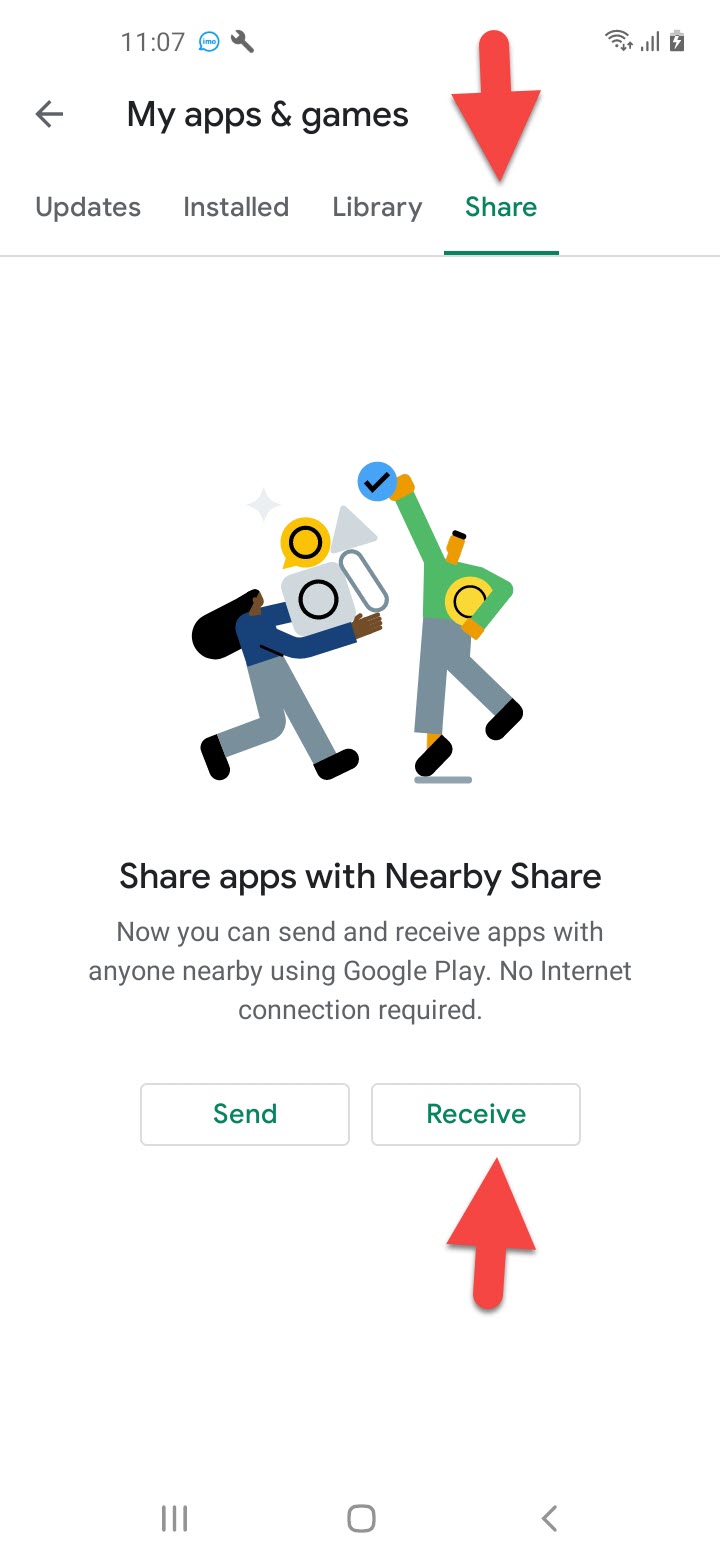 Click on the Receive
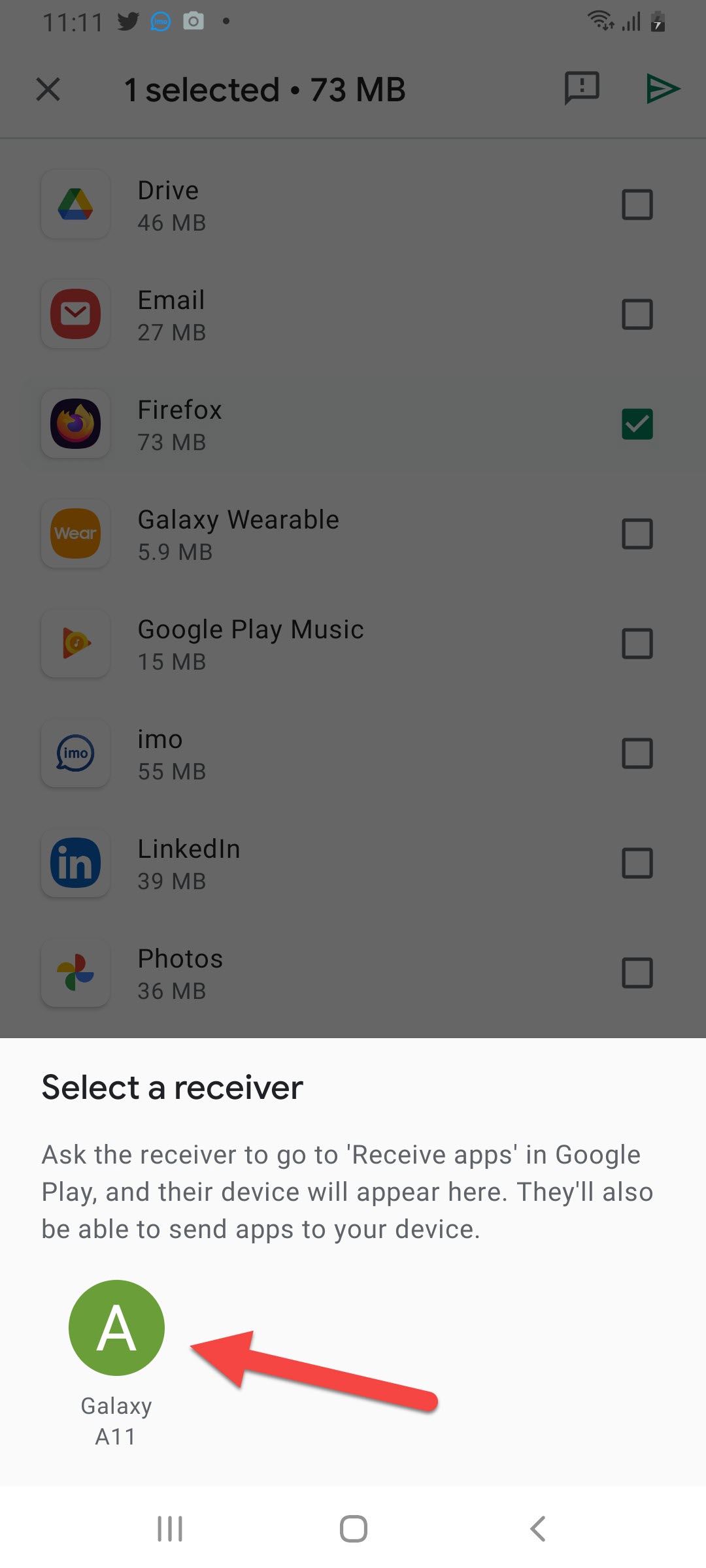
 Step 4. On your sender mobile then the name of your other mobile will appear then simply click on it.
Step 5. Now, on your receiver mobile then click on the Receive.
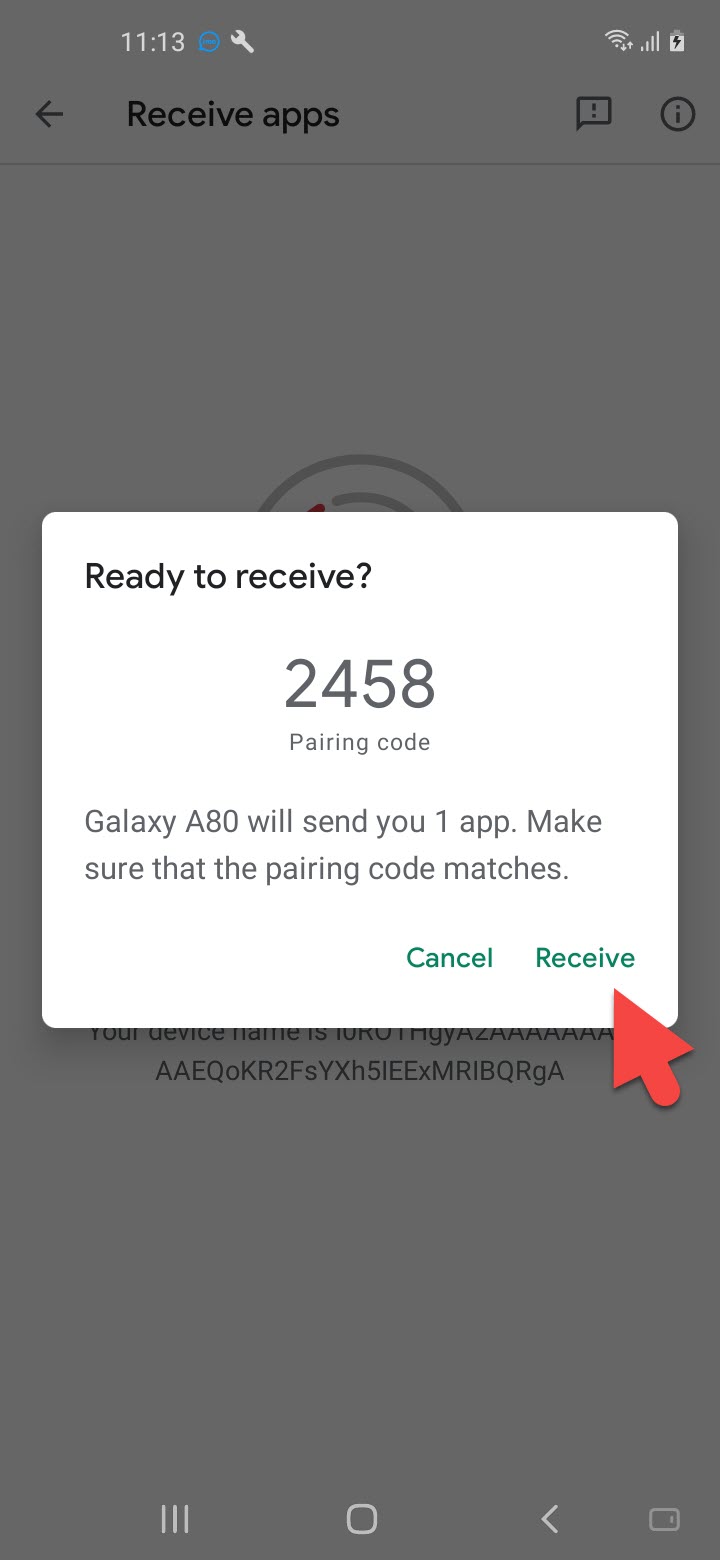 Click on the Receive
 Step 6. Next, click on the Install to install the app on your device.
Related Posts:
How to Clear Safari Browsing History on macOS Big Sur
How to Install & Get macOS Dynamic Wallpaper on Windows 10
Bottom Line
It was all about How to Share Apps Without Internet Using Play Store Option. I hope after reading this article you will get something. After following these steps you will not face any kind of problem. So, if you are facing any kind of problem then don’t hesitate to leave comments in the comment section down below.
Tagged
Share This Article
If you want to share any kind of app then use the Google play store. The feature of the share option is a very great option to share any app. This feature is released in December because the people who want to share his app then must use the feature of the Google play store. With this feature of the Google play store, you don’t need any internet o share your apps. The apps sharing option is a very amazing option for sharing your apps. You don’t need any third-party app to share your apps. If you want to share your apps then must read this article. From this article, you will learn How to Share Apps Without Internet Using Play Store Option.
Without the feature of the Google play store, you share your document, photos, videos with the help of Zapya and SHAREit. Both apps is free for all the users who want to share the information. And both apps if you want to share your information then you don’t need any internet connetion.
Share Apps Without Internet Using Play Store Option
Step 1. At first, open your Google Play Store then click on the Three Horizontal Lines.
Click on the Three Horizontal Lines Step 2. Tap on the My Apps & Games.
Tap on the My Apps & Games Step 3. Now, tap on the Share then click on the Send.
Click on the Send Step 4. Next, select the App or Apps that you want to send then click on the Send.
Click on the Send Power On Your Another:
Step 1. Launch Google play store then tap on the Three Horizontal Lines.
Tap on the Three Horizontal Lines Step 2. However, Click on the My Apps & Games.
Click on the My Apps & Games Step 3. Click on the Share then click on the Receive.
Click on the Receive Step 4. On your sender mobile then the name of your other mobile will appear then simply click on it.
Step 5. Now, on your receiver mobile then click on the Receive.
Click on the Receive Step 6. Next, click on the Install to install the app on your device.
Related Posts:
How to Clear Safari Browsing History on macOS Big Sur
How to Install & Get macOS Dynamic Wallpaper on Windows 10
Bottom Line
It was all about How to Share Apps Without Internet Using Play Store Option. I hope after reading this article you will get something. After following these steps you will not face any kind of problem. So, if you are facing any kind of problem then don’t hesitate to leave comments in the comment section down below.