

How to Set Up a Custom Vibration Alert For a Contact on iPhone?
 Azaz Shaikh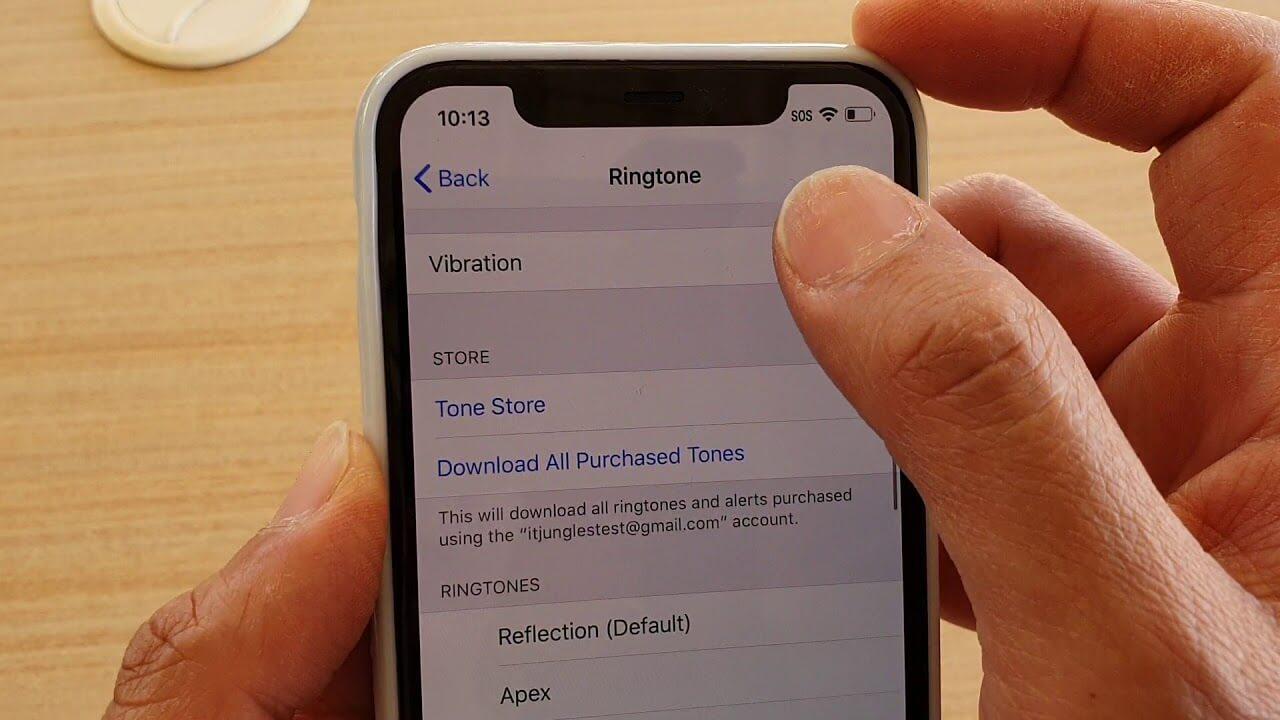
In this article, I will guide you on How to Set Up a Custom Vibration Alert For a Contact on iPhone. When you are away from your phone or when your phone is on silent mode then you won’t know who is calling you. This is a reason that everyone missed attending the call because your phone is not vibrating when it is in silent mode. The good news is that Apple has launched the feature in which you can set vibration and it will alert you when someone is calling. Our phone will vibrate when it’s in silent mode and that vibrating system is the default one. You can also set a custom vibration. If you want to set up a custom vibration alert then you need to read his article. So, without wasting any time let’s get started.
How to Set Up a Custom Vibration Alert
Step 1. First of all, you have to open the Settings of your mobile then go to the Sounds.
Step 2. Now, find and choose a sound to change his vibration after that tap on the Vibration.
Step 3. Click on the Create New Vibration from the section of Custom.
Step 4. Next, press or hold your finger on the screen to create the pattern, once it’s finished then click on the Stop.
Step 5. You will see a bar at the bottom side of the screen, click on the Play to show the pattern of vibration or tap on the Record to repeat the recording again.
Step 6. When you are all done with the pattern then click on the Save at the top right corner side.
Step 7. At last, give a name to your vibration after that select Save.
How to Create a Custom Vibration for a Contact
Step 1. Firstly, open the list of Contact of anyone.
Step 2. Click on the Edit.
Step 3. Here select Text Tone or Ringtone and it depends upon you.
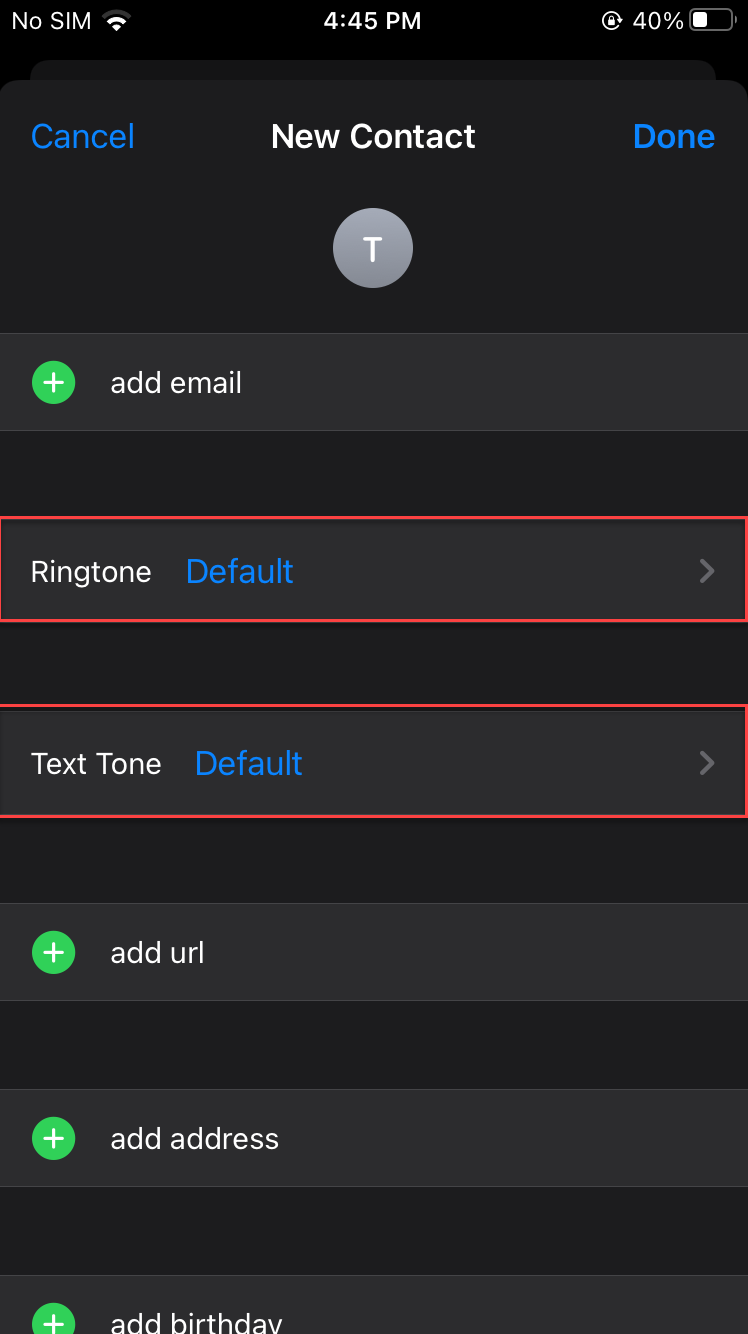 Select Ringtone or Text Tone
 Step 4. Further, tap on the Vibration and then choose a custom vibration. Whenever you want to make a new vibration after that simply click on the Create New Vibration.
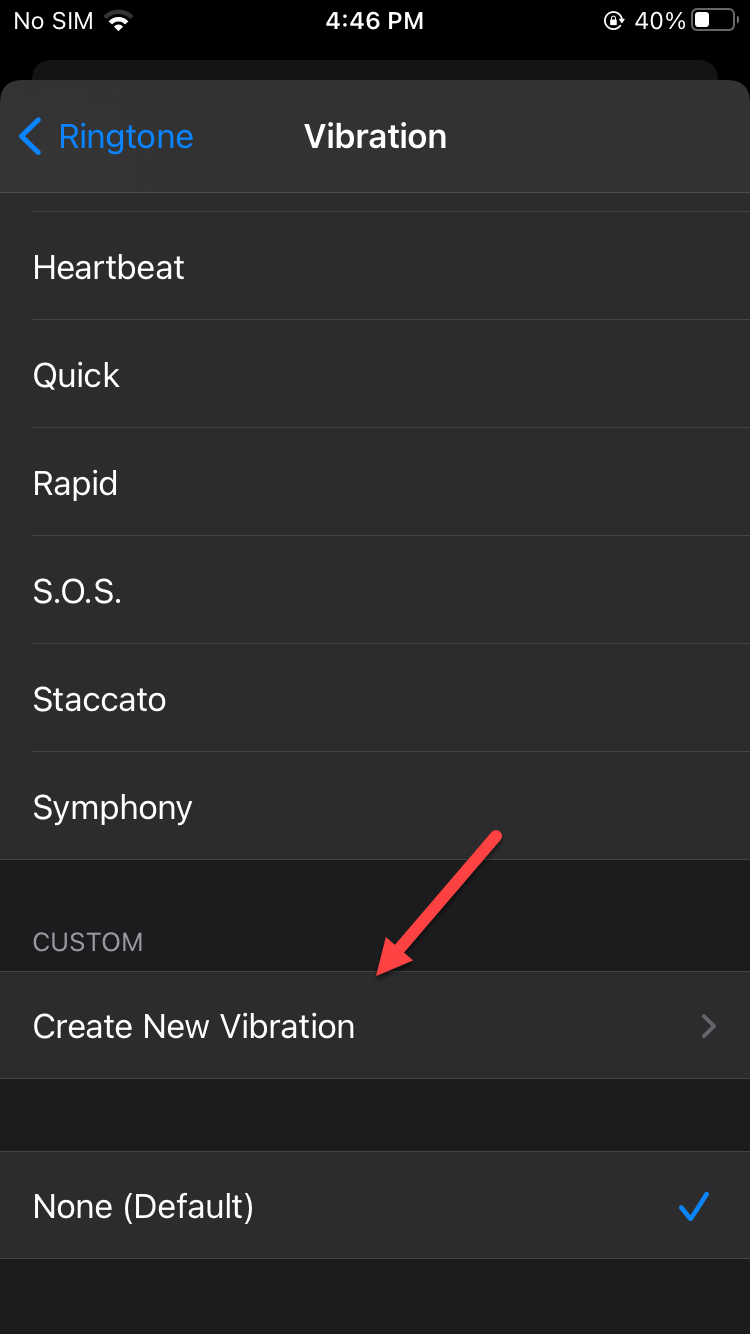 Click on the Create New Vibration
 Step 5. Move your finger on the screen to create vibration, when done click on the Save at the top right side.
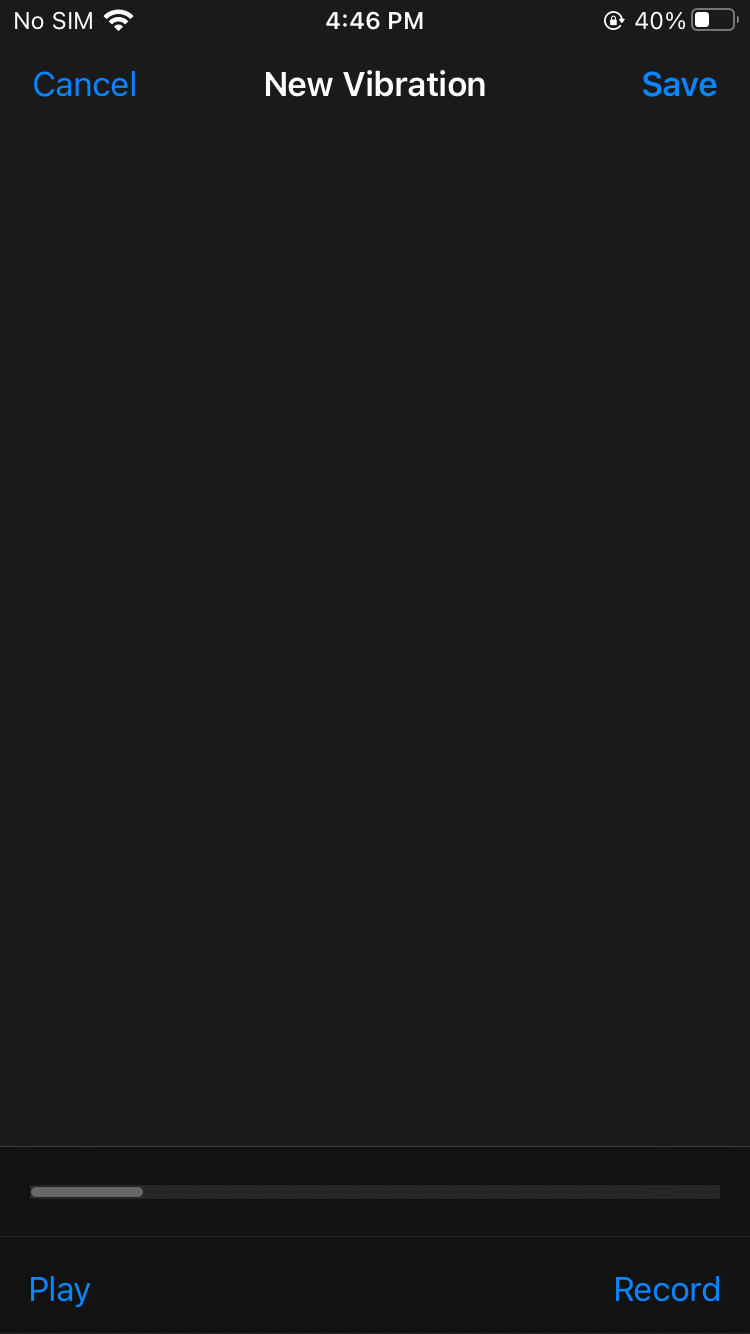 Save
Save Step 6. Give a name to your vibration after that tap on the Save.
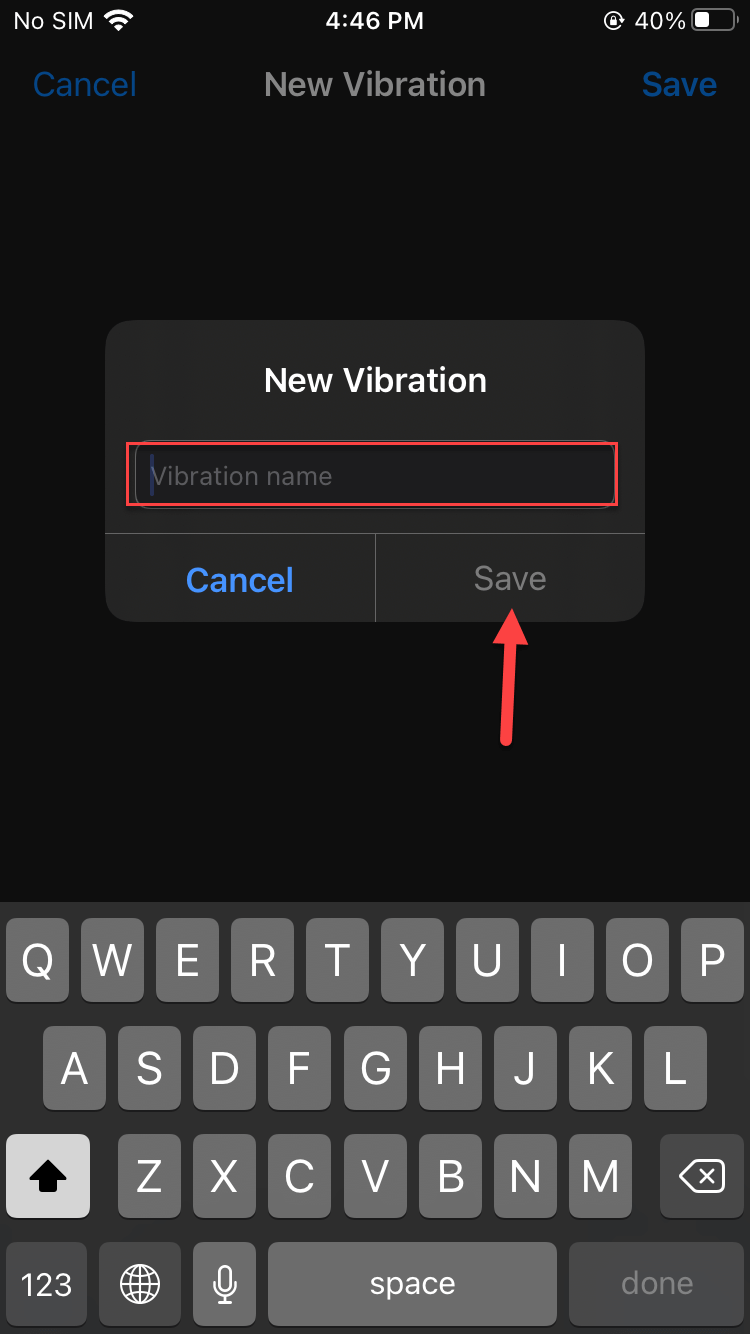
Step 7. Once you set the vibration then go back to Ringtone.
Step 8. Finally, click on the Done and once again tap on Done.
How to Disable Custom Vibration
Step 1. Head towards the Sounds & Haptics.
Step 2. Select the custom vibration sound which you turn off its vibrating system then click on the record Vibration.
Step 3. Scroll down to the bottom of the page after that click on the None (Default).
Final Words
It was all about How to Set Up a Custom Vibration Alert For a Contact on iPhone. I hope this article is very helpful for you to set up a custom vibration alert. From this article, you will get something good. This was step by step guide on setting up a custom vibration. This is the right place where you can easily solve your problem. After following these steps I hope you will not face any kind of problem. If you faced any kind of problem and if you have any type of suggestions then do comment.
Explore More:
Share This Article
In this article, I will guide you on How to Set Up a Custom Vibration Alert For a Contact on iPhone. When you are away from your phone or when your phone is on silent mode then you won’t know who is calling you. This is a reason that everyone missed attending the call because your phone is not vibrating when it is in silent mode. The good news is that Apple has launched the feature in which you can set vibration and it will alert you when someone is calling. Our phone will vibrate when it’s in silent mode and that vibrating system is the default one. You can also set a custom vibration. If you want to set up a custom vibration alert then you need to read his article. So, without wasting any time let’s get started.
How to Set Up a Custom Vibration Alert
Step 1. First of all, you have to open the Settings of your mobile then go to the Sounds.
Step 2. Now, find and choose a sound to change his vibration after that tap on the Vibration.
Step 3. Click on the Create New Vibration from the section of Custom.
Step 4. Next, press or hold your finger on the screen to create the pattern, once it’s finished then click on the Stop.
Step 5. You will see a bar at the bottom side of the screen, click on the Play to show the pattern of vibration or tap on the Record to repeat the recording again.
Step 6. When you are all done with the pattern then click on the Save at the top right corner side.
Step 7. At last, give a name to your vibration after that select Save.
How to Create a Custom Vibration for a Contact
Step 1. Firstly, open the list of Contact of anyone.
Step 2. Click on the Edit.
Step 3. Here select Text Tone or Ringtone and it depends upon you.
Select Ringtone or Text Tone Step 4. Further, tap on the Vibration and then choose a custom vibration. Whenever you want to make a new vibration after that simply click on the Create New Vibration.
Click on the Create New Vibration Step 5. Move your finger on the screen to create vibration, when done click on the Save at the top right side.
Save Step 6. Give a name to your vibration after that tap on the Save.
Step 7. Once you set the vibration then go back to Ringtone.
Step 8. Finally, click on the Done and once again tap on Done.
How to Disable Custom Vibration
Step 1. Head towards the Sounds & Haptics.
Step 2. Select the custom vibration sound which you turn off its vibrating system then click on the record Vibration.
Step 3. Scroll down to the bottom of the page after that click on the None (Default).
Final Words
It was all about How to Set Up a Custom Vibration Alert For a Contact on iPhone. I hope this article is very helpful for you to set up a custom vibration alert. From this article, you will get something good. This was step by step guide on setting up a custom vibration. This is the right place where you can easily solve your problem. After following these steps I hope you will not face any kind of problem. If you faced any kind of problem and if you have any type of suggestions then do comment.
Explore More:


