

How to Change Windows 11 Taskbar Location? (Top, Left, Right, and Bottom)
 Azaz Shaikh
In this article, you will learn How to Change Windows 11 Taskbar Location? (Top, Left, Right, and Bottom). The new operating system has many advanced features. However, one of the great and amazing features that are the taskbar is in the bottom center. As you know that you change the location of the taskbar in Windows 10. And that feature is also available in Windows 11 also. Once you have seen that some of the people change their taskbar location. Moreover, when you try to change the location of the taskbar then you don’t know the step that you can change the taskbar location. But don’t worry I am here to solve your problem. If you want to change the taskbar location of Windows 11 then you need to read this article. So, without wasting any time let’s get has started.
Related Post: How to Update Windows 10 to Windows 11 Without Losing Data
How to Change Windows 11 Taskbar Location
Step 1. First of all, you need to press the Windows key + R to open the dialogue after that type Regedit then tap on the Ok.
Step 2. Now, follow the key to reach their the key is down below:
HKEY_CURRENT_USER\SOFTWARE\Microsoft\Windows\CurrentVersion\Explorer\StuckRects3
Step 3. Next, simply right-click on the StuckRects3 then tap on the Export after that save the REG file on the desktop.
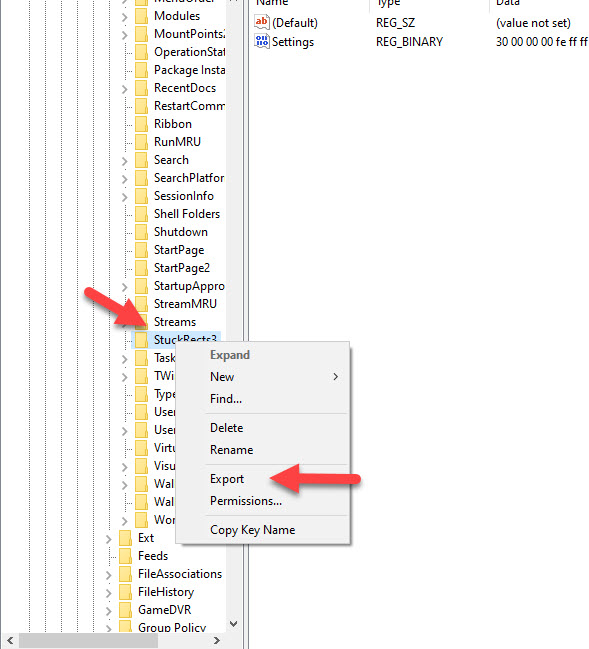 Tap on the Export
 Step 4. Here in this step double click on the Settings.
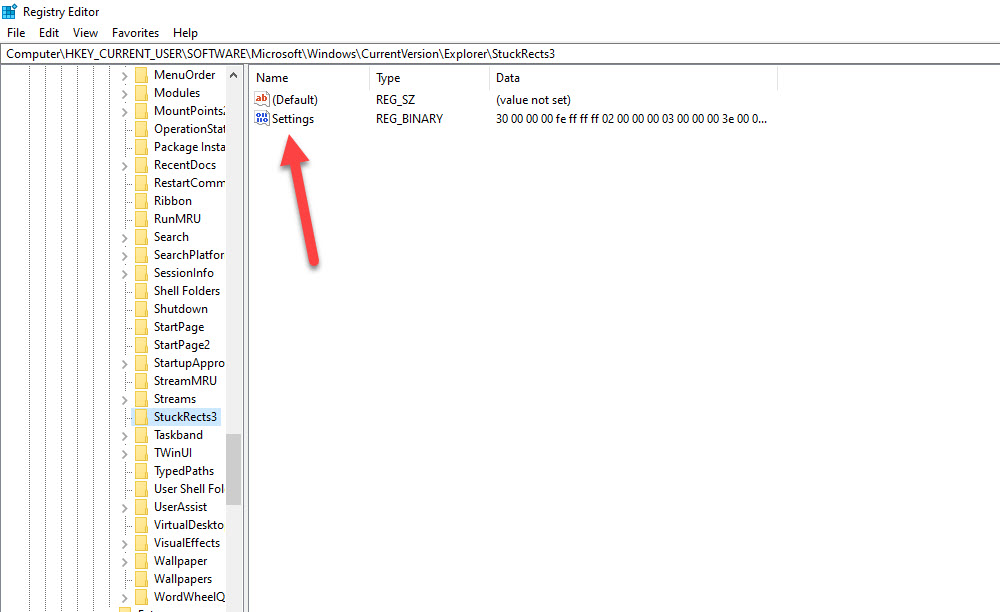 Double Click on the Settings
 Step 5. In the column of FE, you will 03 value after that simply change it into 01.
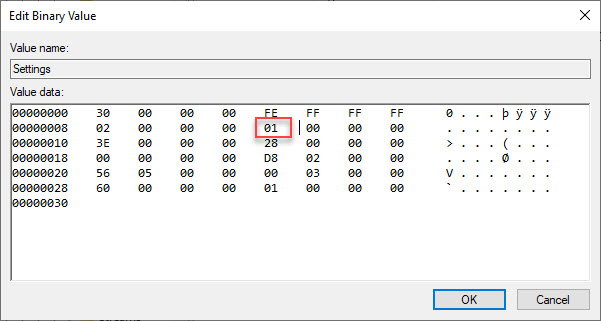 Change the Value Into 01
 Step 6. Once you set the value 01 after that click on the Ok.
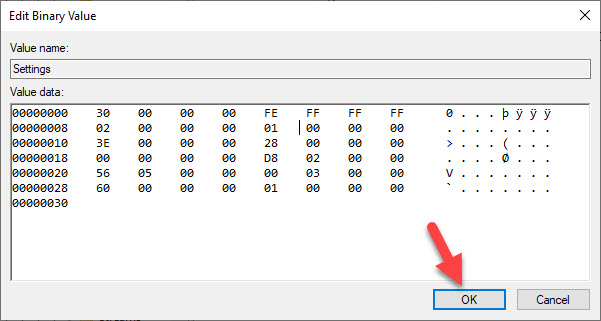 Click on the Ok
 How to Restart File Explorer
In this method, you need to restart the File Explorer to move the taskbar at the top position. Follow the step to restart the File Explorer.
Step 1. At first, to open the Task Manager hold Crtl + Alt + Del after that select the Task Manager.
Step 2. Now, head towards the Processes tab from the tab menu.
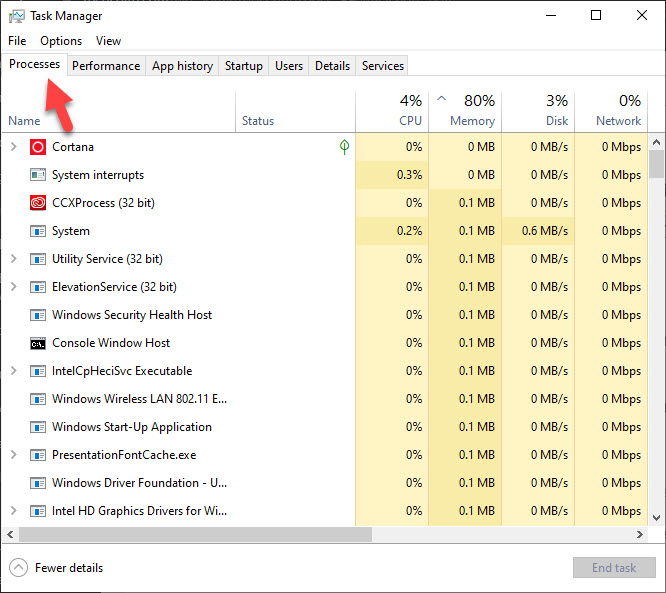 Go to the Processes Tab
 Step 3. Scroll down to find the File Explorer aftet that click on the Restart at the bottom right corner.
At last, when you want to move the taskbar to the bottom just change the value from 01 to 03.
Related Post: How to Hide Files, Folders, and Drives in Windows 11
Bottom Line
It was all about How to Change Windows 11 Taskbar Location? (Top, Left, Right, and Bottom). I hope this article is very helpful for you to know about the tips and tricks of Windows 11. From this article, you will get something good. This is the right place where you can easily solve your problem. After following these steps I hope you will not face any kind of problem. If you faced any kind of problem and if you have any type of suggestions then do comment.
Tagged
Share This Article
In this article, you will learn How to Change Windows 11 Taskbar Location? (Top, Left, Right, and Bottom). The new operating system has many advanced features. However, one of the great and amazing features that are the taskbar is in the bottom center. As you know that you change the location of the taskbar in Windows 10. And that feature is also available in Windows 11 also. Once you have seen that some of the people change their taskbar location. Moreover, when you try to change the location of the taskbar then you don’t know the step that you can change the taskbar location. But don’t worry I am here to solve your problem. If you want to change the taskbar location of Windows 11 then you need to read this article. So, without wasting any time let’s get has started.
Related Post: How to Update Windows 10 to Windows 11 Without Losing Data
How to Change Windows 11 Taskbar Location
Step 1. First of all, you need to press the Windows key + R to open the dialogue after that type Regedit then tap on the Ok.
Step 2. Now, follow the key to reach their the key is down below:
HKEY_CURRENT_USER\SOFTWARE\Microsoft\Windows\CurrentVersion\Explorer\StuckRects3
Step 3. Next, simply right-click on the StuckRects3 then tap on the Export after that save the REG file on the desktop.
Tap on the Export Step 4. Here in this step double click on the Settings.
Double Click on the Settings Step 5. In the column of FE, you will 03 value after that simply change it into 01.
Change the Value Into 01 Step 6. Once you set the value 01 after that click on the Ok.
Click on the Ok How to Restart File Explorer
In this method, you need to restart the File Explorer to move the taskbar at the top position. Follow the step to restart the File Explorer.
Step 1. At first, to open the Task Manager hold Crtl + Alt + Del after that select the Task Manager.
Step 2. Now, head towards the Processes tab from the tab menu.
Go to the Processes Tab Step 3. Scroll down to find the File Explorer aftet that click on the Restart at the bottom right corner.
At last, when you want to move the taskbar to the bottom just change the value from 01 to 03.
Related Post: How to Hide Files, Folders, and Drives in Windows 11
Bottom Line
It was all about How to Change Windows 11 Taskbar Location? (Top, Left, Right, and Bottom). I hope this article is very helpful for you to know about the tips and tricks of Windows 11. From this article, you will get something good. This is the right place where you can easily solve your problem. After following these steps I hope you will not face any kind of problem. If you faced any kind of problem and if you have any type of suggestions then do comment.


