

How to Change Background and Font Color in CMD?
 Azaz Shaikh
When you are using your command then you will see someone else CMD. Then the other people’s CMD background color and font color change after that you also want to change your one. Once you try to change the background and font color then you don’t know the step. Don’t worry I am here to solve your problem. If you want to change the background and font color then you need to read this article. So, without wasting any time let’s get has started. From this article, you will learn How to Change Background and Font Color in CMD?.
CMD is an acronym for command it is similar to the MS-DOS prompt used in DOS and legacy Windows 9x systems. The command prompt is a native application of the Windows operating system and gives the users an option to perform operations using commands. Think of a command prompt as an interpreter which accepts the commands or the input from the user and translates it into machine language.
Related Post: How to Create GPT Bootable USB With CMD on Windows
How to Change Background and Font Color in CMD
Here is the step to change the background and font color in CMD down below.
Step 1. First of all, launch the CMD on your PC from the Start menu.
Step 2. When the CMD is open then you need to right-click on the Title Bar of CMD after that tap on the Properties.
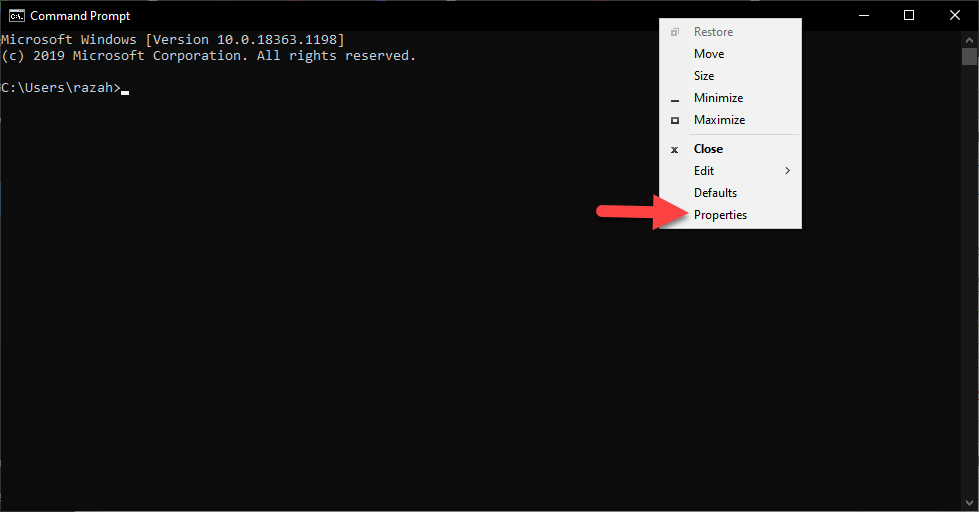 Tap on the Properties
 Step 3. Once the CMD properties are open then click on the Colors from the menu after that check the box of Screen Text then select the color that you want to set. As the picture shows you.
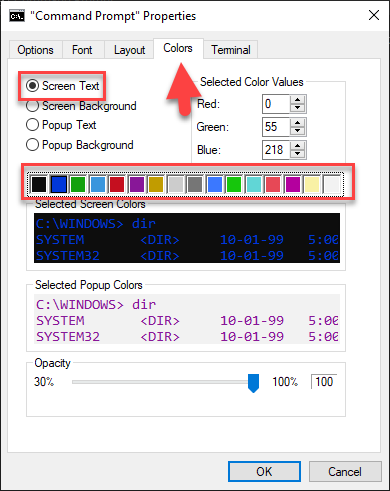 Select Color
 Step 4. Now, when set the new color then you need to check the box of Screen Background after that choose the color of your CMD background you want to like to set. When you select both colors after that at last click on the Ok.
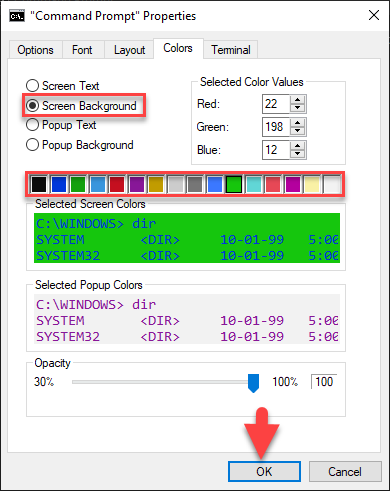 Click on the Ok
 Step 5 Next, restart your CMD then you can see my CMD background and color font is change as you can see in the example down below.

Step 6. However, once you change all that you want to change then there also two more features from the two options you can change Popup Text and Popup Background.
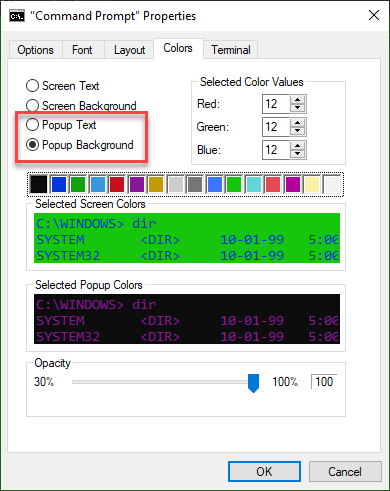
Related Post: Best Wireless Keyboard for Windows and Mac in 2021
Bottom Line
It was all about How to Change Background and Font Color in CMD?. I hope this article is very helpful for you to change the background and font color. From this article, you will get something good. This is the right place to solve your problem. After following these steps I hope you will not face any kind of problem. If you faced any kind of problem and if you have any type of suggestions then do comment.
Related Post: How to Know If Someone Blocked Your Number on Their Phone
Share This Article
When you are using your command then you will see someone else CMD. Then the other people’s CMD background color and font color change after that you also want to change your one. Once you try to change the background and font color then you don’t know the step. Don’t worry I am here to solve your problem. If you want to change the background and font color then you need to read this article. So, without wasting any time let’s get has started. From this article, you will learn How to Change Background and Font Color in CMD?.
CMD is an acronym for command it is similar to the MS-DOS prompt used in DOS and legacy Windows 9x systems. The command prompt is a native application of the Windows operating system and gives the users an option to perform operations using commands. Think of a command prompt as an interpreter which accepts the commands or the input from the user and translates it into machine language.
Related Post: How to Create GPT Bootable USB With CMD on Windows
How to Change Background and Font Color in CMD
Here is the step to change the background and font color in CMD down below.
Step 1. First of all, launch the CMD on your PC from the Start menu.
Step 2. When the CMD is open then you need to right-click on the Title Bar of CMD after that tap on the Properties.
Tap on the Properties Step 3. Once the CMD properties are open then click on the Colors from the menu after that check the box of Screen Text then select the color that you want to set. As the picture shows you.
Select Color Step 4. Now, when set the new color then you need to check the box of Screen Background after that choose the color of your CMD background you want to like to set. When you select both colors after that at last click on the Ok.
Click on the Ok Step 5 Next, restart your CMD then you can see my CMD background and color font is change as you can see in the example down below.
Step 6. However, once you change all that you want to change then there also two more features from the two options you can change Popup Text and Popup Background.
Related Post: Best Wireless Keyboard for Windows and Mac in 2021
Bottom Line
It was all about How to Change Background and Font Color in CMD?. I hope this article is very helpful for you to change the background and font color. From this article, you will get something good. This is the right place to solve your problem. After following these steps I hope you will not face any kind of problem. If you faced any kind of problem and if you have any type of suggestions then do comment.
Related Post: How to Know If Someone Blocked Your Number on Their Phone


