

How to Disable Snap Layouts for Maximize Button in Windows 11?
 Azaz Shaikh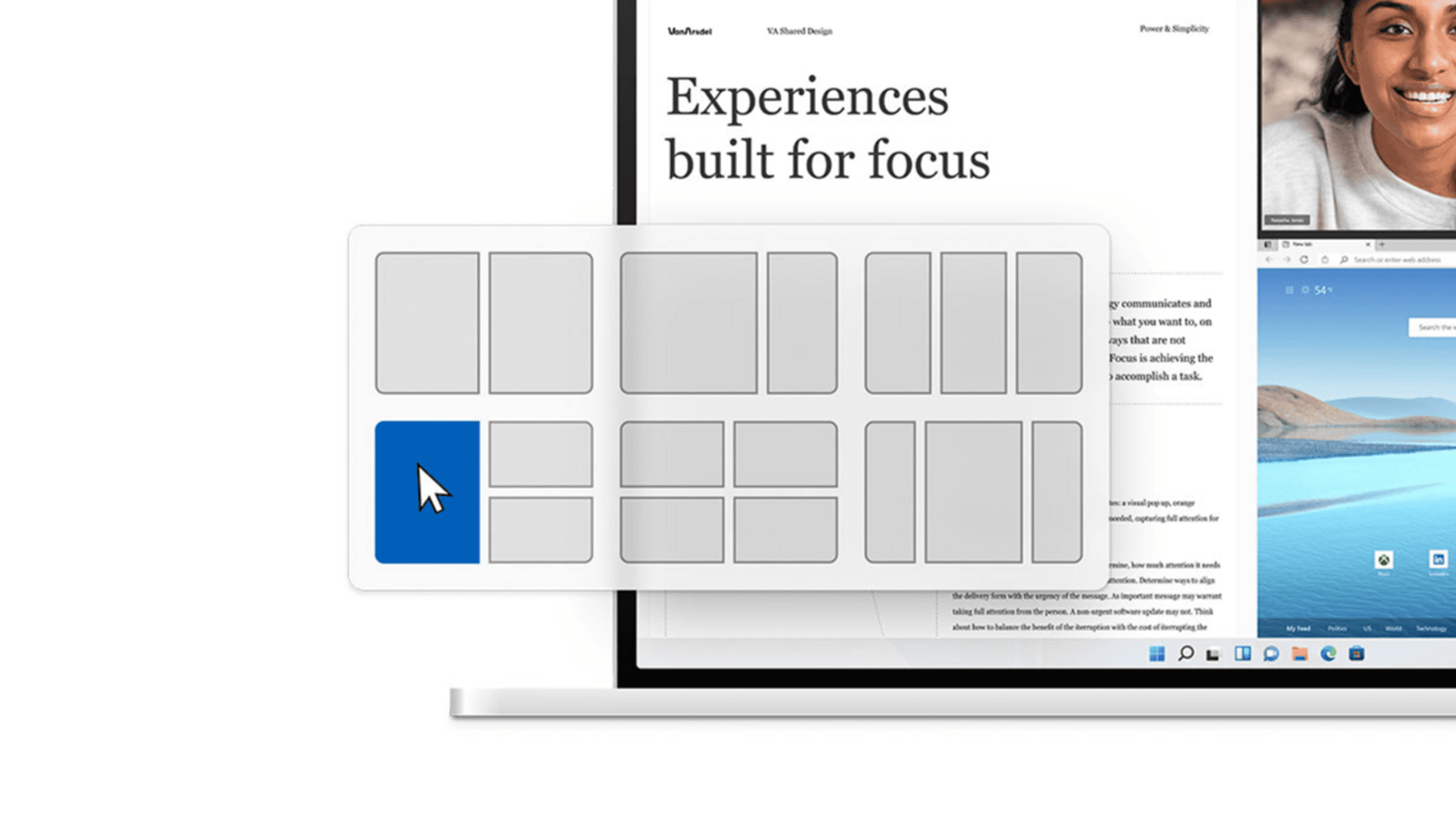
In this article, I am going to show you How to Disable Snap Layouts for Maximize Button in Windows 11?. Snap Layout is one of the amazing features of Windows 11. It simply allows the users in order to view and open multiple windows at a time just by splitting them on the screen. It really makes our work easier to manage more than one window at once. However, it is really better than the snap layout in windows 11.
So, if you are not using snap layouts in Windows 11 or if you are using it sometimes then it is better to disable from the registry without any software. To disable snap layouts in Windows 11 make sure to follow the steps down below.
Related Post: How to Move the Taskbar Icons to the Left in Windows 11
Disable Snap Layouts for Maximize Button in Windows 11
Here follow the step to disable the snap layouts for maximize button. The step is down below.
Step 1. At first, launch the Settings on your PC
Step 2. Go to the System from the left panel after that tap on the Multitasking.
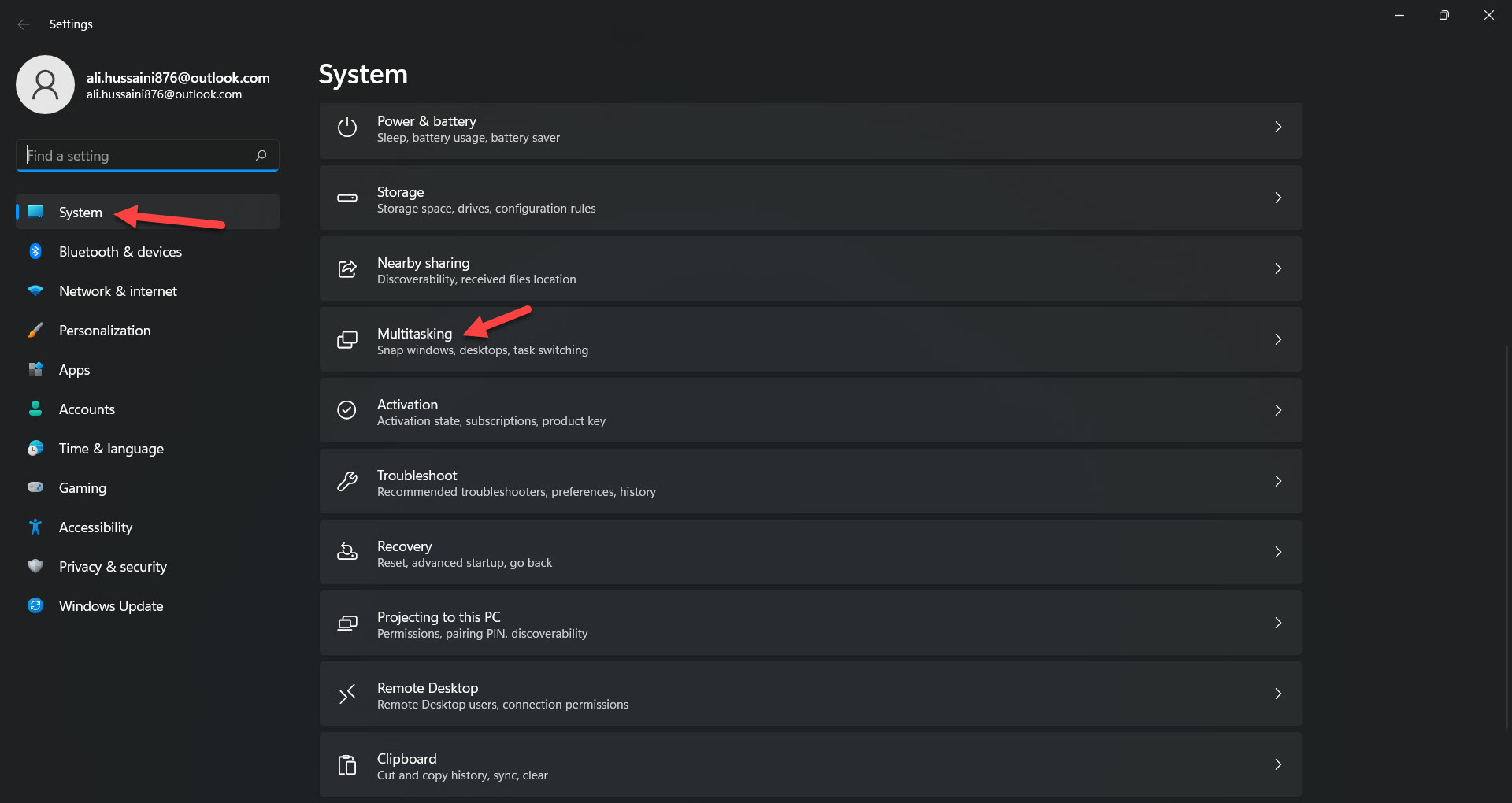 Tap on the Multitasking
 Step 3. Now, turn on the toggle of Snap Windows.
Step 4. Finally, uncheck the box of Show Snap Layouts When I Hover Over a Window’s Maximize Button.
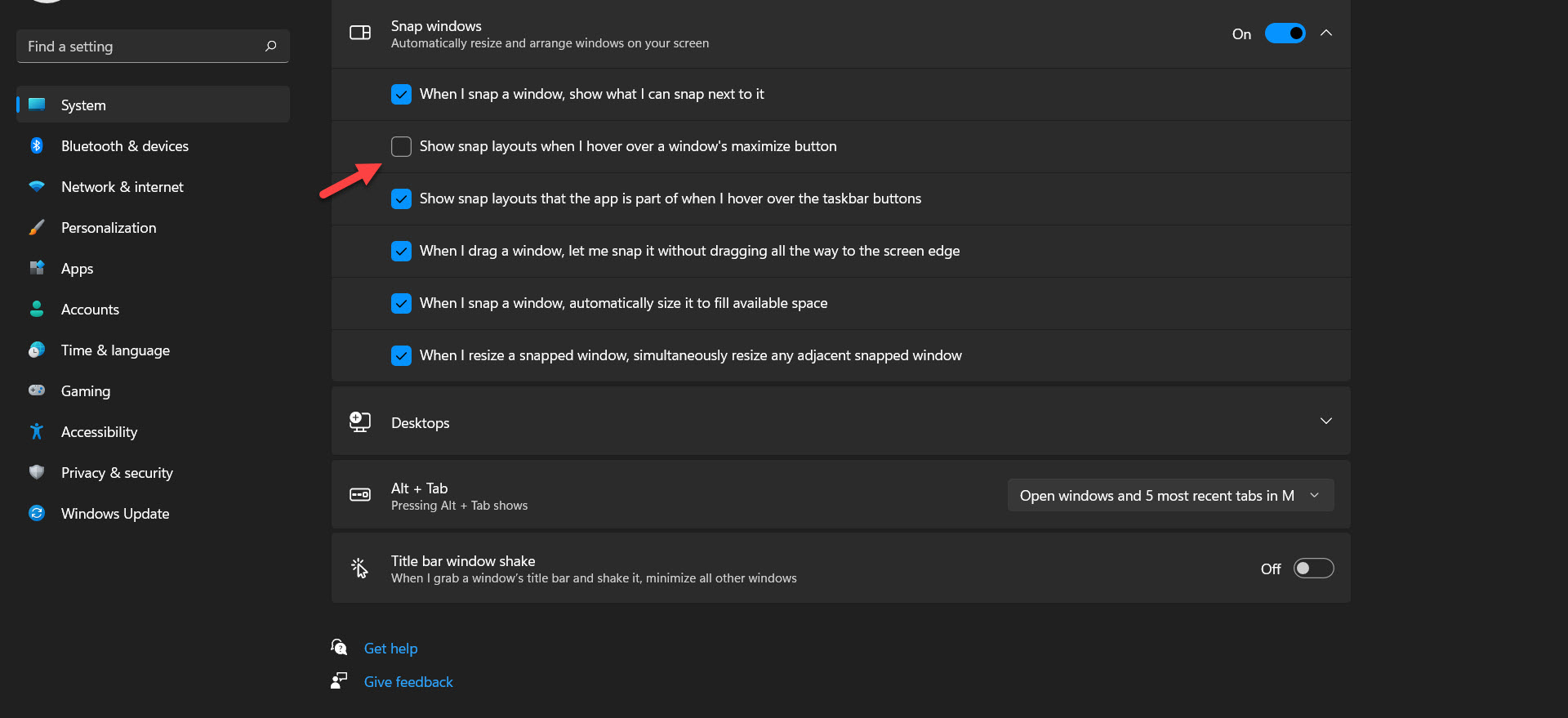 Uncheck the Box of Show Snap Layouts When I Hover Over a Window’s Maximize Button
 How to Enable Snap Layouts for Maximize Button in Windows 11
Step 1. First of all, you need to open the Settings to open by shortcut simply press Win + I.
Step 2. After that head towards the System from the left side of your screen.
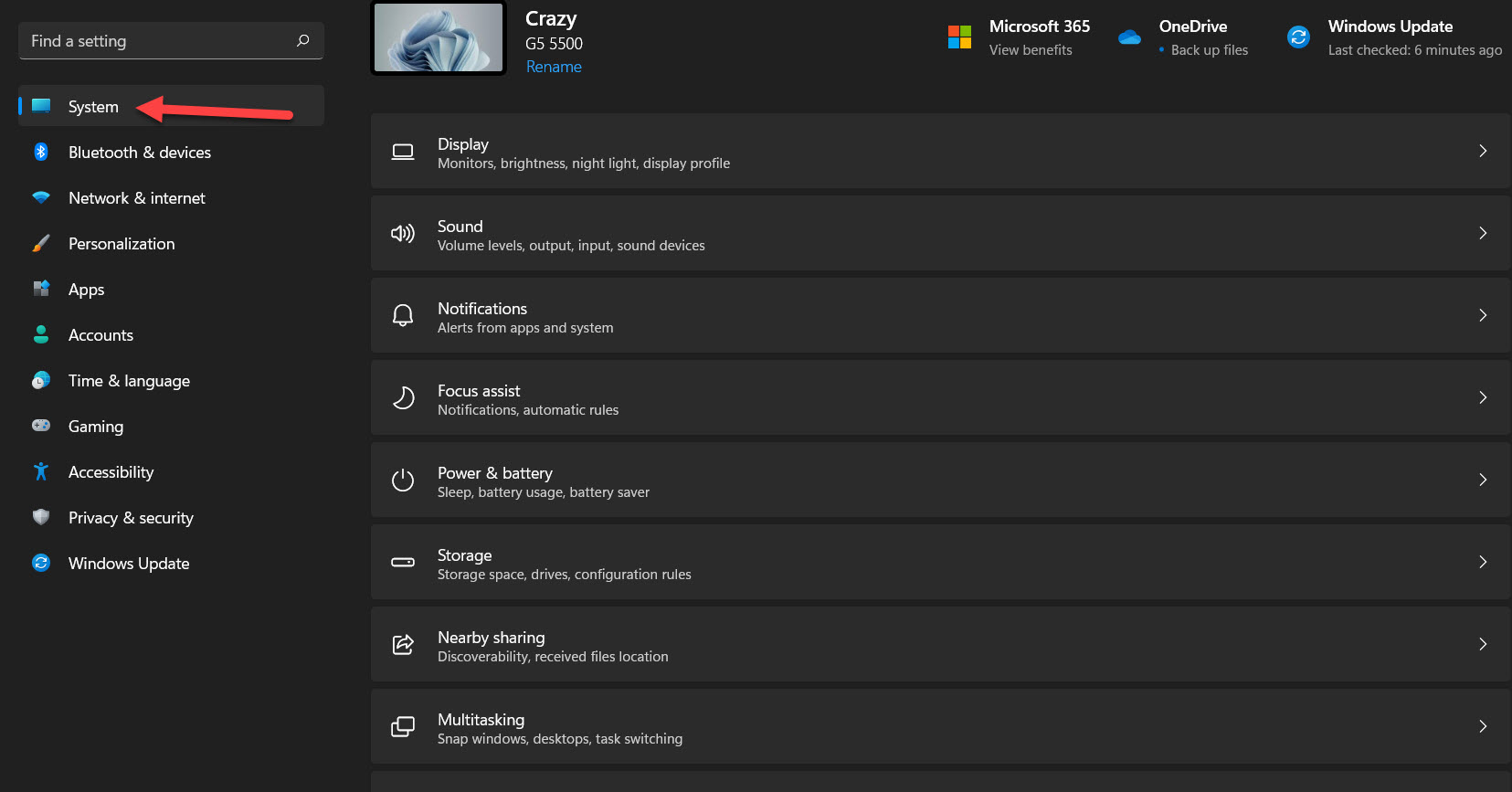 Head Towards the System
 Step 3. When the system is open then click on the Multitasking.
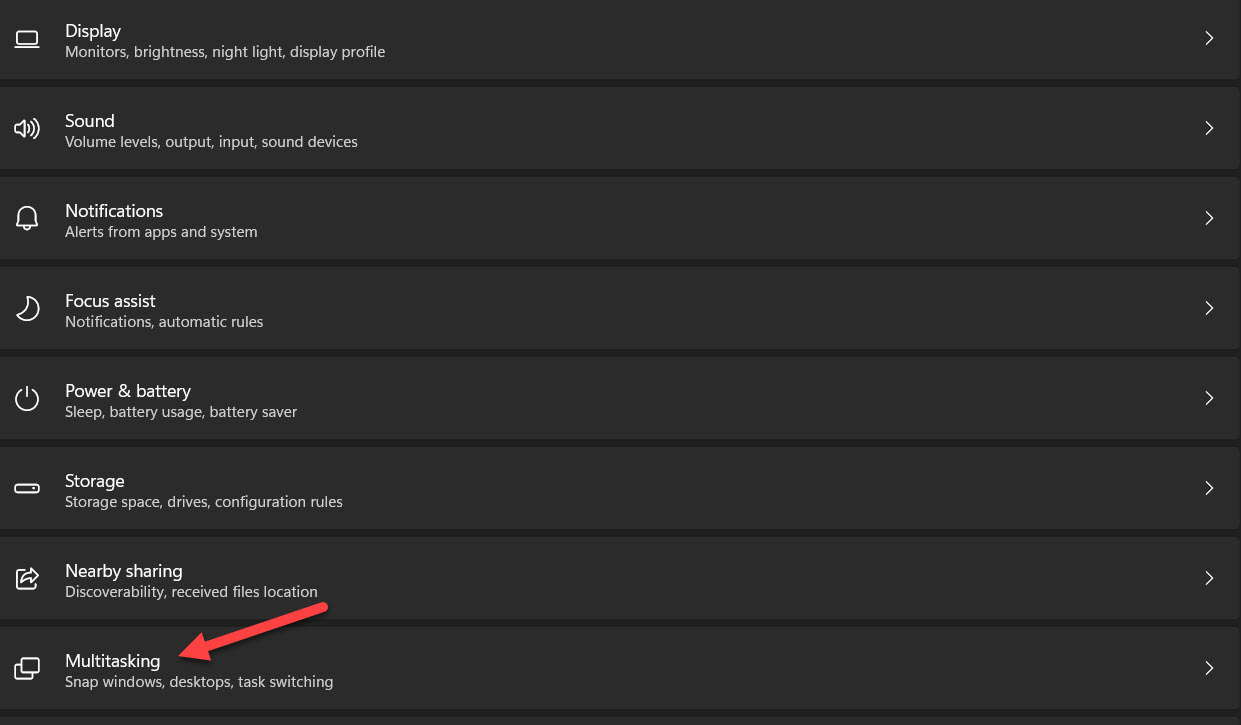 Click on the Multitasking
 Step 4. Here in this step click on the Snap Windows to open the drop-down.
Step 5. At last, you need to check the box of Show Snap Layouts When I Hover Over a Window’s Maximize Button.
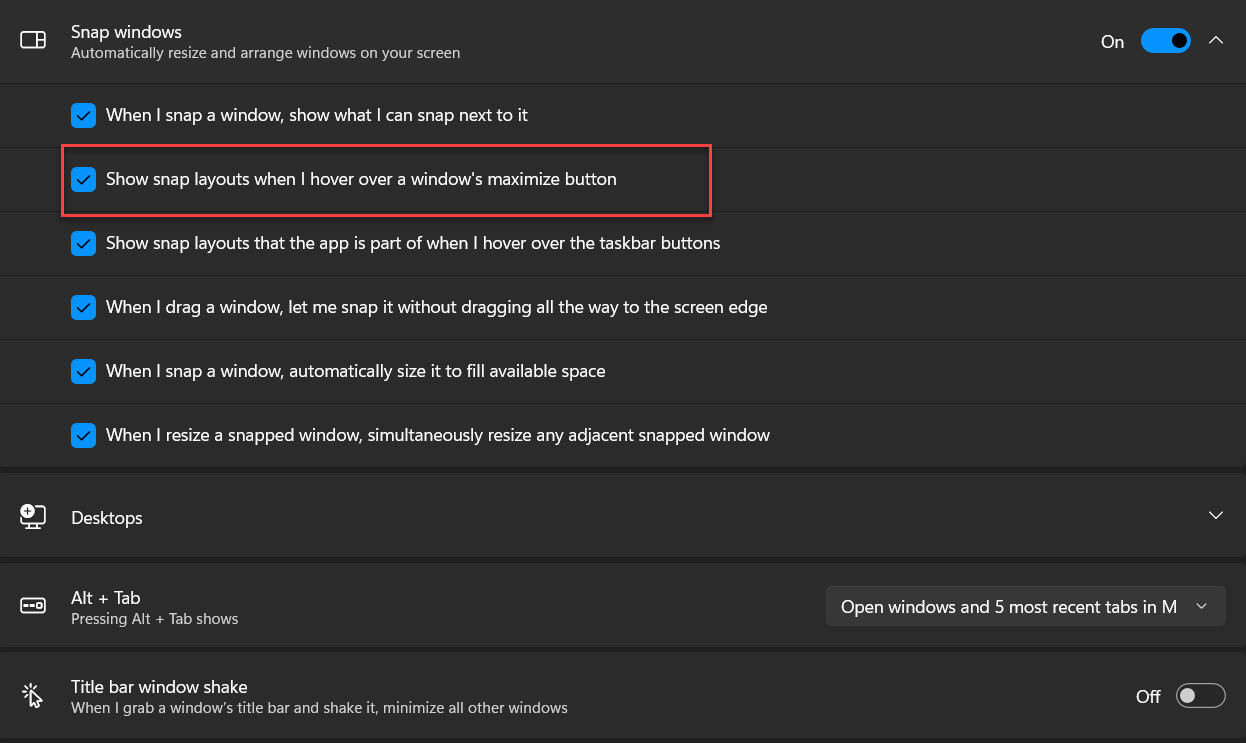 Check the Box of Show Snap Layouts When I Hover Over a Window’s Maximize Button
 Related Post: How to Take Screenshots in Windows 11 Without Using Third-Party Software
Bottom Line
It was all about How to Disable Snap Layouts for Maximize Button in Windows 11. I hope this article is very helpful for you to disable snap layouts to maximize buttons. From this article, you will get something good. This is the right place where you can easily solve your problem. After following these steps I hope you will not face any kind of problem. If you faced any kind of problem and if you have any type of suggestions then do comment.
Related Post: 5 Best Printer for macOS Big Sur in 2021 – Best Printer for Mac
Tagged
Share This Article
In this article, I am going to show you How to Disable Snap Layouts for Maximize Button in Windows 11?. Snap Layout is one of the amazing features of Windows 11. It simply allows the users in order to view and open multiple windows at a time just by splitting them on the screen. It really makes our work easier to manage more than one window at once. However, it is really better than the snap layout in windows 11.
So, if you are not using snap layouts in Windows 11 or if you are using it sometimes then it is better to disable from the registry without any software. To disable snap layouts in Windows 11 make sure to follow the steps down below.
Related Post: How to Move the Taskbar Icons to the Left in Windows 11
Disable Snap Layouts for Maximize Button in Windows 11
Here follow the step to disable the snap layouts for maximize button. The step is down below.
Step 1. At first, launch the Settings on your PC
Step 2. Go to the System from the left panel after that tap on the Multitasking.
Tap on the Multitasking Step 3. Now, turn on the toggle of Snap Windows.
Step 4. Finally, uncheck the box of Show Snap Layouts When I Hover Over a Window’s Maximize Button.
Uncheck the Box of Show Snap Layouts When I Hover Over a Window’s Maximize Button How to Enable Snap Layouts for Maximize Button in Windows 11
Step 1. First of all, you need to open the Settings to open by shortcut simply press Win + I.
Step 2. After that head towards the System from the left side of your screen.
Head Towards the System Step 3. When the system is open then click on the Multitasking.
Click on the Multitasking Step 4. Here in this step click on the Snap Windows to open the drop-down.
Step 5. At last, you need to check the box of Show Snap Layouts When I Hover Over a Window’s Maximize Button.
Check the Box of Show Snap Layouts When I Hover Over a Window’s Maximize Button Related Post: How to Take Screenshots in Windows 11 Without Using Third-Party Software
Bottom Line
It was all about How to Disable Snap Layouts for Maximize Button in Windows 11. I hope this article is very helpful for you to disable snap layouts to maximize buttons. From this article, you will get something good. This is the right place where you can easily solve your problem. After following these steps I hope you will not face any kind of problem. If you faced any kind of problem and if you have any type of suggestions then do comment.
Related Post: 5 Best Printer for macOS Big Sur in 2021 – Best Printer for Mac


