

Create Windows 10 Bootable USB on macOS Big Sur without BootCamp
 Azaz Shaikh
If you are using a Mac computer and get tired of macOS operating system. In this case, you may want to install Windows operating system on your Mac computer. But for that, you will need to create a Windows 10 bootable USB which is not a big deal. Even you can create it bootable within your Mac. You can use bootable USB for different purposes for example you can also install Windows on a PC that you have installed, or if you have removed the Windows drive and want to reinstall it on your PC. Then this article would be quite helpful for you. Creating Windows 10 bootable USB is no more difficult. Because I will definitely show you how to create Windows 10 bootable USB on macOS Big Sur without BootCamp assistant.
Create Windows 10 Bootable USB on macOS Big Sur
For creating Windows 10 bootable USB on macOS Big Sur, it needs somehow technical skills. From the basic, we really don’t know the actual method that how you can do it. Therefore, you have to follow the below steps clearly, at the end you will get what you wanted.
Step 1. Download Windows 10 Disc Image (ISO File)
Windows operating system is one of the lightest operating systems ever. Because most of the people around the world are using Windows and they are totally satisfied with its features and functions. In fact, it has a really simple and easy user interface and the newbie users don’t face difficulty while using it. Everyone loves to use Windows because of its simplicity.
In this section of the article, you will have to download Windows 10 disc image (ISO file). It is really necessary to download Windows 10 ISO File, without this it is impossible to create Windows 10 USB bootable. Downloading Windows 10 disc image is really easy and simple just you have to follow the steps down below.
- Open the Microsoft Windows 10 ISO Download website.
- On the official page, click on the Dropdown menu below select Edition, and then click on Confirm.
- Now, select the Product language and click on Confirm.
- Select the operating system whether 64-bit or 32-bit. Click on any of them which you want and it will start downloading now.
Step 2. Download and Install BalenaEtcher on your Mac
Etcher is one of the great software for macOS. You can use it to create USB flash drives without any problem. You will get each and everything about Etcher when you download and start using that. So, in order to download it follow the instructions down below.
- Visit the BalenaEtcher Download website.
- Select Download for macOS.
- When it is downloaded, directly install it.
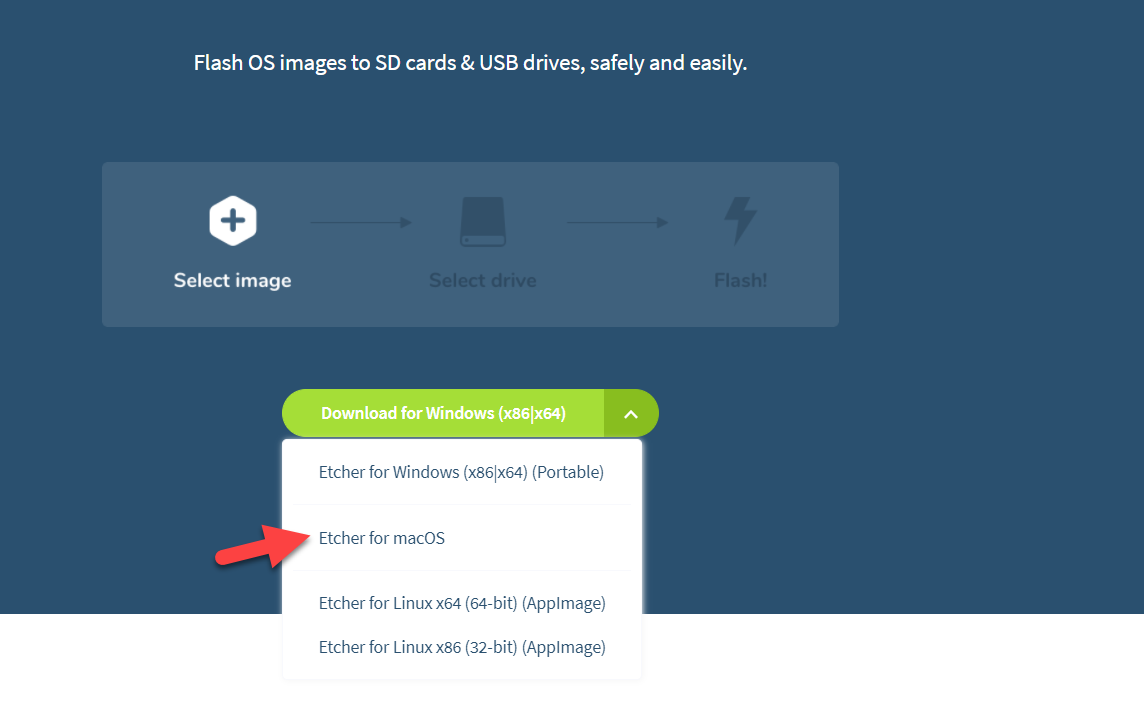 Etcher for macOS
 Step 3. Format the USB Drive
Go to the Disk Utility and select your USB disk from the left and click Erase.
Then format your USB flash drive using the following instructions down below.
- Write down your USB Name
- Format: MS-DOS (FAT)
- Scheme: GUID Partition Map
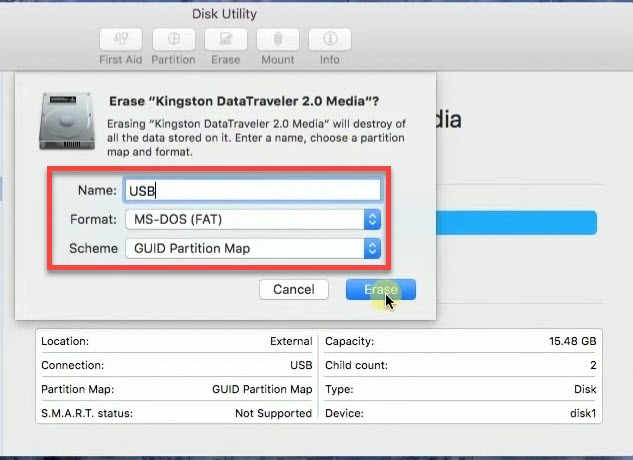 Format USB
 Step 4. Create Windows 10 Bootable USB on macOS Big Sur using Etcher
- Open the Etcher software.
- Select Flash from the file, locate the Windows 10 ISO File, and then click Open. Click on Continue.
- Click select Target, and choose your USB drive name and click on Select.
- After that, click on the Flash to start the process of creating a Windows 10 bootable USB on your Mac.
- Wait for the process to be completed.
- Now, you have perfectly created a Windows 10 USB bootable on your Mac.
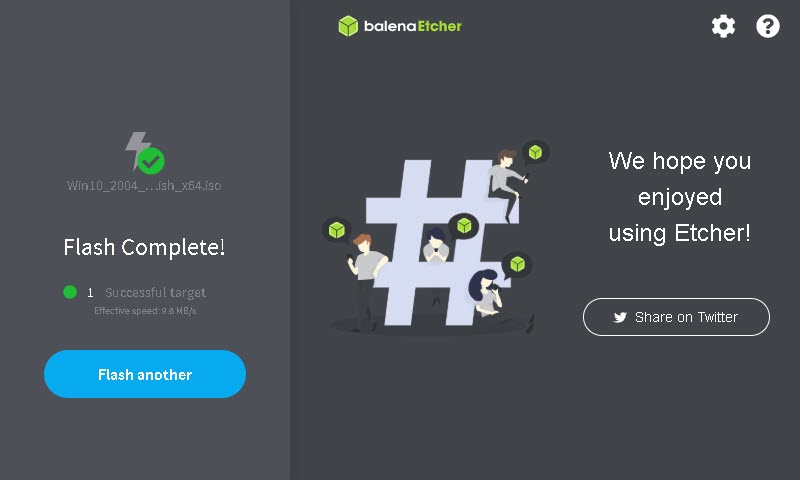 Create Windows 10 Bootable USB on macOS Big Sur
 Bottom Line
It was all about Creating Windows 10 Bootable USB on macOS Big Sur without BootCamp. If you face any kind of problem while following the method them don’t hesitate to comment down below.
Related Posts:
Tagged
Share This Article
If you are using a Mac computer and get tired of macOS operating system. In this case, you may want to install Windows operating system on your Mac computer. But for that, you will need to create a Windows 10 bootable USB which is not a big deal. Even you can create it bootable within your Mac. You can use bootable USB for different purposes for example you can also install Windows on a PC that you have installed, or if you have removed the Windows drive and want to reinstall it on your PC. Then this article would be quite helpful for you. Creating Windows 10 bootable USB is no more difficult. Because I will definitely show you how to create Windows 10 bootable USB on macOS Big Sur without BootCamp assistant.
Create Windows 10 Bootable USB on macOS Big Sur
For creating Windows 10 bootable USB on macOS Big Sur, it needs somehow technical skills. From the basic, we really don’t know the actual method that how you can do it. Therefore, you have to follow the below steps clearly, at the end you will get what you wanted.
Step 1. Download Windows 10 Disc Image (ISO File)
Windows operating system is one of the lightest operating systems ever. Because most of the people around the world are using Windows and they are totally satisfied with its features and functions. In fact, it has a really simple and easy user interface and the newbie users don’t face difficulty while using it. Everyone loves to use Windows because of its simplicity.
In this section of the article, you will have to download Windows 10 disc image (ISO file). It is really necessary to download Windows 10 ISO File, without this it is impossible to create Windows 10 USB bootable. Downloading Windows 10 disc image is really easy and simple just you have to follow the steps down below.
- Open the Microsoft Windows 10 ISO Download website.
- On the official page, click on the Dropdown menu below select Edition, and then click on Confirm.
- Now, select the Product language and click on Confirm.
- Select the operating system whether 64-bit or 32-bit. Click on any of them which you want and it will start downloading now.
Step 2. Download and Install BalenaEtcher on your Mac
Etcher is one of the great software for macOS. You can use it to create USB flash drives without any problem. You will get each and everything about Etcher when you download and start using that. So, in order to download it follow the instructions down below.
- Visit the BalenaEtcher Download website.
- Select Download for macOS.
- When it is downloaded, directly install it.
Etcher for macOS Step 3. Format the USB Drive
Go to the Disk Utility and select your USB disk from the left and click Erase.
Then format your USB flash drive using the following instructions down below.
- Write down your USB Name
- Format: MS-DOS (FAT)
- Scheme: GUID Partition Map
Format USB Step 4. Create Windows 10 Bootable USB on macOS Big Sur using Etcher
- Open the Etcher software.
- Select Flash from the file, locate the Windows 10 ISO File, and then click Open. Click on Continue.
- Click select Target, and choose your USB drive name and click on Select.
- After that, click on the Flash to start the process of creating a Windows 10 bootable USB on your Mac.
- Wait for the process to be completed.
- Now, you have perfectly created a Windows 10 USB bootable on your Mac.
Create Windows 10 Bootable USB on macOS Big Sur Bottom Line
It was all about Creating Windows 10 Bootable USB on macOS Big Sur without BootCamp. If you face any kind of problem while following the method them don’t hesitate to comment down below.
Related Posts:


