

How to Completely Uninstall Programs on Mac
 Azaz Shaikh
Since Mac computers are on the market, most of the users are facing uninstalling problems. Because they don’t know the exact way to uninstall programs and files. It is really a common problem for users to have some difficulties while removing apps and files on macOS Big Sur. However, in the new operating system, they still face the same problem. They might face this problem for choosing the incorrect method or uninstall invalid programs. Also, you may your own personal issue. Therefore, I am going to show you How to Completely Uninstall Programs on Mac.
It totally depends on the program and also the installation method. You may completely uninstall a program on Mac computers just by dragging the .app bundle into the trash. Sometimes it doesn’t work to uninstall completely because it may leave some file preference behind. Due to which your Mac won’t work properly. However, in order to keep your Mac in a good performance then you have to learn the proper method for completely uninstall programs on macOS.
Generally, applications like to stay inside their .app bundle on macOS. If we compare it with Windows then it looks somehow a difficult task. However, if you are passing under this embarrassing situation or problem then don’t worry I will show you some perfect methods which will enable you Completely Uninstall Programs on Mac.
Completely Uninstall Programs on macOS Big Sur
1. Uninstall Programs on Mac with Launchpad
Launchpad is a great tool for uninstalling programs or apps on any Mac operating system. It works the same way as removing app on iPhone and iPad. I can say that it is one of the easiest methods ever. If you are using an iPhone or iPad then this method will be pretty straightforward for you. If you want to directly remove the program without deleting its files, it will not be time-consuming for you.
This method only works with the apps or programs which you have downloaded from the Mac App Store. Otherwise, if you have downloaded from any other websites then this method won’t work for you. Keep in mind that some of the apps don’t have a delete button in the new macOS Big Sur. That means it can’t be deleted in Launchpad.
- Launch the Launchpad icon.
- Now, you have to select the apps or programs which you are going to delete. Hold down until the selected app starts to jiggle.
- After that, click on the X in the upper corner of the screen. Sometimes Delete will appear which works the same.
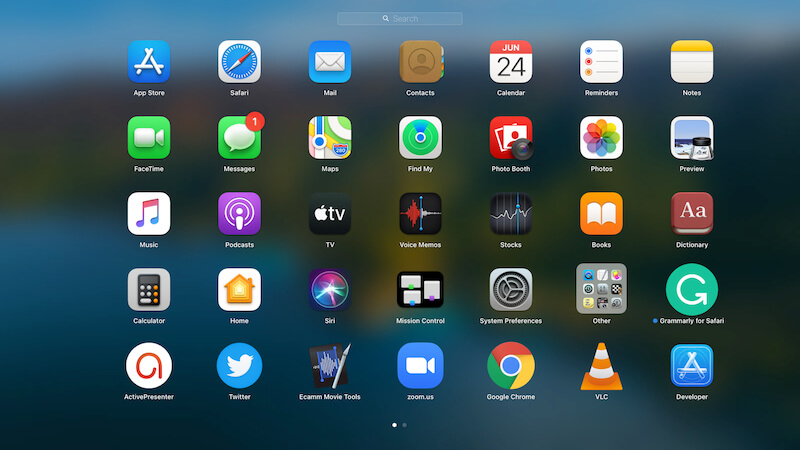 Uninstall Programs on Mac with Launchpad
 2. Uninstall Apps on Mac with Finder
If the other process doesn’t work to uninstall the app on your Mac then I suggest you go with the manual process. You can easily uninstall any app manually, However, the manual process needs somehow deep understanding of the macOS Catalog system. The process is somehow lengthy and takes much time. If you are newly using Mac, it is essential for you to learn about the hidden library folder. Don’t go without experience because you might the files that are part of the operating system.
- To open the Finder window, you have to click on the Finder icon from your dock.
- Click on the Applications from the sidebar.
- Now, you have to drag any app you need to delete from the Application folder into the trash.
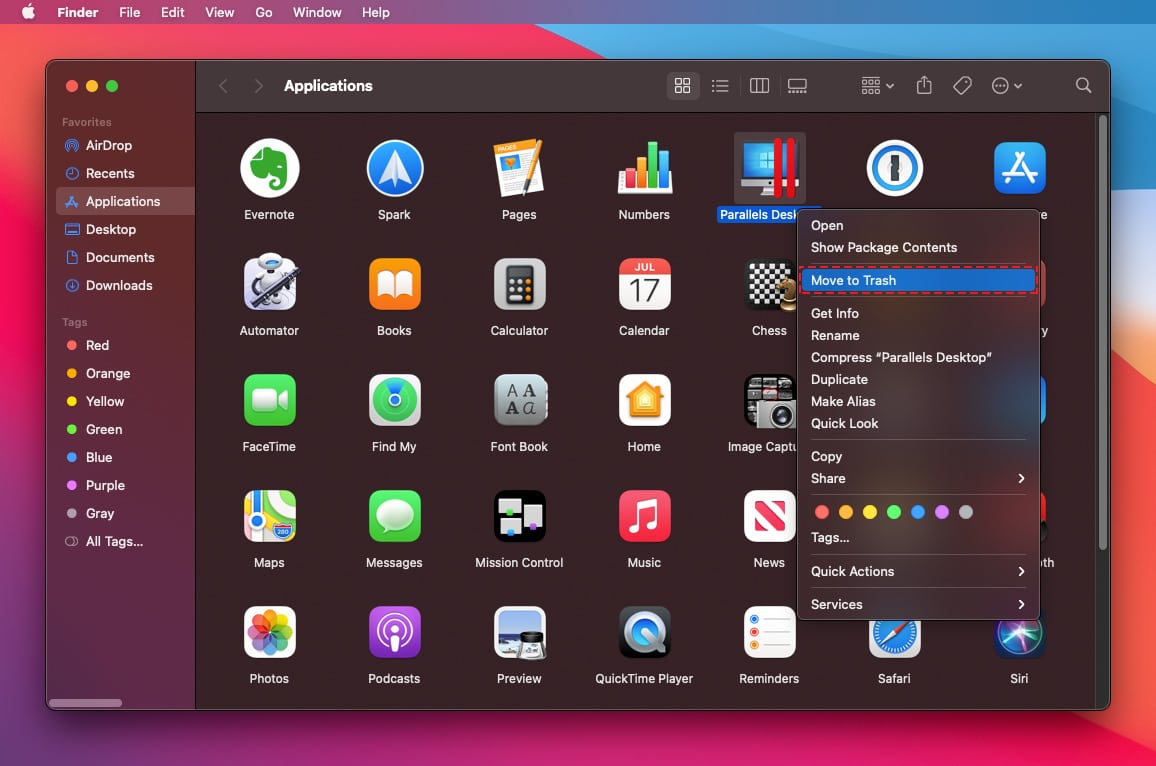 Uninstall Apps on Mac with Finder
 3. Uninstall Programs on Mac with App Preference
Some apps or programs can’t be deleted or uninstalled easily because some App developer provides special uninstaller for their application. These apps are mostly downloaded from the Internet. Therefore, most of the time these applications do not appear on the Launchpad, you can usually find out in the App folder in Finder and App Preference.
you can uninstall it by simply finding the Uninstaller in App Preferences, launching it (Command +,) and follow the steps on the screenshot down below.
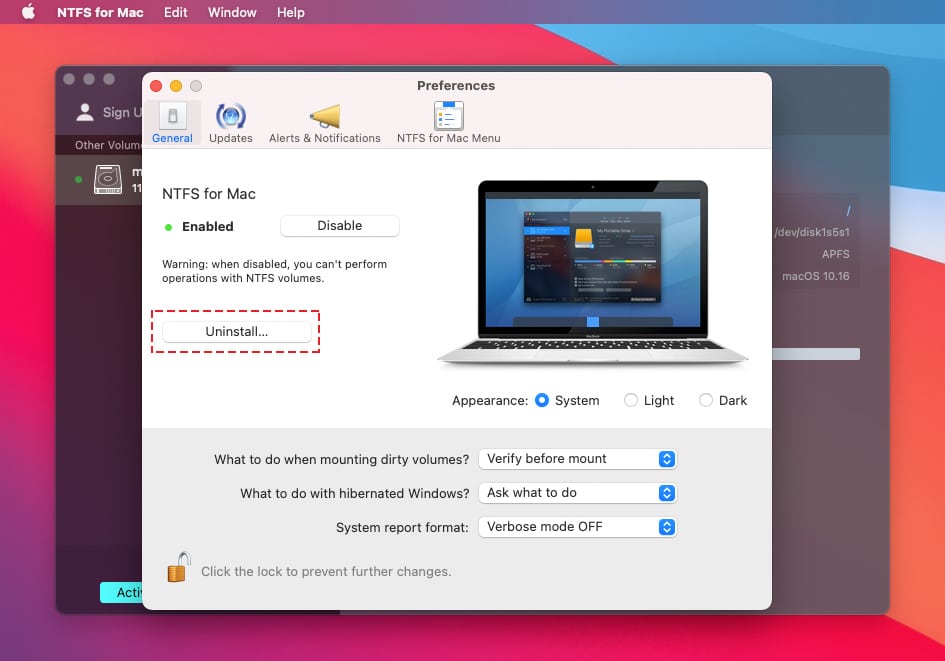 Uninstall Programs on Mac with App Preference
 4. Uninstall Programs on Mac using Thrid-party Software
All those methods are extremely fine for uninstalling programs on Mac. But if you can’t uninstall with the above method for some reason then you can use third-party software for better uninstalling. Those processes are somehow time-consuming. However, there is a great software by the name of Clean My Mac. You have to Download the app from the link down below and follow the steps down for the uninstalling process.
- Download it from the above link and launch that. And go to Uninstaller. Choose which files to uninstall using the drop-down menu. This list includes every single app and program file on your application. If you have a lot of apps and programs, you can see why using third party software is useful.
- After selecting, click on the Uninstall or Delete then you’re done!
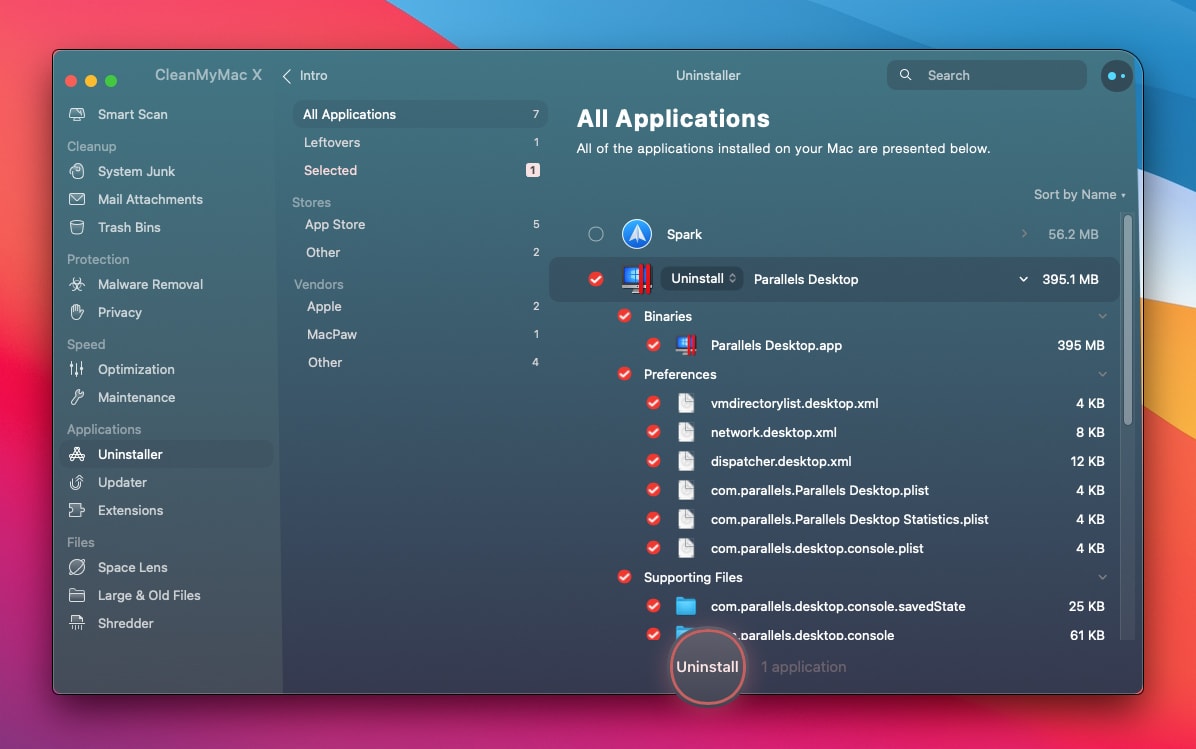 Uninstall Programs on Mac using Thrid-party Software
 Special guide for macOS Big Sur: How to Uninstall/Delete Application in macOS Big Sur?
Bottom Line
It was all about How to Completely Uninstall Programs on Mac. I have briefly discussed four amazing methods which will let you uninstall programs. You can easily uninstall programs with some simple and straightforward process. However, I hope you have learned something new. If you found any kind of problem then don’t hesitate to leave comments in the comment section down below.
Tagged
Share This Article
Since Mac computers are on the market, most of the users are facing uninstalling problems. Because they don’t know the exact way to uninstall programs and files. It is really a common problem for users to have some difficulties while removing apps and files on macOS Big Sur. However, in the new operating system, they still face the same problem. They might face this problem for choosing the incorrect method or uninstall invalid programs. Also, you may your own personal issue. Therefore, I am going to show you How to Completely Uninstall Programs on Mac.
It totally depends on the program and also the installation method. You may completely uninstall a program on Mac computers just by dragging the .app bundle into the trash. Sometimes it doesn’t work to uninstall completely because it may leave some file preference behind. Due to which your Mac won’t work properly. However, in order to keep your Mac in a good performance then you have to learn the proper method for completely uninstall programs on macOS.
Generally, applications like to stay inside their .app bundle on macOS. If we compare it with Windows then it looks somehow a difficult task. However, if you are passing under this embarrassing situation or problem then don’t worry I will show you some perfect methods which will enable you Completely Uninstall Programs on Mac.
Completely Uninstall Programs on macOS Big Sur
1. Uninstall Programs on Mac with Launchpad
Launchpad is a great tool for uninstalling programs or apps on any Mac operating system. It works the same way as removing app on iPhone and iPad. I can say that it is one of the easiest methods ever. If you are using an iPhone or iPad then this method will be pretty straightforward for you. If you want to directly remove the program without deleting its files, it will not be time-consuming for you.
This method only works with the apps or programs which you have downloaded from the Mac App Store. Otherwise, if you have downloaded from any other websites then this method won’t work for you. Keep in mind that some of the apps don’t have a delete button in the new macOS Big Sur. That means it can’t be deleted in Launchpad.
- Launch the Launchpad icon.
- Now, you have to select the apps or programs which you are going to delete. Hold down until the selected app starts to jiggle.
- After that, click on the X in the upper corner of the screen. Sometimes Delete will appear which works the same.
Uninstall Programs on Mac with Launchpad 2. Uninstall Apps on Mac with Finder
If the other process doesn’t work to uninstall the app on your Mac then I suggest you go with the manual process. You can easily uninstall any app manually, However, the manual process needs somehow deep understanding of the macOS Catalog system. The process is somehow lengthy and takes much time. If you are newly using Mac, it is essential for you to learn about the hidden library folder. Don’t go without experience because you might the files that are part of the operating system.
- To open the Finder window, you have to click on the Finder icon from your dock.
- Click on the Applications from the sidebar.
- Now, you have to drag any app you need to delete from the Application folder into the trash.
Uninstall Apps on Mac with Finder 3. Uninstall Programs on Mac with App Preference
Some apps or programs can’t be deleted or uninstalled easily because some App developer provides special uninstaller for their application. These apps are mostly downloaded from the Internet. Therefore, most of the time these applications do not appear on the Launchpad, you can usually find out in the App folder in Finder and App Preference.
you can uninstall it by simply finding the Uninstaller in App Preferences, launching it (Command +,) and follow the steps on the screenshot down below.
Uninstall Programs on Mac with App Preference 4. Uninstall Programs on Mac using Thrid-party Software
All those methods are extremely fine for uninstalling programs on Mac. But if you can’t uninstall with the above method for some reason then you can use third-party software for better uninstalling. Those processes are somehow time-consuming. However, there is a great software by the name of Clean My Mac. You have to Download the app from the link down below and follow the steps down for the uninstalling process.
- Download it from the above link and launch that. And go to Uninstaller. Choose which files to uninstall using the drop-down menu. This list includes every single app and program file on your application. If you have a lot of apps and programs, you can see why using third party software is useful.
- After selecting, click on the Uninstall or Delete then you’re done!
Uninstall Programs on Mac using Thrid-party Software Special guide for macOS Big Sur: How to Uninstall/Delete Application in macOS Big Sur?
Bottom Line
It was all about How to Completely Uninstall Programs on Mac. I have briefly discussed four amazing methods which will let you uninstall programs. You can easily uninstall programs with some simple and straightforward process. However, I hope you have learned something new. If you found any kind of problem then don’t hesitate to leave comments in the comment section down below.


