How to Cleanup and Optimize your Mac with TweakBit MacRepair
 Azaz Shaikh
In this article, I am going to guide to How to Cleanup and Optimize your Mac TweakBit MacRepair. This tool in MacBook is very useful because MacRepair scans your Mac for junk, malware, and speed up your Mac. Moreover, it can uninstall unused apps, delete duplicates, and run security checks on your computer. If I use your Mac a lot on a daily basis. As a result, it starts to slow down over time, which makes me look for apps to help clean and speed it up. Actually I have tried many times in order to clean and make faster my Mac but couldn’t get any good results they all have its cons and pros. But I have found the latest tool and I tired, I was very happy about cleaning and make faster my Mac without a problem.
So, after cleaning my Mac I am compelled to share with my visitors because it will also clean the security of your Mac. It means that it will save your Mac from viruses and Malware. And as I said that it also makes my Mac faster by boosting RAM, and it will find malware and by pressing a button it will clean the malware too. So, if you want to make your Mac faster and cleaning the junk files then make sure to follow each step below.
Scan Mac for Junk and speed-reducing issues with MacRepair
 System Scan
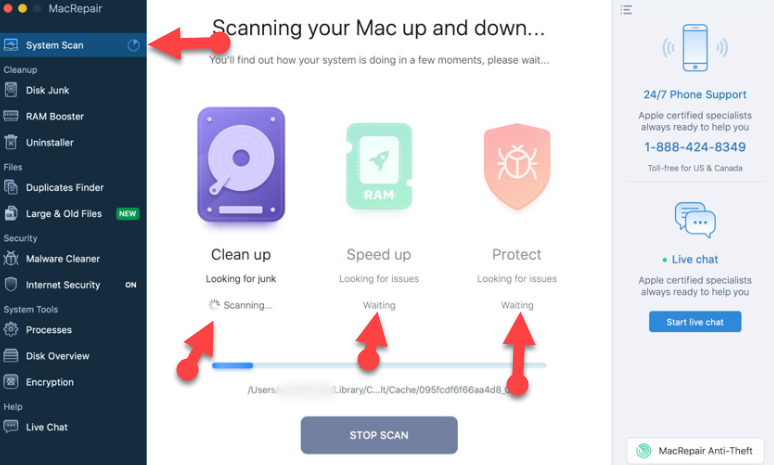
 It will scan very quickly, and after scanning your system, then you will get a list of issues MacRepair found on your Mac under each section. The software will let you clean 100MB of junk. If there is more on your Mac, you need to purchase a license. And I have to tell you that the license of the MacRepair is not free for that you need to pay.
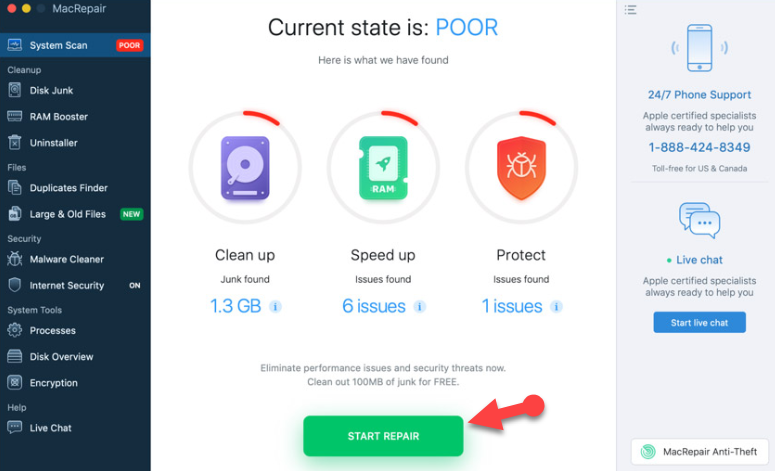
After scanning you need to click the Start Repair button in order to resolve all detected issues. This should get your Mac a lot lighter and more efficient.
It is not finished yet. The left-side menu in the app’s main window is pretty long and houses a lot of options for getting your Mac cleaner, faster and better protected from threats. MacRepair can help you uninstall unwanted applications, find and delete duplicate file copies, sort through large and old files, set up Internet Security and more.
 Start Repair
 Uninstaller
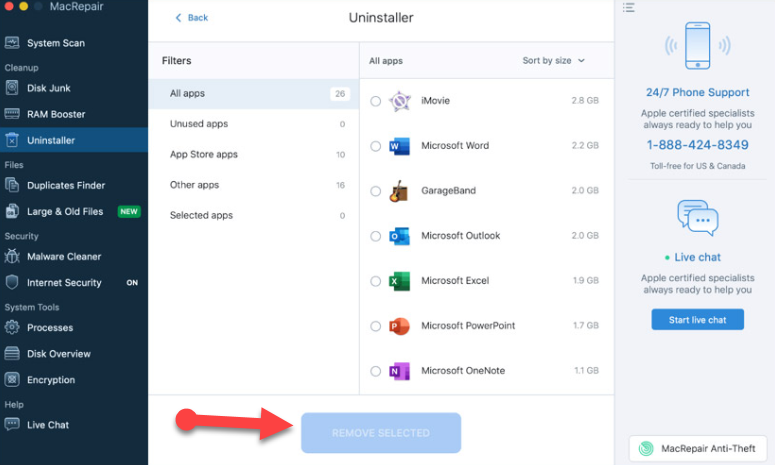
After repair the issues of the system, Then you have to click on the Uninstaller in order to find out and see all apps on your Mac. So, you are not going to uninstall all the apps just you need to uninstall the useless and unused apps in order to clean the apps which contain malware. Or look through non-AppStore apps by clicking on Other apps. This helps you decide on what to delete. After choosing the unused apps then you have to click on the Remove Selected.
 Uninstaller
 Delete Duplicated Files and Folders
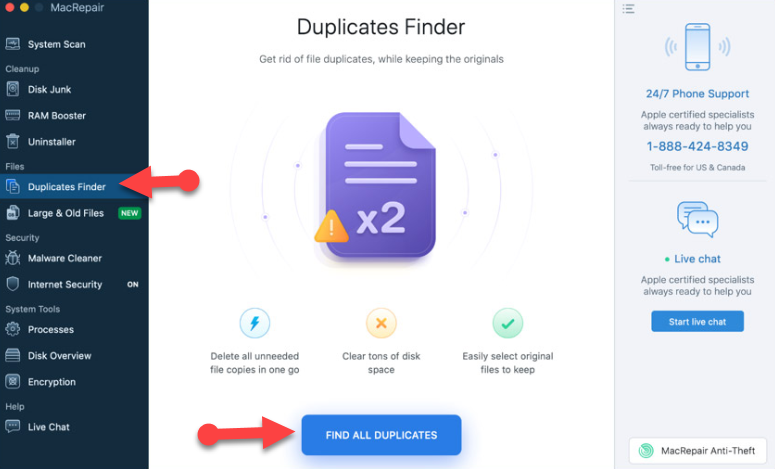
We save copies of the same file in more than one location, or the system does that. MacRepair has the tool to delete unneeded file duplicates, which can clear quite a bit of space and can make your May somehow faster and better. For finding the duplicate files you have to click on the Find All Duplicate at the bottom center of the screen.
 Duplicates Finder
 Security
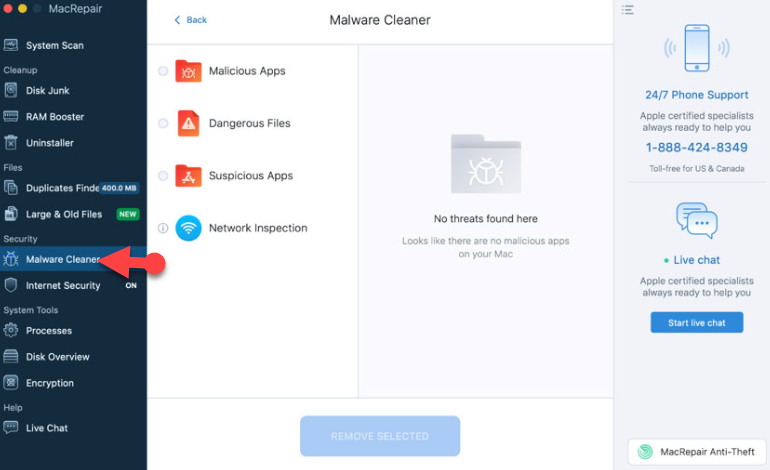
Cleaning your Mac is important, but security is even more important. Gone are the days when simply owning a Mac meant being safe from viruses and malware. MacRepair has two tools designed to protect you from malware and improve your online security. Malware Cleaner scans your Mac for threats and lets you remove them. Any threats that may be detected will be listed under three categories: Malicious Apps, Dangerous Files, and Suspicious Apps.
 Malware Cleaner
 Final Words
That’s all about How to Cleanup and Optimize your Mac with TweakBit MacRepair. MacRepair can be a lifesaver or at least a big time saver. Give it a try and see how easy it is to keep your Mac clean and protected. I hope you will enjoy using MacRepair and make your Mac better. So, if you faced any kind of problem then feel free to comment below. Don’t forget to comment on your feedback and suggestion about MacRepair.
Tagged
Share This Article
In this article, I am going to guide to How to Cleanup and Optimize your Mac TweakBit MacRepair. This tool in MacBook is very useful because MacRepair scans your Mac for junk, malware, and speed up your Mac. Moreover, it can uninstall unused apps, delete duplicates, and run security checks on your computer. If I use your Mac a lot on a daily basis. As a result, it starts to slow down over time, which makes me look for apps to help clean and speed it up. Actually I have tried many times in order to clean and make faster my Mac but couldn’t get any good results they all have its cons and pros. But I have found the latest tool and I tired, I was very happy about cleaning and make faster my Mac without a problem.
So, after cleaning my Mac I am compelled to share with my visitors because it will also clean the security of your Mac. It means that it will save your Mac from viruses and Malware. And as I said that it also makes my Mac faster by boosting RAM, and it will find malware and by pressing a button it will clean the malware too. So, if you want to make your Mac faster and cleaning the junk files then make sure to follow each step below.
Scan Mac for Junk and speed-reducing issues with MacRepair
System Scan It will scan very quickly, and after scanning your system, then you will get a list of issues MacRepair found on your Mac under each section. The software will let you clean 100MB of junk. If there is more on your Mac, you need to purchase a license. And I have to tell you that the license of the MacRepair is not free for that you need to pay.
After scanning you need to click the Start Repair button in order to resolve all detected issues. This should get your Mac a lot lighter and more efficient.
It is not finished yet. The left-side menu in the app’s main window is pretty long and houses a lot of options for getting your Mac cleaner, faster and better protected from threats. MacRepair can help you uninstall unwanted applications, find and delete duplicate file copies, sort through large and old files, set up Internet Security and more.
Start Repair Uninstaller
After repair the issues of the system, Then you have to click on the Uninstaller in order to find out and see all apps on your Mac. So, you are not going to uninstall all the apps just you need to uninstall the useless and unused apps in order to clean the apps which contain malware. Or look through non-AppStore apps by clicking on Other apps. This helps you decide on what to delete. After choosing the unused apps then you have to click on the Remove Selected.
Uninstaller Delete Duplicated Files and Folders
We save copies of the same file in more than one location, or the system does that. MacRepair has the tool to delete unneeded file duplicates, which can clear quite a bit of space and can make your May somehow faster and better. For finding the duplicate files you have to click on the Find All Duplicate at the bottom center of the screen.
Duplicates Finder Security
Cleaning your Mac is important, but security is even more important. Gone are the days when simply owning a Mac meant being safe from viruses and malware. MacRepair has two tools designed to protect you from malware and improve your online security. Malware Cleaner scans your Mac for threats and lets you remove them. Any threats that may be detected will be listed under three categories: Malicious Apps, Dangerous Files, and Suspicious Apps.
Malware Cleaner Final Words
That’s all about How to Cleanup and Optimize your Mac with TweakBit MacRepair. MacRepair can be a lifesaver or at least a big time saver. Give it a try and see how easy it is to keep your Mac clean and protected. I hope you will enjoy using MacRepair and make your Mac better. So, if you faced any kind of problem then feel free to comment below. Don’t forget to comment on your feedback and suggestion about MacRepair.