How to Solve Sim Not Supported on iPhone
 Azaz Shaikh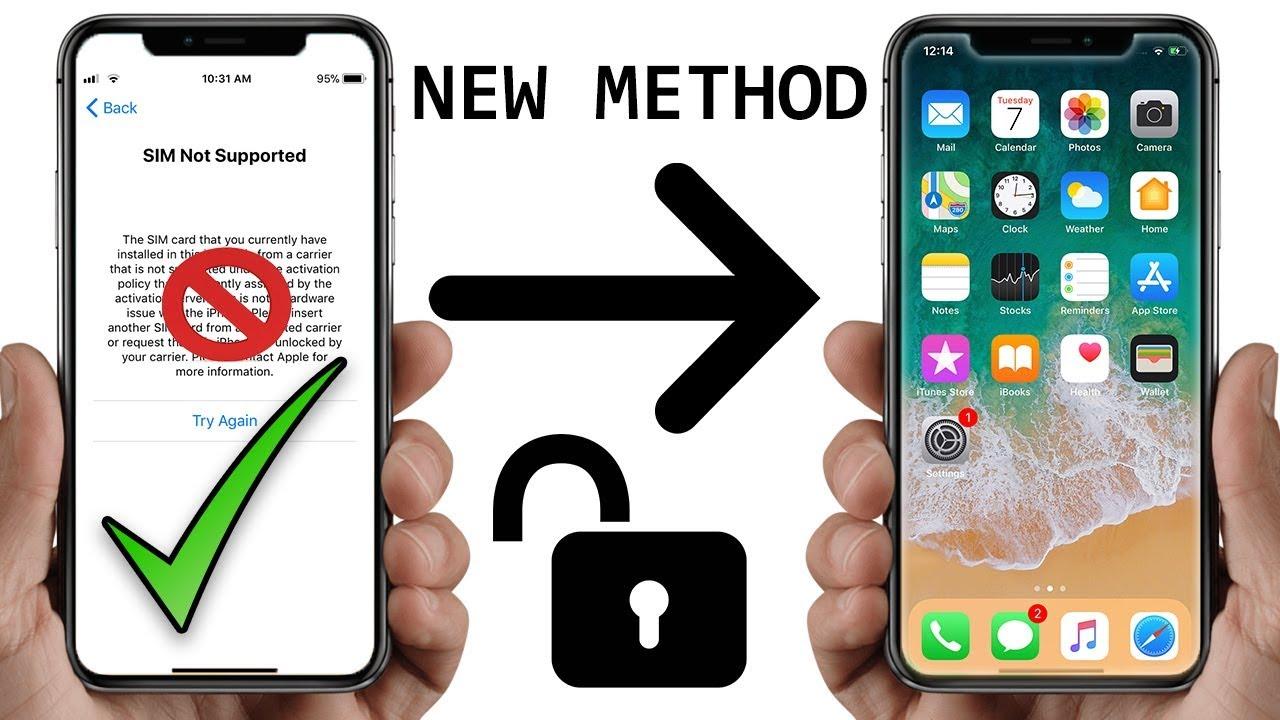
In this article, I am going to guide you on How to Solve Sim Not Supported on iPhone. Most of the time it happens with the iPhone user that your iPhone can’t recognize the sim card and you notice an issue Sim Not Supported. If the issue ever happens to you, you know better you can never make or receive a call and as well as you can’t text someone because of this issue. Each and everything regarding your carrier will be shut down or don’t until you fix the issue of Sim Not Supported. So, this issue occurs when you insert any sim to your iPhone, if your iPhone is not locked, then you will receive an error by Apple, Sim Not Supported.
In this case, I will walk you through 4 methods that will surely help you in order to Fix Sim Not Supported on iPhone. These methods are one of the easiest and simplest ever. Therefore, you have to follow each and every step so that you can fix the issue.
How to Solve Sim Not Supported on iPhone
The following are some of the methods to help you bypass the SIM card issue on your iPhone X or any other model for that matter.
Method 1: Check the Sim Card is Active and Works
 Check the Sim Card is Active and Works
First of all, you have to check and verify before you go further is to check your sim card is active and has all the services fixed for it from the carrier. Because most of the user, they think and blame their iPhone that is not working. But actually sometimes your sim card might have a problem. If you want to use the sim card which has disabled and deactivated by the carrier, then I am pretty sure that it won’t work with your iPhone. That’s why it is necessary to check your sim card before taking any strict action.
In this case, if your sim really indeed active, then you have to get replace from the carries and the new you have gotten will work pretty fine and will be ready to use in your iPhone. And if your sim card is not working and inactive, then you need to activate a plan for your iPhone so that you can use a sim card on your iPhone properly.
Method 2: Turn the Airplane Mode On and Off Consecutively
 Turn Airplane Mode On and Off
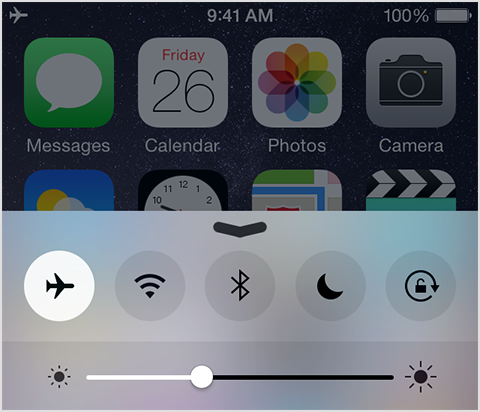
The second is very, you need to Turn Airplane Mode On and Off time by time. It may help you to find the service of your Sim card. And it can also remove the issue of Sim Not Supported.
Method 3: Update your iPhone to the Latest Version
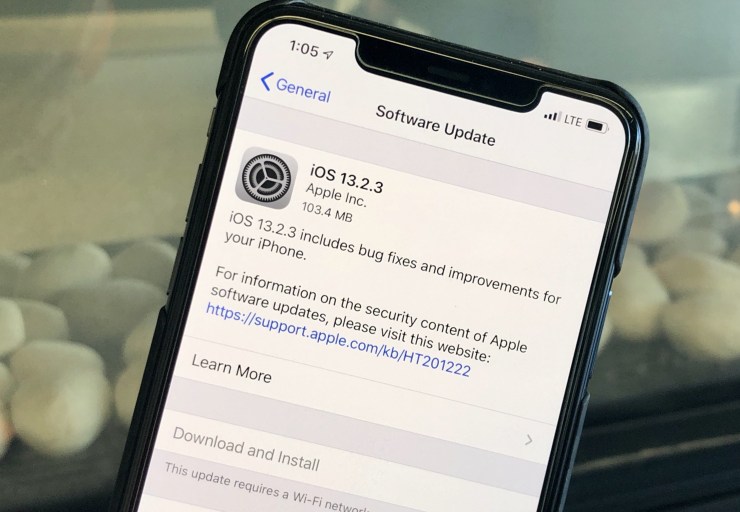
The third method is to make sure whether your iPhone updated to the latest version. If it has not updated then you need to update it from the setting of your iPhone. For that, you have to try in order to connect your iPhone with Wi-Fi. Because if your sim has not inserted then the cellular data won’t work on your iPhone. Updating the iPhone to the latest version is pretty easy that you can do that from the setting easily.
Method 4: Make an Emergency Call
 Make an Emergency Call
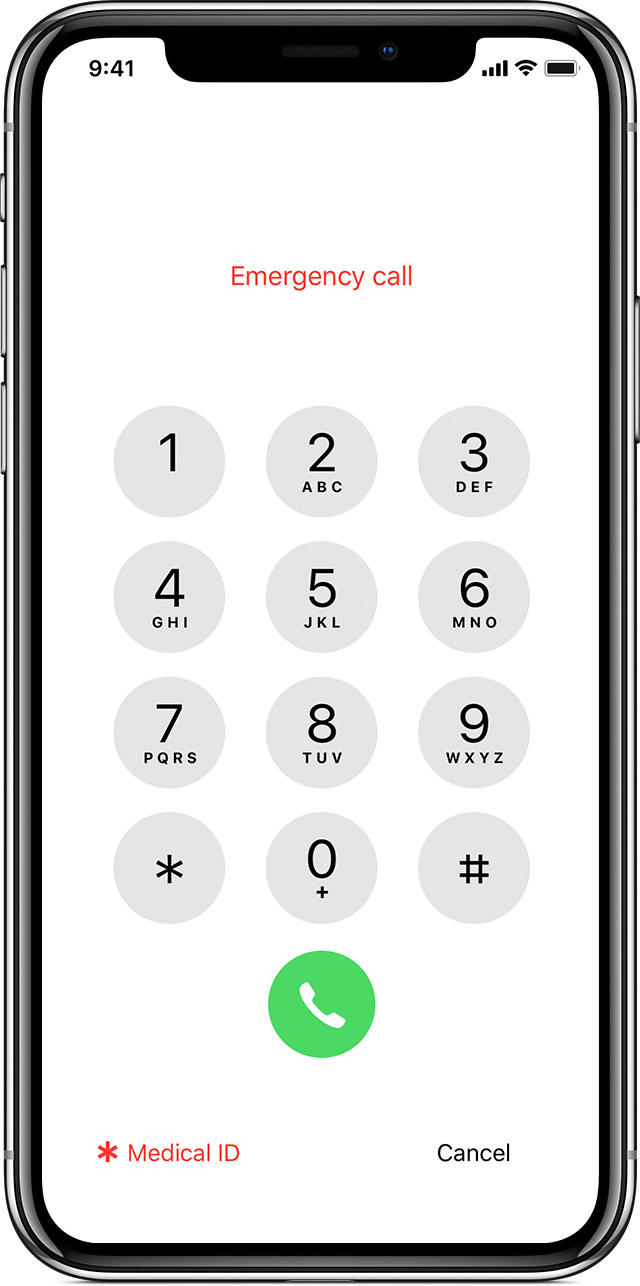
As a phone user, you may think that this method is useless but in fact, it really works and helped a large number of iPhone and phone users activate their phones without using any sim card. In this case, you need to place an emergency call and press a button then it will be a great job for you. While you are on the iPhone activation screen, press the Home button and choose Emergency Call from the menu that pops-up on your screen. Dial 911 or 112 and disconnect the call as soon as it has connected and press the Power button. Your iPhone will throw you on the main screen of your device and you have successfully bypassed the SIM card not supported issue on your device.
Related:
Final Thoughts
That’s all about How to Fix Sim Not Supported on iPhone Issue. I hope you found these tips and tricks useful and beneficial. These four methods will really help you in order to fix. If you faced any kind of problem or question then feel free to comment below. Also, give your positive comments regarding this.
Tagged
Share This Article
In this article, I am going to guide you on How to Solve Sim Not Supported on iPhone. Most of the time it happens with the iPhone user that your iPhone can’t recognize the sim card and you notice an issue Sim Not Supported. If the issue ever happens to you, you know better you can never make or receive a call and as well as you can’t text someone because of this issue. Each and everything regarding your carrier will be shut down or don’t until you fix the issue of Sim Not Supported. So, this issue occurs when you insert any sim to your iPhone, if your iPhone is not locked, then you will receive an error by Apple, Sim Not Supported.
In this case, I will walk you through 4 methods that will surely help you in order to Fix Sim Not Supported on iPhone. These methods are one of the easiest and simplest ever. Therefore, you have to follow each and every step so that you can fix the issue.
How to Solve Sim Not Supported on iPhone
The following are some of the methods to help you bypass the SIM card issue on your iPhone X or any other model for that matter.
Method 1: Check the Sim Card is Active and Works
Check the Sim Card is Active and Works
First of all, you have to check and verify before you go further is to check your sim card is active and has all the services fixed for it from the carrier. Because most of the user, they think and blame their iPhone that is not working. But actually sometimes your sim card might have a problem. If you want to use the sim card which has disabled and deactivated by the carrier, then I am pretty sure that it won’t work with your iPhone. That’s why it is necessary to check your sim card before taking any strict action.
In this case, if your sim really indeed active, then you have to get replace from the carries and the new you have gotten will work pretty fine and will be ready to use in your iPhone. And if your sim card is not working and inactive, then you need to activate a plan for your iPhone so that you can use a sim card on your iPhone properly.
Method 2: Turn the Airplane Mode On and Off Consecutively
Turn Airplane Mode On and Off
The second is very, you need to Turn Airplane Mode On and Off time by time. It may help you to find the service of your Sim card. And it can also remove the issue of Sim Not Supported.
Method 3: Update your iPhone to the Latest Version
The third method is to make sure whether your iPhone updated to the latest version. If it has not updated then you need to update it from the setting of your iPhone. For that, you have to try in order to connect your iPhone with Wi-Fi. Because if your sim has not inserted then the cellular data won’t work on your iPhone. Updating the iPhone to the latest version is pretty easy that you can do that from the setting easily.
Method 4: Make an Emergency Call
Make an Emergency Call
As a phone user, you may think that this method is useless but in fact, it really works and helped a large number of iPhone and phone users activate their phones without using any sim card. In this case, you need to place an emergency call and press a button then it will be a great job for you. While you are on the iPhone activation screen, press the Home button and choose Emergency Call from the menu that pops-up on your screen. Dial 911 or 112 and disconnect the call as soon as it has connected and press the Power button. Your iPhone will throw you on the main screen of your device and you have successfully bypassed the SIM card not supported issue on your device.
Related:
Final Thoughts
That’s all about How to Fix Sim Not Supported on iPhone Issue. I hope you found these tips and tricks useful and beneficial. These four methods will really help you in order to fix. If you faced any kind of problem or question then feel free to comment below. Also, give your positive comments regarding this.