

How to Play Sound on Two Devices at Once on Windows 11?
 Azaz Shaikh
From this article, you will be guided on How to Play Sound on Two Devices at Once on Windows 11? Windows 11 let you play sounds from your programs or the whole system on various devices. For example, you can distribute Windows notifications to the loudspeakers and play music via the headphones. You’ll need to manage the settings to make it confirmed that sounds play exactly. Most of the users often have more than one audio output device connected to their computers. However, Windows let them to choose select output to use. If you want to play sound on two devices at once then you need to read this article. So, without wasting any time let’s get started.
Play Sound on Two Devices By Enabling Stereo Mix
Step 1. First of all, you should Right-Click on the Speaker icon from the taskbar after that select Sounds.
Step 2. Go to the Playback tab then choose your speaker then tap on the Set as Default.
Step 3. Now, head towards the Recording tab then right-click on the empty portion after that select Show Disabled Devices, which will enable the Stereo Mix option.
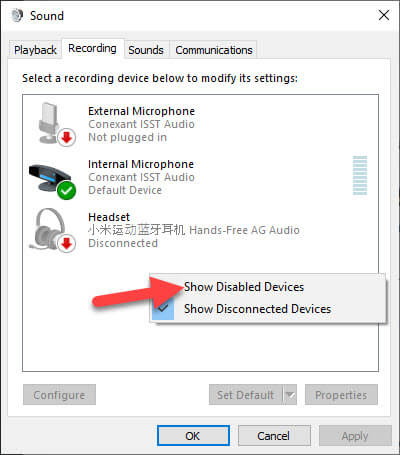 Select Show Disabled Devices
 Step 4. Next, right-click on the Stereo Mix and then click on the Enable.
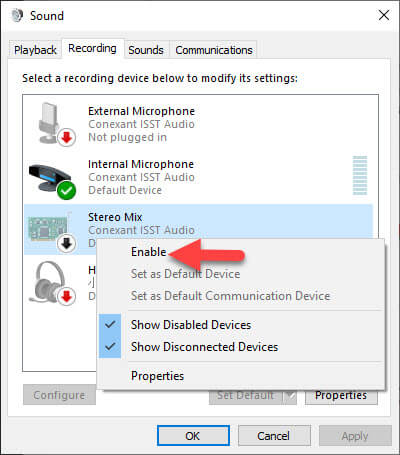 Click on the Enable
 Step 5. Once again right-click on the Stereo Mix after that select Set as Default Device.
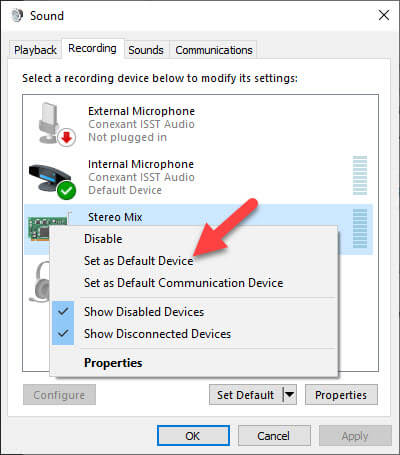 Select Set as Default Device
 Step 6. In the next step right-click on Stereo Mix then select Properties.
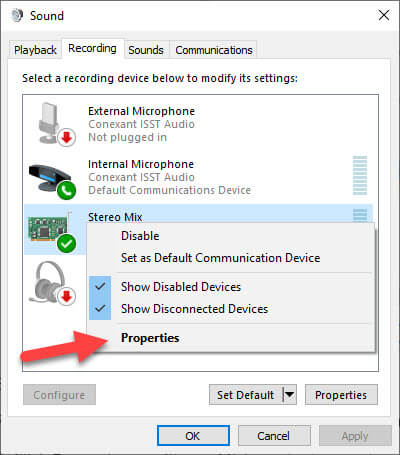 Select Properties
 Step 7. Go to the Listen tab then check the box of Listen to this device.
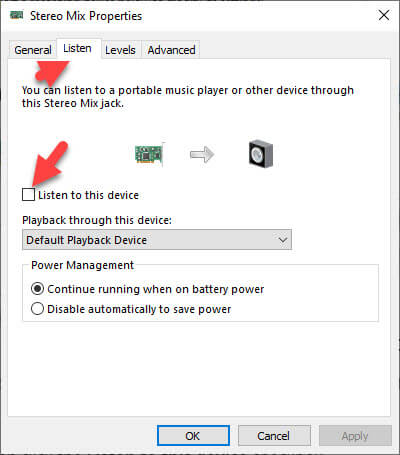 Listen to this device
 Step 8. Here choose the second playback speaker from the drop-down menu.
Step 9. Tap on the Apply to save the changes then click on the Ok
Step 10. Restart your PC to get want you to want.
Select the Output Devices to Play Audio From Specific App
Step 1. Open the Settings by pressing Windows + I shortcut.
Step 2. When the settings are open go to the Sound from the left then click on the App Volume and Device Preferences.
Step 3. Then you will the apps and you have to select any of the apps from the Drop-Down menu.
Step 4. Select the playback. Don’t forget that if you have selected the app the audio will play for that app only.
Final Words
It was all about how to Play Sound on Two Devices at Once on Windows 11? I hope this article is very helpful for you to play sound on Two devices. From this article, you will get something good. This was step by step guide on playing sound on two devices. Further, this is the right place where you can easily solve your problem. After following these steps I hope you will not face any kind of problem. If you faced any kind of problem and if you have any type of suggestions then do comment.
Explore More:
Share This Article
From this article, you will be guided on How to Play Sound on Two Devices at Once on Windows 11? Windows 11 let you play sounds from your programs or the whole system on various devices. For example, you can distribute Windows notifications to the loudspeakers and play music via the headphones. You’ll need to manage the settings to make it confirmed that sounds play exactly. Most of the users often have more than one audio output device connected to their computers. However, Windows let them to choose select output to use. If you want to play sound on two devices at once then you need to read this article. So, without wasting any time let’s get started.
Play Sound on Two Devices By Enabling Stereo Mix
Step 1. First of all, you should Right-Click on the Speaker icon from the taskbar after that select Sounds.
Step 2. Go to the Playback tab then choose your speaker then tap on the Set as Default.
Step 3. Now, head towards the Recording tab then right-click on the empty portion after that select Show Disabled Devices, which will enable the Stereo Mix option.
Select Show Disabled Devices Step 4. Next, right-click on the Stereo Mix and then click on the Enable.
Click on the Enable Step 5. Once again right-click on the Stereo Mix after that select Set as Default Device.
Select Set as Default Device Step 6. In the next step right-click on Stereo Mix then select Properties.
Select Properties Step 7. Go to the Listen tab then check the box of Listen to this device.
Listen to this device Step 8. Here choose the second playback speaker from the drop-down menu.
Step 9. Tap on the Apply to save the changes then click on the Ok
Step 10. Restart your PC to get want you to want.
Select the Output Devices to Play Audio From Specific App
Step 1. Open the Settings by pressing Windows + I shortcut.
Step 2. When the settings are open go to the Sound from the left then click on the App Volume and Device Preferences.
Step 3. Then you will the apps and you have to select any of the apps from the Drop-Down menu.
Step 4. Select the playback. Don’t forget that if you have selected the app the audio will play for that app only.
Final Words
It was all about how to Play Sound on Two Devices at Once on Windows 11? I hope this article is very helpful for you to play sound on Two devices. From this article, you will get something good. This was step by step guide on playing sound on two devices. Further, this is the right place where you can easily solve your problem. After following these steps I hope you will not face any kind of problem. If you faced any kind of problem and if you have any type of suggestions then do comment.
Explore More:


