

How to Install Android 12 on PC for free
 Azaz Shaikh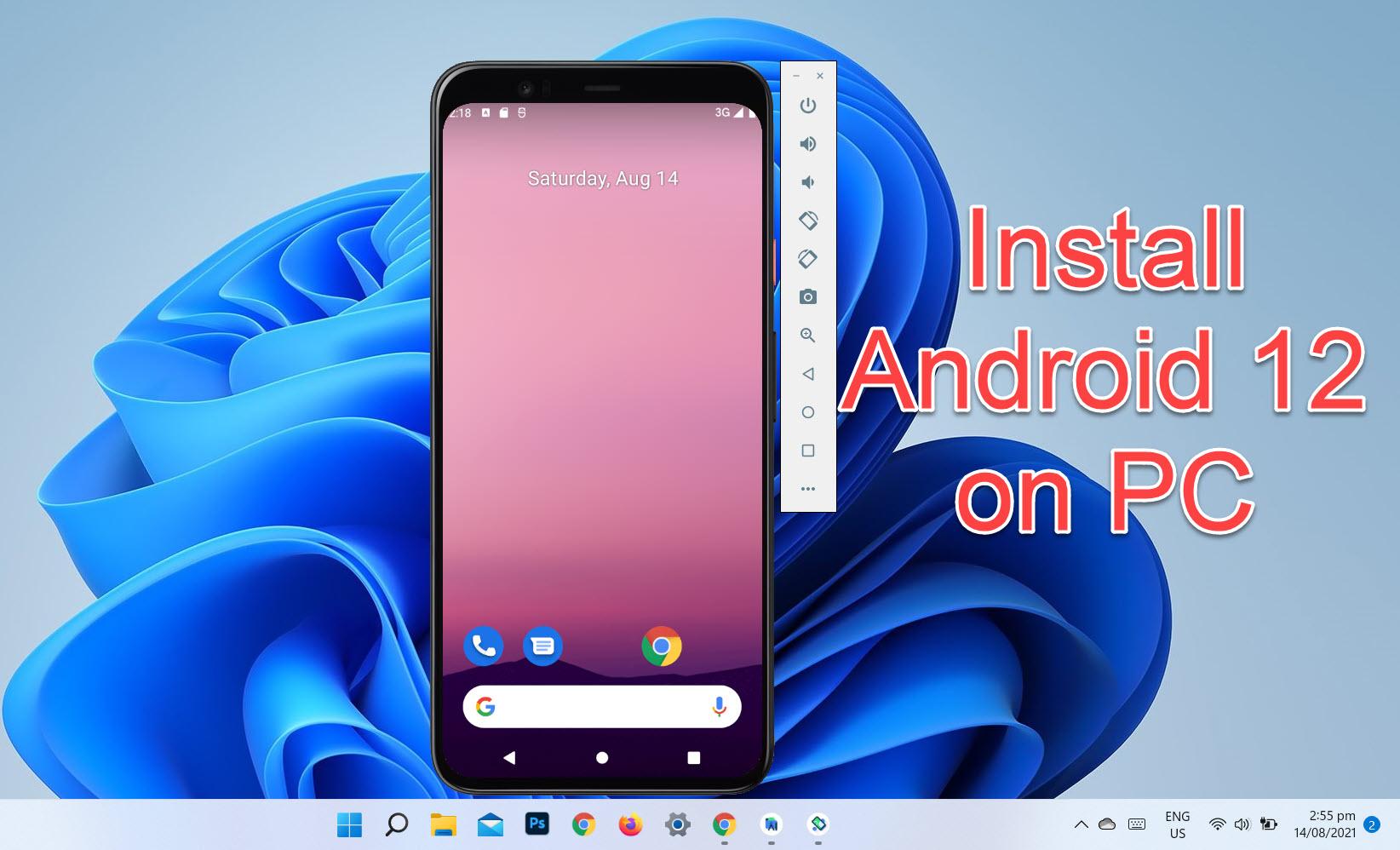
Android 12 is the next Android operating system that will be coming on the market with the Google Pixel 6. We can download Andriod 12 on windows 11 with Andriod Studio. Our new android 12 having many advanced features. This time Android 12 has many different kinds of changes even normal people can see the changes of Android 12. If you truly wish to test and Install Android 12 on a PC. In this article, I want to show you How to Install Android 12 on Windows 11 or macOS Monterey.
Download and Install Android Studio
Step 1: First open your Windows 11 computer then open your Google Chrome.
Step 2: Now, you can search Andriod Studio and then click on the Download Andriod Studio and SDK.
 Click on the Download Andriod Studio and SDk
 Step 3: Click on the Download Android Studio.
 Click On The Download Android Studio
 Step 4: Now, scroll down and then check the box and then click on the Download Android Studio for Windows.
 Click on the Download Android Studio for Windows.
 Step 5: When the download is done then click on the Next.
 Click On The Next
 Step 6: Now, click on the Next.
Step 7: Now, you change the location of Andriod Stuio click on the Next.
 Click On The Next
 Step 8: Click on the Install.
 Click On the Install\
 Step 9: When the installation is done then click on the Next.
Step 10: At last, click on the Finish.
 Click On The Finish
 How to Set Up Andriod 12 on Windows 11.
Step 1: Now, Select the Do not Import Setting and then click on the OK.
 Click On The OK
 Step 2: Click on The Don’t Send
 Click on The Don’t Send
 Step 3. You can click on the Next.
Step 4. Select the standard and then click on the Next.
Step 5: Now, you select the White mode and Black Mode and then click on the Next.
 Click On the Next
 Step 6. Click on the Finish.
Step 7. Now, you can wait to download the Andriod Studio.
Step 8. Now, click on the More Action and then click on the AVD Manager.
 Click On the AVD Manager
 Step 9: Click on the Create Virtual Device.
 Click on The Create Virtual Device
 Step 10: Now, select the Pixel 5 and then click on the Next.
 Click On The Next
 Step 11: Now, go to x86 image and then click on the Download of Andriod 12.
 Click On The Download
 Step 12: Select the Accept and then click on the Next.
 Click On The Next
 Step 13: Now, you can wait for insatlling and then click on the Finish.
 Click On The Finish
 Step 14. Now, select S option and then click on the Next.
Step 15. Select Portrant and then click on the Finsih.
Step 16. Click On The Start Icon
 Click On The Start Icon
 Step 17: Wait for Installation Process
Step 18: Now, Android 12 is Download on Windows 11
 Now, Android 12 is Download on Windows 11
 Final Words
So, It is all about How to Install Android 12 on Windows 11 and macOS Monterey. Using an Android operating system on a PC is really interesting and easy. If you have faced any kind of problem while following the steps then do not hesitate to leave comments in the comment section below.
Read some more:
Tagged
Share This Article
Android 12 is the next Android operating system that will be coming on the market with the Google Pixel 6. We can download Andriod 12 on windows 11 with Andriod Studio. Our new android 12 having many advanced features. This time Android 12 has many different kinds of changes even normal people can see the changes of Android 12. If you truly wish to test and Install Android 12 on a PC. In this article, I want to show you How to Install Android 12 on Windows 11 or macOS Monterey.
Download and Install Android Studio
Step 1: First open your Windows 11 computer then open your Google Chrome.
Step 2: Now, you can search Andriod Studio and then click on the Download Andriod Studio and SDK.
Click on the Download Andriod Studio and SDk Step 3: Click on the Download Android Studio.
Click On The Download Android Studio Step 4: Now, scroll down and then check the box and then click on the Download Android Studio for Windows.
Click on the Download Android Studio for Windows. Step 5: When the download is done then click on the Next.
Click On The Next Step 6: Now, click on the Next.
Step 7: Now, you change the location of Andriod Stuio click on the Next.
Click On The Next Step 8: Click on the Install.
Click On the Install\ Step 9: When the installation is done then click on the Next.
Step 10: At last, click on the Finish.
Click On The Finish How to Set Up Andriod 12 on Windows 11.
Step 1: Now, Select the Do not Import Setting and then click on the OK.
Click On The OK Step 2: Click on The Don’t Send
Click on The Don’t Send Step 3. You can click on the Next.
Step 4. Select the standard and then click on the Next.
Step 5: Now, you select the White mode and Black Mode and then click on the Next.
Click On the Next Step 6. Click on the Finish.
Step 7. Now, you can wait to download the Andriod Studio.
Step 8. Now, click on the More Action and then click on the AVD Manager.
Click On the AVD Manager Step 9: Click on the Create Virtual Device.
Click on The Create Virtual Device Step 10: Now, select the Pixel 5 and then click on the Next.
Click On The Next Step 11: Now, go to x86 image and then click on the Download of Andriod 12.
Click On The Download Step 12: Select the Accept and then click on the Next.
Click On The Next Step 13: Now, you can wait for insatlling and then click on the Finish.
Click On The Finish Step 14. Now, select S option and then click on the Next.
Step 15. Select Portrant and then click on the Finsih.
Step 16. Click On The Start Icon
Click On The Start Icon Step 17: Wait for Installation Process
Step 18: Now, Android 12 is Download on Windows 11
Now, Android 12 is Download on Windows 11 Final Words
So, It is all about How to Install Android 12 on Windows 11 and macOS Monterey. Using an Android operating system on a PC is really interesting and easy. If you have faced any kind of problem while following the steps then do not hesitate to leave comments in the comment section below.
Read some more:


