

How to Install and Use Viber on Windows PC
 Azaz Shaikh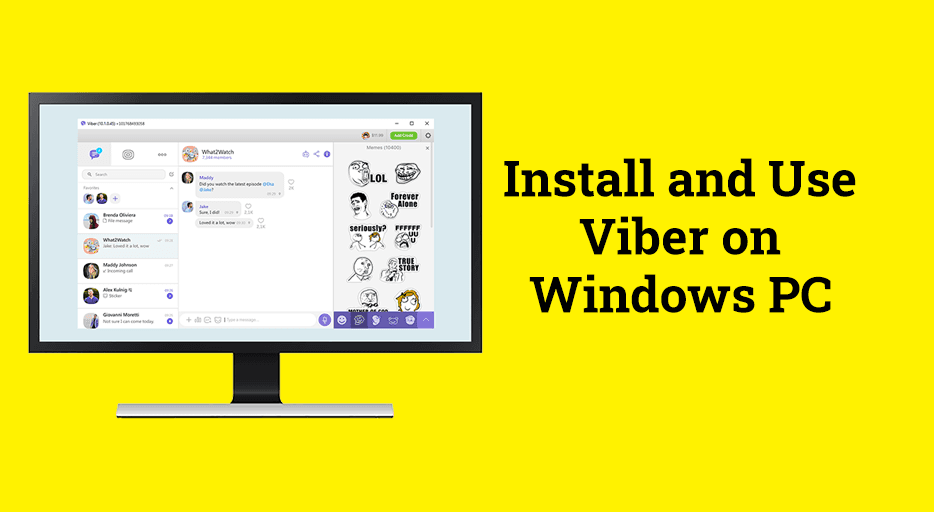
Viber is the best application or software for calling and chatting across the globe. It allows the users in order to make free VoIP internet calls and send text messages from computer and mobile phone to another video friend. Viber team is always updating the app and making it special according to the needs of its users. However, it is also known as a popular chatting application that millions of people are using on a daily basis. It was launched in 2012 and also today (2021) it has a huge amount of users and lovers. Actually, you can easily download the Viber app from the Play Store or App Store free of cost. Therefore, I will show you How to Install and Use Viber on Windows PC.
Viber app has been available for the Android operating system since 2012. But most of the people want to use it on Windows operating system. Therefore, they have launched a specific app for Windows users also. Now, it can be supported on Android, iOS, Microsoft Windows, macOS, and Linux platforms. It works amazingly on the Windows operating system because it has made according to the need of people. Viber officially supports Windows free of cost.
I will show you a quick and clean installation of Viber on a Windows PC. You can install it as you install other programs. Then you can start chatting and calling instantly. If you go through the Emulator method then it will have a very long procedure, we will ignore and not use this procedure. Therefore, I will show you to install like other normal Windows application.
How to Install and Use Viber on Windows PC
At first, we will need to download the Viber latest version. There are many ways that you can download Viber, if you are a beginner then you can download it from the Microsoft Store. Since downloading any software from Microsoft Store needs a Microsoft account which has a pretty long procedure. For a better experience, you have to click on the download link down below to directly download the setup of Viber on your Windows PC.
Make sure to download the accurate version as shown in the screenshot down below.
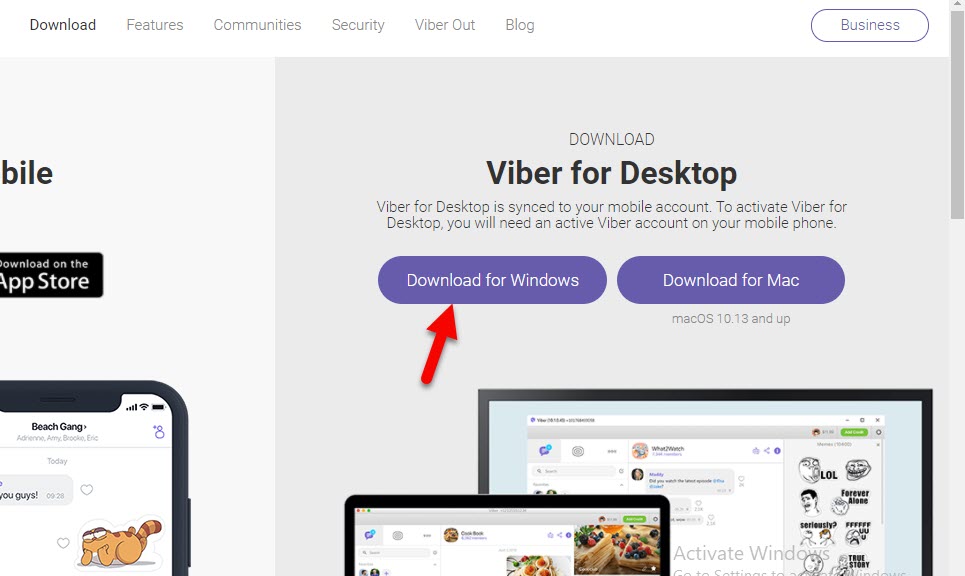 Download for Windows
You might have successfully downloaded the Viber setup. So, go to the folder and find out the Viber setup and double-click on that.
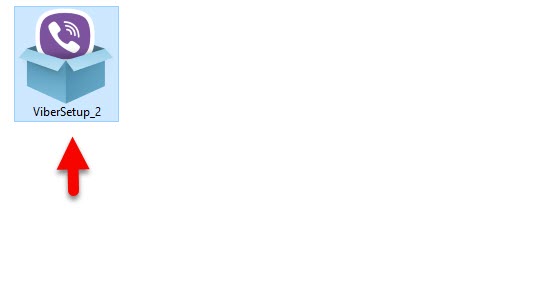 Viber Setup
Next, you will get a Viber installer window. To start the installation process, make sure to click on the Install.
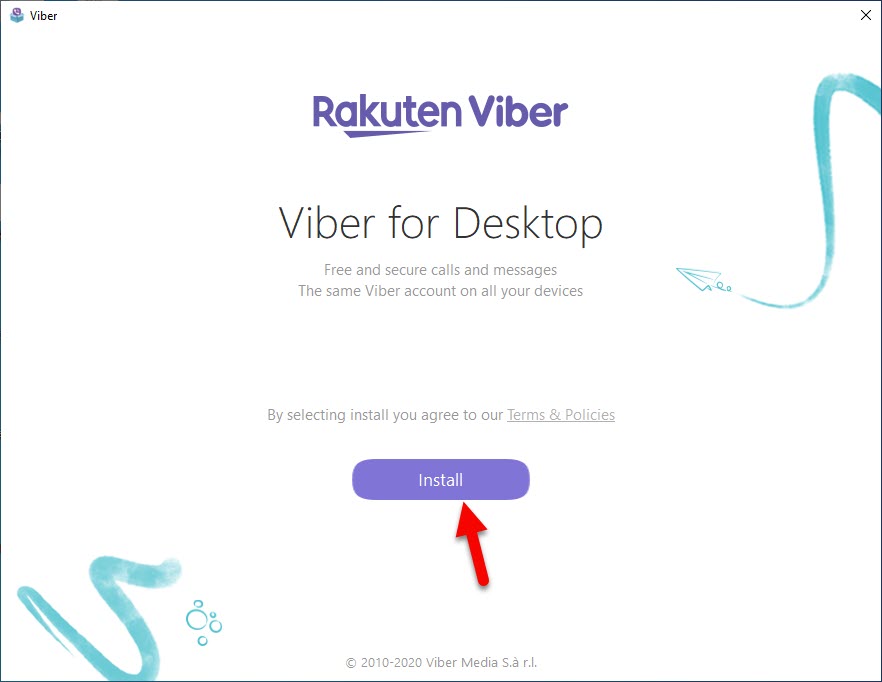 Install Viber
You have to wait a moment until the installation process is completed.
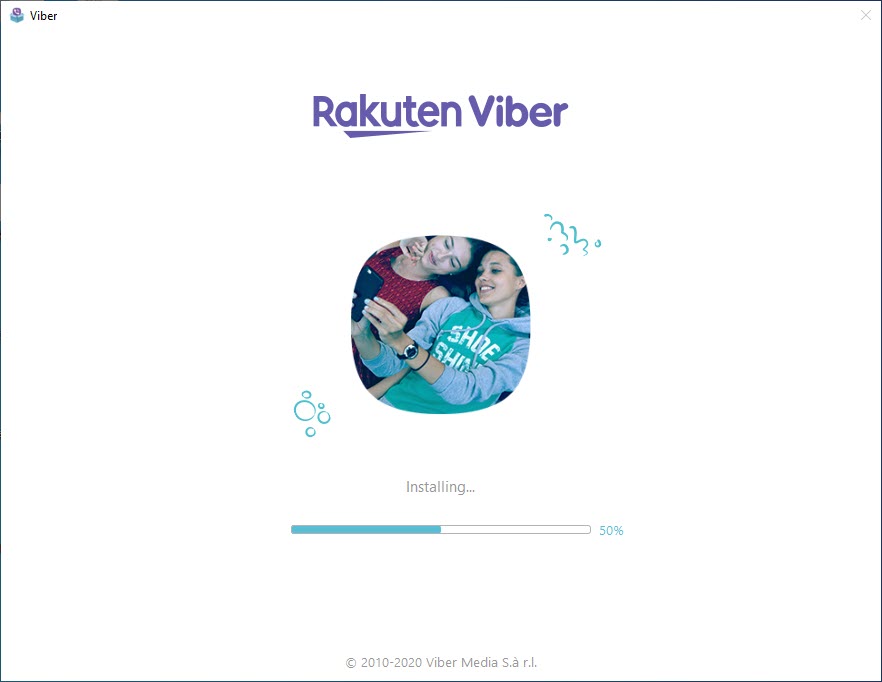 Installing
Now, it will be activated through the QR code. Keep in mind that you can’t activate without your mobile phone. To use Viber on your Windows computer, make sure to follow the below guidance,
- Open Viber on your mobile phone.
- Make sure to Open the menu screen from the left bottom corner.
- Open the QR code option and scan it with QR appear on the screen of your computer.
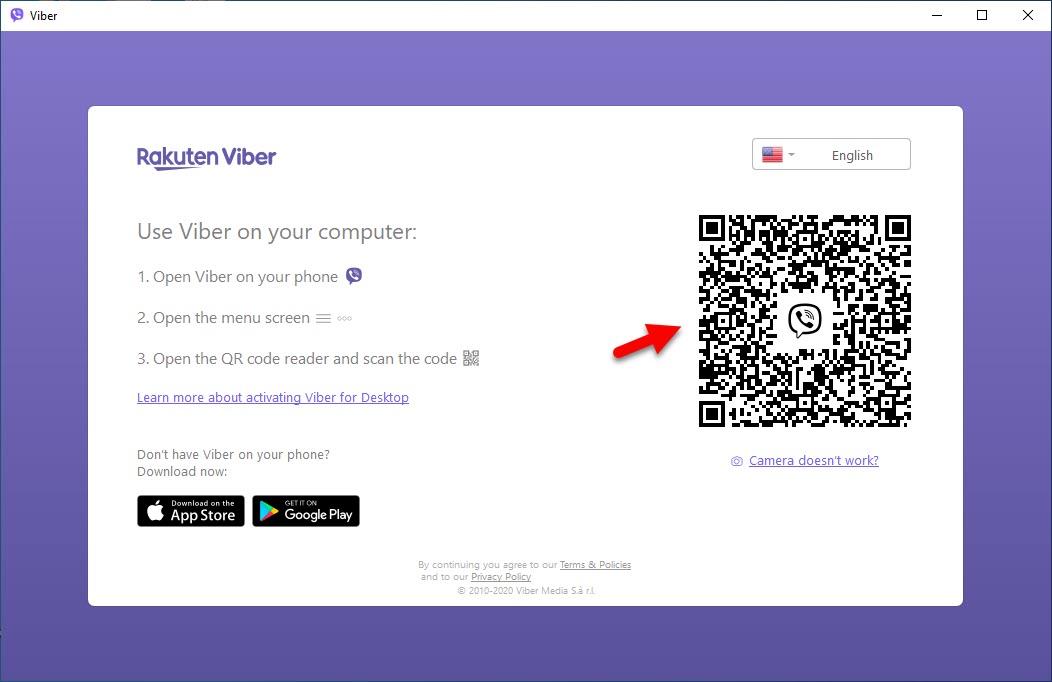 Scan with QR code
Related Guides:
Bottom Line
It was all about How to Install and Use Viber on Windows PC. Installing and using Viber on Windows operating system is quite easy because you are completely allowed to go for it. However, I hope you have found this guide beneficial. If you faced any kind of problem or question then don’t hesitate to leave comments in the comment section down below.
Share This Article
Viber is the best application or software for calling and chatting across the globe. It allows the users in order to make free VoIP internet calls and send text messages from computer and mobile phone to another video friend. Viber team is always updating the app and making it special according to the needs of its users. However, it is also known as a popular chatting application that millions of people are using on a daily basis. It was launched in 2012 and also today (2021) it has a huge amount of users and lovers. Actually, you can easily download the Viber app from the Play Store or App Store free of cost. Therefore, I will show you How to Install and Use Viber on Windows PC.
Viber app has been available for the Android operating system since 2012. But most of the people want to use it on Windows operating system. Therefore, they have launched a specific app for Windows users also. Now, it can be supported on Android, iOS, Microsoft Windows, macOS, and Linux platforms. It works amazingly on the Windows operating system because it has made according to the need of people. Viber officially supports Windows free of cost.
I will show you a quick and clean installation of Viber on a Windows PC. You can install it as you install other programs. Then you can start chatting and calling instantly. If you go through the Emulator method then it will have a very long procedure, we will ignore and not use this procedure. Therefore, I will show you to install like other normal Windows application.
How to Install and Use Viber on Windows PC
At first, we will need to download the Viber latest version. There are many ways that you can download Viber, if you are a beginner then you can download it from the Microsoft Store. Since downloading any software from Microsoft Store needs a Microsoft account which has a pretty long procedure. For a better experience, you have to click on the download link down below to directly download the setup of Viber on your Windows PC.
Make sure to download the accurate version as shown in the screenshot down below.
Download for Windows
You might have successfully downloaded the Viber setup. So, go to the folder and find out the Viber setup and double-click on that.
Viber Setup
Next, you will get a Viber installer window. To start the installation process, make sure to click on the Install.
Install Viber
You have to wait a moment until the installation process is completed.
Installing
Now, it will be activated through the QR code. Keep in mind that you can’t activate without your mobile phone. To use Viber on your Windows computer, make sure to follow the below guidance,
- Open Viber on your mobile phone.
- Make sure to Open the menu screen from the left bottom corner.
- Open the QR code option and scan it with QR appear on the screen of your computer.
Scan with QR code
Related Guides:
Bottom Line
It was all about How to Install and Use Viber on Windows PC. Installing and using Viber on Windows operating system is quite easy because you are completely allowed to go for it. However, I hope you have found this guide beneficial. If you faced any kind of problem or question then don’t hesitate to leave comments in the comment section down below.


