

How to Fix Lagging Mouse in Windows 10 and 11?
 Azaz Shaikh
In this article, you will learn How to Fix the Lagging Mouse in Windows 10 and 11? When you have a mouse then when it starts lagging after that you can not use your PC well. If the mouse will lag while using your computer then you will not use your PC more. Because the mouse is lagging. However, most of the people have a habit to use their computer with a mouse or some of the people are using their computer with Touchpad. If your mouse is lagging then you need to read this article. So, without wasting any time let’s get has started.
Method 1: Update your Mouse Driver
Step 1. First of all, you need to right-click on the Start menu after that click on the Device Manager.
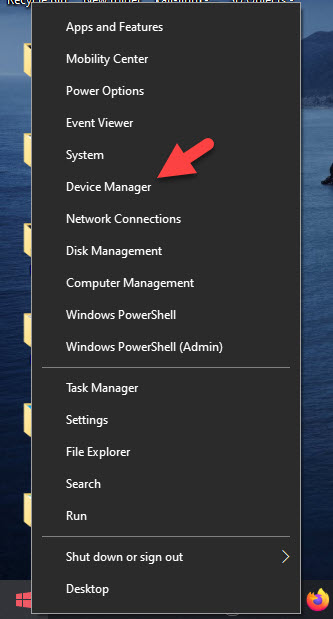 Click on the Device Manager
 Step 2. When the device manager is open then double-click on the Mice and Other Pointing Devices after that click on your mouse.
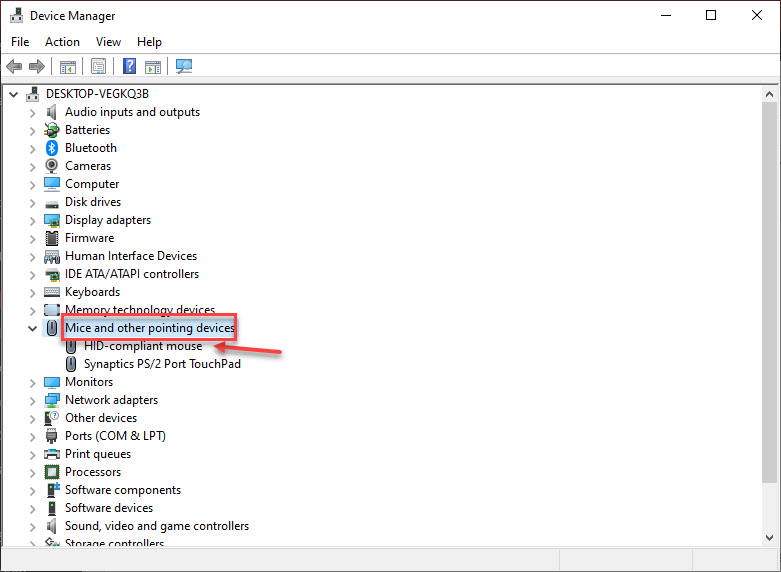 Double-Click
 Step 3. Click on the Driver from the menu tab after that click on the Update Driver.
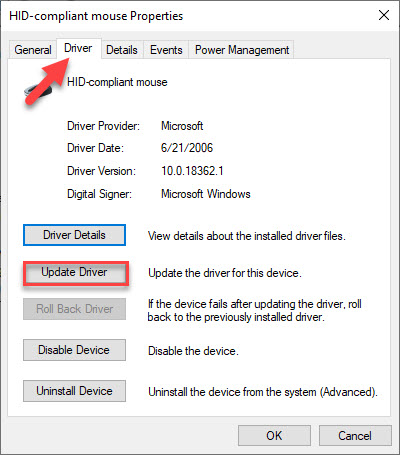 Click on the Update Driver
 Step 4. Now, click on the Search Automatically for Driver.
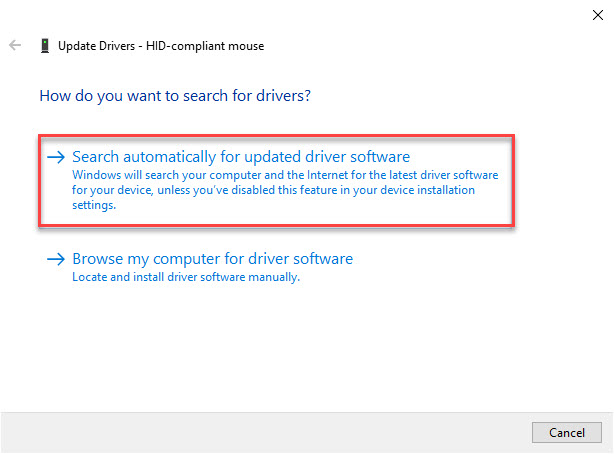 Click on the Search Automatically for Driver
 Step 5. Next, when the new drive is launched, your PC will start downloading and your PC will automatically restart to save all the changes.
Step 6. If the message will pop up like that the best drivers for your device are already installed, simply click on the Search For Updated Drives on Windows Update.
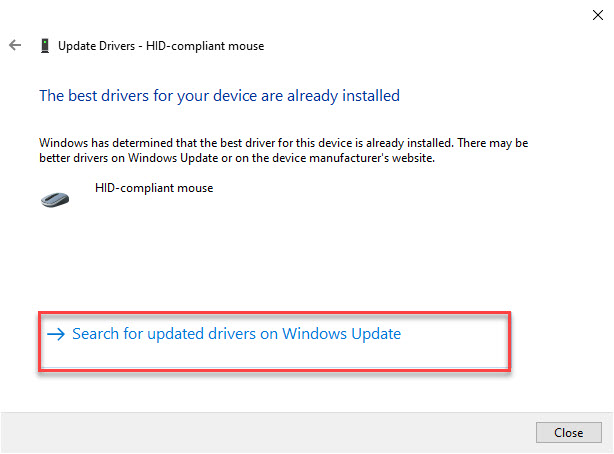 Click on the Search For Updated Drives on Windows Update
 Step 7. Select the View Optional Update.
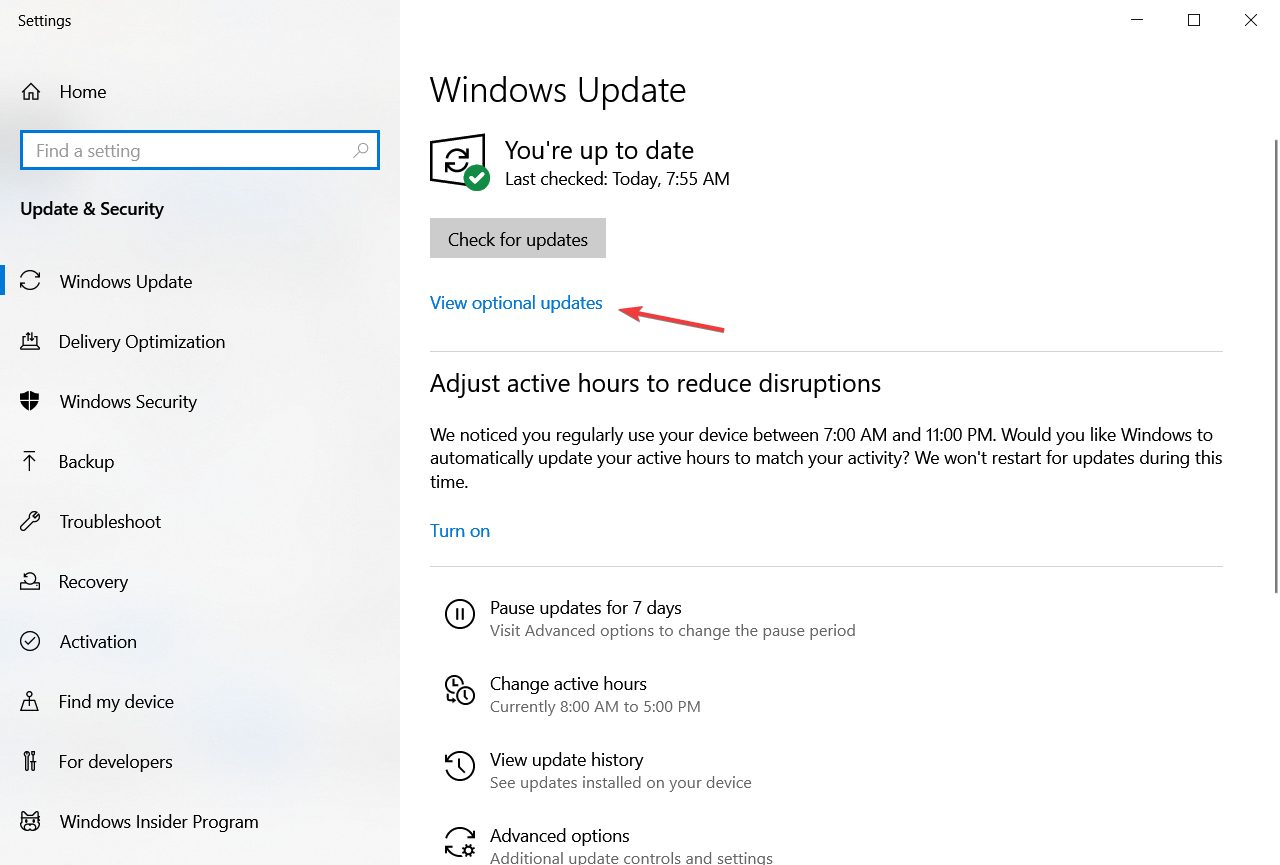 Select the View the Optional Update
 Step 8. Click on the drivers update to open the drop-down after that check the box under the driver update.
Step 9. At last, click on the Download and Install.
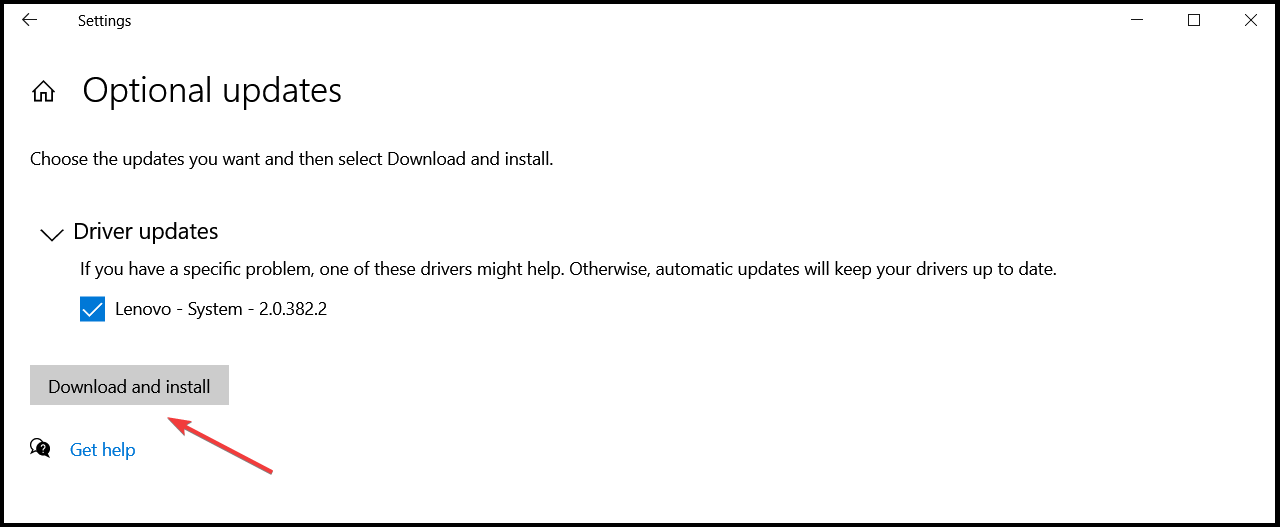 Click on the Download and Install
 Method 2: Enable or Disable the Scroll Inactive Windows Option
Step 1. At first, press or hold Windows + I to open the Settings.
Step 2. Next, click on the Devices.
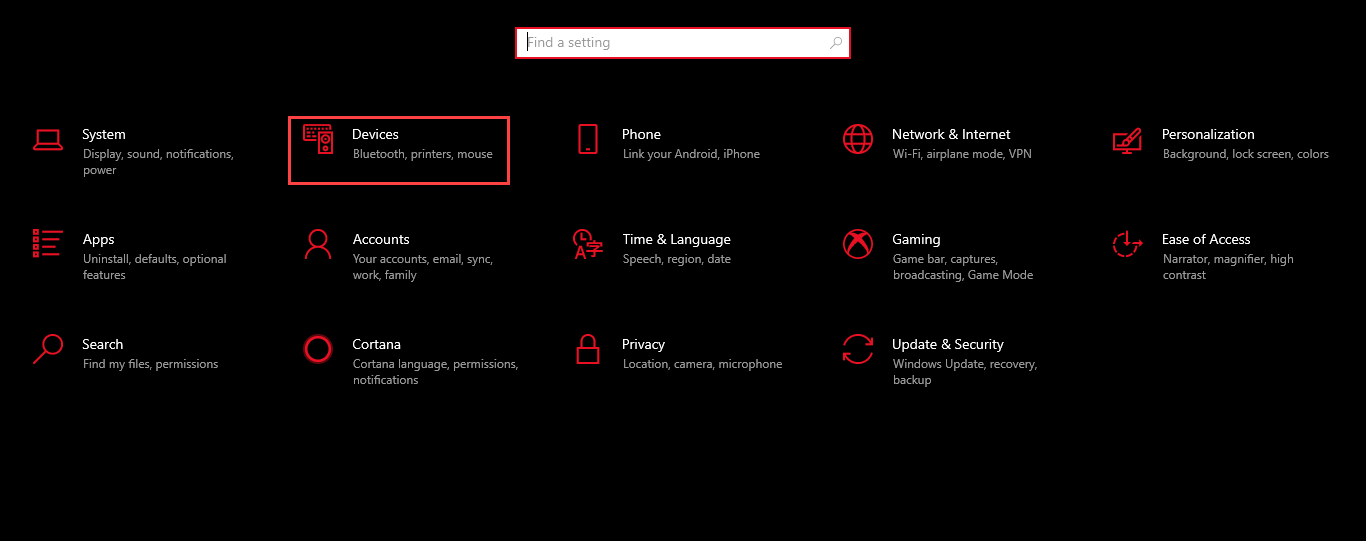 Click on the Devices
 Step 3. Now, from the left side click on the Mouse.
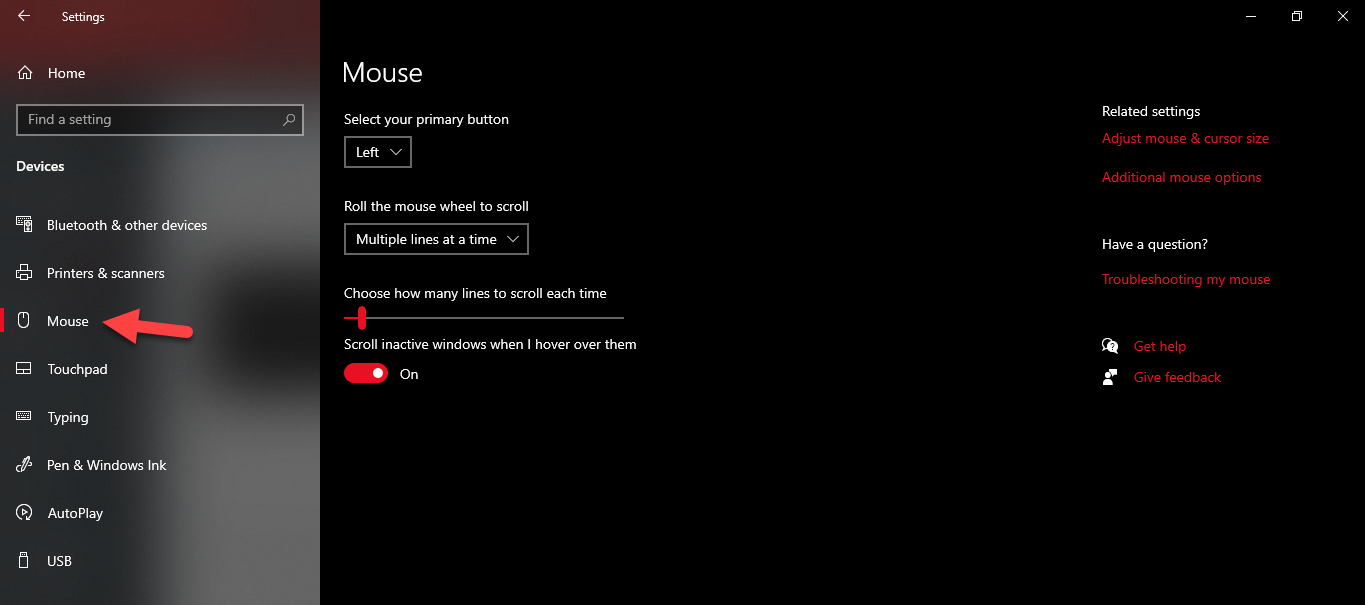 Click on the Mouse
 Step 4. In these steps turn on or off the toggle of Scroll Inactive Windows When I Hover Over Than.
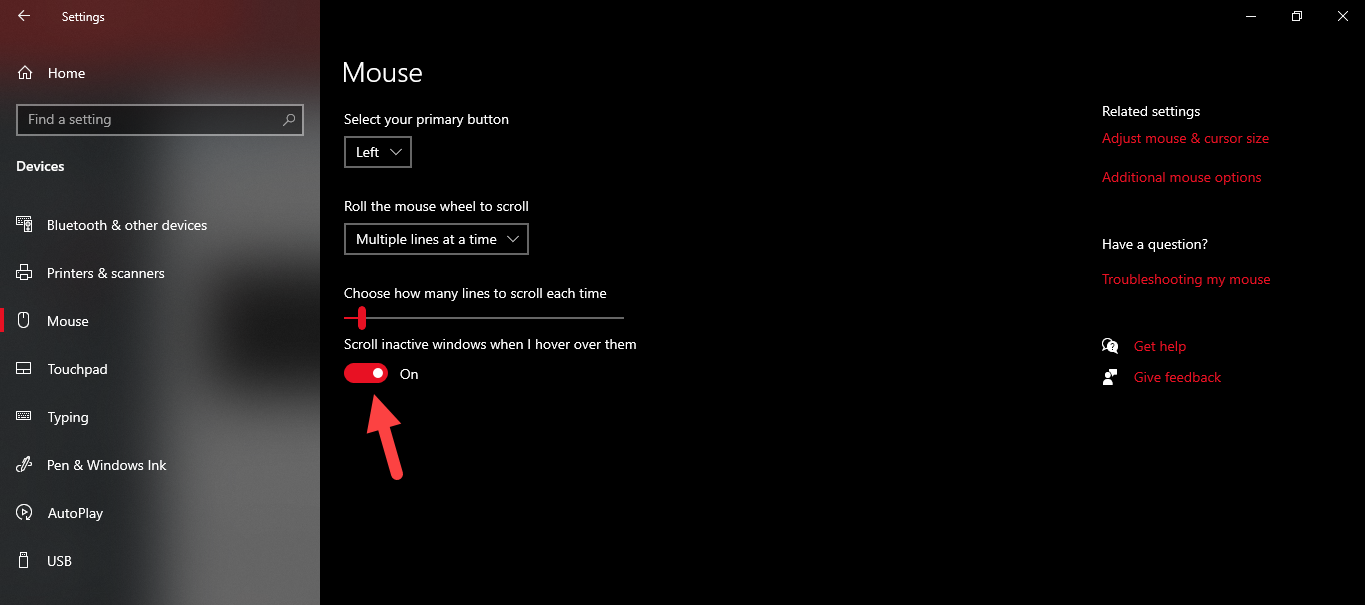 Scroll Inactive Windows When I Hover Over Than
 Step 5. Finally, turn it on or off until the lag of your mouse is not fix.
- Follow this step on Windows 11
Step 1. First, press Win Key + X or right-click on the Start menu after that select Settings.
Step 2. Then click on the Bluetooth and Devices.
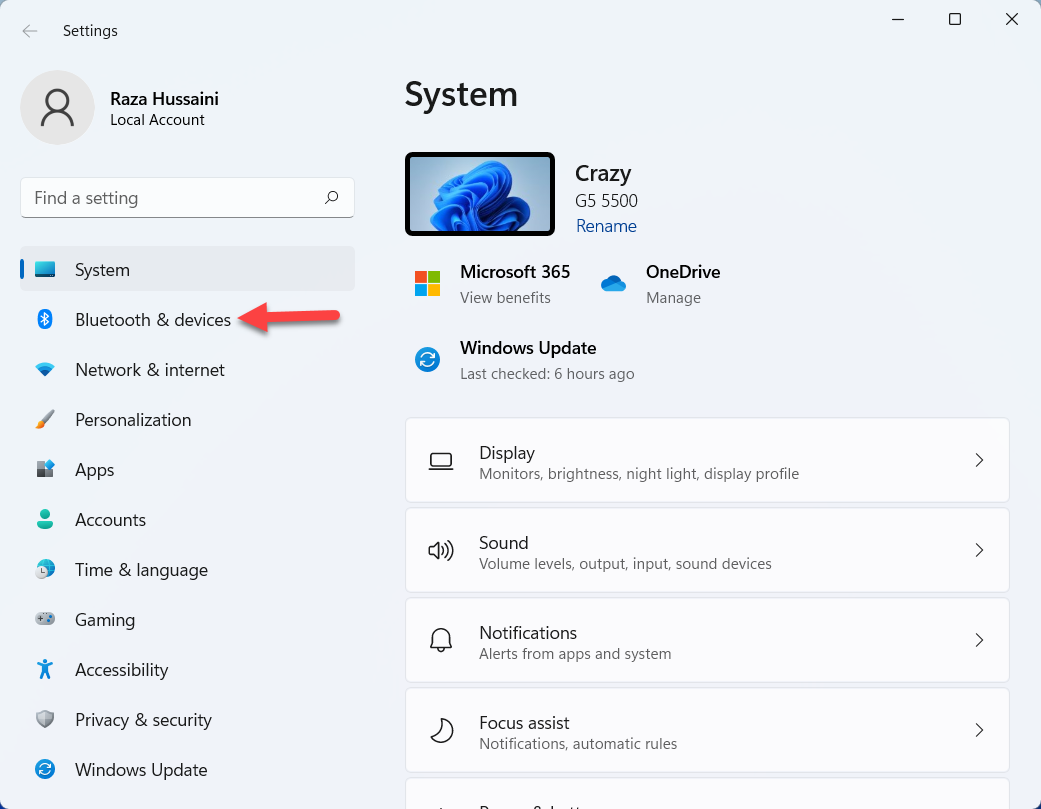 Bluetooth & devices
 Step 3. scroll down then select Mouse.
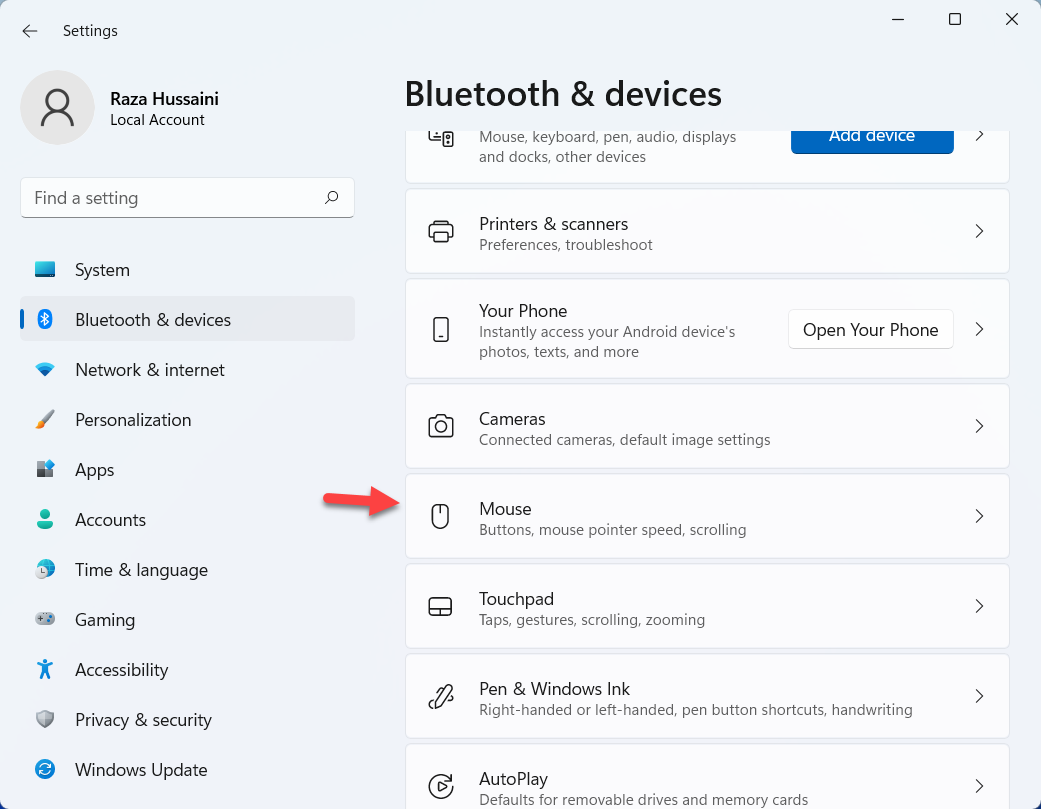 Bluetooth & devices
 Step 4. At last, turn the toggle on of Scroll Inactive Windows When Hovering Over Them.
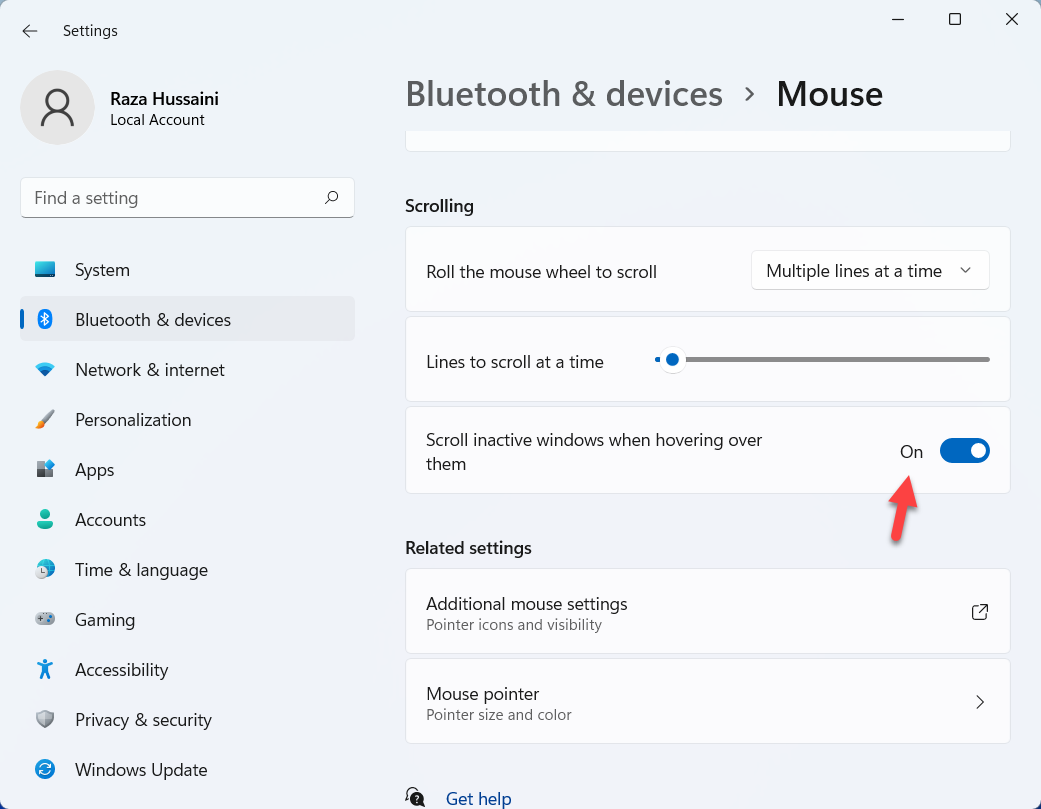 Toggle on
 Method 4: How to Change the PalmCheck Threshold in Windows 11
Step 1. Firstly, right-click on the Start menu then select Settings.
Step 2. Once the settings are open then you will get a bunch of options from that option you need to click on the Devices.
Step 3. Click on the Touchpad then select Settings.
Step 4. Lastly, get the Palmcheck.
Bottom Line
It was all about How to Fix Lagging Mouse in Windows 10 and 11? I hope this article is very helpful for you to fix the lagging of the mouse. From this article, you will get something good. This is the right place where you can easily solve your problem. After following these steps I hope you will not face any kind of problem. If you faced any kind of problem and if you have any type of suggestions then do comment.
Related Posts:
Tagged
Share This Article
In this article, you will learn How to Fix the Lagging Mouse in Windows 10 and 11? When you have a mouse then when it starts lagging after that you can not use your PC well. If the mouse will lag while using your computer then you will not use your PC more. Because the mouse is lagging. However, most of the people have a habit to use their computer with a mouse or some of the people are using their computer with Touchpad. If your mouse is lagging then you need to read this article. So, without wasting any time let’s get has started.
Method 1: Update your Mouse Driver
Step 1. First of all, you need to right-click on the Start menu after that click on the Device Manager.
Click on the Device Manager Step 2. When the device manager is open then double-click on the Mice and Other Pointing Devices after that click on your mouse.
Double-Click Step 3. Click on the Driver from the menu tab after that click on the Update Driver.
Click on the Update Driver Step 4. Now, click on the Search Automatically for Driver.
Click on the Search Automatically for Driver Step 5. Next, when the new drive is launched, your PC will start downloading and your PC will automatically restart to save all the changes.
Step 6. If the message will pop up like that the best drivers for your device are already installed, simply click on the Search For Updated Drives on Windows Update.
Click on the Search For Updated Drives on Windows Update Step 7. Select the View Optional Update.
Select the View the Optional Update Step 8. Click on the drivers update to open the drop-down after that check the box under the driver update.
Step 9. At last, click on the Download and Install.
Click on the Download and Install Method 2: Enable or Disable the Scroll Inactive Windows Option
Step 1. At first, press or hold Windows + I to open the Settings.
Step 2. Next, click on the Devices.
Click on the Devices Step 3. Now, from the left side click on the Mouse.
Click on the Mouse Step 4. In these steps turn on or off the toggle of Scroll Inactive Windows When I Hover Over Than.
Scroll Inactive Windows When I Hover Over Than Step 5. Finally, turn it on or off until the lag of your mouse is not fix.
- Follow this step on Windows 11
Step 1. First, press Win Key + X or right-click on the Start menu after that select Settings.
Step 2. Then click on the Bluetooth and Devices.
Bluetooth & devices Step 3. scroll down then select Mouse.
Bluetooth & devices Step 4. At last, turn the toggle on of Scroll Inactive Windows When Hovering Over Them.
Toggle on Method 4: How to Change the PalmCheck Threshold in Windows 11
Step 1. Firstly, right-click on the Start menu then select Settings.
Step 2. Once the settings are open then you will get a bunch of options from that option you need to click on the Devices.
Step 3. Click on the Touchpad then select Settings.
Step 4. Lastly, get the Palmcheck.
Bottom Line
It was all about How to Fix Lagging Mouse in Windows 10 and 11? I hope this article is very helpful for you to fix the lagging of the mouse. From this article, you will get something good. This is the right place where you can easily solve your problem. After following these steps I hope you will not face any kind of problem. If you faced any kind of problem and if you have any type of suggestions then do comment.
Related Posts:


