

How to Change Facebook Page Name 2022? (Updated)
 Azaz Shaikh
In this article, I am going to show you How to Change Facebook Page Name 2022? (Updated). Adding a suitable name for your Facebook page will be very beneficial for your brand. While creating your page, you will have to add a specific name for it in order to get identified by everyone. If you create a page for your business it may boost up your business. You have to come up with an easy name so that everyone should remember it.
Therefore, sometimes it happens that you will type wrong and non-meaning full names. At that time you will be compelled to change or simply edit that. You might have written a Facebook name that doesn’t match your brand or business. Luckily, Facebook allows you to change or edit your Facebook page name anytime you want.
If you have a big or old Facebook page with more than 5000 followers then it will take 3 days to approve your Facebook page name request. But if you have a newly created page then it will be approved within minutes. So, for changing the name of your Facebook page you have to follow up each step down below.
How to Change Facebook Page Name in PC 2022
Step 1. First of all, you need to open Facebook from the browser and log in with your account.
Step 2. Once you logged in with your account then look towards the left side of the screen you will get the name of your Page. If you didn’t get then click on the Pages after that you will see.

Step 3. Now, scroll down until you don’t see the option of Edit Page Info simply click on it.
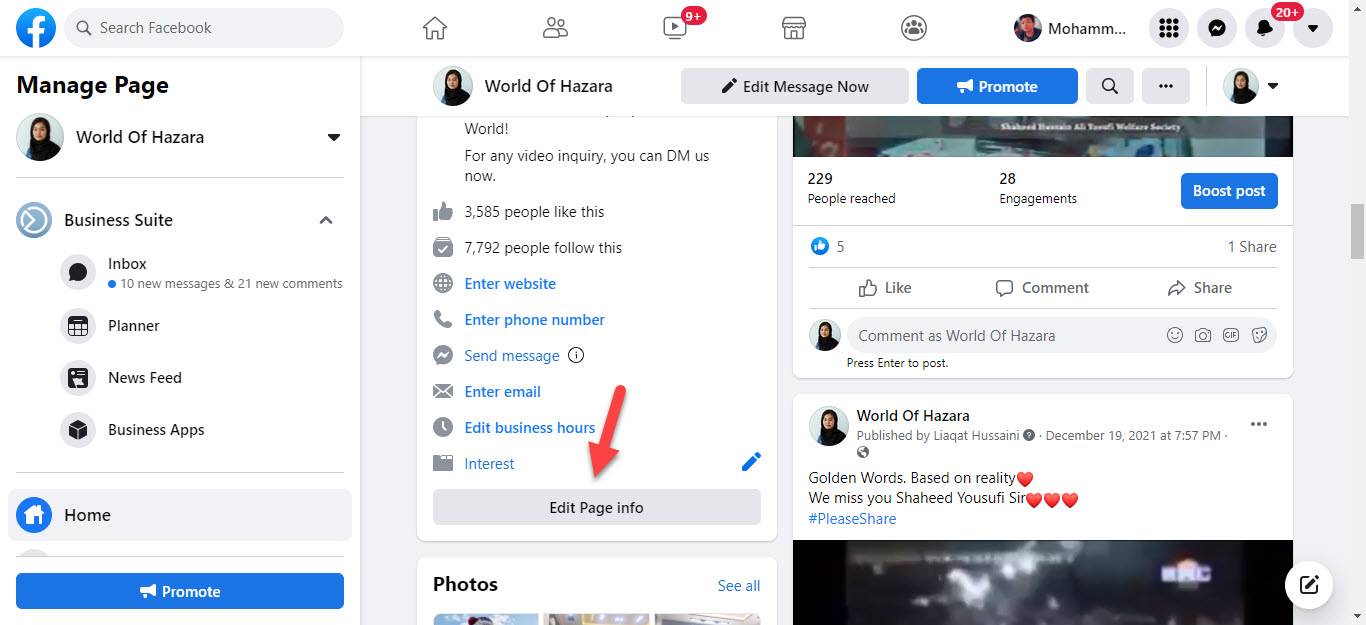 Click on the Edit Page Info
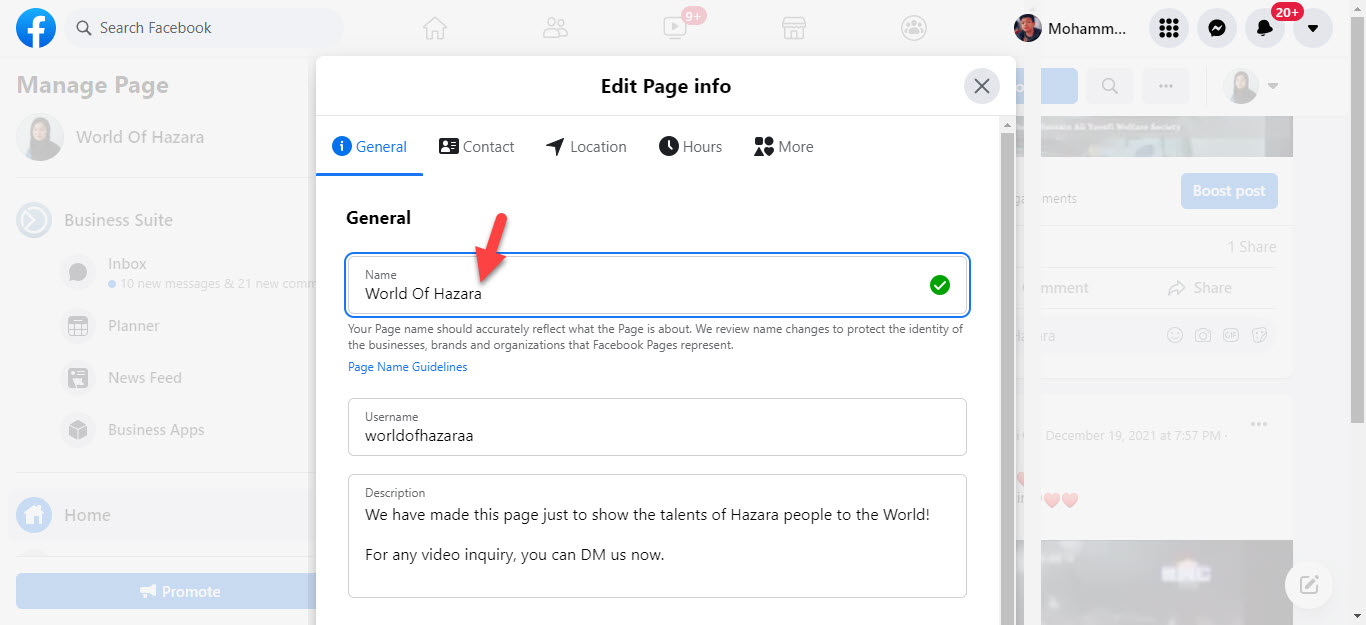
 Step 4. At last, click on the section of Name then remove the name and type your one.
How to Change Facebook Page Name in Android Using Browser 2022
It is having the very good advantage to change the Facebook page name from the browser if you change from the Facebook app then you will face an error while changing the name and this error will occur in some of the devices.
Step 1. First, open any browser then search for Facebook.com after that log in with your account.
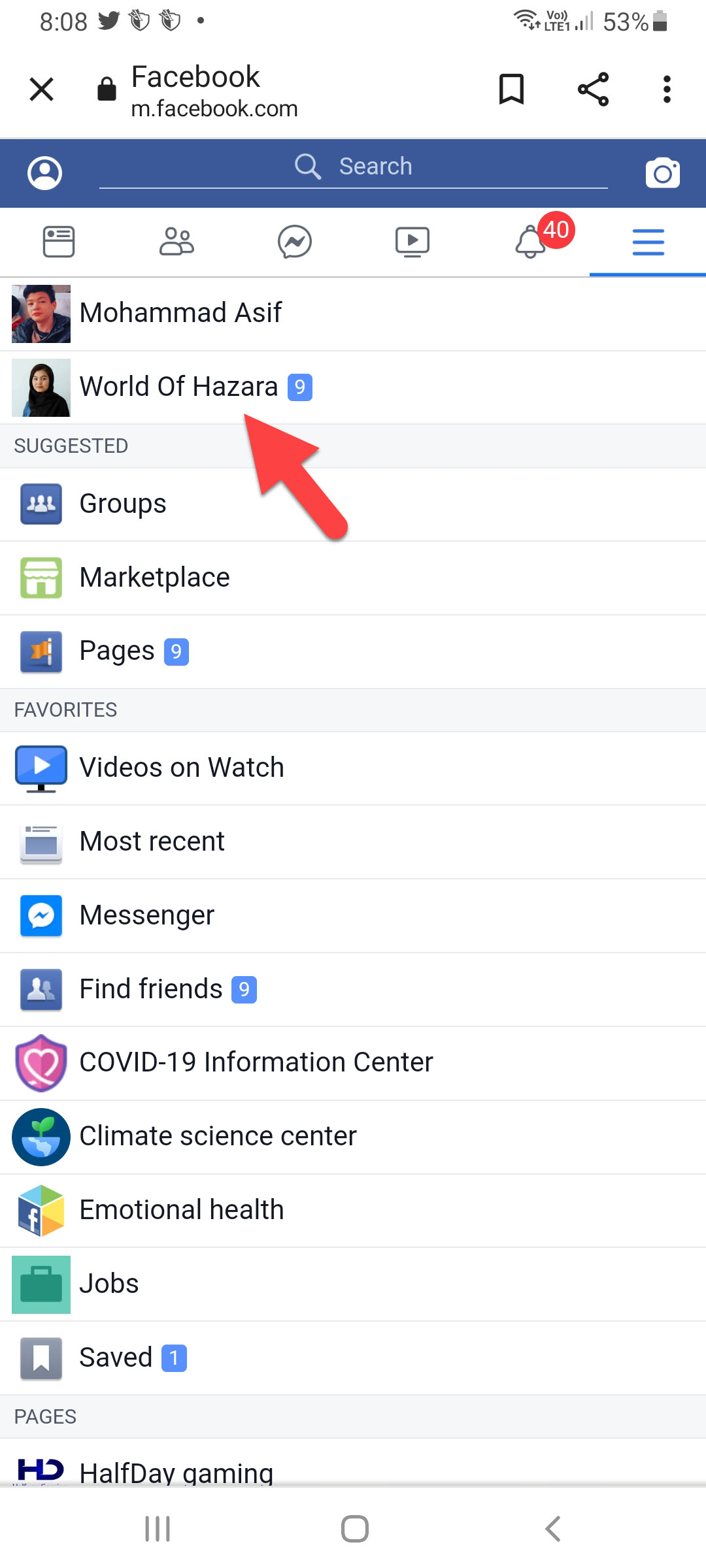
Step 2. Then click on the Three Lines at the top right corner.
Step 3. Click on the name of your page.
Step 4. Now, click on the Three Dots after that select the Edit Page option.
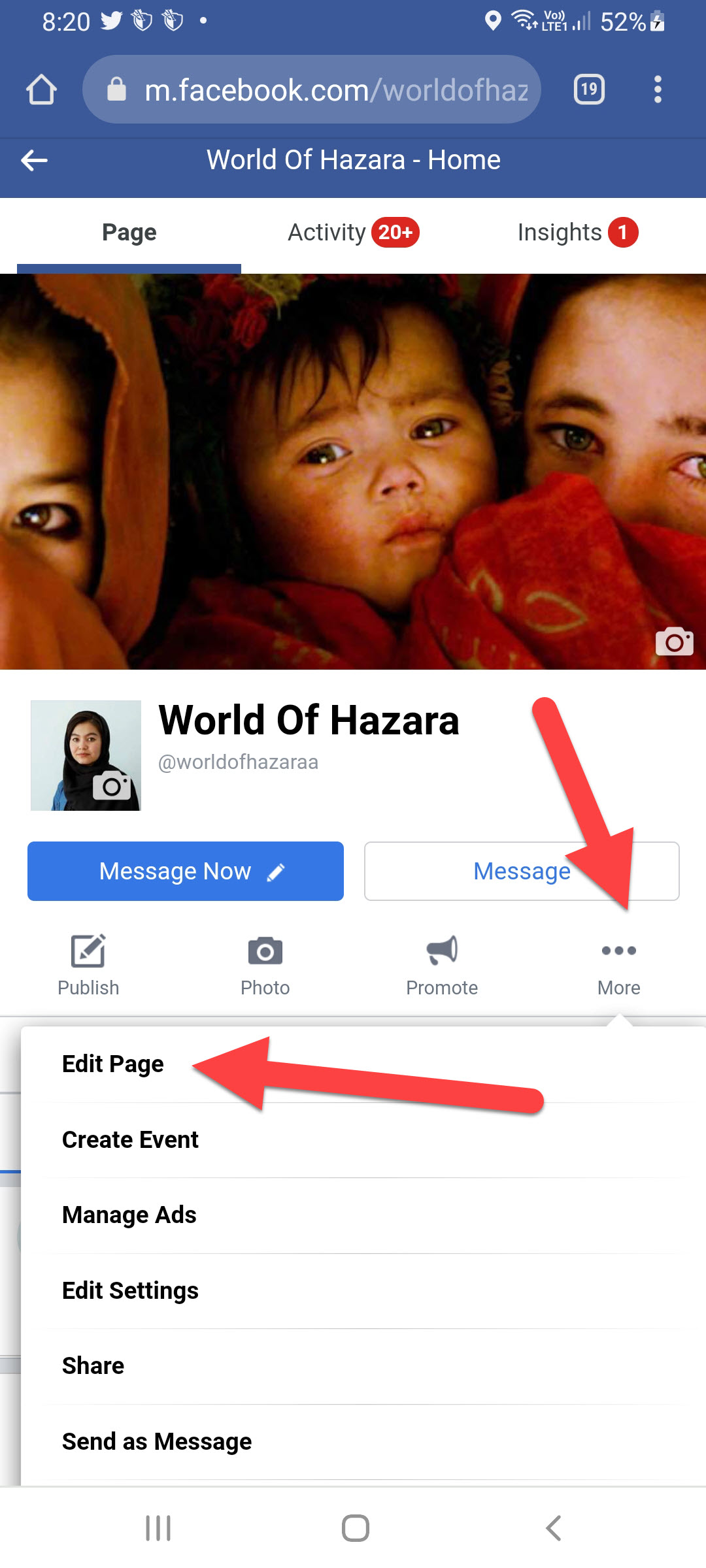 Select the Edit Page
 Step 5. Tap on the Page Info.
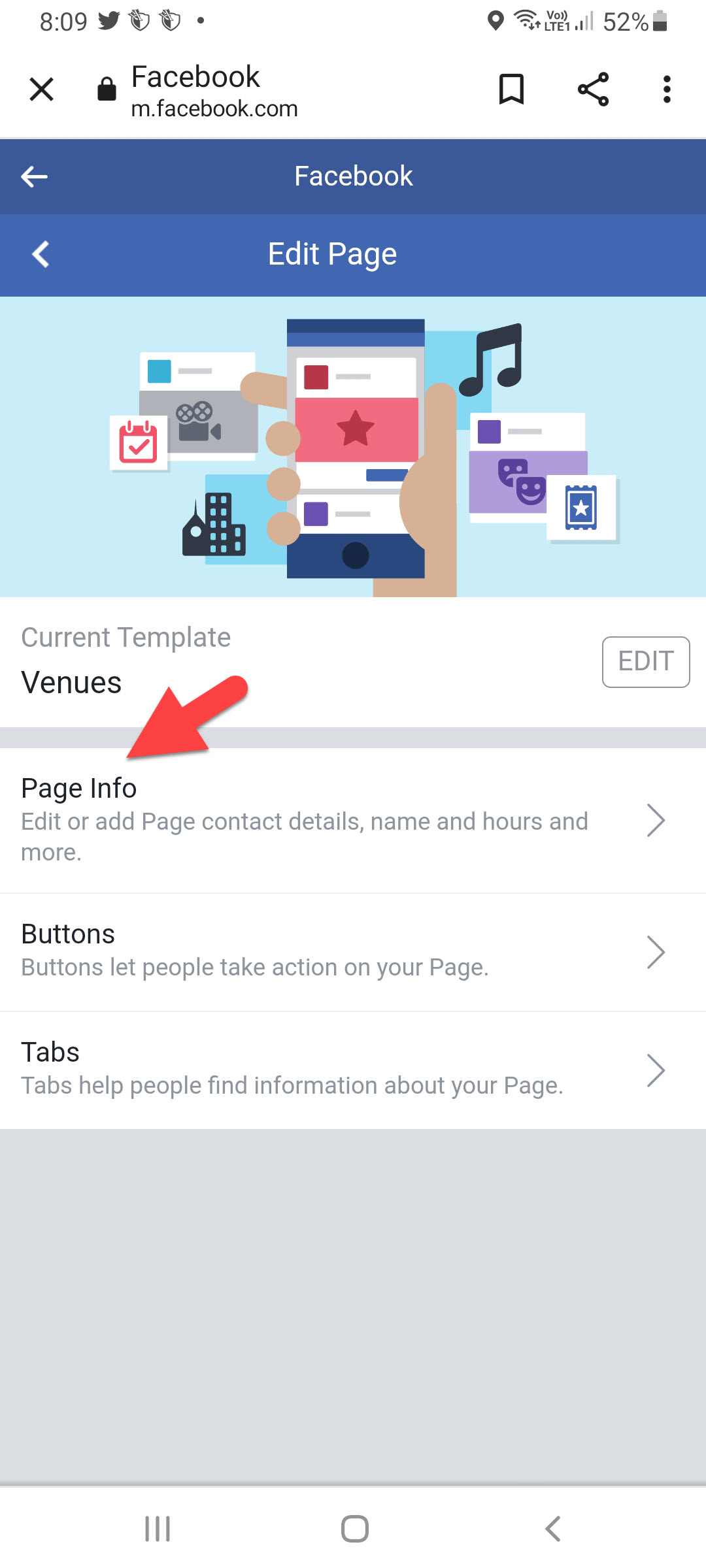 Page Info
 Step 6. Finally, change your name without facing any kind of error.
Bottom Line
It was all about How to Change Facebook Page Name 2022? I hope this article is very helpful for you to change your Facebook page name. From this article, you will get something good. This is the right place where you can easily solve your problem. After following these steps I hope you will not face any kind of problem. If you faced any kind of problem and if you have any type of suggestions then do comment.
Explore More:
Tagged
Share This Article
In this article, I am going to show you How to Change Facebook Page Name 2022? (Updated). Adding a suitable name for your Facebook page will be very beneficial for your brand. While creating your page, you will have to add a specific name for it in order to get identified by everyone. If you create a page for your business it may boost up your business. You have to come up with an easy name so that everyone should remember it.
Therefore, sometimes it happens that you will type wrong and non-meaning full names. At that time you will be compelled to change or simply edit that. You might have written a Facebook name that doesn’t match your brand or business. Luckily, Facebook allows you to change or edit your Facebook page name anytime you want.
If you have a big or old Facebook page with more than 5000 followers then it will take 3 days to approve your Facebook page name request. But if you have a newly created page then it will be approved within minutes. So, for changing the name of your Facebook page you have to follow up each step down below.
How to Change Facebook Page Name in PC 2022
Step 1. First of all, you need to open Facebook from the browser and log in with your account.
Step 2. Once you logged in with your account then look towards the left side of the screen you will get the name of your Page. If you didn’t get then click on the Pages after that you will see.
Step 3. Now, scroll down until you don’t see the option of Edit Page Info simply click on it.
Click on the Edit Page Info Step 4. At last, click on the section of Name then remove the name and type your one.
How to Change Facebook Page Name in Android Using Browser 2022
It is having the very good advantage to change the Facebook page name from the browser if you change from the Facebook app then you will face an error while changing the name and this error will occur in some of the devices.
Step 1. First, open any browser then search for Facebook.com after that log in with your account.
Step 2. Then click on the Three Lines at the top right corner.
Step 3. Click on the name of your page.
Step 4. Now, click on the Three Dots after that select the Edit Page option.
Select the Edit Page Step 5. Tap on the Page Info.
Page Info Step 6. Finally, change your name without facing any kind of error.
Bottom Line
It was all about How to Change Facebook Page Name 2022? I hope this article is very helpful for you to change your Facebook page name. From this article, you will get something good. This is the right place where you can easily solve your problem. After following these steps I hope you will not face any kind of problem. If you faced any kind of problem and if you have any type of suggestions then do comment.
Explore More:


