

How to Transfer Data from PC to PC in 2021
 Azaz Shaikh
Sometimes when you want to transfer your data from your computer to another computer. And if you buy a new PC then you need to transfer your important files from your old PC to your new PC. There are many ways to transfer data with Wire Cable, Wireless, and many other things. And the other thing you can transfer your data to connect your both PC to Bluetooth then you can easily transfer. If you want to transfer your data from PC to PC then you need to must read this article, So, without wasting any time let’s get has started.
The easy and great way to transfer your data from PC to PC you can use third-party software. This software is safe to use and it’s free for all user to use that. This software is available on Windows, iOS, Android, macOS, Linux, Outlook Add-in, and Amazon Kindle.
Transfer Data from PC to PC
To transfer your data then you need to download third-party software for your both PC. I will give the link down below to download the software just click on the link.
Download the Send Anywhere
Step 1. Click on the link above. If you don’t want to click on the link above then open your browser go to the search bar then type Send Anywhere after that hit the enter then click on the first result.
Step 2. Once the website of send anywhere is open the simply click on the Download. You should download the windows version.
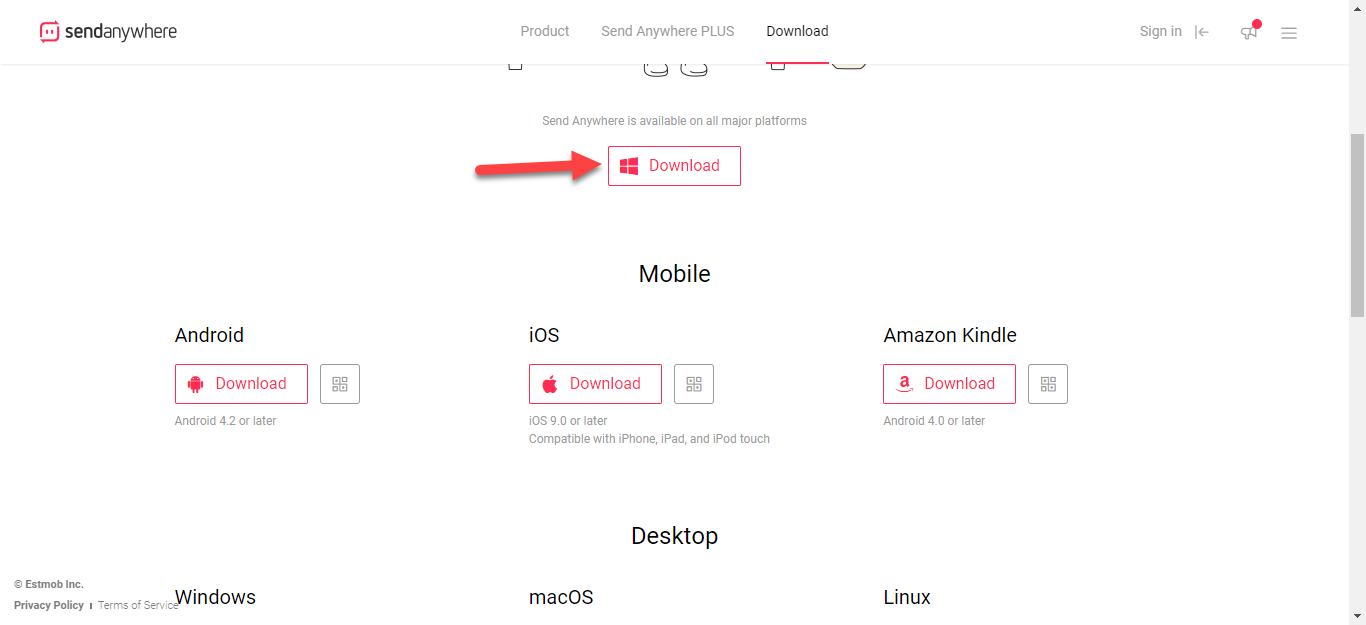
Step 3. When the download is done then launch the software after that click on the Next.
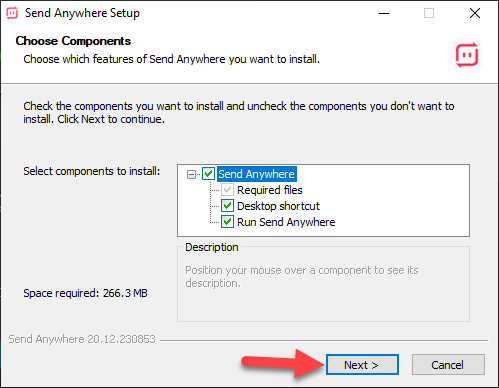
Step 4. Select the destination where you want to install then click on the Install.
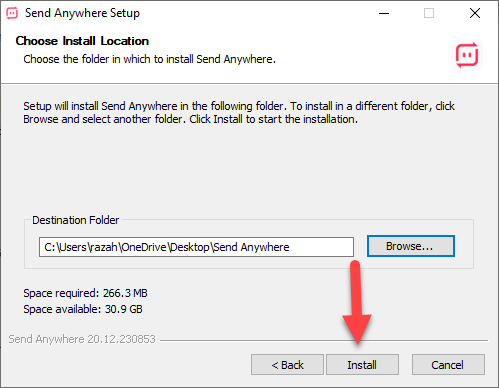
Step 5. When you click on the install then wait for the installation.
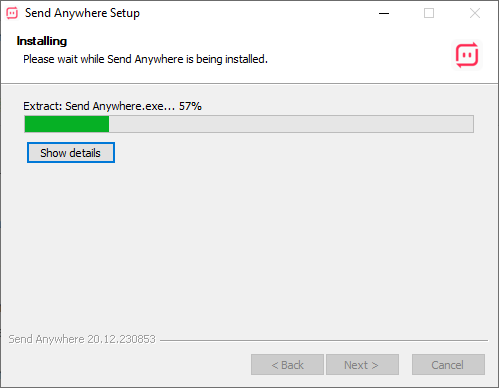 Wait For Installation
 Step 6. Once the installation is done the click on the Finish.
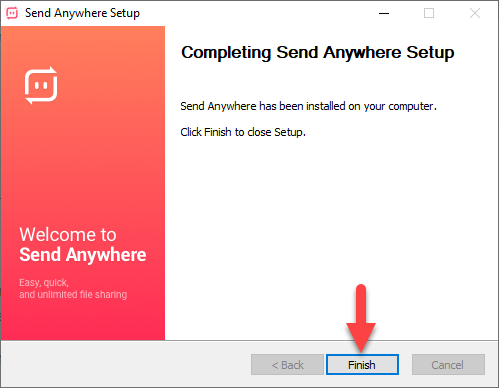 Click on the Finish
 Step 7. However, when you click on the finish the open the software that where you save it. You need to Drag the file and folders on sending anywhere.
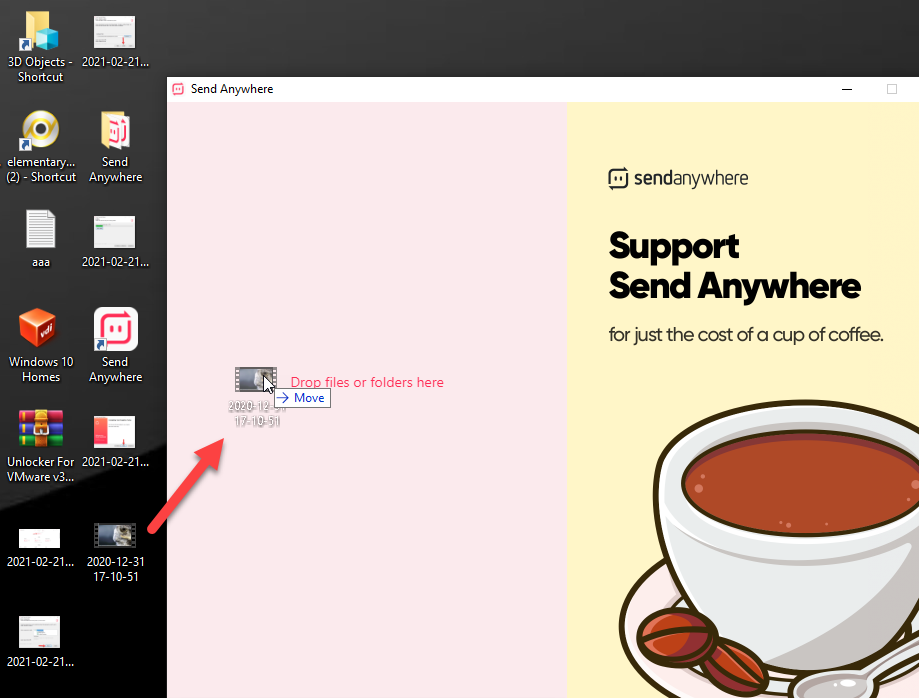 Drag the File and Folder
 Step 8. Now, you need to open your other PC, then open the software then enter the 6 digits under the Receive.
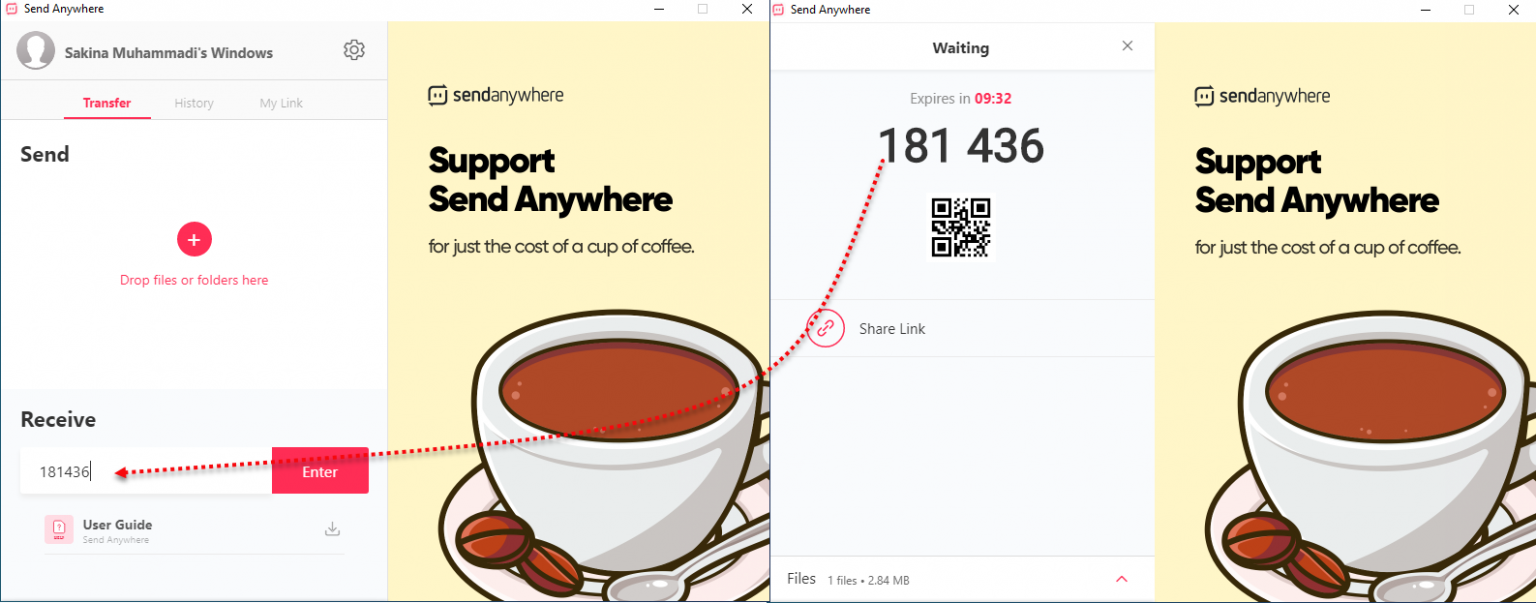 Enter the Code
 Step 9. Once you enter the 6 digits then you need to wait for a few minutes, when the size of your file is big then it takes more minutes. When the transfer is successfully then click on Download to save on your device.
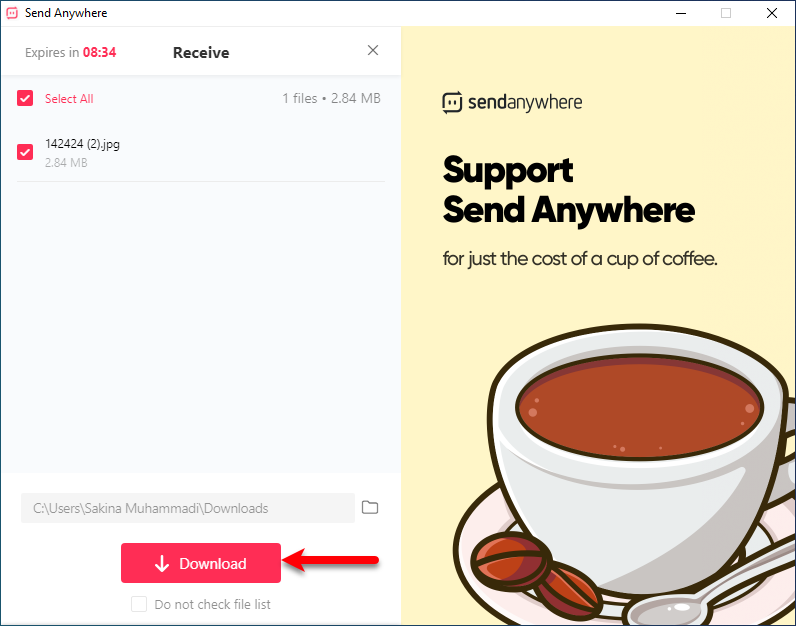 Click on the Download
 Related Posts:
How to Set Dynamic Wallpaper on Windows 10
How to set song as iPhone Ringtone Without iTunes or PC (2021)
Bottom Line
It was all about How to Transfer Data from PC to PC in 2021. I hope this article will help you to transfer your data from PC to PC. And I hope after following these steps you will not face any kind of problem. So, if you are facing any kind of problem then don’t hesitate to leave comments in the comment section down below.
Share This Article
Sometimes when you want to transfer your data from your computer to another computer. And if you buy a new PC then you need to transfer your important files from your old PC to your new PC. There are many ways to transfer data with Wire Cable, Wireless, and many other things. And the other thing you can transfer your data to connect your both PC to Bluetooth then you can easily transfer. If you want to transfer your data from PC to PC then you need to must read this article, So, without wasting any time let’s get has started.
The easy and great way to transfer your data from PC to PC you can use third-party software. This software is safe to use and it’s free for all user to use that. This software is available on Windows, iOS, Android, macOS, Linux, Outlook Add-in, and Amazon Kindle.
Transfer Data from PC to PC
To transfer your data then you need to download third-party software for your both PC. I will give the link down below to download the software just click on the link.
Download the Send Anywhere
Step 1. Click on the link above. If you don’t want to click on the link above then open your browser go to the search bar then type Send Anywhere after that hit the enter then click on the first result.
Step 2. Once the website of send anywhere is open the simply click on the Download. You should download the windows version.
Step 3. When the download is done then launch the software after that click on the Next.
Step 4. Select the destination where you want to install then click on the Install.
Step 5. When you click on the install then wait for the installation.
Wait For Installation Step 6. Once the installation is done the click on the Finish.
Click on the Finish Step 7. However, when you click on the finish the open the software that where you save it. You need to Drag the file and folders on sending anywhere.
Drag the File and Folder Step 8. Now, you need to open your other PC, then open the software then enter the 6 digits under the Receive.
Enter the Code Step 9. Once you enter the 6 digits then you need to wait for a few minutes, when the size of your file is big then it takes more minutes. When the transfer is successfully then click on Download to save on your device.
Click on the Download Related Posts:
How to Set Dynamic Wallpaper on Windows 10
How to set song as iPhone Ringtone Without iTunes or PC (2021)
Bottom Line
It was all about How to Transfer Data from PC to PC in 2021. I hope this article will help you to transfer your data from PC to PC. And I hope after following these steps you will not face any kind of problem. So, if you are facing any kind of problem then don’t hesitate to leave comments in the comment section down below.


