
How to set song as iPhone Ringtone without iTunes or PC (2021)
 Azaz Shaikh
Sometimes you will use your mobile then someone calls you on your mobile after that the ringtone of your mobile is simple. If you don’t like simple ringtone then you can set any kind of song o your ringtone. This article is very great if you want to set your own song then must read this article. You can create any kind of song with just a third-party app you can create. You can create multiple ringtones of the song. So, without wasting any time let’s get has started. From this article, you will learn How to set song as iPhone Ringtone without iTunes or PC (2021).
How to set song as iPhone Ringtone without iTunes or PC (2021)
Before we are going start this step you need to download GarageBand. You can easily download this app from the app store and is free for all users.
Step 1. When the app is downloaded then open the app.
Step 2. Swipe the screen then find Audio Recorder when you that then just click on the Voice.
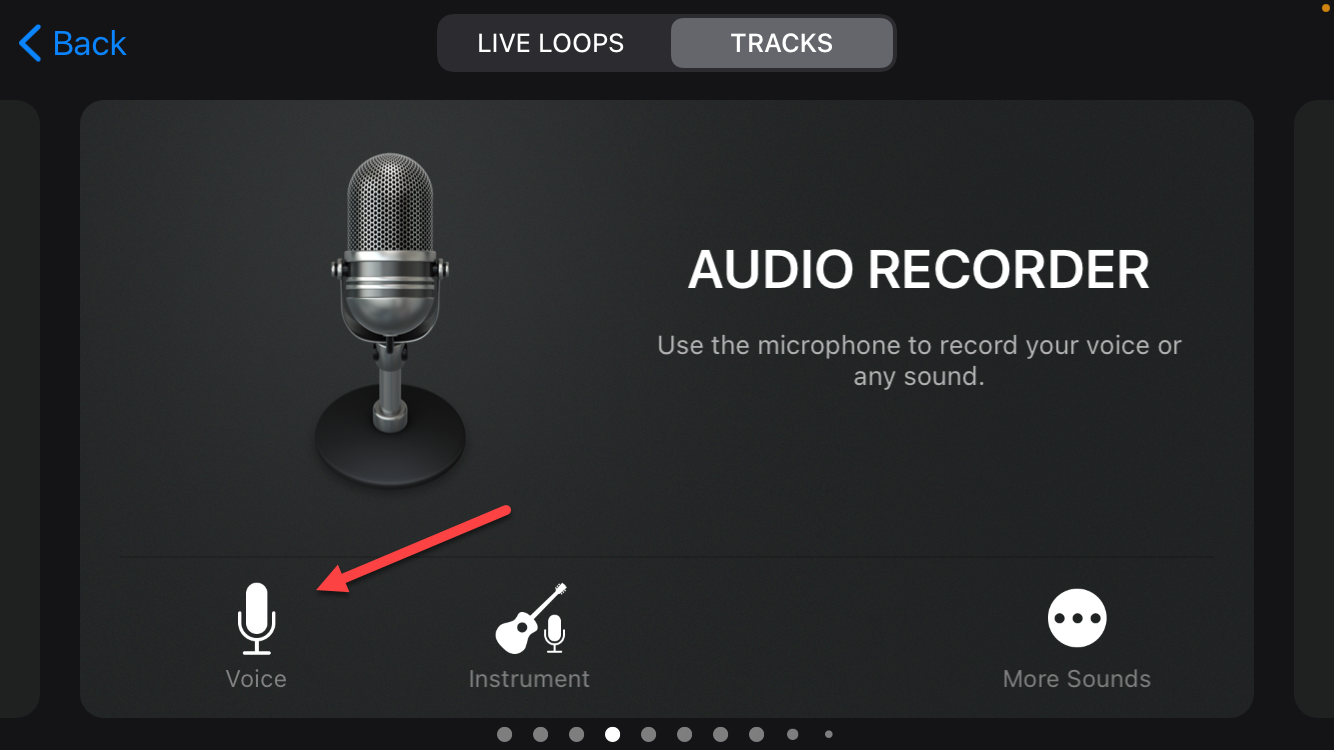 Click on the Voice
 Step 3. Click on the View at the top left corner.
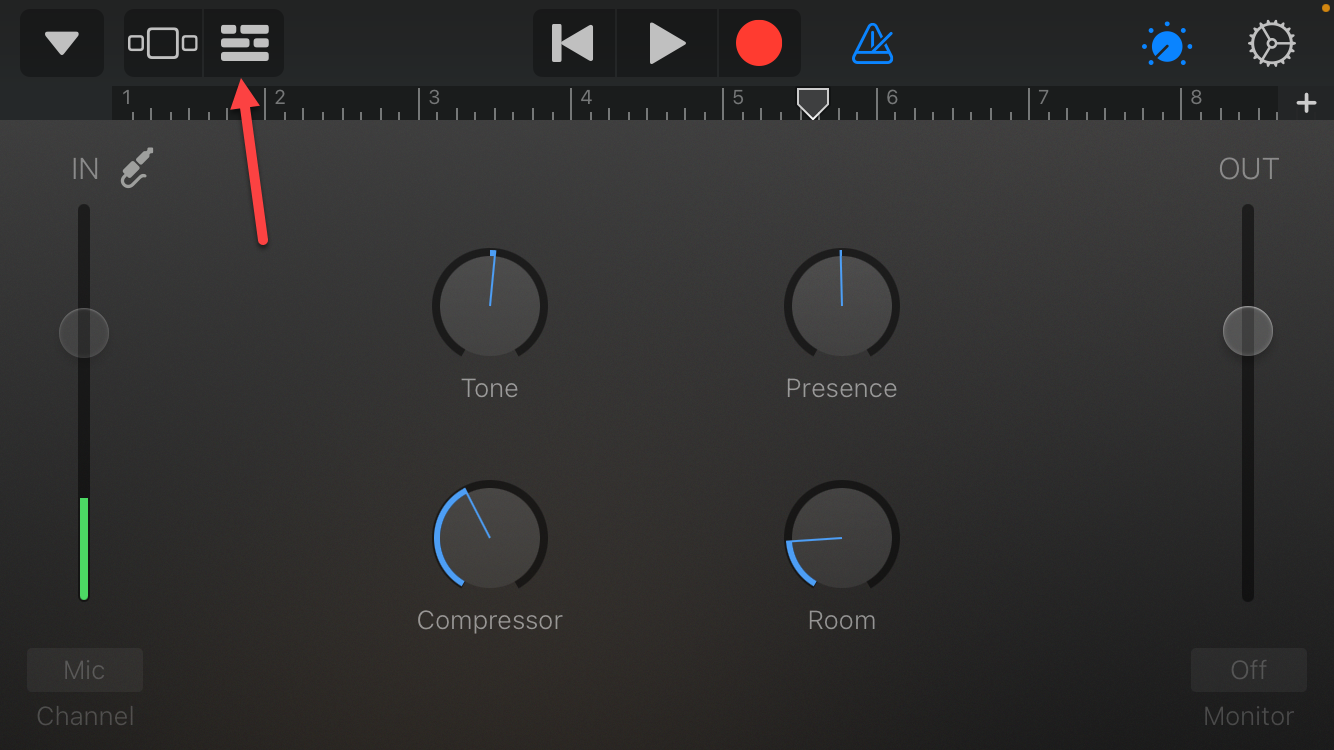 Click on the View
 Step 4. Now, you need to click on the Loop Icon.
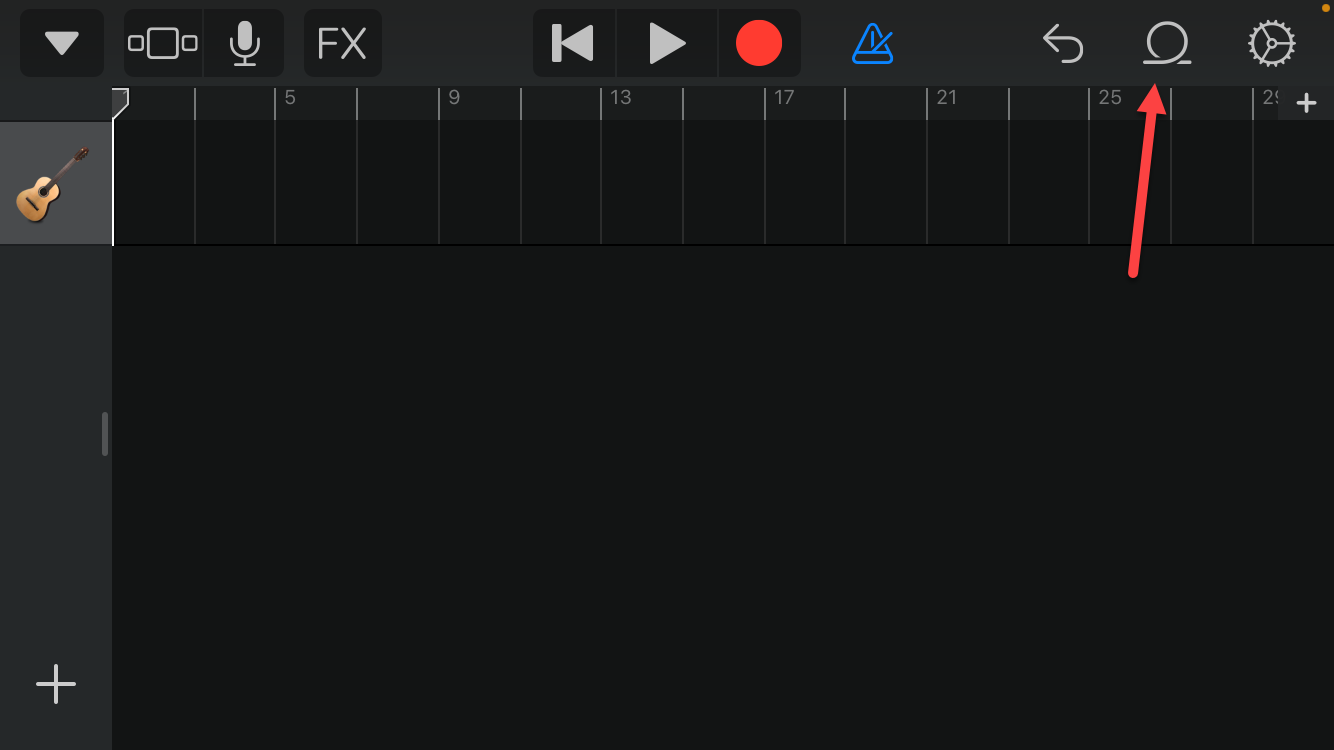 Click on the Loop Icon
 Step 5. Next, go to the Files then drag your song in the timeline. If your song will not show here then tap on the Browse Items From The Files App.
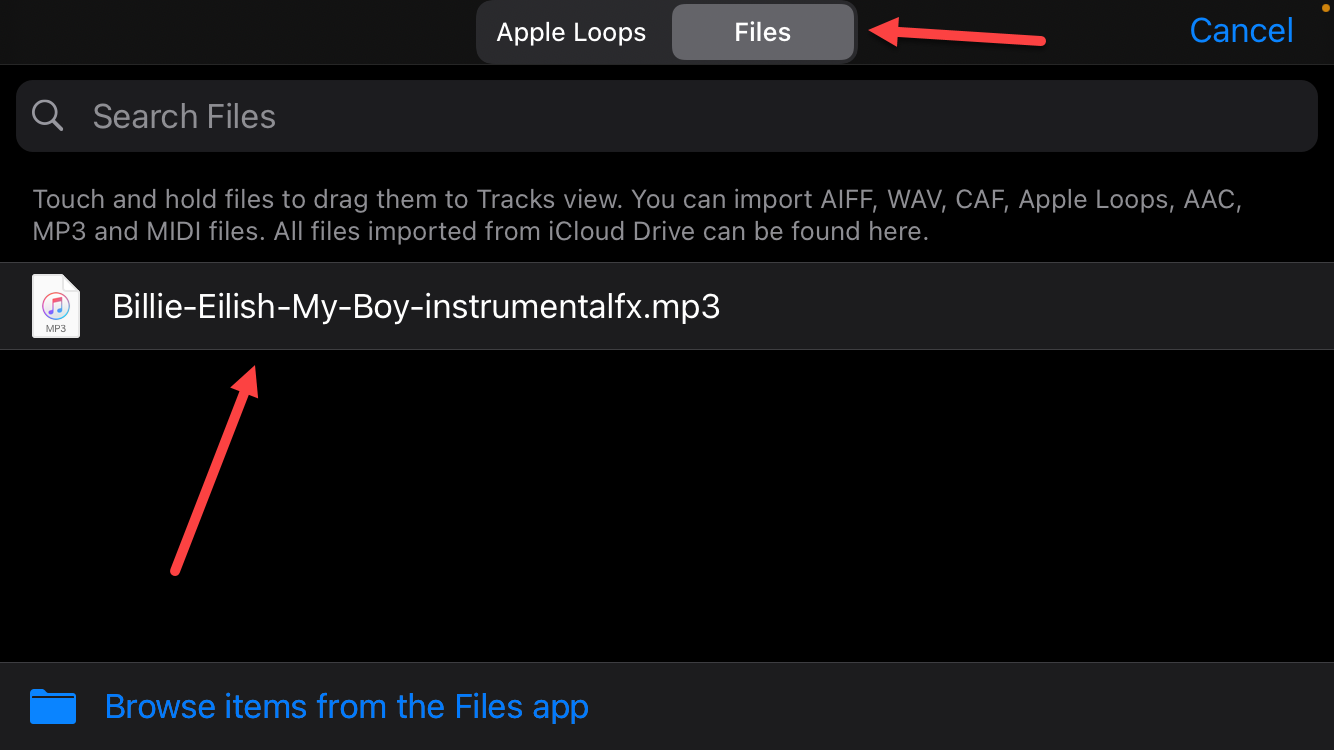 Go to the Files
 Step 6. Set the song to 30 seconds.
Step 7. Once you set the song then tap on the Down Arrow after that click on the My Song at the top left corner.
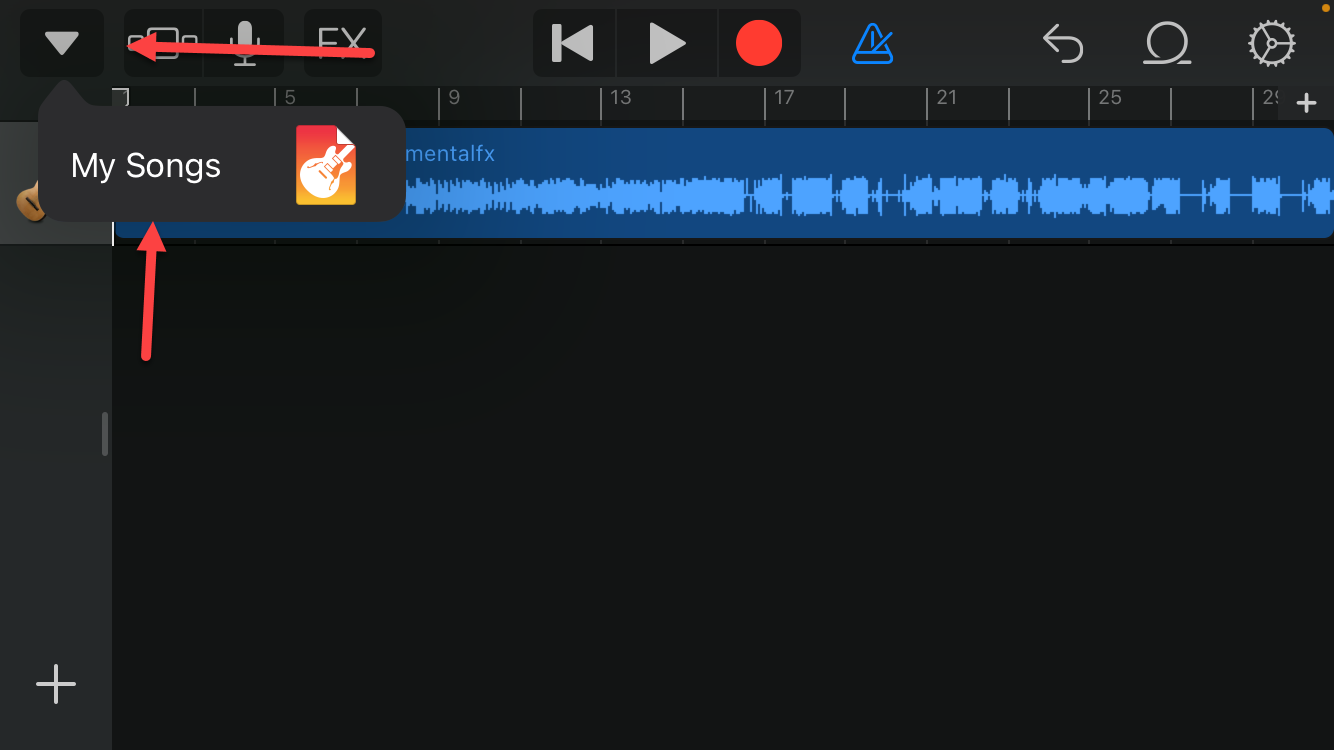 Click on the Down Arrow
 Step 8. Hold on to your ringtone then tap on the Share.
Step 9. Click on the Ringtone at the center of your screen.
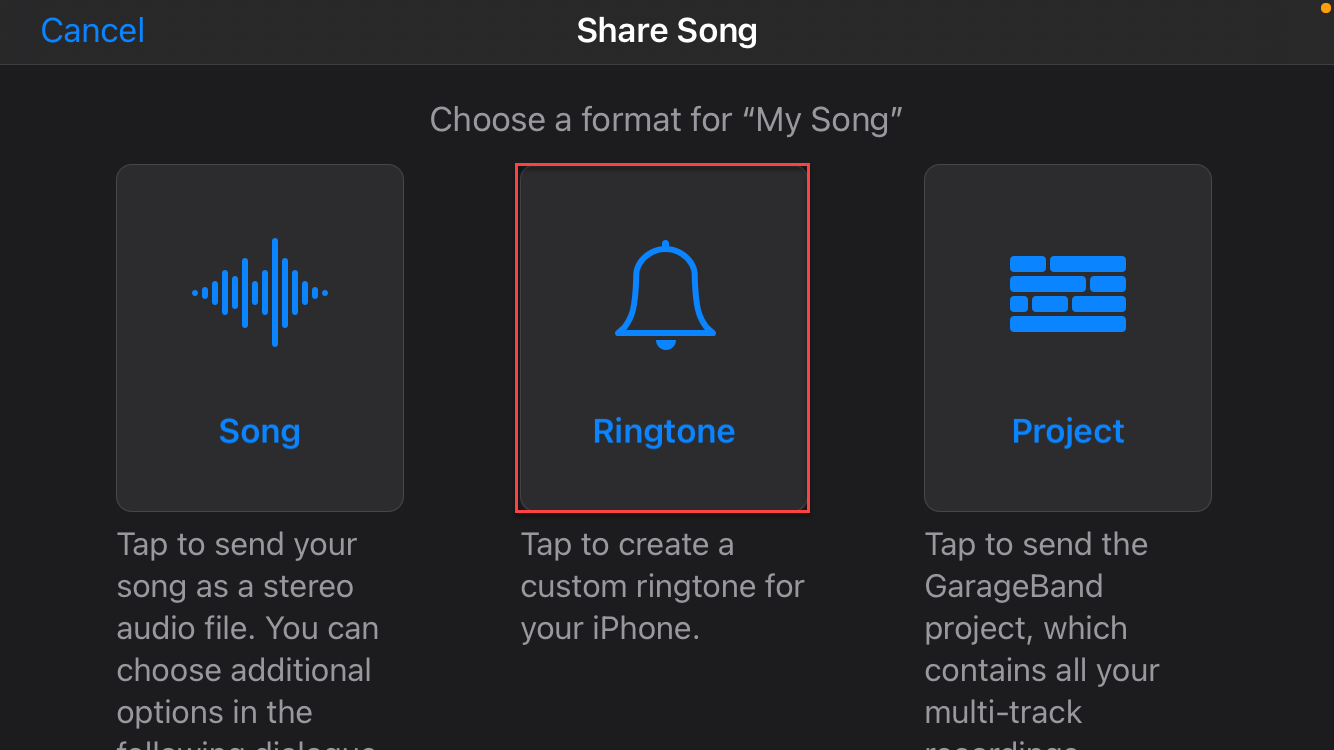 Click on the Ringtone
 Step 10. When you click on the ringtone then they will ask you that you need 30 seconds ringtone or less than a ringtone. Click on the Continue.
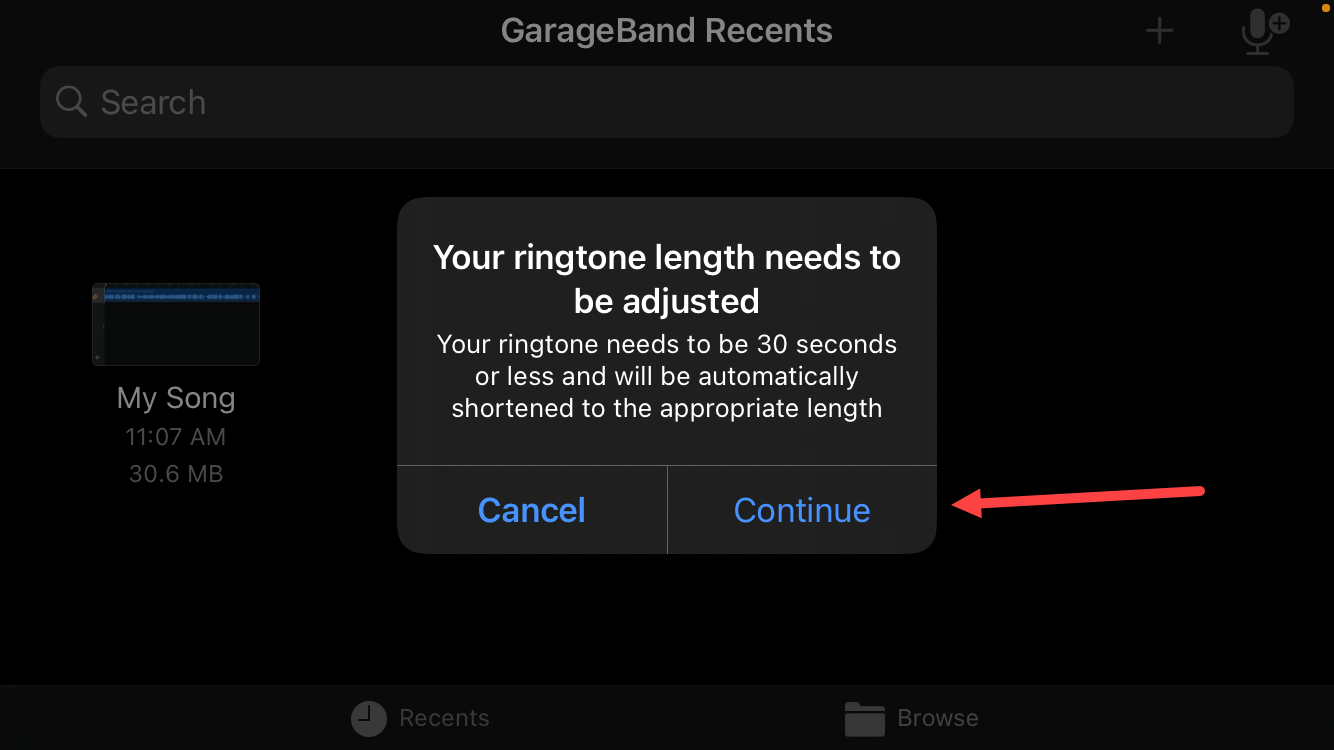 Click on the Continue
 Step 11. Click on the Export at the top right corner.
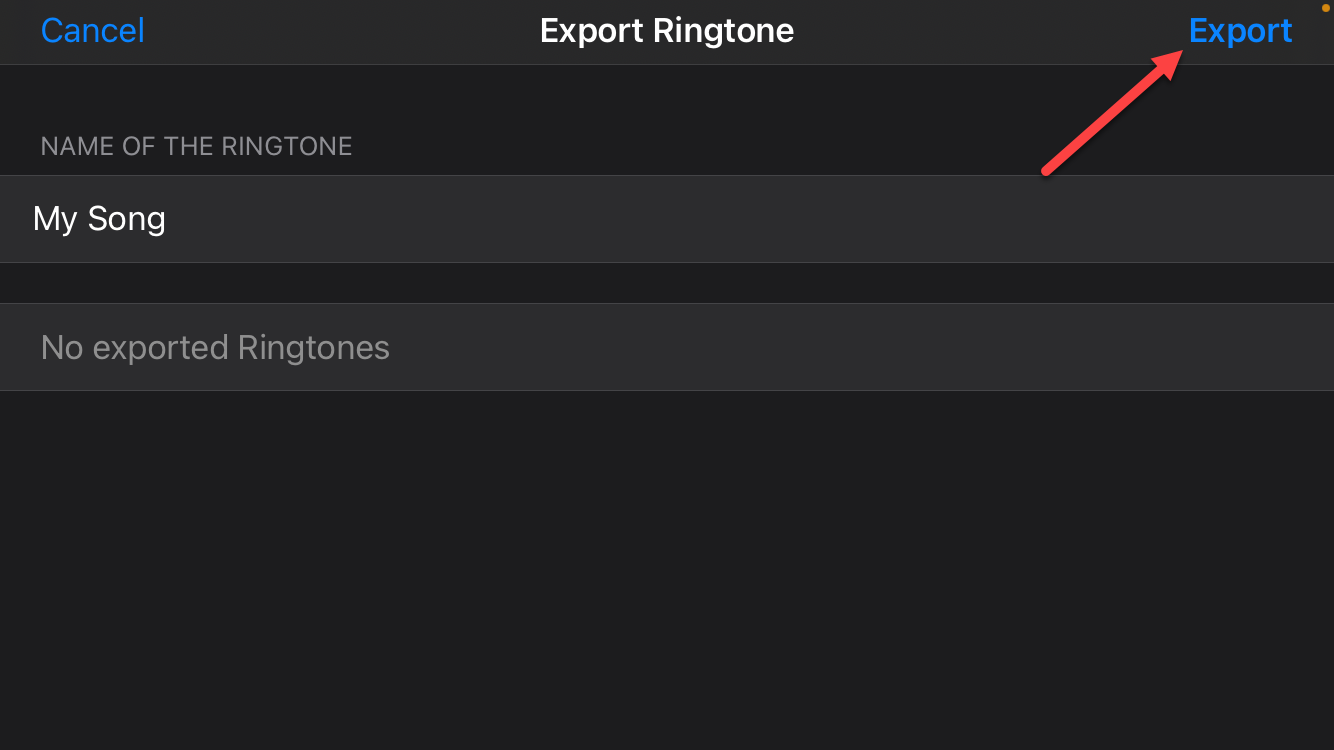 Click on the Export
 Step 12. Once you click on the export then your ringtone is export successfully. Click on the OK.
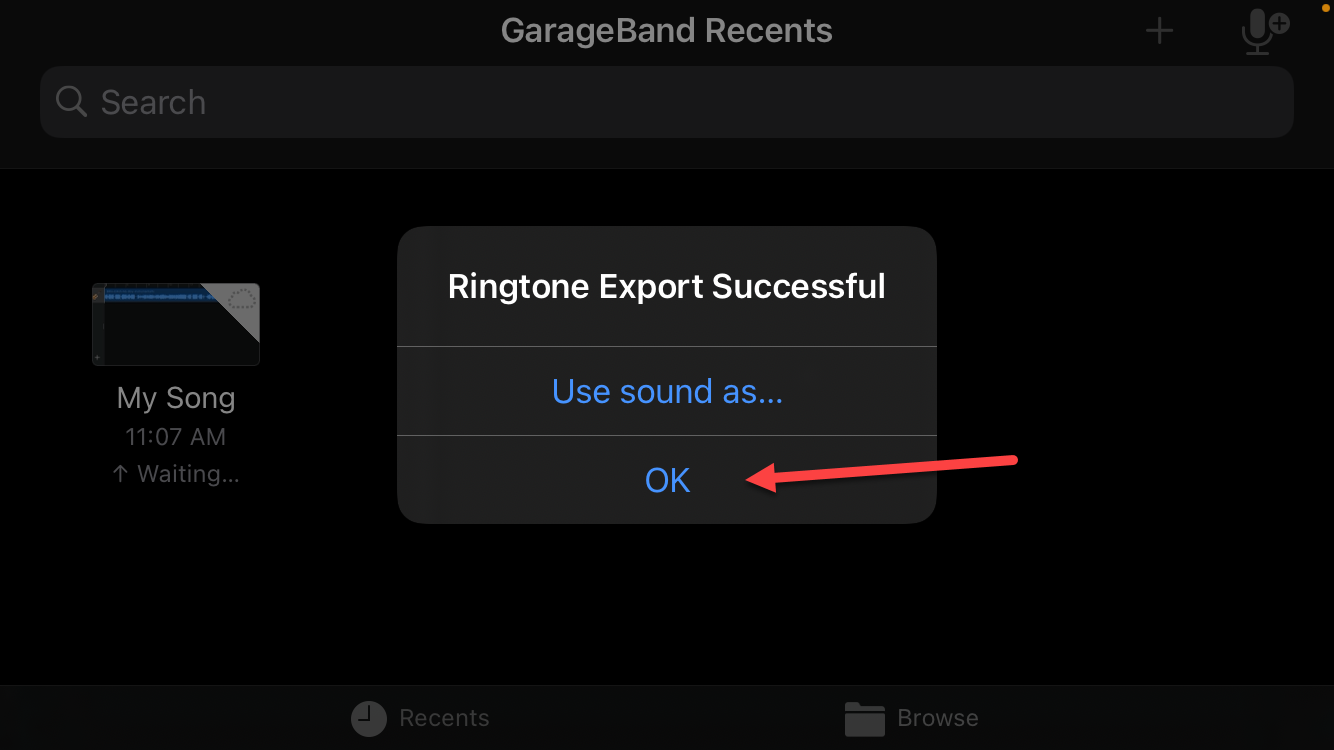 Click on the OK
 Step 13. To set the ringtone just opens the Settings.
Step 14. Click on the Sounds.
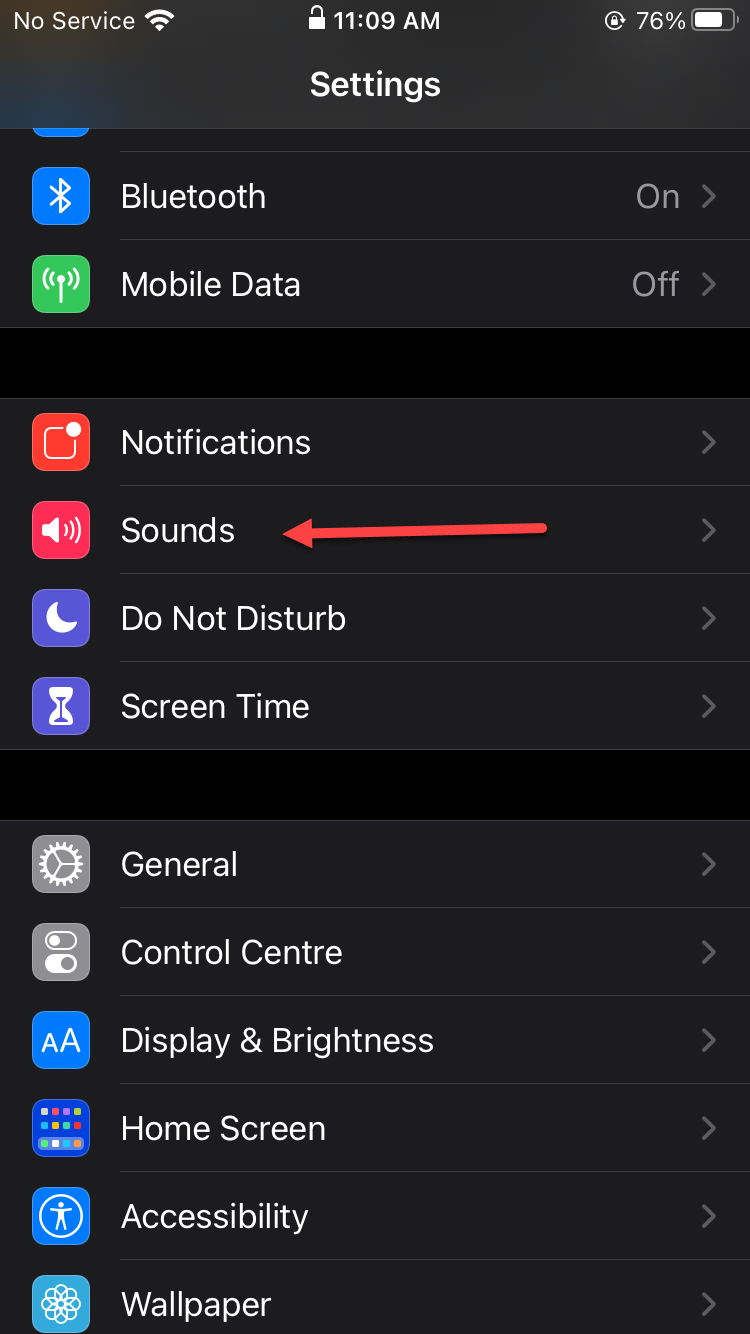 Click on the Sounds
 Step 15. Tap on the Ringtone.
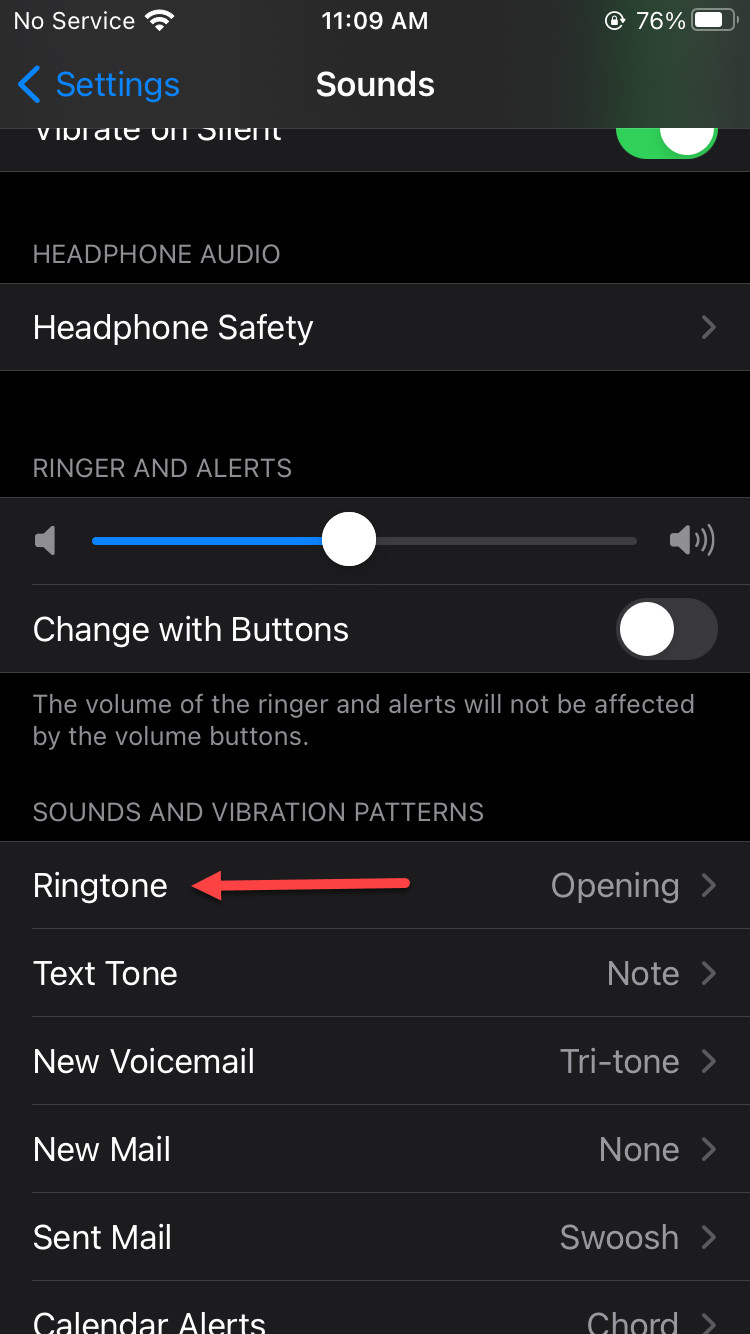 Tap on the Ringtone
 Step 16. In the ringtone, you will see your own created ringtone at the top. Click on it.
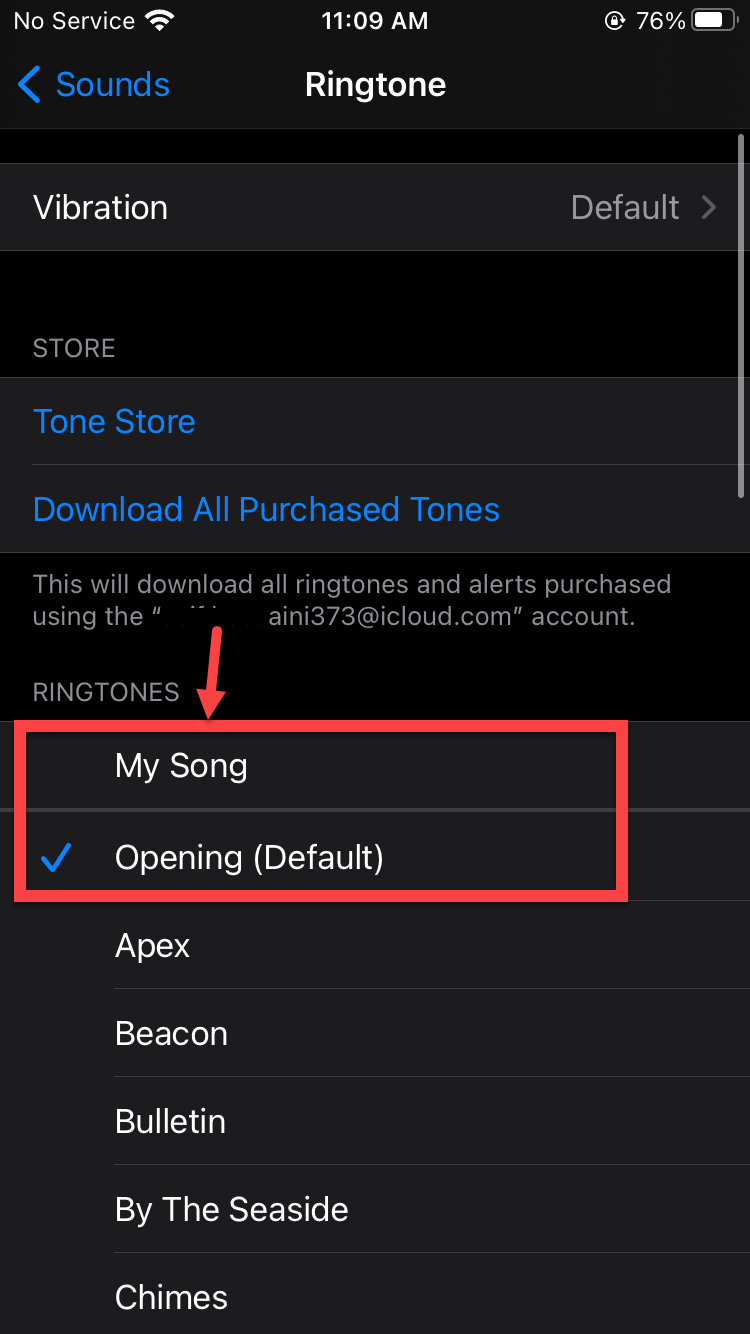 Click on it
 Related Posts:
How to Stop Pop-Ups Ads on Windows 10 (2021)
How to Completely Delete & Uninstall Microsoft Store on Windows 10 in 2021
Bottom Line
It was all about How to set a song as iPhone Ringtone without iTunes or PC (2021). I hope you will something good from this article. And I hope after following my steps you will not face any kind of problem. So, if you are facing any kind of problem then don’t hesitate to leave comments in the comment section down below.
Tagged
Share This Article
Sometimes you will use your mobile then someone calls you on your mobile after that the ringtone of your mobile is simple. If you don’t like simple ringtone then you can set any kind of song o your ringtone. This article is very great if you want to set your own song then must read this article. You can create any kind of song with just a third-party app you can create. You can create multiple ringtones of the song. So, without wasting any time let’s get has started. From this article, you will learn How to set song as iPhone Ringtone without iTunes or PC (2021).
How to set song as iPhone Ringtone without iTunes or PC (2021)
Before we are going start this step you need to download GarageBand. You can easily download this app from the app store and is free for all users.
Step 1. When the app is downloaded then open the app.
Step 2. Swipe the screen then find Audio Recorder when you that then just click on the Voice.
Click on the Voice Step 3. Click on the View at the top left corner.
Click on the View Step 4. Now, you need to click on the Loop Icon.
Click on the Loop Icon Step 5. Next, go to the Files then drag your song in the timeline. If your song will not show here then tap on the Browse Items From The Files App.
Go to the Files Step 6. Set the song to 30 seconds.
Step 7. Once you set the song then tap on the Down Arrow after that click on the My Song at the top left corner.
Click on the Down Arrow Step 8. Hold on to your ringtone then tap on the Share.
Step 9. Click on the Ringtone at the center of your screen.
Click on the Ringtone Step 10. When you click on the ringtone then they will ask you that you need 30 seconds ringtone or less than a ringtone. Click on the Continue.
Click on the Continue Step 11. Click on the Export at the top right corner.
Click on the Export Step 12. Once you click on the export then your ringtone is export successfully. Click on the OK.
Click on the OK Step 13. To set the ringtone just opens the Settings.
Step 14. Click on the Sounds.
Click on the Sounds Step 15. Tap on the Ringtone.
Tap on the Ringtone Step 16. In the ringtone, you will see your own created ringtone at the top. Click on it.
Click on it Related Posts:
How to Stop Pop-Ups Ads on Windows 10 (2021)
How to Completely Delete & Uninstall Microsoft Store on Windows 10 in 2021
Bottom Line
It was all about How to set a song as iPhone Ringtone without iTunes or PC (2021). I hope you will something good from this article. And I hope after following my steps you will not face any kind of problem. So, if you are facing any kind of problem then don’t hesitate to leave comments in the comment section down below.