

How to Make Windows 11 Taskbar Transparent?
 Azaz Shaikh
If you want to make Windows 11 taskbar transparent then you need to read this article. So without wasting any time let’s get has started. From this article, you will learn How to Make Windows 11 Taskbar Transparent?
Microsoft is launching its new operating system. The new operating system is very smooth. Till now the Windows do not launch the new operating system is leaked. If you want to check the preview then you can watch the video on YouTube. When you download Windows 11 on your PC then you watch them know how to use it. Moreover, most of the people that install windows 11 on their PC then the taskbar of are transparent. When you want to make your taskbar transparent then once you try then you don’t the step. Once you don’t know the step then you will search on YouTube after that the video you are watching maybe it is not clear. Don’t worry I am here to solve your problem.
Related Post: Download Windows 11 ISO Image For Free – Latest Version
How to Make Windows 11 Taskbar Transparent?
If you want to transparent your taskbar then follow the step down below. This method needs software to make your taskbar transparent. However, this software doesn’t need to pay money to download it. The name of this software is TranslucentTB. Follow the step to download the TranslucentTB.
Step 1. First of all, click on the Start menu after that tap on the Microsoft Store.
Step 2. Now, when the store is open then go to the search bar after that type TranslucentTB.
Step 3. Click on it.
Step 4. Tap on the Get to install it.
Step 5. Next, once you click on the get after that if it is signed in with Microsoft then it will start to download if no then sign in with Microsoft.
Step 6. Wait till the downloading is not done.
Step 7. Click on the Yes.
Step 8. At last, finally, your taskbar is transparent. The example is down below the picture.
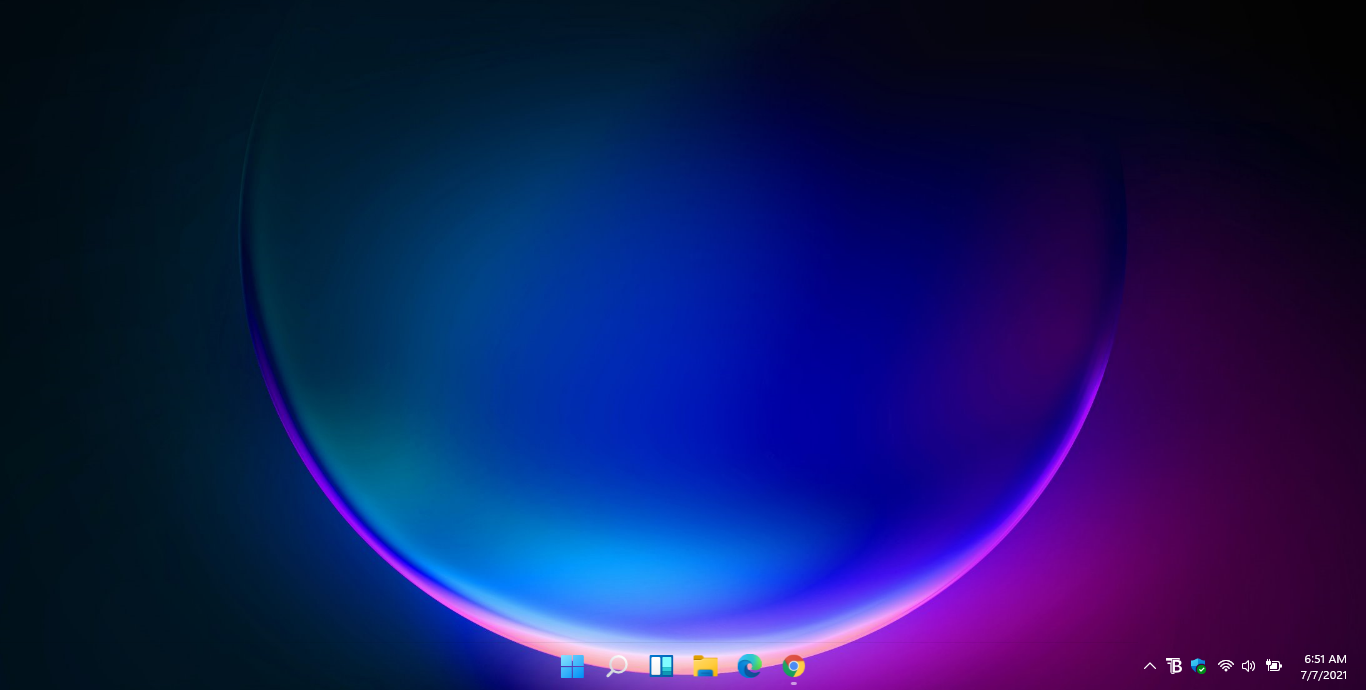 The taskbar is Now Transparent
 Related Post: How to Activate Windows 11 Without Product Key For Free
Bottom Line
It was all about How to Make Windows 11 Taskbar Transparent? I hope this article is very helpful for you to make your taskbar transparent. From this article, you will get something good. This is the right place where you can easily solve your problem. From this article, I hope you will not face any kind of problem. If you faced any kind of problem and if you have any type of suggestions then do comment.
Related Post: How to Check If Your Windows 10 PC Can Run Windows 11
Share This Article
If you want to make Windows 11 taskbar transparent then you need to read this article. So without wasting any time let’s get has started. From this article, you will learn How to Make Windows 11 Taskbar Transparent?
Microsoft is launching its new operating system. The new operating system is very smooth. Till now the Windows do not launch the new operating system is leaked. If you want to check the preview then you can watch the video on YouTube. When you download Windows 11 on your PC then you watch them know how to use it. Moreover, most of the people that install windows 11 on their PC then the taskbar of are transparent. When you want to make your taskbar transparent then once you try then you don’t the step. Once you don’t know the step then you will search on YouTube after that the video you are watching maybe it is not clear. Don’t worry I am here to solve your problem.
Related Post: Download Windows 11 ISO Image For Free – Latest Version
How to Make Windows 11 Taskbar Transparent?
If you want to transparent your taskbar then follow the step down below. This method needs software to make your taskbar transparent. However, this software doesn’t need to pay money to download it. The name of this software is TranslucentTB. Follow the step to download the TranslucentTB.
Step 1. First of all, click on the Start menu after that tap on the Microsoft Store.
Step 2. Now, when the store is open then go to the search bar after that type TranslucentTB.
Step 3. Click on it.
Step 4. Tap on the Get to install it.
Step 5. Next, once you click on the get after that if it is signed in with Microsoft then it will start to download if no then sign in with Microsoft.
Step 6. Wait till the downloading is not done.
Step 7. Click on the Yes.
Step 8. At last, finally, your taskbar is transparent. The example is down below the picture.
The taskbar is Now Transparent Related Post: How to Activate Windows 11 Without Product Key For Free
Bottom Line
It was all about How to Make Windows 11 Taskbar Transparent? I hope this article is very helpful for you to make your taskbar transparent. From this article, you will get something good. This is the right place where you can easily solve your problem. From this article, I hope you will not face any kind of problem. If you faced any kind of problem and if you have any type of suggestions then do comment.
Related Post: How to Check If Your Windows 10 PC Can Run Windows 11


