

How to Watch YouTube in Picture-in-Picture Mode on Windows 11?
 Azaz Shaikh
Picture-in-Picture is the best option for the one who wants to work as well and watch videos on YouTube. This is the option that allows you to display your favorite video in a small and moveable box. First when you enable that PiP on the video it will show on the corner side of the screens. Nowadays, you can see this Picture-in-Picture mode mostly on every platform. When you try to watch videos in PiP mode then you don’t know the process. But don’t worry this article, is especially for you. If you want to watch YouTube in PiP mode then you need to read this article. From this article, I will guide you on How to Watch YouTube in Picture-in-Picture Mode on Windows 11? Without wasting any time let’s get started.
How to Watch YouTube in Picture-in-Picture Mode on Google Chrome and Microsoft Edge
Step 1. First of all, you have to open any browser whether it is Google Chrome or Microsoft Edge.
Step 2. Then search for YouTube.com after that play the songs or any movie you want to watch in the Picture-in-Picture mode.
Step 3. Now, simply right-click on the screen which will open the lists of the options then once again right-click on the screen.
Step 4. At last, tap on the Picture in Picture.
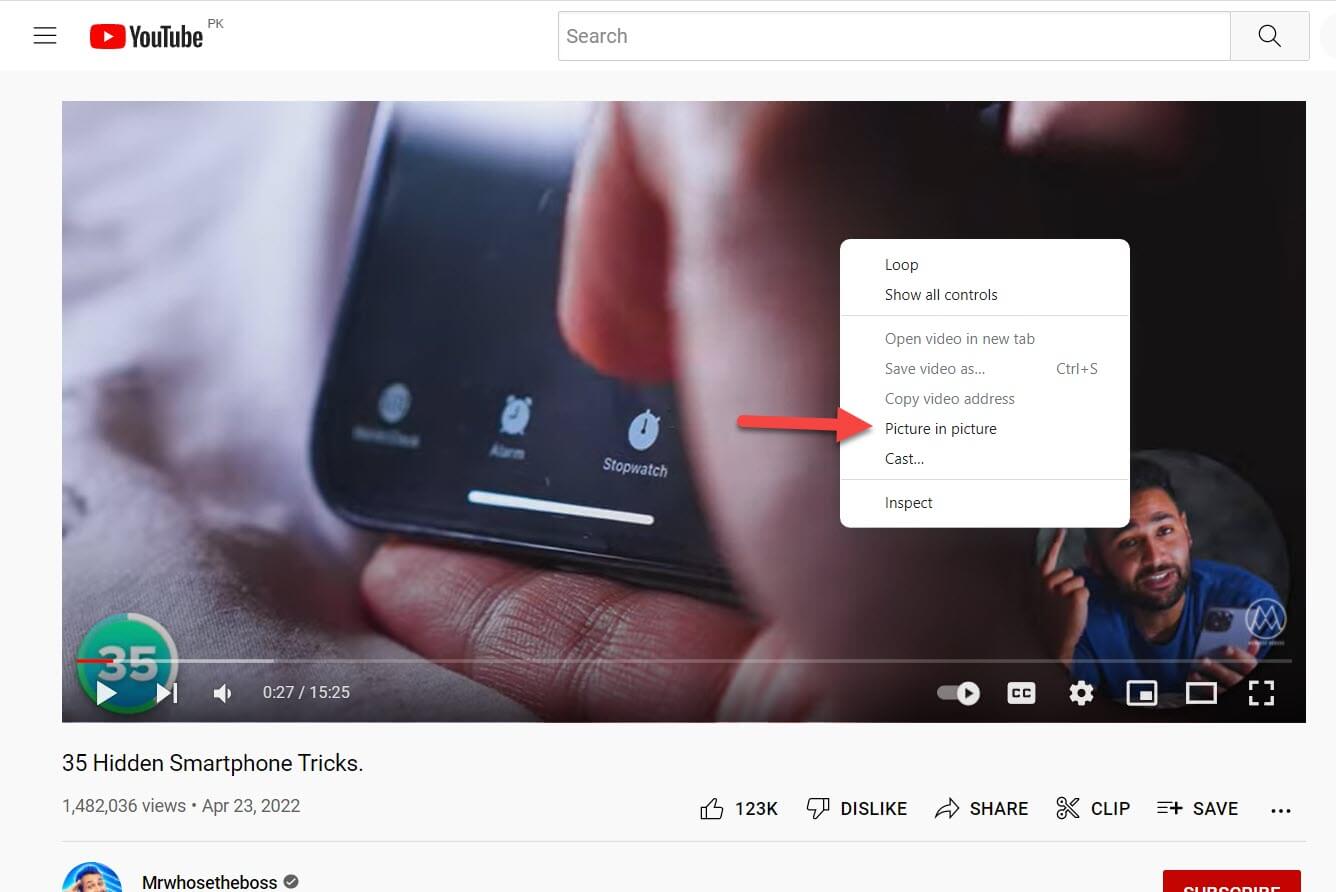 Tap on to Picture in Picture
 Step 5. Finally, you can watch that video in PiP mode, when you want to close it after that simply hover the mouse on the PiP and then click on the X icon.
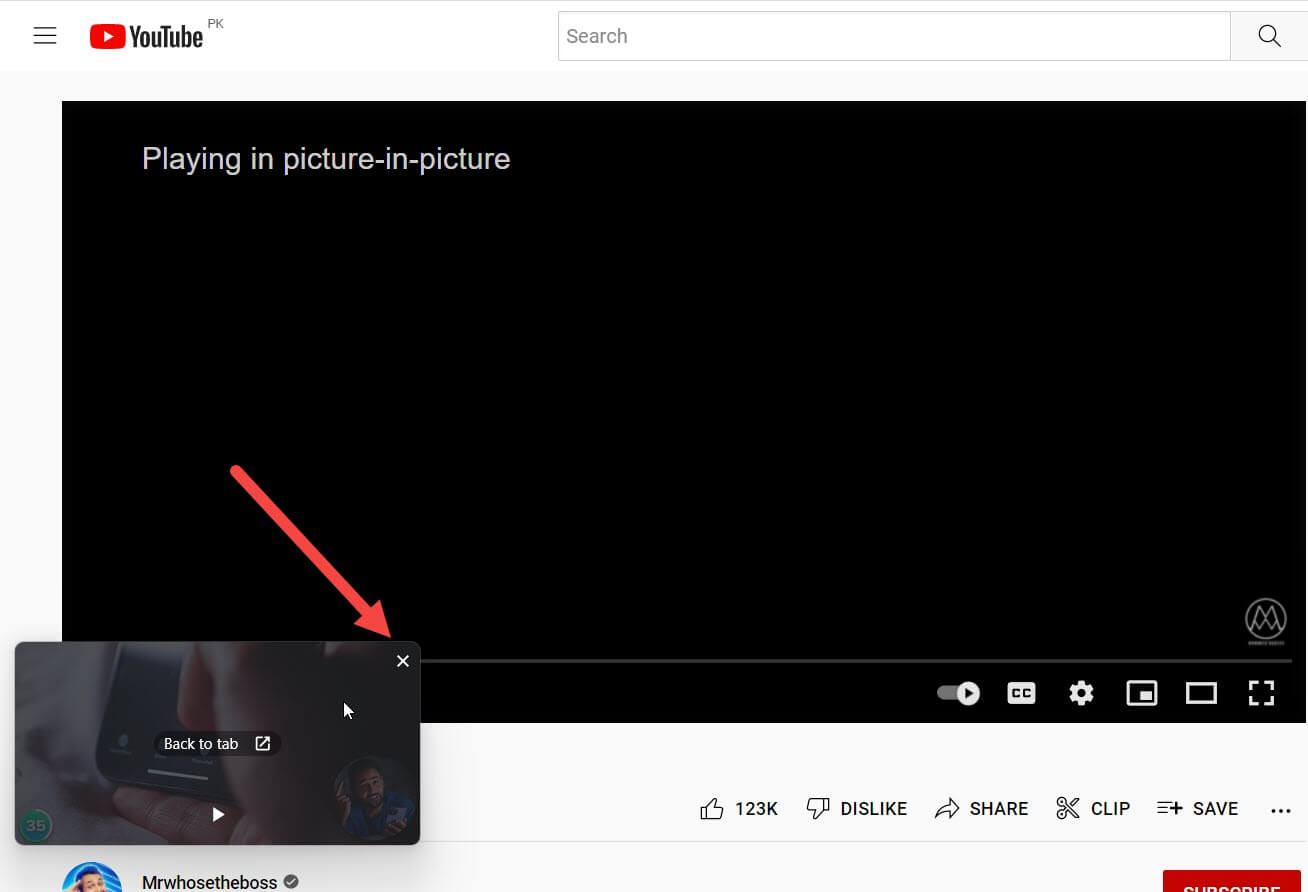
How to Watch YouTube in Picture-in-Picture Mode on Firefox
Step 1. Launch the Firefox browser then open the YouTube app in the Firefox.
Step 2. Next, click on that video that you want to turn it into PiP mode.
Step 3. Hover your mouse cursor on the video for a while then you will get an icon of Picture-in-Picture on the above at the center side of your video screen.
Bottom Line
It was all about How to Watch YouTube in Picture-in-Picture Mode on Windows 11? I hope this article is very helpful for you to watch the video in PiP mode. From this article, you will get something beneficial. This is the right place where you can easily solve your problem. After following these steps I hope you will not face any kind of problem. If you faced any kind of problem and if you have any type of suggestions then do comment.
Explore More:
Share This Article
Picture-in-Picture is the best option for the one who wants to work as well and watch videos on YouTube. This is the option that allows you to display your favorite video in a small and moveable box. First when you enable that PiP on the video it will show on the corner side of the screens. Nowadays, you can see this Picture-in-Picture mode mostly on every platform. When you try to watch videos in PiP mode then you don’t know the process. But don’t worry this article, is especially for you. If you want to watch YouTube in PiP mode then you need to read this article. From this article, I will guide you on How to Watch YouTube in Picture-in-Picture Mode on Windows 11? Without wasting any time let’s get started.
How to Watch YouTube in Picture-in-Picture Mode on Google Chrome and Microsoft Edge
Step 1. First of all, you have to open any browser whether it is Google Chrome or Microsoft Edge.
Step 2. Then search for YouTube.com after that play the songs or any movie you want to watch in the Picture-in-Picture mode.
Step 3. Now, simply right-click on the screen which will open the lists of the options then once again right-click on the screen.
Step 4. At last, tap on the Picture in Picture.
Tap on to Picture in Picture Step 5. Finally, you can watch that video in PiP mode, when you want to close it after that simply hover the mouse on the PiP and then click on the X icon.
How to Watch YouTube in Picture-in-Picture Mode on Firefox
Step 1. Launch the Firefox browser then open the YouTube app in the Firefox.
Step 2. Next, click on that video that you want to turn it into PiP mode.
Step 3. Hover your mouse cursor on the video for a while then you will get an icon of Picture-in-Picture on the above at the center side of your video screen.
Bottom Line
It was all about How to Watch YouTube in Picture-in-Picture Mode on Windows 11? I hope this article is very helpful for you to watch the video in PiP mode. From this article, you will get something beneficial. This is the right place where you can easily solve your problem. After following these steps I hope you will not face any kind of problem. If you faced any kind of problem and if you have any type of suggestions then do comment.
Explore More:


