

How to Use Quick Notes in macOS Monterey?
 Azaz Shaikh
When you are using macOS 12 Monterey then there is come Quick Note. However, Quick Note is a place where you can write something. And most of the people don’t know how to use the Quick Note. Moreover, once you want to enable the Quick Note on your mac. Then you will try to use Quick Note after that you don’t know how to use it. Once you don’t know the step then you will search on YouTube after that the video you are watching maybe it is not real. But don’t worry I am here to solve your problem. This is the place to solve your problem. If you want to use Quick Note then you need to read this article. So, without wasting any time let’s get has started. From this article, you will learn How to Use Quick Notes in macOS Monterey.
Related Post: How to Change Themes in Windows 11 Without Activating Windows
Set Up a Quick Note to Appear on Mac Via Hot Corners
Step 1. First of all, click on the Apple Icon then you need to tap on the System Preferences.
Step 2. Then head towards Mission Control.
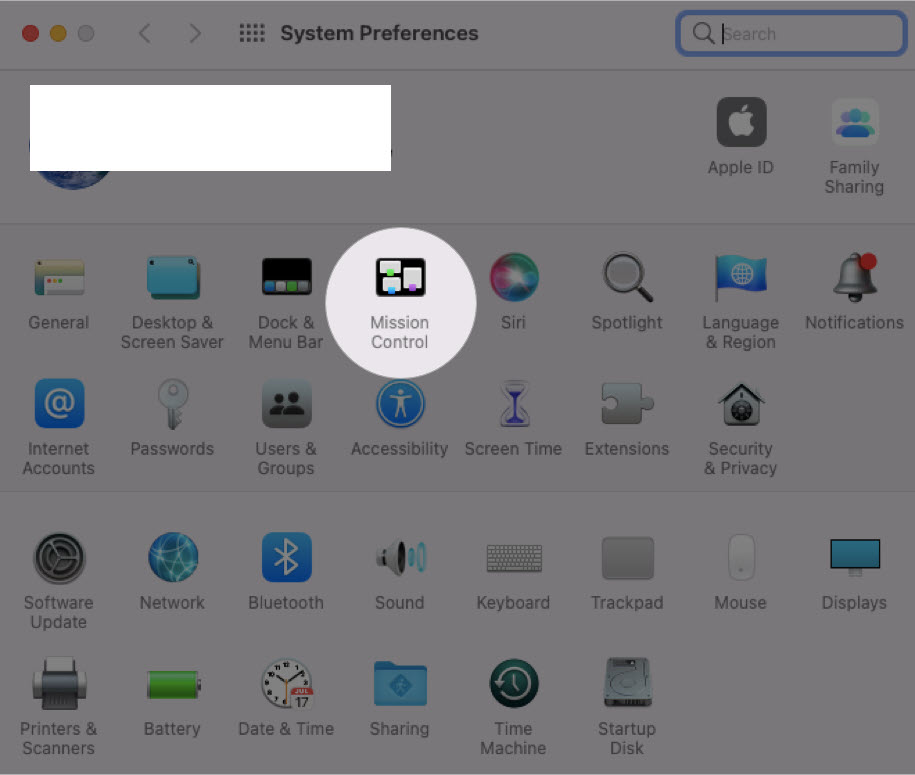 Head Towards Mission Control
 Step 3. Now, when the mission control is open then click on the Hot Corners at the left bottom corner.
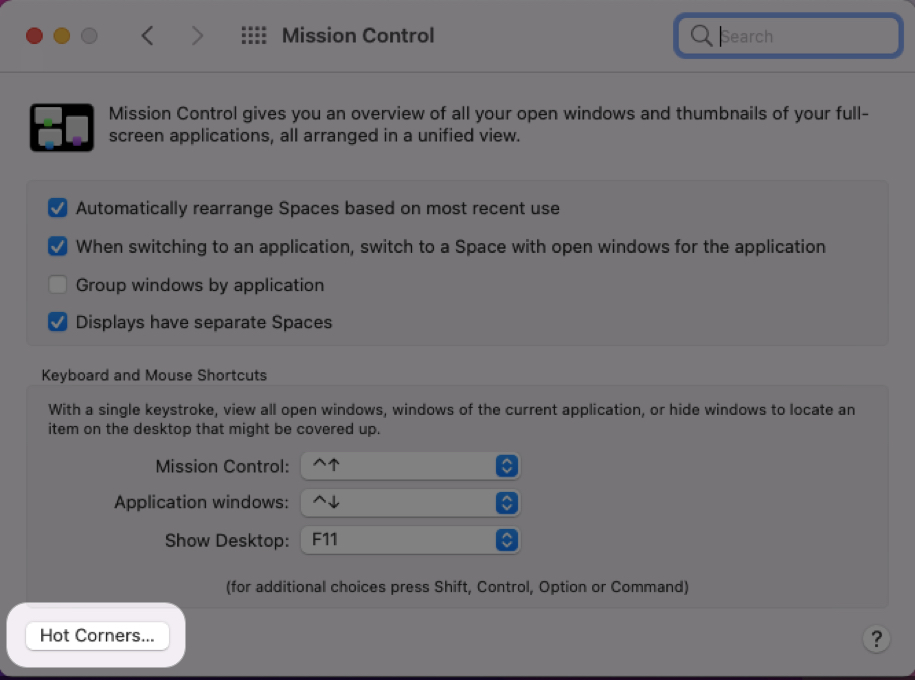 Click on the Hot Corners
 Step 4. Next, click on the drop-down at the right corner after that select Quick Note.
Step 5. At last, click on the Ok at the bottom right corner.
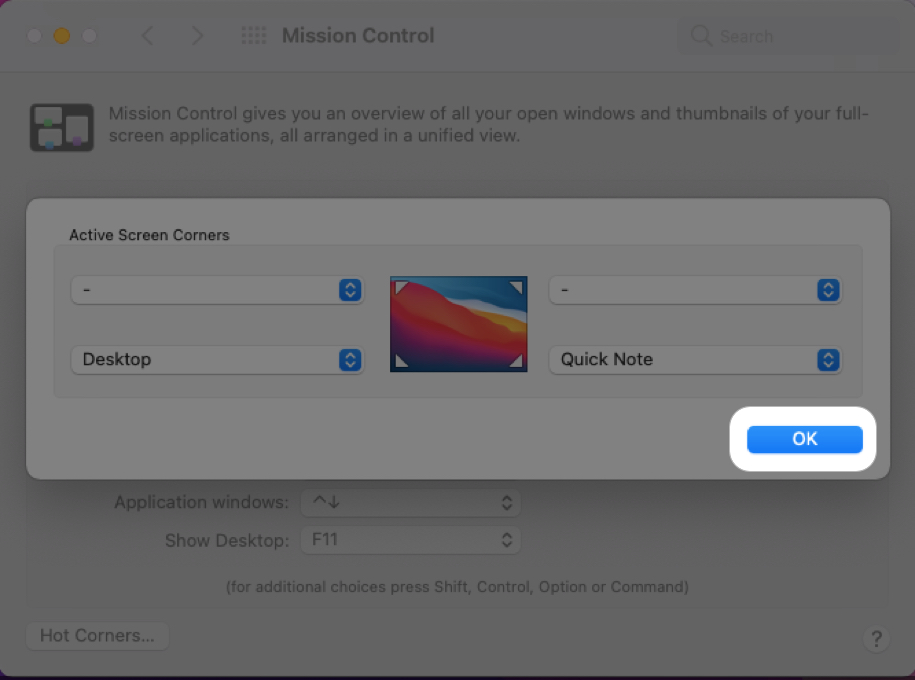 Click on the Ok
 How to Create a Quick Note on Mac
After that, you will see the interface of Quick Note will launch when you move the cursor. Now, once you want to expand the Quick Note the simply click on the Prompt to expand it.
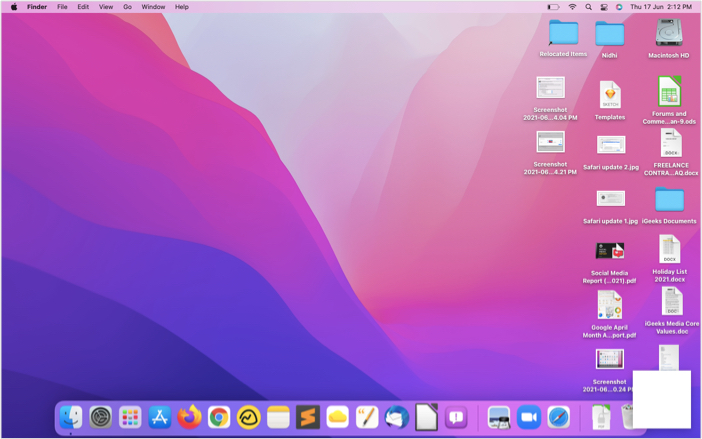 Click on the Prompt to Expand
 Add Smart Links to a Quick Note on Mac
Step 1. At first, click on the Link icon from the toolbar.
Step 2. After that tap on the Add Link.
Step 3. Now, as you can see that the link appears on your Quick Note.
Related Post: How to Create Windows 11 Bootable USB Using CMD
Bottom Line
It was all about How to Use Quick Notes in macOS Monterey. I hope this article is very helpful for you to use Quick Note. From this article, you will get something good. This is the right where you can easily solve your problem. After following these steps I hope you will not face any kind of problem. If you faced any kind of problem and if you have any type of suggestions then do comment.
Related Post: Download macOS Monterey VMware and VirtualBox Image
Tagged
Share This Article
When you are using macOS 12 Monterey then there is come Quick Note. However, Quick Note is a place where you can write something. And most of the people don’t know how to use the Quick Note. Moreover, once you want to enable the Quick Note on your mac. Then you will try to use Quick Note after that you don’t know how to use it. Once you don’t know the step then you will search on YouTube after that the video you are watching maybe it is not real. But don’t worry I am here to solve your problem. This is the place to solve your problem. If you want to use Quick Note then you need to read this article. So, without wasting any time let’s get has started. From this article, you will learn How to Use Quick Notes in macOS Monterey.
Related Post: How to Change Themes in Windows 11 Without Activating Windows
Set Up a Quick Note to Appear on Mac Via Hot Corners
Step 1. First of all, click on the Apple Icon then you need to tap on the System Preferences.
Step 2. Then head towards Mission Control.
Head Towards Mission Control Step 3. Now, when the mission control is open then click on the Hot Corners at the left bottom corner.
Click on the Hot Corners Step 4. Next, click on the drop-down at the right corner after that select Quick Note.
Step 5. At last, click on the Ok at the bottom right corner.
Click on the Ok How to Create a Quick Note on Mac
After that, you will see the interface of Quick Note will launch when you move the cursor. Now, once you want to expand the Quick Note the simply click on the Prompt to expand it.
Click on the Prompt to Expand Add Smart Links to a Quick Note on Mac
Step 1. At first, click on the Link icon from the toolbar.
Step 2. After that tap on the Add Link.
Step 3. Now, as you can see that the link appears on your Quick Note.
Related Post: How to Create Windows 11 Bootable USB Using CMD
Bottom Line
It was all about How to Use Quick Notes in macOS Monterey. I hope this article is very helpful for you to use Quick Note. From this article, you will get something good. This is the right where you can easily solve your problem. After following these steps I hope you will not face any kind of problem. If you faced any kind of problem and if you have any type of suggestions then do comment.
Related Post: Download macOS Monterey VMware and VirtualBox Image


