

How to Switch Back to Classic Facebook
 Azaz Shaikh
Facebook is the biggest and most popular social networking website which has over billions of active users worldwide. This app is made to stay in touch with everyone in the world. Facebook allows its users in order to share videos, stories, and pictures with your friends and family who use Facebook. It has a Messenger app that allows you to call someone you want. You can also grow your business with the help of Facebook. However, it also refreshes the mind because you can find any kind of video.
It has been months that Facebook was updating its platform and making it better than before. By the passage of time, it has changed the entire look of Facebook and kicked off the new interface design for desktop users. Actually, the new interface came up with the dark mode which looks extremely nice. The main purpose of these changes is to bring the desktop users closed to iPhone and Android users. Now, you have the same interface and design which is in smartphones.
But most of the users aren’t happy to use the new interface because it is somehow slower than the old interface. Therefore, you can easily switch back to classic Facebook without any restrictions.
How to Switch Back to Classic Facebook
After the update of 25th September 2020. Facebook no longer allows the user to switch back to classic Facebook. The new layout is the default interface and no more option to switch back. If you are among those people who don’t want to use the new Facebook. Therefore, it has still one way which allows you to switch back to classic Facebook.. So, let’s check it out.
1. First of all, you have login into your Facebook account on your computer.
2. Head over to towards the left side and click on the Pages.
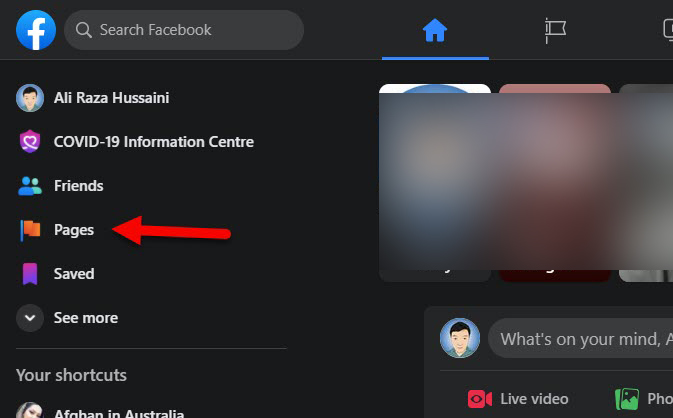 Pages
Pages 3. Open up your Facebook Page.
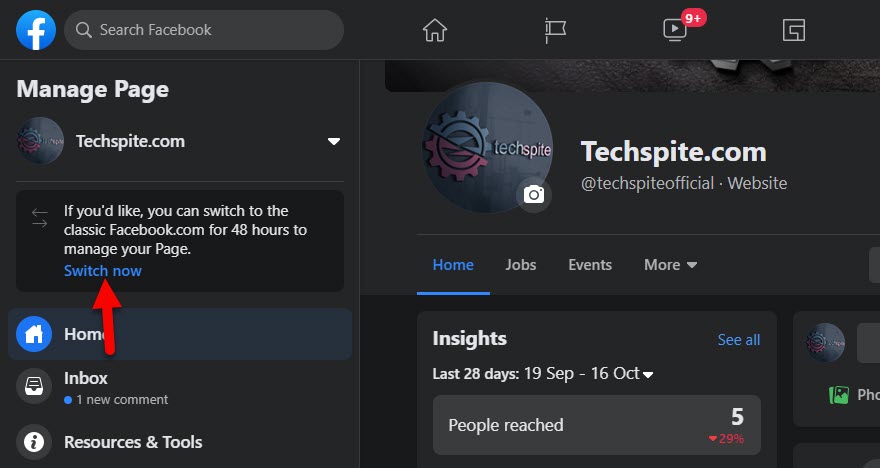
4. When the page is opened, look at the left side.
5. You will see an option, If you’d like, you can switch to the classic Facebook.com for 48 hours to manage your Page. Therefore, you have to click on the Switch Now.
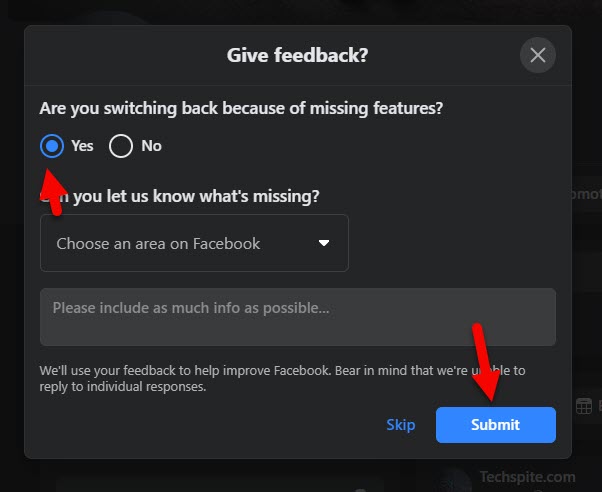
6. Another window will pop up, it will ask you a simple reason to switch back to classic facebook. Simply, choose the Yes option and make sure to click on the Submit.
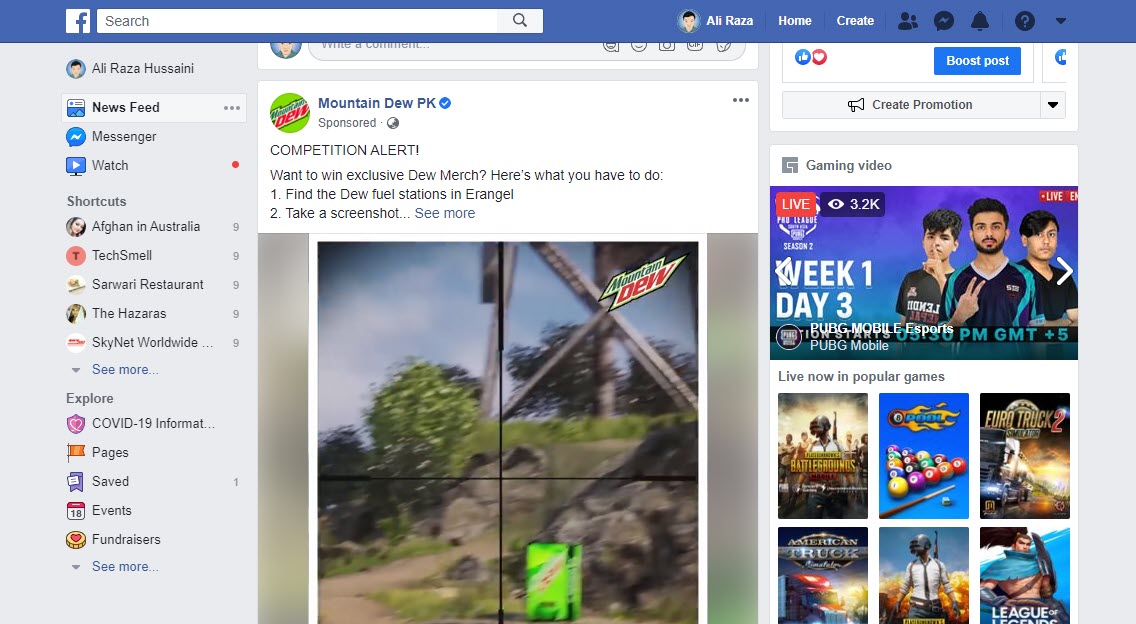
7. You will be taken back to classic Facebook. However, you can now enjoy the old Facebook for only 48 hours and again switch it to classic Facebook.
Related Guides:
- Upload a Video on Facebook from Start to Finish (HD Quality)
- Change Facebook Password. Facebook
- Download Facebook Video to iPhone Camera Roll 2020
Bottom Line
It was the only procedure of How to Switch Back to Classic Facebook. it might have some more methods but this method is a little bit safe. Whenever you get bored of new facebook then it can help you switch back to classic Facebook. I hope this guide has helped you to change back to old Facebook. So, if you found any kind of question then don’t hesitate to leave comments in the comment section down below.
Tagged
Share This Article
Facebook is the biggest and most popular social networking website which has over billions of active users worldwide. This app is made to stay in touch with everyone in the world. Facebook allows its users in order to share videos, stories, and pictures with your friends and family who use Facebook. It has a Messenger app that allows you to call someone you want. You can also grow your business with the help of Facebook. However, it also refreshes the mind because you can find any kind of video.
It has been months that Facebook was updating its platform and making it better than before. By the passage of time, it has changed the entire look of Facebook and kicked off the new interface design for desktop users. Actually, the new interface came up with the dark mode which looks extremely nice. The main purpose of these changes is to bring the desktop users closed to iPhone and Android users. Now, you have the same interface and design which is in smartphones.
But most of the users aren’t happy to use the new interface because it is somehow slower than the old interface. Therefore, you can easily switch back to classic Facebook without any restrictions.
How to Switch Back to Classic Facebook
After the update of 25th September 2020. Facebook no longer allows the user to switch back to classic Facebook. The new layout is the default interface and no more option to switch back. If you are among those people who don’t want to use the new Facebook. Therefore, it has still one way which allows you to switch back to classic Facebook.. So, let’s check it out.
1. First of all, you have login into your Facebook account on your computer.
2. Head over to towards the left side and click on the Pages.
Pages 3. Open up your Facebook Page.
4. When the page is opened, look at the left side.
5. You will see an option, If you’d like, you can switch to the classic Facebook.com for 48 hours to manage your Page. Therefore, you have to click on the Switch Now.
6. Another window will pop up, it will ask you a simple reason to switch back to classic facebook. Simply, choose the Yes option and make sure to click on the Submit.
7. You will be taken back to classic Facebook. However, you can now enjoy the old Facebook for only 48 hours and again switch it to classic Facebook.
Related Guides:
- Upload a Video on Facebook from Start to Finish (HD Quality)
- Change Facebook Password. Facebook
- Download Facebook Video to iPhone Camera Roll 2020
Bottom Line
It was the only procedure of How to Switch Back to Classic Facebook. it might have some more methods but this method is a little bit safe. Whenever you get bored of new facebook then it can help you switch back to classic Facebook. I hope this guide has helped you to change back to old Facebook. So, if you found any kind of question then don’t hesitate to leave comments in the comment section down below.


