

How to Use Your Smartphone as a Windows Microphone 2020
 Azaz Shaikh
In this article, I am going to guide you on How to Use Smartphones as a Windows Microphone 2020. Use your smartphone as a microphone for having a better quality of sound. Calling with your loved ones on Skype and Viber etc, making tutorials or record something for YouTube then it will give you the best quality of sound. In this case, you don’t need any microphone because you have to use your smartphone as a windows microphone 2020 with free of cost. If you don’t have any microphone for your Computer. You may want a microphone but can’t effort the microphone then you might have a smartphone with yourself. Nowadays this smartphone helps us at any angle of our life. The same you can use your smartphone as a microphone which is very simple and easy. It needs only to download and install the WO Mic App.
In this case, there are many apps in PlayStore in order to use your smartphone as a Windows microphone 2020. but WO Mic from Wireless Orange provides the easiest setup and connection options. The app works on both Windows and Mac computers. The size of the WO Mic App and Software is very less so that you can download and install it easily and freely. However, you need to download and install some requirements for your computer and as well as for your smartphone.
How to Use Your Smartphone as a Windows Microphone 2020
So, you need to install the WO Mic app from the PlayStore which is in orange color. And for your Windows, you need to download and install two software, one of them is WO Mic driver and also download and install WO Mic setup from the link below.
- Download the WO Mic client program for Windows.
- Download the WO Mic virtual device driver for Windows.
Once you have done each and everything. You have to follow the below guide about the connection of Smartphone to PC in order to use it as a microphone. Launch the PC program. Go to Connection then you have to click on the Connect and choose a Transport type. I am going to guide and detail all the steps of different options.
1. Connect with Bluetooth
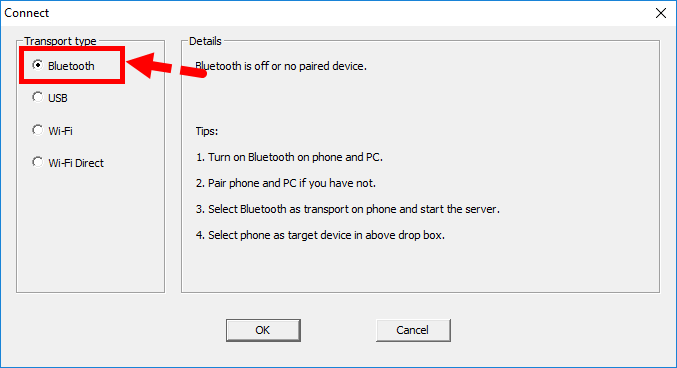 Connect with Bluetooth
Forgoing through the Bluetooth option. First of all, you have to enable or turn on the Bluetooth option. For that, you need to press the Windows Button + I or simply open the setting in order to open the Setting of your Computer. After that, you have to click on the Device > Bluetooth and click on the other devices. And slide the Bluetooth in order to turn on. Once the Bluetooth turned, then your PC will be discoverable with other devices.
After that, it is time to turn on your Bluetooth of the smartphone. The exact of the location of turning on Bluetooth is depend on your Mobile. So, simply, you need to swipe down from your smartphone and you will see Bluetooth option, just long-press on that you will have Bluetooth screen, then slide to turn on the Bluetooth.
When done all the steps. now you need to pair your smartphone with your computer. Then a small notification will pop up on your computer in order to confirm the connection of the pair.
On the Windows WO Mic program, you need to select Bluetooth option as your Transport type and make sure to select your phone from the Target Bluetooth device dropdown. Then, you need to click on the OK option. On the phone WO Mic app, tap the settings cog, tap Transport, and select Bluetooth. Go back a screen and tap the play icon to begin transmitting your voice
2. Connect with USB
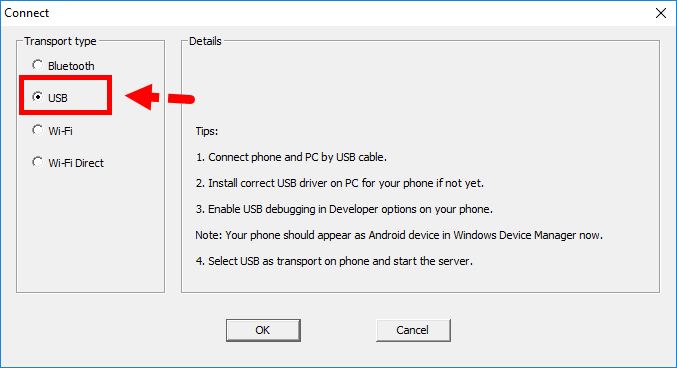 Connect with USB
The first method was for both iPhone and Android. But, using USB is only for android users. So, first of all, you need to connect your phone with your computer with your USB Cable. USB Cable is the same one which you use in order to charge your phone.
After doing so. You need to enable USB debugging in the developer option of your phone. By doing this your phone will be organized on Windows as a Device.
Next, on the Windows WO Mic program, select USB as your Transport type. Click OK. On the phone WO Mic app, tap the settings cog, tap Transport, and select USB. Go back a screen and tap the play icon to activate your phone’s microphone.
3. Connect using Wi-Fi
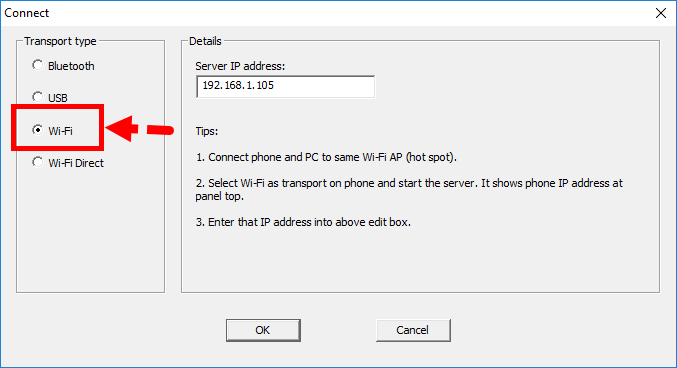 Connect using Wi-Fi
I am pretty sure that this method will work perfectly for you. So, going through this method your mobile and computer both should be connected to the same network.
After that, on the phone WO Mic app, tap on the settings cog, tap Transport, and select Wi-Fi. Go back a screen and tap the play icon. A gray banner message should appear at the top with a number at the end. This is the IP address.
Then, open the Window WO Mic program, you need to select the Wi-Fi option as a transport type. Next, you have to click on the OK. In the Server IP address field, input the IP address from the app. And you need to click on the OK to use your smartphone as a microphone in your Windows PC.
Is Windows not Detecting your Voice?
When you connect your smartphone as a microphone on windows, then you shouldn’t face any serious problem. So, you might face the problem that your voice isn’t detecting by Windows, The below steps will help you in order to fix it easily.
Press Windows key + I to open Settings. Go to System > Sound. Beneath Input, use the dropdown to select Microphone (WO Mic Device).
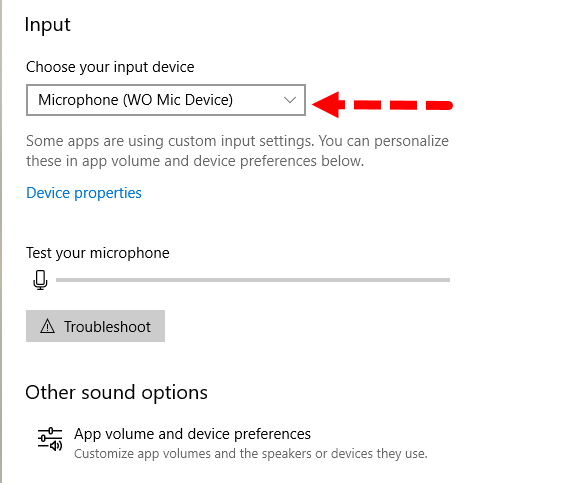 WO Mic Microphone
Related Articles below:
Final Words
That’s all about How to Use Your Smartphone as a Windows Microphone 2020. Now enjoy your smartphone as a microphone without purchasing any Mic. It is good to use when you want to record any video for YouTube especially. However, you might see that most of the people use their smartphone as a microphone instead of using any physical Mic. I hope that you have found this method useful for you. Therefore, if you faced any kind of problem then feel free to comment below. Don’t forget to give your positive feedback and suggestion in the comment section below.
Tagged
Share This Article
In this article, I am going to guide you on How to Use Smartphones as a Windows Microphone 2020. Use your smartphone as a microphone for having a better quality of sound. Calling with your loved ones on Skype and Viber etc, making tutorials or record something for YouTube then it will give you the best quality of sound. In this case, you don’t need any microphone because you have to use your smartphone as a windows microphone 2020 with free of cost. If you don’t have any microphone for your Computer. You may want a microphone but can’t effort the microphone then you might have a smartphone with yourself. Nowadays this smartphone helps us at any angle of our life. The same you can use your smartphone as a microphone which is very simple and easy. It needs only to download and install the WO Mic App.
In this case, there are many apps in PlayStore in order to use your smartphone as a Windows microphone 2020. but WO Mic from Wireless Orange provides the easiest setup and connection options. The app works on both Windows and Mac computers. The size of the WO Mic App and Software is very less so that you can download and install it easily and freely. However, you need to download and install some requirements for your computer and as well as for your smartphone.
How to Use Your Smartphone as a Windows Microphone 2020
So, you need to install the WO Mic app from the PlayStore which is in orange color. And for your Windows, you need to download and install two software, one of them is WO Mic driver and also download and install WO Mic setup from the link below.
- Download the WO Mic client program for Windows.
- Download the WO Mic virtual device driver for Windows.
Once you have done each and everything. You have to follow the below guide about the connection of Smartphone to PC in order to use it as a microphone. Launch the PC program. Go to Connection then you have to click on the Connect and choose a Transport type. I am going to guide and detail all the steps of different options.
1. Connect with Bluetooth
Connect with Bluetooth
Forgoing through the Bluetooth option. First of all, you have to enable or turn on the Bluetooth option. For that, you need to press the Windows Button + I or simply open the setting in order to open the Setting of your Computer. After that, you have to click on the Device > Bluetooth and click on the other devices. And slide the Bluetooth in order to turn on. Once the Bluetooth turned, then your PC will be discoverable with other devices.
After that, it is time to turn on your Bluetooth of the smartphone. The exact of the location of turning on Bluetooth is depend on your Mobile. So, simply, you need to swipe down from your smartphone and you will see Bluetooth option, just long-press on that you will have Bluetooth screen, then slide to turn on the Bluetooth.
When done all the steps. now you need to pair your smartphone with your computer. Then a small notification will pop up on your computer in order to confirm the connection of the pair.
On the Windows WO Mic program, you need to select Bluetooth option as your Transport type and make sure to select your phone from the Target Bluetooth device dropdown. Then, you need to click on the OK option. On the phone WO Mic app, tap the settings cog, tap Transport, and select Bluetooth. Go back a screen and tap the play icon to begin transmitting your voice
2. Connect with USB
Connect with USB
The first method was for both iPhone and Android. But, using USB is only for android users. So, first of all, you need to connect your phone with your computer with your USB Cable. USB Cable is the same one which you use in order to charge your phone.
After doing so. You need to enable USB debugging in the developer option of your phone. By doing this your phone will be organized on Windows as a Device.
Next, on the Windows WO Mic program, select USB as your Transport type. Click OK. On the phone WO Mic app, tap the settings cog, tap Transport, and select USB. Go back a screen and tap the play icon to activate your phone’s microphone.
3. Connect using Wi-Fi
Connect using Wi-Fi
I am pretty sure that this method will work perfectly for you. So, going through this method your mobile and computer both should be connected to the same network.
After that, on the phone WO Mic app, tap on the settings cog, tap Transport, and select Wi-Fi. Go back a screen and tap the play icon. A gray banner message should appear at the top with a number at the end. This is the IP address.
Then, open the Window WO Mic program, you need to select the Wi-Fi option as a transport type. Next, you have to click on the OK. In the Server IP address field, input the IP address from the app. And you need to click on the OK to use your smartphone as a microphone in your Windows PC.
Is Windows not Detecting your Voice?
When you connect your smartphone as a microphone on windows, then you shouldn’t face any serious problem. So, you might face the problem that your voice isn’t detecting by Windows, The below steps will help you in order to fix it easily.
Press Windows key + I to open Settings. Go to System > Sound. Beneath Input, use the dropdown to select Microphone (WO Mic Device).
WO Mic Microphone
Related Articles below:
Final Words
That’s all about How to Use Your Smartphone as a Windows Microphone 2020. Now enjoy your smartphone as a microphone without purchasing any Mic. It is good to use when you want to record any video for YouTube especially. However, you might see that most of the people use their smartphone as a microphone instead of using any physical Mic. I hope that you have found this method useful for you. Therefore, if you faced any kind of problem then feel free to comment below. Don’t forget to give your positive feedback and suggestion in the comment section below.


