

How to Set Static IP Address in Kali Linux using GUI and ifconfig?
 Azaz Shaikh
In this article, you will learn How to Set Static IP Address in Kali Linux using GUI and ifconfig. Linux is a great operating system for penetrating and hacking. It is the most popular and well-known operating system all around the world. Linux is a family of open-source Unix-like operating systems based on the Linux kernel, an operating system kernel first released on September 17, 1991, by Linus Torvalds. It has been a decade that Linux is still one of the loveable and powerful operating systems.
However, if you are also a Linux user then you have probably set the IP address on a Linux. Changing IP address is really helpful while penetrating or working on a Linux. The process is really simple and straightforward. But most of the users forget the setup process whether static or dynamic. And some people are afraid of that.
How to Set Static IP Address in Kali Linux using GUI
Step 1. first of all, you have to find out the default gateway of the router. Whenever you change the default gateway, then you will not able to connect with the network. Therefore, to find out that you have to type the below command in the Terminal of Kali Linux.
ip r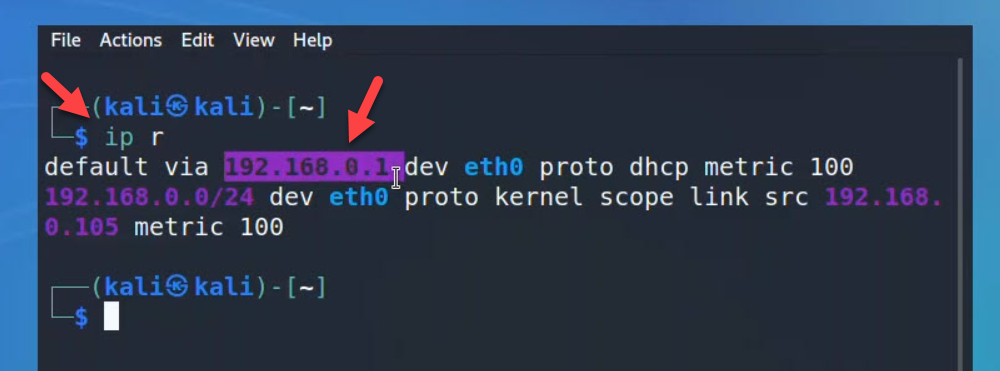 Default Gateway
 Step 2. Now, you must go to advanced network management settings in order to configure or set up the static IP address. To open that, right-click on the network connection and select edit connections.
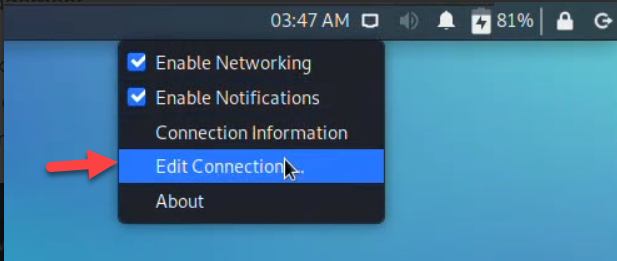 Edit connections
 Step 3. There you have to select Wired connection 1 under the Ethernet and click on the Settings.
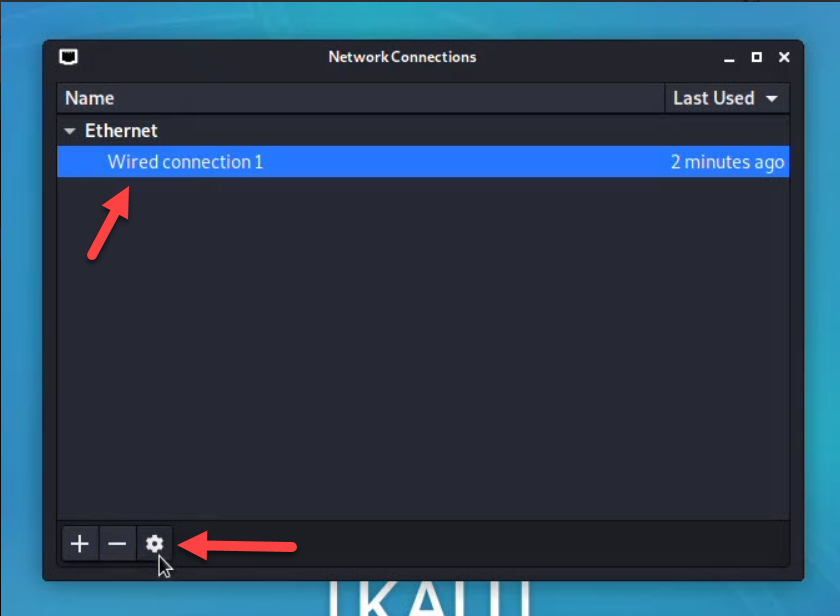 Wired Connection
 Step 4. When the advanced network management window is opened. Go to the IPv4 settings tab. First, change the method from DHCP to the manual, insert the IP address, Netmask, and the Default Gateway. If they are available in the router, you will notice a green color, if they were taken you will notice a red color.
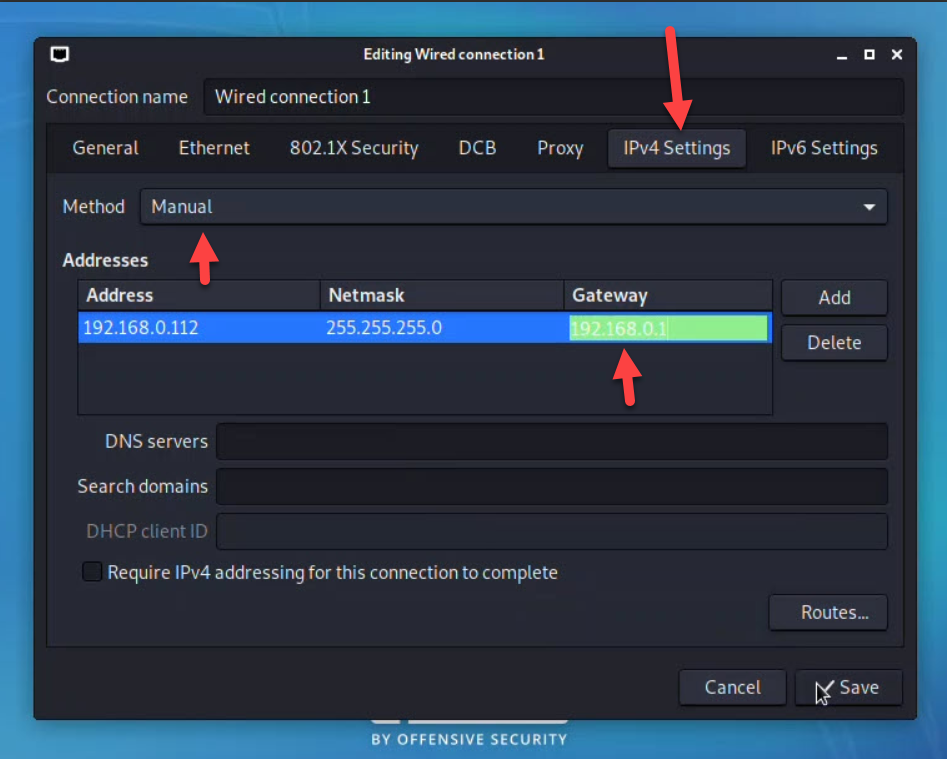 Set Static IP Address
 How to Set Static IP Address in Kali Linux using ifconfig?
Open the Terminal and type the below command to set up a manual IP address.
sudo ifconfig eth0 192.168.1.2 netmask 255.255.255.0Now you have to set up the default gateway for the ethernet port, which is Ethernet 0 with an IP address of 192.168.1.2. Use the following command to set up the default gateway.
sudo route add default gw 192.168.1.2 eth0 Now, configure the DNS. For that, type the following commands.
echo "nameserver 1.1.1.1" > /etc/resolv.conf 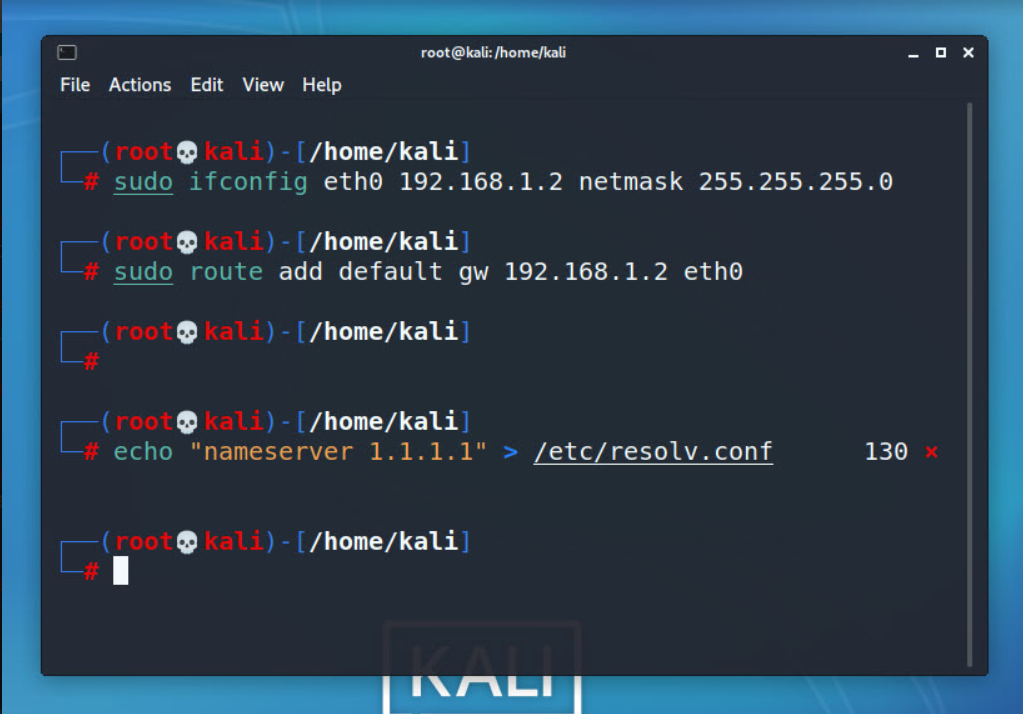 Commands to configure the IP address
 Now, remember that, for setting up your static IP address. You have to configure DNS 1 and DNS 2, Gateway, Hostname, NetMask, and IP Address.
If you have applied all the settings. It is time to make sure if the static IP address is working or not. Type ping google.com and press enter. If you see the following message, then it means everything is fine and you are good to go.
┌──(kali㉿kali)- └─$ ping google.com PING google.com (142.250.181.14) 56(84) bytes of data. 64 bytes from fjr04s05-in-f14.1e100.net (142.250.181.14): icmp_seq=1 ttl=128 time=38.6 ms 64 bytes from fjr04s05-in-f14.1e100.net (142.250.181.14): icmp_seq=2 ttl=128 time=38.5 ms 64 bytes from fjr04s05-in-f14.1e100.net (142.250.181.14): icmp_seq=3 ttl=128 time=38.2 ms ^C --- google.com ping statistics --- 3 packets transmitted, 3 received, 0% packet loss, time 2004ms rtt min/avg/max/mdev = 38.162/38.408/38.606/0.184 msBottom Line
It was all about How to Set Static IP Address in Kali Linux using GUI and ifconfig?. You got two different methods for setting up the IP address in Kali Linux. But if you still face any problems then feel free to comment down below.
Tagged
Share This Article
In this article, you will learn How to Set Static IP Address in Kali Linux using GUI and ifconfig. Linux is a great operating system for penetrating and hacking. It is the most popular and well-known operating system all around the world. Linux is a family of open-source Unix-like operating systems based on the Linux kernel, an operating system kernel first released on September 17, 1991, by Linus Torvalds. It has been a decade that Linux is still one of the loveable and powerful operating systems.
However, if you are also a Linux user then you have probably set the IP address on a Linux. Changing IP address is really helpful while penetrating or working on a Linux. The process is really simple and straightforward. But most of the users forget the setup process whether static or dynamic. And some people are afraid of that.
How to Set Static IP Address in Kali Linux using GUI
Step 1. first of all, you have to find out the default gateway of the router. Whenever you change the default gateway, then you will not able to connect with the network. Therefore, to find out that you have to type the below command in the Terminal of Kali Linux.
ip rStep 2. Now, you must go to advanced network management settings in order to configure or set up the static IP address. To open that, right-click on the network connection and select edit connections.
Edit connections Step 3. There you have to select Wired connection 1 under the Ethernet and click on the Settings.
Wired Connection Step 4. When the advanced network management window is opened. Go to the IPv4 settings tab. First, change the method from DHCP to the manual, insert the IP address, Netmask, and the Default Gateway. If they are available in the router, you will notice a green color, if they were taken you will notice a red color.
Set Static IP Address How to Set Static IP Address in Kali Linux using ifconfig?
Open the Terminal and type the below command to set up a manual IP address.
sudo ifconfig eth0 192.168.1.2 netmask 255.255.255.0Now you have to set up the default gateway for the ethernet port, which is Ethernet 0 with an IP address of 192.168.1.2. Use the following command to set up the default gateway.
sudo route add default gw 192.168.1.2 eth0 Now, configure the DNS. For that, type the following commands.
echo "nameserver 1.1.1.1" > /etc/resolv.conf Now, remember that, for setting up your static IP address. You have to configure DNS 1 and DNS 2, Gateway, Hostname, NetMask, and IP Address.
If you have applied all the settings. It is time to make sure if the static IP address is working or not. Type ping google.com and press enter. If you see the following message, then it means everything is fine and you are good to go.
┌──(kali㉿kali)- └─$ ping google.com PING google.com (142.250.181.14) 56(84) bytes of data. 64 bytes from fjr04s05-in-f14.1e100.net (142.250.181.14): icmp_seq=1 ttl=128 time=38.6 ms 64 bytes from fjr04s05-in-f14.1e100.net (142.250.181.14): icmp_seq=2 ttl=128 time=38.5 ms 64 bytes from fjr04s05-in-f14.1e100.net (142.250.181.14): icmp_seq=3 ttl=128 time=38.2 ms ^C --- google.com ping statistics --- 3 packets transmitted, 3 received, 0% packet loss, time 2004ms rtt min/avg/max/mdev = 38.162/38.408/38.606/0.184 msBottom Line
It was all about How to Set Static IP Address in Kali Linux using GUI and ifconfig?. You got two different methods for setting up the IP address in Kali Linux. But if you still face any problems then feel free to comment down below.


