How To Reset Forgotten Password Of macOS Mojave
 Azaz Shaikh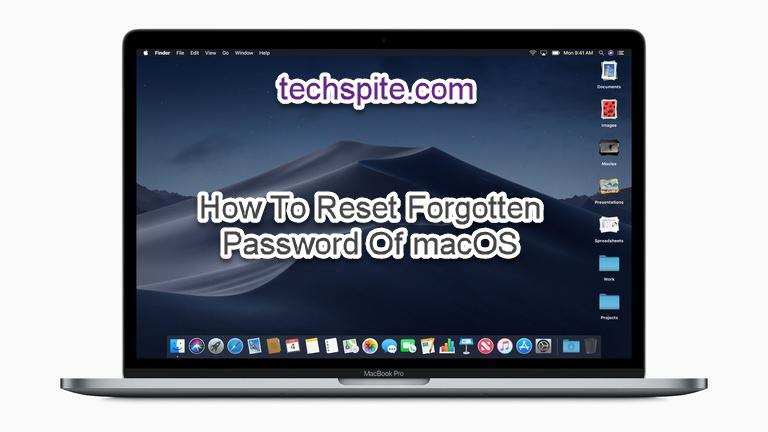
Sometimes it can happen that you will forget the password of mac or you have installed macOS Mojave on any virtual machine like VMware and Virtualbox. Before installing MacOS Mojave on virtual box and VMware you will be asked to set up a password and you might forget the password then don’t worry on that time because I am going to guide you How To Reset Forgotten Password Of macOS Mojave. When you make a secret project then you need set password it rarely happens that you will forget admin password but you can add new password without losing any data in just two easy methods I am pretty sure that both methods will work.
When you don’t note the password which you have entered then surely it is hard to remember and you will easily if you forget then there are chances to reinstall the operating system but I have found the solution that you can easily recover your password without any tension. To access your make mac then you need to reset your password in order to get back your mac. I was facing the same problem that’s why I will let you know that one day you will face such a kind of problems and it is very easy to avoid the problem because I will guide step by step for better understand. So let’s get started without wasting time.
 How To Reset Forgotten Password Of macOS Mojave
 Download macOS Mojave Image file for VMware & VirtualBox
How To Reset Forgotten Password Of macOS Mojave
Therefore, I am going to guide the two special steps which will help you and it pretty easy for the user of mac to get know. This two outstanding method will work for all version of mac. If you are using any operating system related to macOS Mojave then not to worry. And fully concentrate on the steps which I am going to guide you right now below.
First method: Using Terminal
1. In the first step, you are going to run the mac, have a look at above of screen there is the option of Utilities then click on the Terminal.
2. Then a terminal window will be open, you need to one command that is resetpassword kindly don’t give space which I write so write it the same without any space between command. And press enters at last.
3. After that, you will have reset password window, you need to give a password without asking an old password. So, give new password and repeat your password then at last give hint to the password in order to not forget.
4. At last, your password has been reset, then you need to click restart in order to restart your mac then type the new password to log in without any tension.
Second Method: With Apple ID
So, in the second method, I am going to guide you the password with Apple ID. Follow the steps below which I will guide you right now below:
1. Therefore, when you enter more than five times, then one message will come which is If you forgot your password you can reset using Apple Id. So, click > icon.
2. A new window will be opened, you will be asked to required data which you use during login and iTunes.
3. Then you need to enter the new password in order to continue your mac. So it was the last step and it is pretty easy.
Install Ubuntu on VMware Workstation on Windows 10
Conclusion:
From this article, you have learned 2 easy methods which you can reset the password of your mac. With these methods, you can reset the password of any Mac operating system related to mac. Hope it was a great experience and you found in this article. If you want to get an article on the best tech learning point then visit our website daily.
Share This Article
Sometimes it can happen that you will forget the password of mac or you have installed macOS Mojave on any virtual machine like VMware and Virtualbox. Before installing MacOS Mojave on virtual box and VMware you will be asked to set up a password and you might forget the password then don’t worry on that time because I am going to guide you How To Reset Forgotten Password Of macOS Mojave. When you make a secret project then you need set password it rarely happens that you will forget admin password but you can add new password without losing any data in just two easy methods I am pretty sure that both methods will work.
When you don’t note the password which you have entered then surely it is hard to remember and you will easily if you forget then there are chances to reinstall the operating system but I have found the solution that you can easily recover your password without any tension. To access your make mac then you need to reset your password in order to get back your mac. I was facing the same problem that’s why I will let you know that one day you will face such a kind of problems and it is very easy to avoid the problem because I will guide step by step for better understand. So let’s get started without wasting time.
How To Reset Forgotten Password Of macOS Mojave Download macOS Mojave Image file for VMware & VirtualBox
How To Reset Forgotten Password Of macOS Mojave
Therefore, I am going to guide the two special steps which will help you and it pretty easy for the user of mac to get know. This two outstanding method will work for all version of mac. If you are using any operating system related to macOS Mojave then not to worry. And fully concentrate on the steps which I am going to guide you right now below.
First method: Using Terminal
1. In the first step, you are going to run the mac, have a look at above of screen there is the option of Utilities then click on the Terminal.
2. Then a terminal window will be open, you need to one command that is resetpassword kindly don’t give space which I write so write it the same without any space between command. And press enters at last.
3. After that, you will have reset password window, you need to give a password without asking an old password. So, give new password and repeat your password then at last give hint to the password in order to not forget.
4. At last, your password has been reset, then you need to click restart in order to restart your mac then type the new password to log in without any tension.
Second Method: With Apple ID
So, in the second method, I am going to guide you the password with Apple ID. Follow the steps below which I will guide you right now below:
1. Therefore, when you enter more than five times, then one message will come which is If you forgot your password you can reset using Apple Id. So, click > icon.
2. A new window will be opened, you will be asked to required data which you use during login and iTunes.
3. Then you need to enter the new password in order to continue your mac. So it was the last step and it is pretty easy.
Install Ubuntu on VMware Workstation on Windows 10
Conclusion:
From this article, you have learned 2 easy methods which you can reset the password of your mac. With these methods, you can reset the password of any Mac operating system related to mac. Hope it was a great experience and you found in this article. If you want to get an article on the best tech learning point then visit our website daily.