

3 Easy Ways to Reduce PDF File Size on Mac (macOS Big Sur & Catalina)
 Azaz Shaikh
If you love reading something then you can probably have the PDF. Because PDF files are the handiest file format. You can easily edit and add something to the content on your own. In simple words, the PDF abbreviation stands for Portable Document Format which is developed by Adobe in 1993 to present documents. The downloading PDF file is somehow difficult because it has a somehow heavy size. All PDF file is really heavy in size which is not good for the performance of your Mac. Therefore, let us guide you on How to Reduce PDF File Size on Mac.
One of the best ways, in order to save space on your Mac computer, is by reducing the size of large PDF files. Heavy files can badly damage the computer. Because large files are not supported on Mac. When it doesn’t help even after unloading the trash and deleting apps, this can easily help the user some more space for your new project. You have to reduce the PDF file size which should not lose the original quality. You can easily reduce the size with two different methods, one is to reduce with thrid-party and the other is in your own Mac.
How to Reduce PDF File Size on Mac
Step 1. Turn on your Mac and open the PDF file which you want to compress.
Step 2. Click on the File from the top menu.
Step 3. You will see some options, make sure to click on the Export.
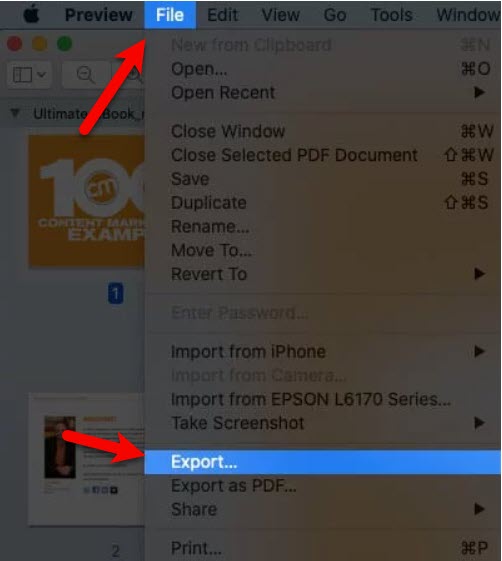 Export
 Step 4. Give a name to the file and you can add tags if necessary.
Step 5. Choose the location where you want to save it on your Mac.
Step 6. Click on the bar next to Quartz Filter.
Step 7. Click on the Reduce File Size.
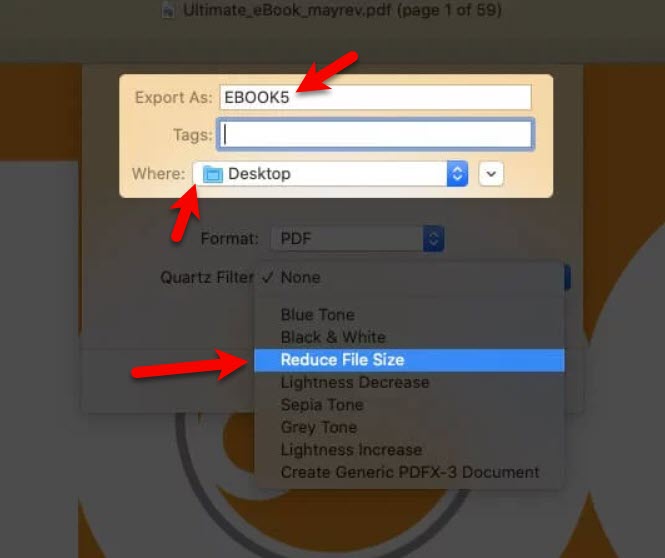 Reduce File Size
 Step 8. When you are done with all the above steps, you have to click on the Save.
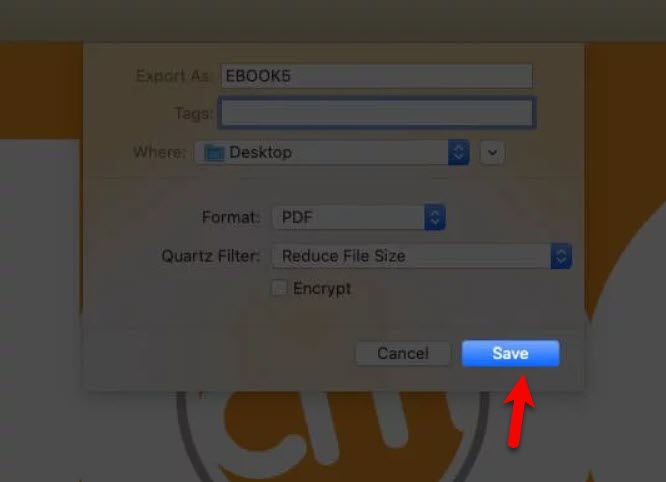 Save
Save The file will be exported to the location where you have selected. And you can figure out the size difference between the original PDF file and the compressed version. In order to see the size, you have to right-click on the PDF file and Click Get Info from options. From there you can view the file size next to the PDF name.
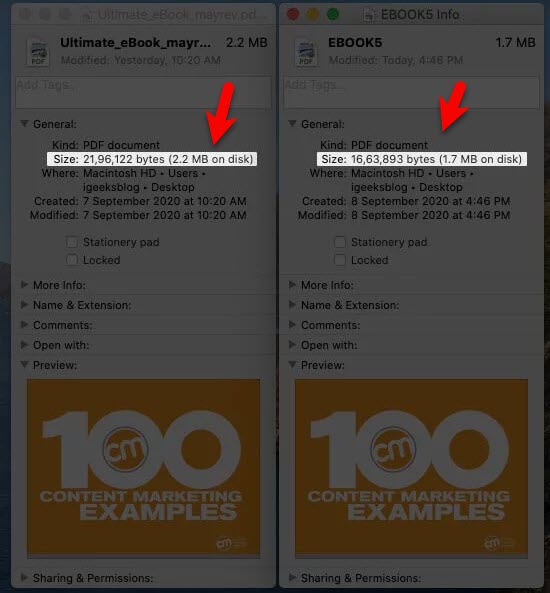 View PDF size
 Best PDF Compression Software For Mac
There is too much software for Mac on the market. Some of them are paid and some of them are free. And free software won’t work properly. You can find amazing compression software for Mac which you can reduce the file size without losing the actual quality. However, here is some best software down below.
Free Online PDF Compressor
There is pdf software that you can’t effort to purchase the premium. Also, it is a great opportunity that you can compress the PDF with the help of online websites. Here is some Online PDF Compressor.
Bottom Line
It was the complete guide on 3 Easy Ways to Reduce PDF File Size on Mac (macOS Big Sur & Catalina). Large size of PDF files can save enough space. Which way do you think is the easiest one to reduce the file size on Mac? Let us know in the comment section download.
Share This Article
If you love reading something then you can probably have the PDF. Because PDF files are the handiest file format. You can easily edit and add something to the content on your own. In simple words, the PDF abbreviation stands for Portable Document Format which is developed by Adobe in 1993 to present documents. The downloading PDF file is somehow difficult because it has a somehow heavy size. All PDF file is really heavy in size which is not good for the performance of your Mac. Therefore, let us guide you on How to Reduce PDF File Size on Mac.
One of the best ways, in order to save space on your Mac computer, is by reducing the size of large PDF files. Heavy files can badly damage the computer. Because large files are not supported on Mac. When it doesn’t help even after unloading the trash and deleting apps, this can easily help the user some more space for your new project. You have to reduce the PDF file size which should not lose the original quality. You can easily reduce the size with two different methods, one is to reduce with thrid-party and the other is in your own Mac.
How to Reduce PDF File Size on Mac
Step 1. Turn on your Mac and open the PDF file which you want to compress.
Step 2. Click on the File from the top menu.
Step 3. You will see some options, make sure to click on the Export.
Export Step 4. Give a name to the file and you can add tags if necessary.
Step 5. Choose the location where you want to save it on your Mac.
Step 6. Click on the bar next to Quartz Filter.
Step 7. Click on the Reduce File Size.
Reduce File Size Step 8. When you are done with all the above steps, you have to click on the Save.
Save The file will be exported to the location where you have selected. And you can figure out the size difference between the original PDF file and the compressed version. In order to see the size, you have to right-click on the PDF file and Click Get Info from options. From there you can view the file size next to the PDF name.
View PDF size Best PDF Compression Software For Mac
There is too much software for Mac on the market. Some of them are paid and some of them are free. And free software won’t work properly. You can find amazing compression software for Mac which you can reduce the file size without losing the actual quality. However, here is some best software down below.
Free Online PDF Compressor
There is pdf software that you can’t effort to purchase the premium. Also, it is a great opportunity that you can compress the PDF with the help of online websites. Here is some Online PDF Compressor.
Bottom Line
It was the complete guide on 3 Easy Ways to Reduce PDF File Size on Mac (macOS Big Sur & Catalina). Large size of PDF files can save enough space. Which way do you think is the easiest one to reduce the file size on Mac? Let us know in the comment section download.


