

How to Open Multiple Websites With a Shortcut on Windows
 Azaz Shaikh
There are many websites on a browser than some websites you will open regularly. The regular websites you will open might your own site. When you open the website then you have not many times to open it. Then you will try to set a shortcut for your website after that you don’t know the way that you can set a shortcut for your websites. Once you set a shortcut then it will save you time to open your websites. But don’t worry I will find the easiest way that you can easily open multiple websites with a shortcut. If you want to open multiple websites with a shortcut then you need to read this article. So, without wasting any time let’s get has started. From this article, you will learn How to Open Multiple Websites With a Shortcut on Windows.
These methods don’t need any third-party software to open multiple websites with a shortcut.
Related Post: How to Take Screenshot on Snapchat without Them Knowing
Open Multiple Websites With a Shortcut on Windows
Here is the step by step on open multiple websites:
Step 1. At first, turn on your PC then go to the Start Menu after that type Notepad then opens it.
Step 2. When the notepad is open then paste the URL of the website that you want to open it by shortcut. Paste the URL of websites as many as you type.
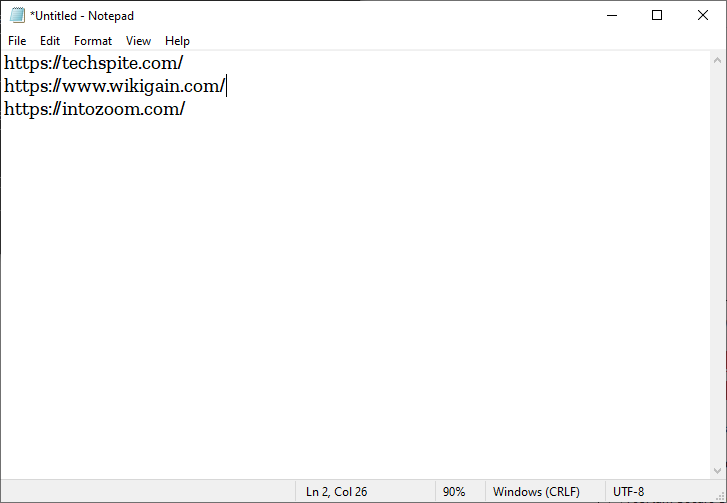 Paste the URL of Websites
 Step 3. Once you paste the URL then click on the File at the left corner after that click on the Save As.
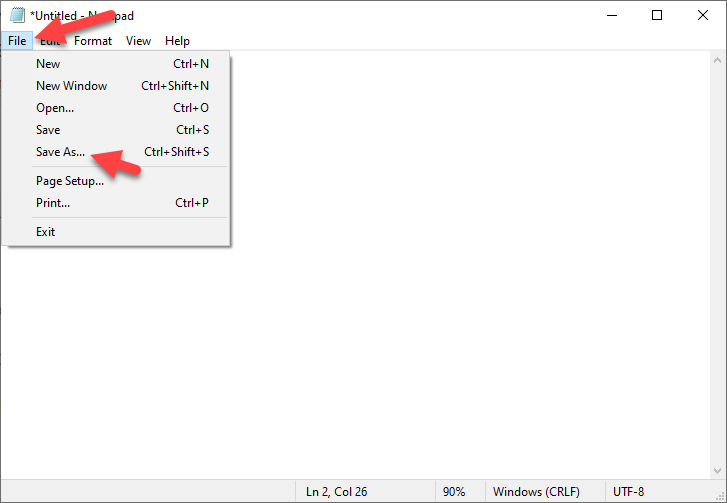 Click on the Save As
 Step 4. Now, select the destination of that after that set the name of it, for example, I set the name of it OpenAllWebsites.bat. No matter you can set any kind of name but you need to add .bat at the last of your name of the file. Click on the Save.
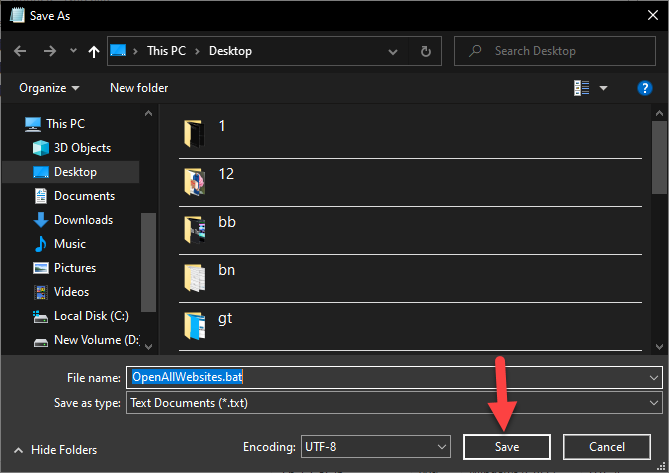 Click on the Save
 Step 5. Next, when the file is saved then double click on the file.
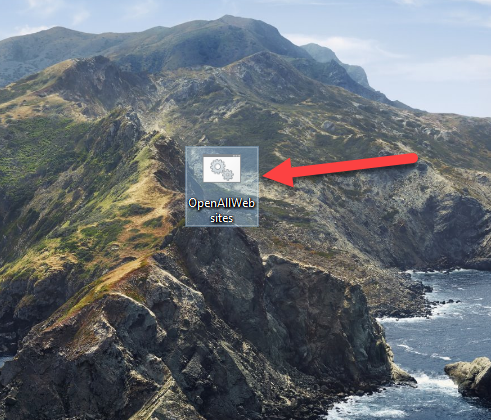 Double Click on the File
 Change the Browser that Your Sites Open in
Step by step to change the default browser without any third party software:
Step 1. Open the Settings from the Start menu and the shortcut to open the setting simply press Windows + I.
Step 2. Click on the Default Programs.
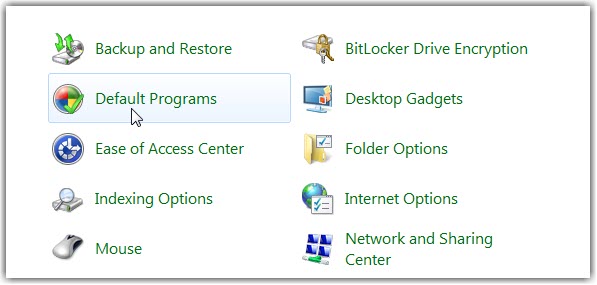 Click on the Default Programs
 Step 3. Now, click on the Apps after that click on the Set Your Default Programs.
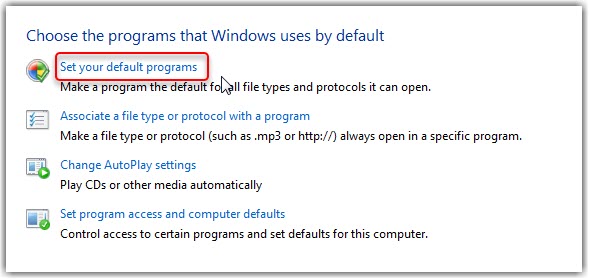 Click on the Set Your Default Programs
 Step 4. Here you need to choose what you want.
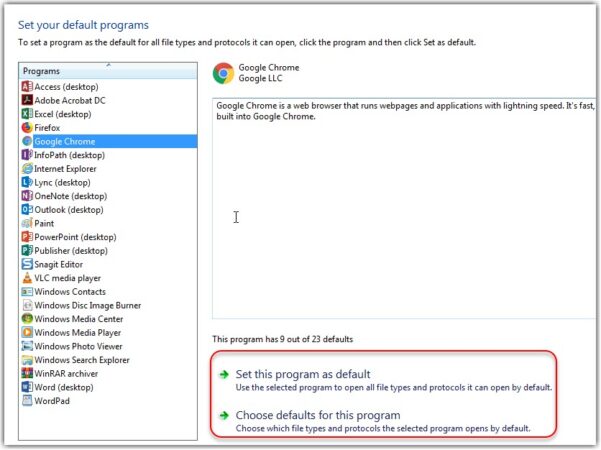
Related Post: How to Remove Bloatware from Windows 10 (2021)
Bottom Line
It was all about How to Open Multiple Websites With a Shortcut on Windows. I hope this article is very helpful for you to open multiple websites. From this article, you will get something good. After following these steps I hope you will not face any kind of problem. However, if you faced any kind of problem don’t hesitate to leave comments down below.
Related Post: 5 Best Printers for macOS Big Sur in 2021 – Best Printers for Mac
Tagged
Share This Article
There are many websites on a browser than some websites you will open regularly. The regular websites you will open might your own site. When you open the website then you have not many times to open it. Then you will try to set a shortcut for your website after that you don’t know the way that you can set a shortcut for your websites. Once you set a shortcut then it will save you time to open your websites. But don’t worry I will find the easiest way that you can easily open multiple websites with a shortcut. If you want to open multiple websites with a shortcut then you need to read this article. So, without wasting any time let’s get has started. From this article, you will learn How to Open Multiple Websites With a Shortcut on Windows.
These methods don’t need any third-party software to open multiple websites with a shortcut.
Related Post: How to Take Screenshot on Snapchat without Them Knowing
Open Multiple Websites With a Shortcut on Windows
Here is the step by step on open multiple websites:
Step 1. At first, turn on your PC then go to the Start Menu after that type Notepad then opens it.
Step 2. When the notepad is open then paste the URL of the website that you want to open it by shortcut. Paste the URL of websites as many as you type.
Paste the URL of Websites Step 3. Once you paste the URL then click on the File at the left corner after that click on the Save As.
Click on the Save As Step 4. Now, select the destination of that after that set the name of it, for example, I set the name of it OpenAllWebsites.bat. No matter you can set any kind of name but you need to add .bat at the last of your name of the file. Click on the Save.
Click on the Save Step 5. Next, when the file is saved then double click on the file.
Double Click on the File Change the Browser that Your Sites Open in
Step by step to change the default browser without any third party software:
Step 1. Open the Settings from the Start menu and the shortcut to open the setting simply press Windows + I.
Step 2. Click on the Default Programs.
Click on the Default Programs Step 3. Now, click on the Apps after that click on the Set Your Default Programs.
Click on the Set Your Default Programs Step 4. Here you need to choose what you want.
Related Post: How to Remove Bloatware from Windows 10 (2021)
Bottom Line
It was all about How to Open Multiple Websites With a Shortcut on Windows. I hope this article is very helpful for you to open multiple websites. From this article, you will get something good. After following these steps I hope you will not face any kind of problem. However, if you faced any kind of problem don’t hesitate to leave comments down below.
Related Post: 5 Best Printers for macOS Big Sur in 2021 – Best Printers for Mac


