

Install Ubuntu on VMware Workstation on Windows 10
 Azaz Shaikh
Welcome to this article, Today I am going to guide Install Ubuntu on VMware Workstation on Windows 10. I am sure that it will be a great and best experience for you to install Ubuntu on VMware. If you are in need of an operating system which s very easy to install on Vmware you don’t need to take tension today I will guide you. Therefore, till now if you don’t know how to install Ubuntu on VirtualBox on windows then click on the link back. You have to test before buying any operating system as the same you have to test and check the Ubuntu operating system on VMware on windows.
Now it is very expensive to buy the Ubuntu operating system but when you install it VMware it is free of cost. So, VMware Workstation supports every kind of operating system which very easy to install and free to check and work on it. I will say you that every particular figure cannot buy that machine. Therefore, follow each step carefully which I am going to guide you and you have to download the important file.
Click to buy Mastering VMware vSphere 6
Required Files to install ubuntu on Vmware:
Download and install the files/software/iso which is very necessary for installing Ubuntu on VMware Workstation.
Before getting started you need to download and install VMware Workstation, installing VMware workstation is very easy and simple there is no need to guide. Then download the Ubuntu iso file which will take time and it depends on your PC speed and internet.
Install Ubuntu on VMware Workstation on Windows 10
Create a Virtual machine on VMware for Ubuntu:
For installing Ubuntu on VMware first of all you need to create a new virtual machine for that follow each step below.
Step 1: When you downloaded and installed the VMware workstation double-click to run that then click on the Create a new virtual machine.
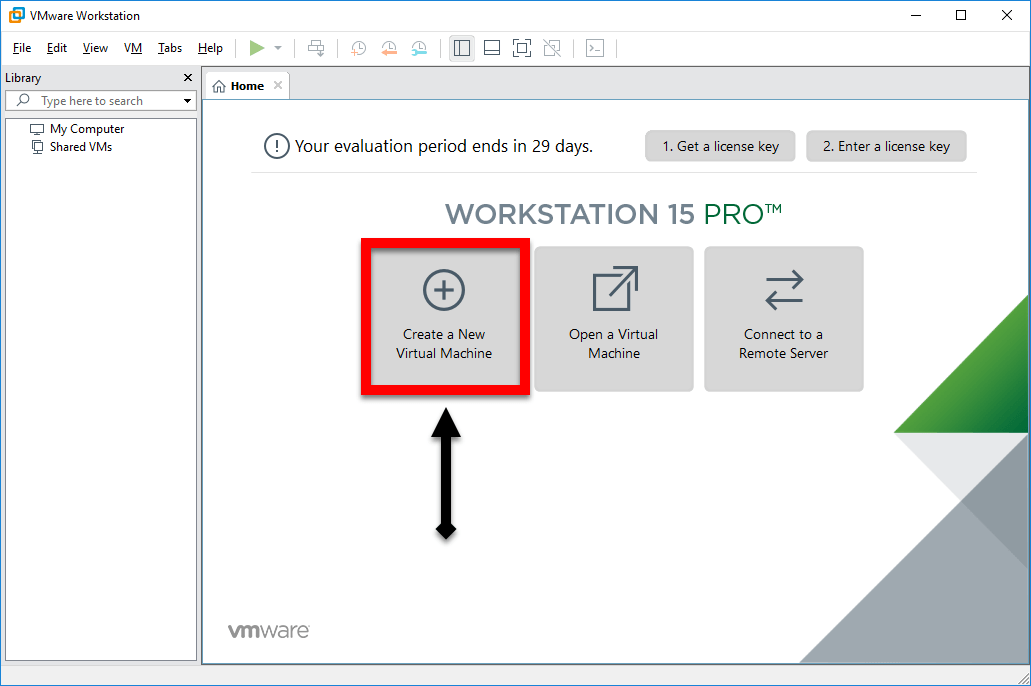 Create a new virtual machine
 Step 2: A new window will be opened then choose the first option Typical (recommend) then click on the next button.
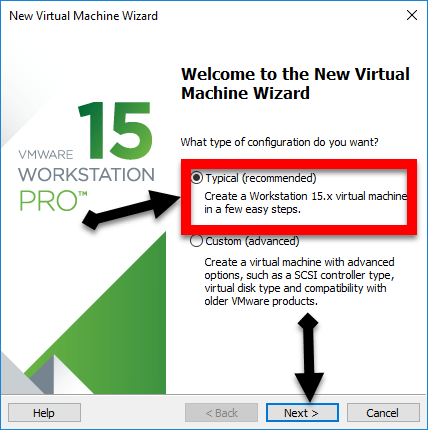 Typical
 Step 3: After that, click on the I will install the operating system later.
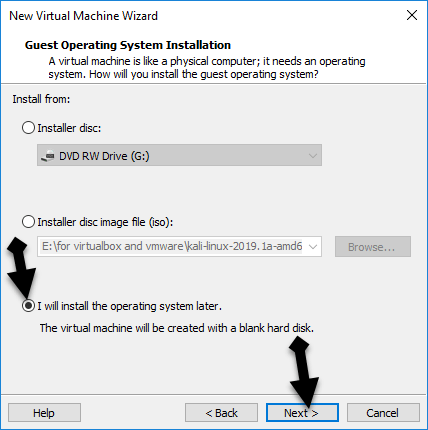 Operating system installation
 Step 4: Then you should choose the guest operating system Linux, the version you need to select Ubuntu.
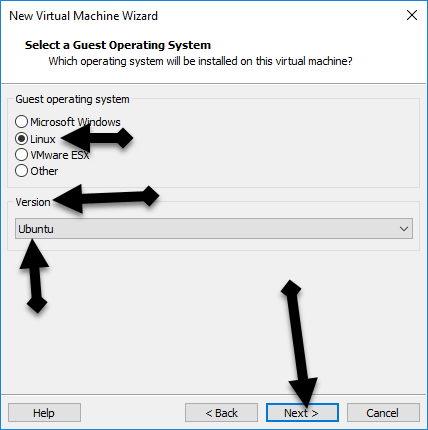 Version
 Step 5: Give the name your virtual machine as Ubuntu.
Step 6: After that, select the memory of disk capacity 35Gb then choose the option split virtual disk into multiple files.
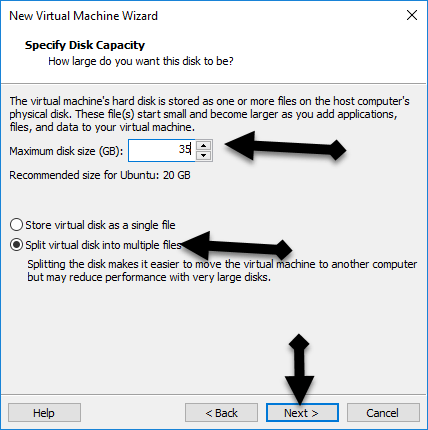 specific the disk capacity
 Step 7: you have done great! successfully created a new virtual machine to click finish at last.
Customize the setting of the virtual machine:
Step 1: When you created a virtual machine, click on that virtual machine then click on the Edit virtual machine setting.
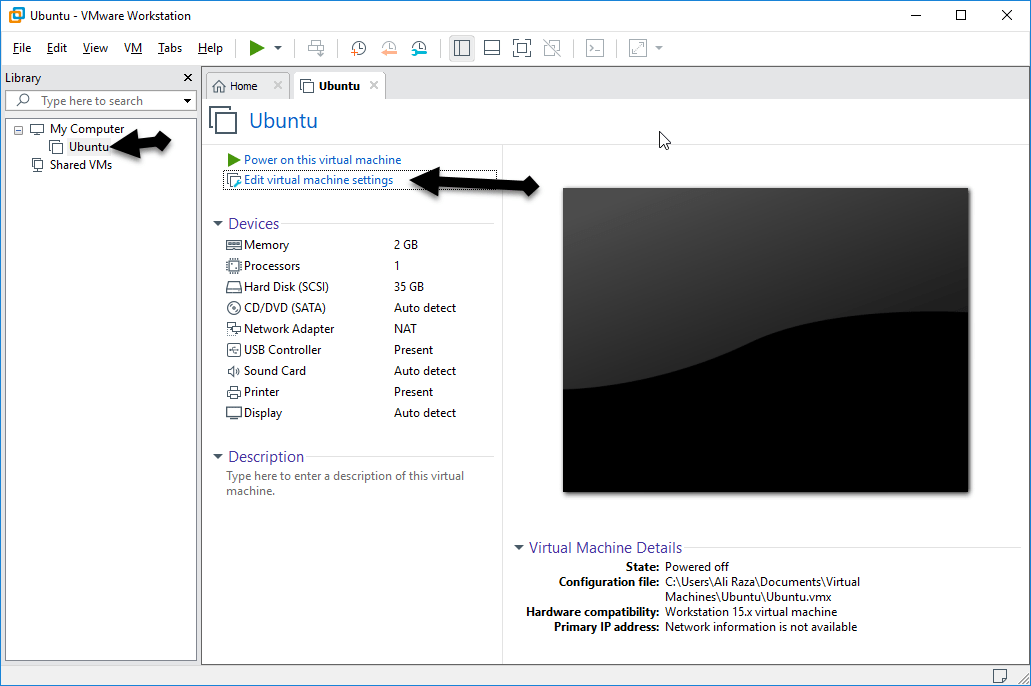 edit virtual machine
 Step 2: Select the memory tab then choose the memory up to 4GB for better performance.
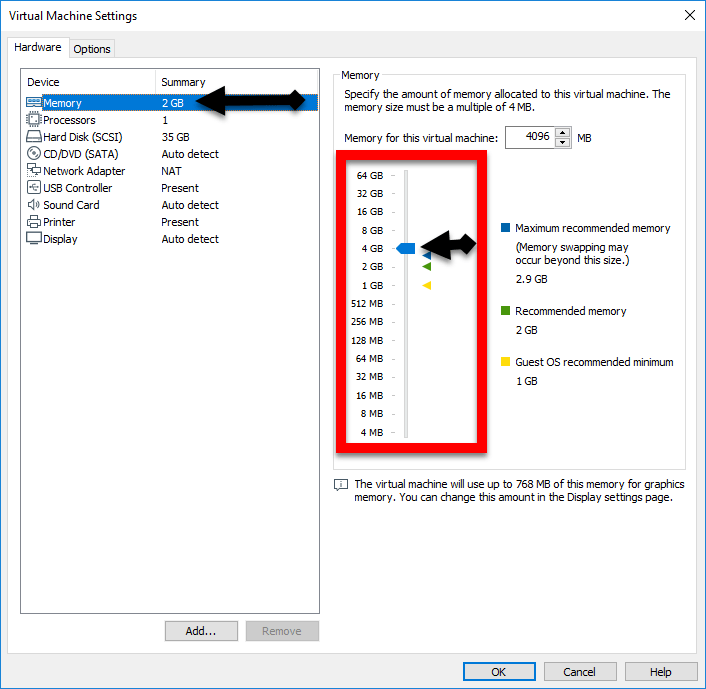 Memory
 Step 3: In this step, go to the processor tab then select the of core 4.
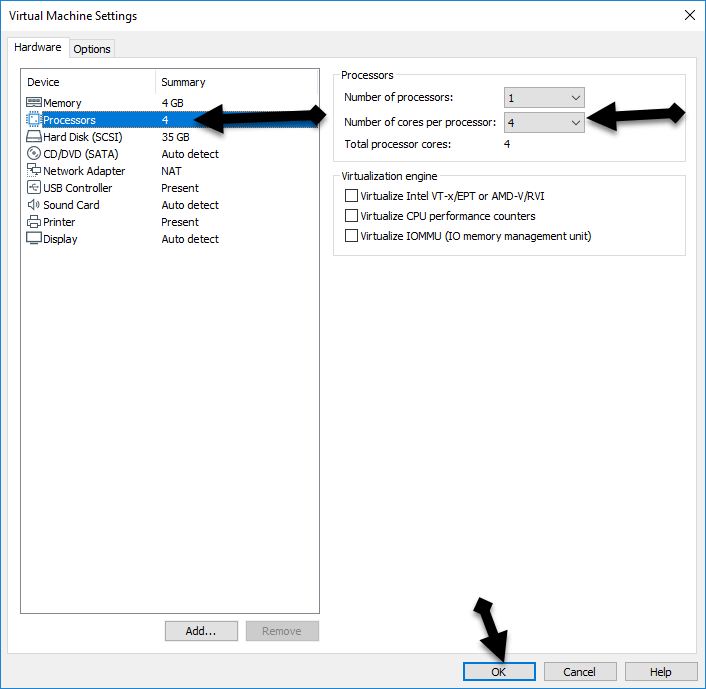 Processor tab
 Step 4: Then select the CD/DVD (SATA) then on the option of Use iso image file, click browse then choose the Ubuntu iso file which you downloaded.
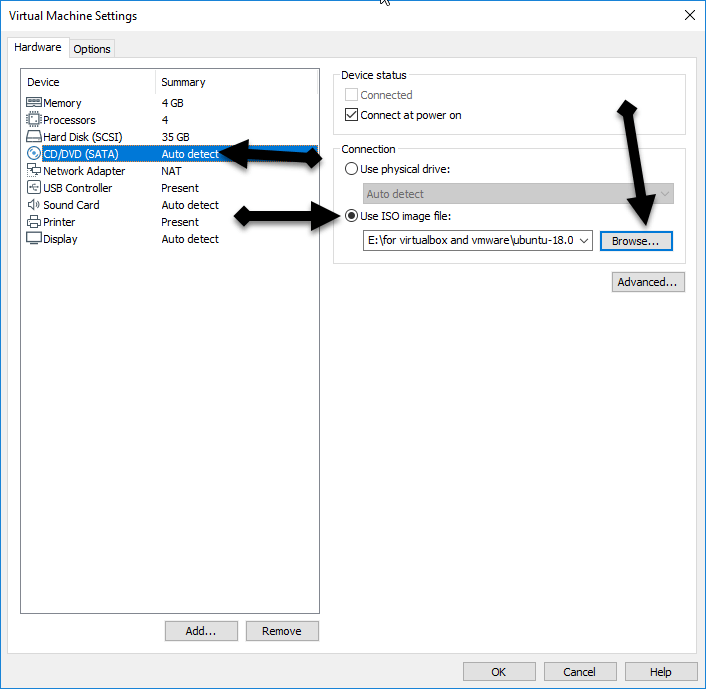 iso file
 Install Ubuntu on VMware Workstation on Windows 10
Installation method Ubuntu on Virtual machine:
Step 1: At the first step, choose the language then click on the install Ubuntu option.
Step 2: After that, a new window will be opened which you will be asked that preparing to install ubuntu then you need to select both options which are download updates while installing and also select the install third-party software.
Step 3: In this step, click on the erase disk and install ubuntu.
Step 4: Then select the drive you need to select SCS133 (0,0,0) (sda) -42.9 GB VMware virtual S.
Step 5: Now, fill in the blanks with full information detail. Your name, pick a username, choose a strong password, and confirm your password with a strong password.
Conclusion:
It was all about Install Ubuntu on VMware Workstation on Windows 10. Hope so it was a great experience for you If you face any problem then feel free to ask in the comment below.
Share This Article
Welcome to this article, Today I am going to guide Install Ubuntu on VMware Workstation on Windows 10. I am sure that it will be a great and best experience for you to install Ubuntu on VMware. If you are in need of an operating system which s very easy to install on Vmware you don’t need to take tension today I will guide you. Therefore, till now if you don’t know how to install Ubuntu on VirtualBox on windows then click on the link back. You have to test before buying any operating system as the same you have to test and check the Ubuntu operating system on VMware on windows.
Now it is very expensive to buy the Ubuntu operating system but when you install it VMware it is free of cost. So, VMware Workstation supports every kind of operating system which very easy to install and free to check and work on it. I will say you that every particular figure cannot buy that machine. Therefore, follow each step carefully which I am going to guide you and you have to download the important file.
Click to buy Mastering VMware vSphere 6
Required Files to install ubuntu on Vmware:
Download and install the files/software/iso which is very necessary for installing Ubuntu on VMware Workstation.
Before getting started you need to download and install VMware Workstation, installing VMware workstation is very easy and simple there is no need to guide. Then download the Ubuntu iso file which will take time and it depends on your PC speed and internet.
Install Ubuntu on VMware Workstation on Windows 10
Create a Virtual machine on VMware for Ubuntu:
For installing Ubuntu on VMware first of all you need to create a new virtual machine for that follow each step below.
Step 1: When you downloaded and installed the VMware workstation double-click to run that then click on the Create a new virtual machine.
Create a new virtual machine Step 2: A new window will be opened then choose the first option Typical (recommend) then click on the next button.
Typical Step 3: After that, click on the I will install the operating system later.
Operating system installation Step 4: Then you should choose the guest operating system Linux, the version you need to select Ubuntu.
Version Step 5: Give the name your virtual machine as Ubuntu.
Step 6: After that, select the memory of disk capacity 35Gb then choose the option split virtual disk into multiple files.
specific the disk capacity Step 7: you have done great! successfully created a new virtual machine to click finish at last.
Customize the setting of the virtual machine:
Step 1: When you created a virtual machine, click on that virtual machine then click on the Edit virtual machine setting.
edit virtual machine Step 2: Select the memory tab then choose the memory up to 4GB for better performance.
Memory Step 3: In this step, go to the processor tab then select the of core 4.
Processor tab Step 4: Then select the CD/DVD (SATA) then on the option of Use iso image file, click browse then choose the Ubuntu iso file which you downloaded.
iso file Install Ubuntu on VMware Workstation on Windows 10
Installation method Ubuntu on Virtual machine:
Step 1: At the first step, choose the language then click on the install Ubuntu option.
Step 2: After that, a new window will be opened which you will be asked that preparing to install ubuntu then you need to select both options which are download updates while installing and also select the install third-party software.
Step 3: In this step, click on the erase disk and install ubuntu.
Step 4: Then select the drive you need to select SCS133 (0,0,0) (sda) -42.9 GB VMware virtual S.
Step 5: Now, fill in the blanks with full information detail. Your name, pick a username, choose a strong password, and confirm your password with a strong password.
Conclusion:
It was all about Install Ubuntu on VMware Workstation on Windows 10. Hope so it was a great experience for you If you face any problem then feel free to ask in the comment below.


![How To Fake GPS Location on iPhone Without Jailbreaking [2023]](/_next/image?url=https%3A%2F%2Fwriteflow-media.s3.amazonaws.com%2Fsites%2F16%2Fmedia%2F2025%2F10%2Fgps-location-feature-wlaR2F.webp&w=3840&q=75)