

How to Install Kali Linux 2020 on VMware on Windows
 Azaz Shaikh
Hello and welcome in today’s article I am going to guide you guys How to Install Kali Linux on VMware on Windows. In the previous article, I have guided you How to Install Kali Linux on VirtualBox on Windows 10. So I think you will also need that installing Kali Linux on VirtualBox if yes then click on the link above to get know. Therefore, Today I will guide step by step installing Kali Linux on VMware. It might be easier to install Kali Linux on VMware then VirtualBox. And follow the steps by steps below to install the Kali Linux in a better way.
Download the Required files Below:
- SEDNA- PCIE 4X 4 Port Giga LAN Adapter (Intel I350AM4 chip set) with low profile bracket (Support VMware ESXi 5.5)
- Download Kali Linux ISO file.
- Download the VMware Workstation software.
Create a Virtual Machine For Kali Linux:
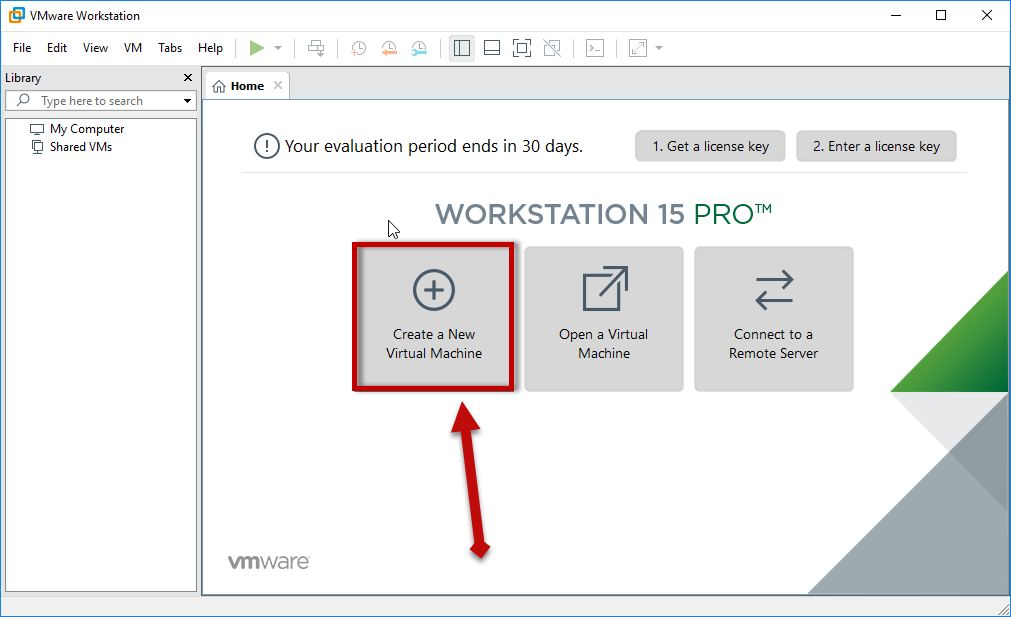 Create a new virtual machine
 Step 2: Now, select configuration type you have to select the 2nd one which is Custom (Advanced).
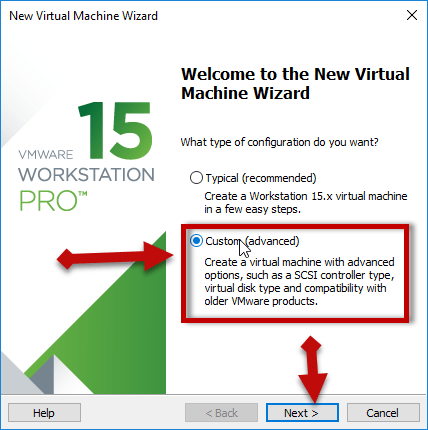 Custom (Advanced)
 Step 3: In this step, you will be asked to choose the hardware compatibility. You should leave it as default don’t change the feature. Click on the Next.
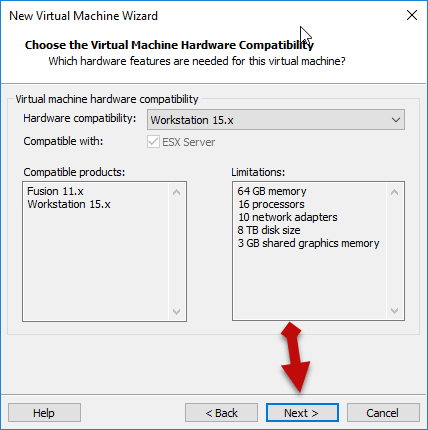 click next
 Step 4: A new window will be opened then you will have three options then click on the last one which is I will install the operating system later.
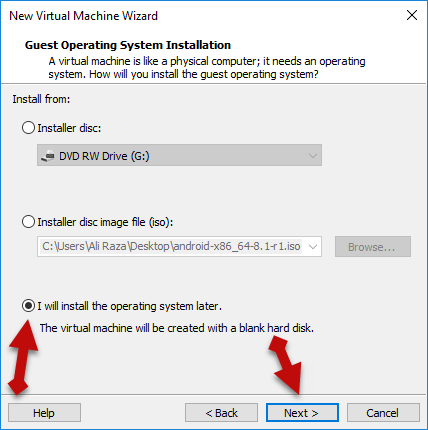 I will install the operating system later
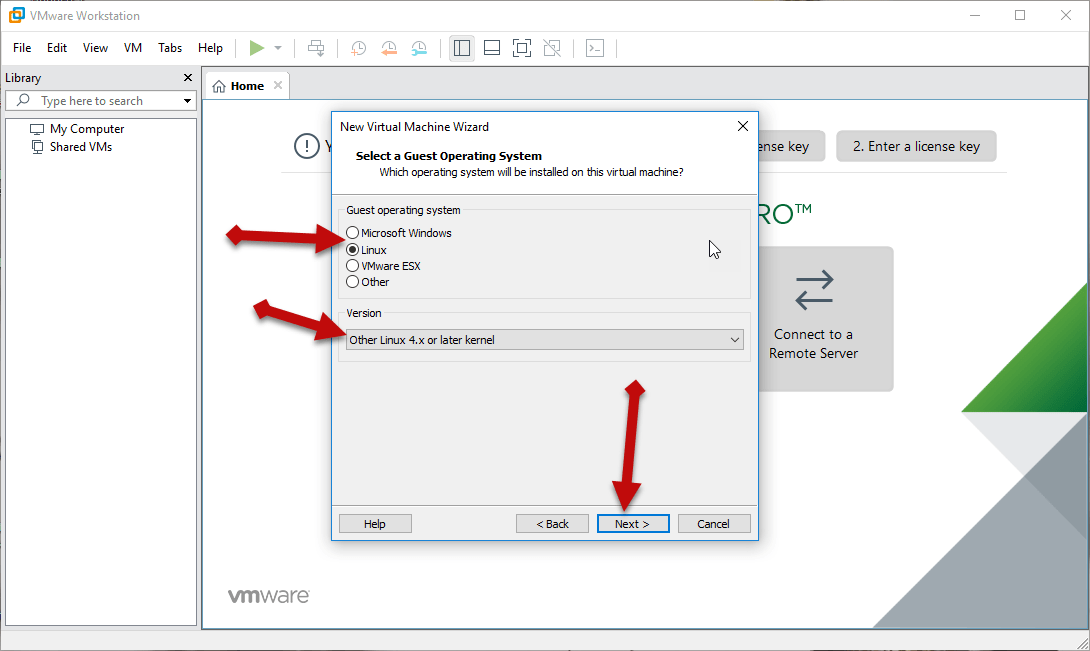
 Step 5: Select the guest operating system Linux because we are going to install Linux. And the version should be Other Linux 4.x or later kernel.
 Linux
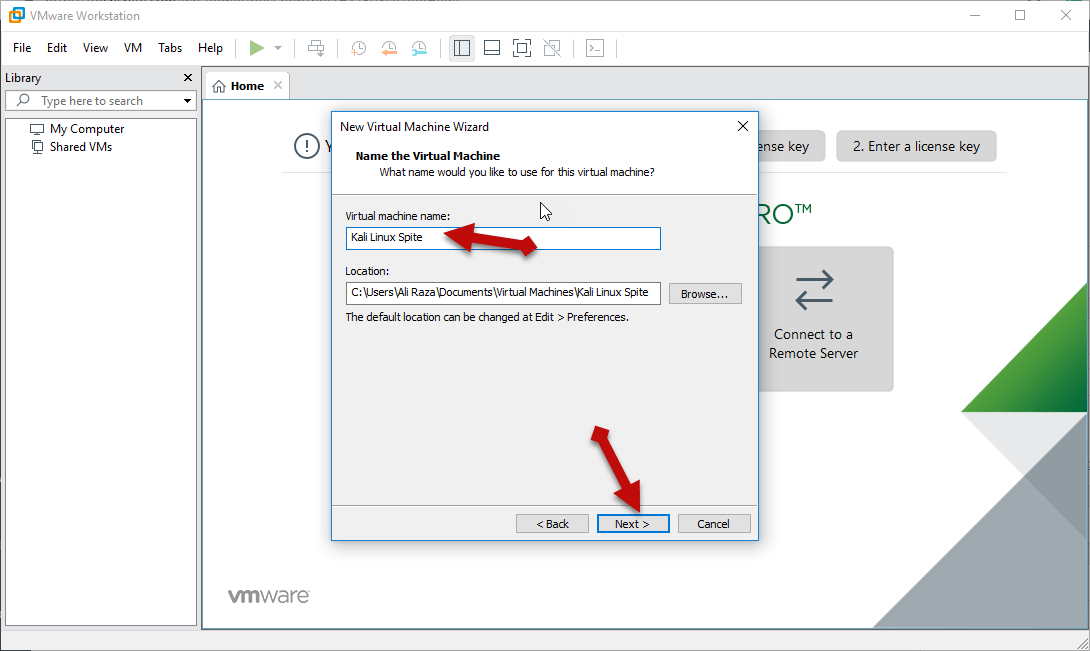
Linux Step 6: Name the virtual machine as you want. I will simply name as Kali Linux spite.
 name your virtual machine
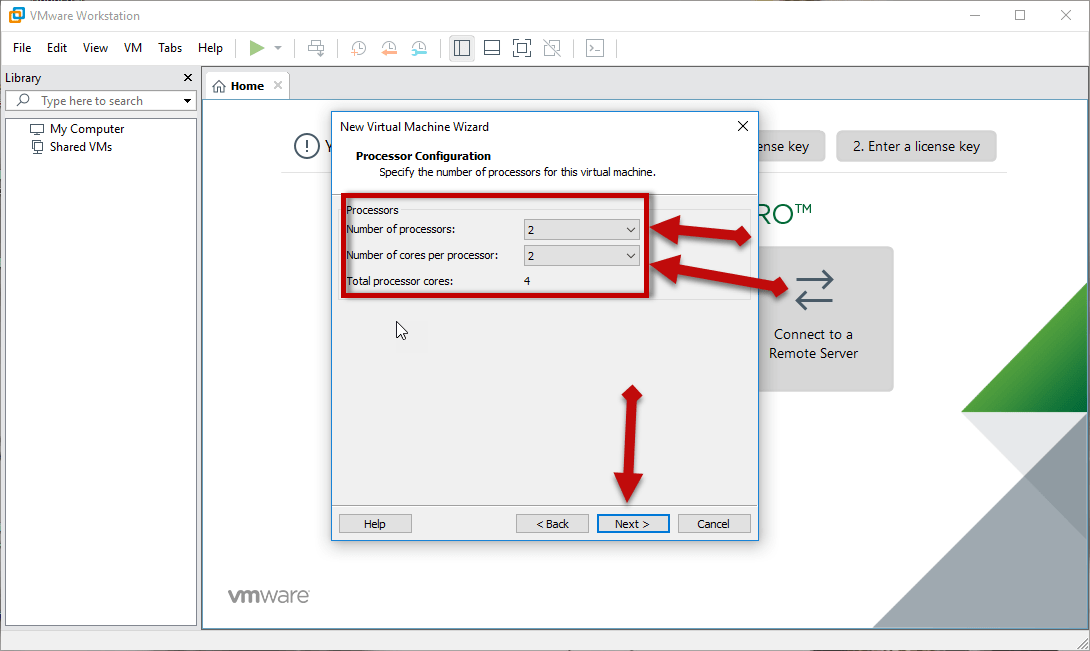
 Step 7: In this step, you have to configure the processor then both processor should 2 and total processor core should 4.
 Configure the processor
 How to Install Kali Linux on VMware on Windows
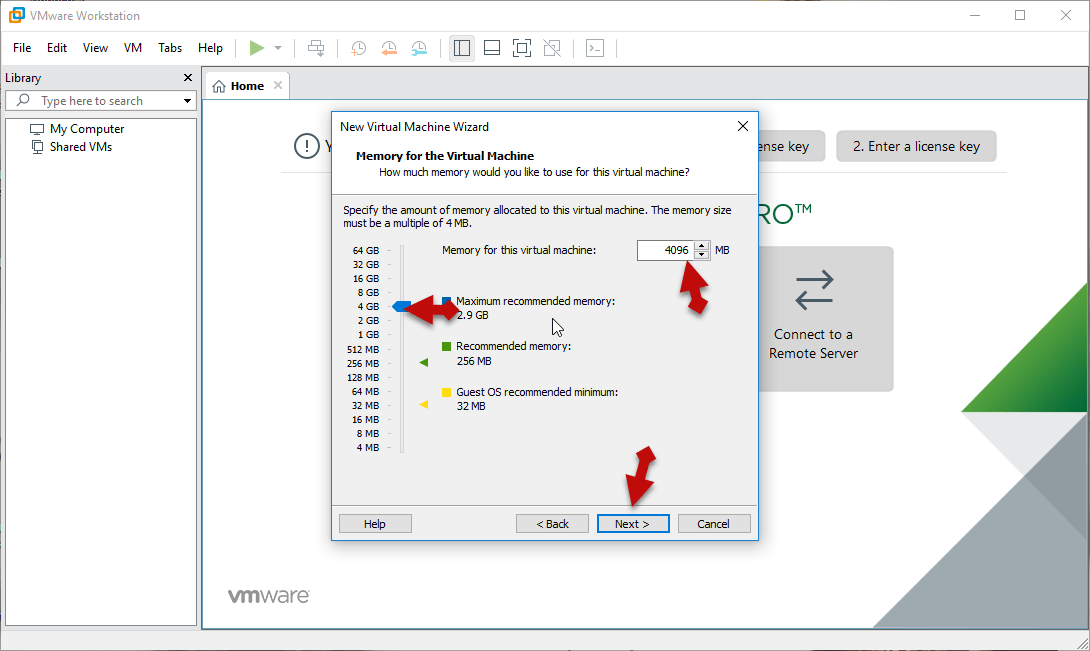
Step 8: Select the amount of memory for the virtual machine then the memory should be at least 4GB.
 Memory amount
 Step 9: In this step, you have to choose the network type then you need to choose use network address translation (NAT).
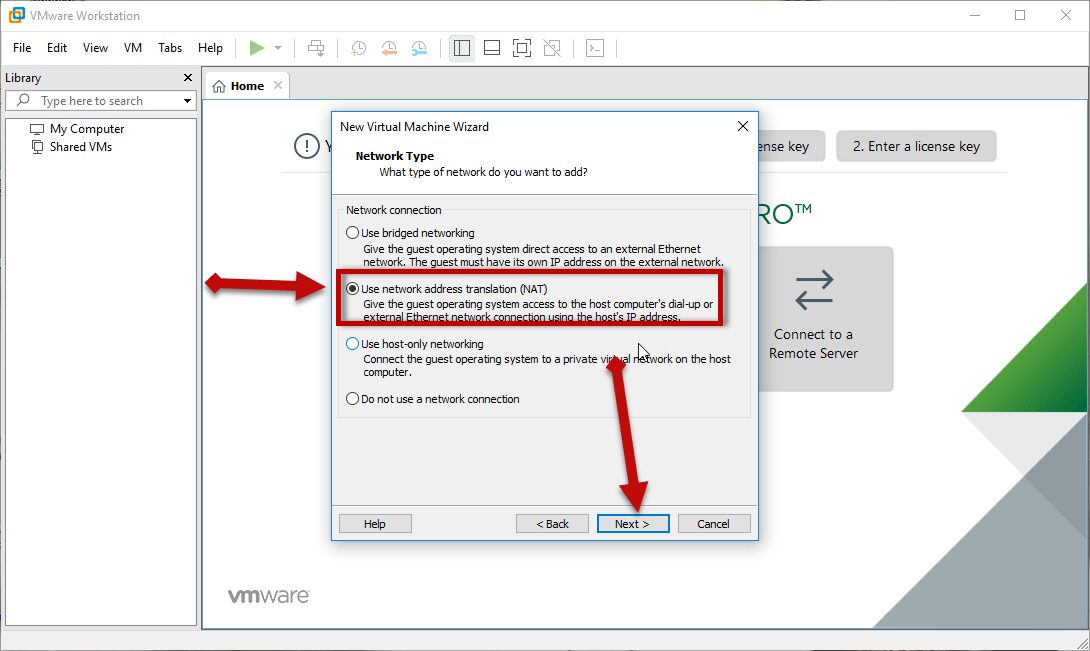 Network type
 Step 10: Choose the controller type then you need to choose LSI Logic which is as the default selected.
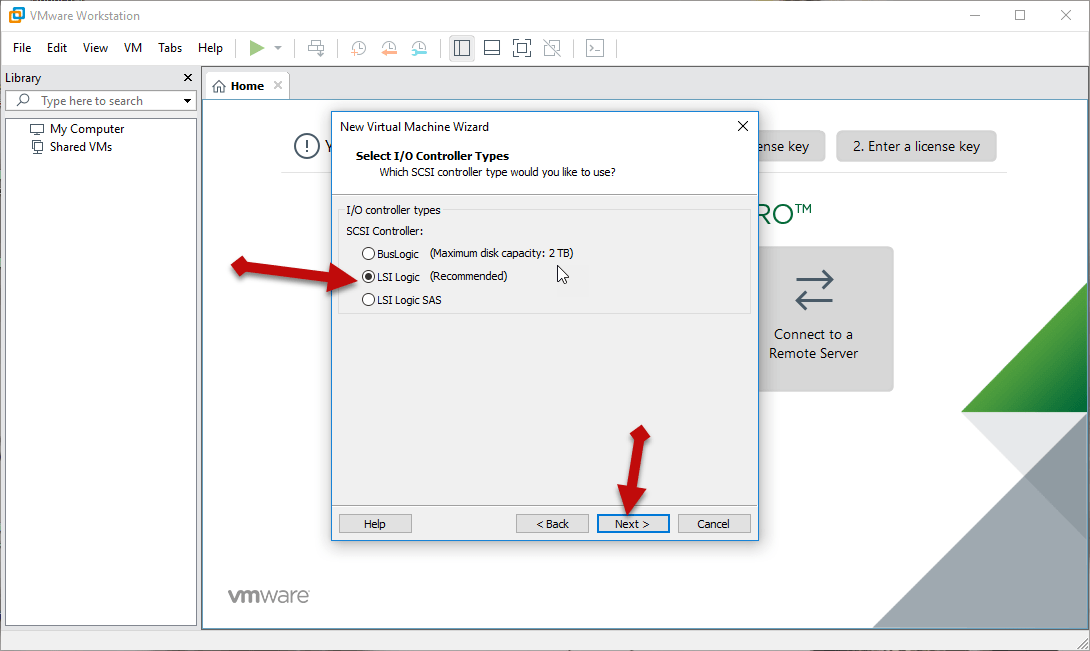 Controller type
 Step 11: Selec the disk type as SCSI.
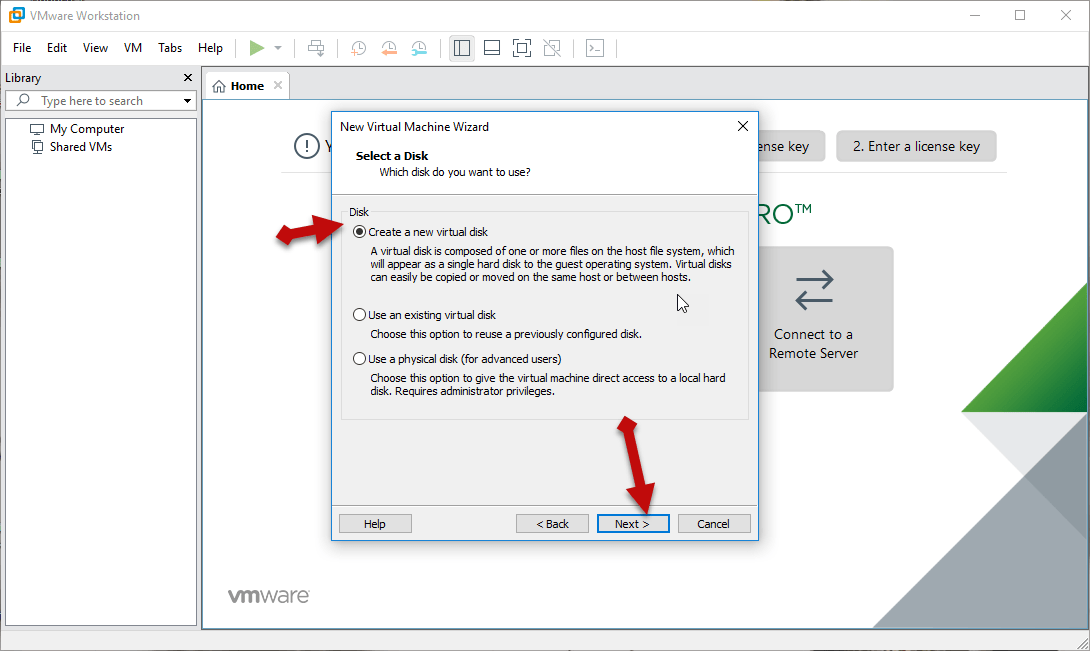 create a new virtual disk
 Step 13: After that, a new window will be opened to select 20GB amount of disk size then select the store virtual disk as a single file.
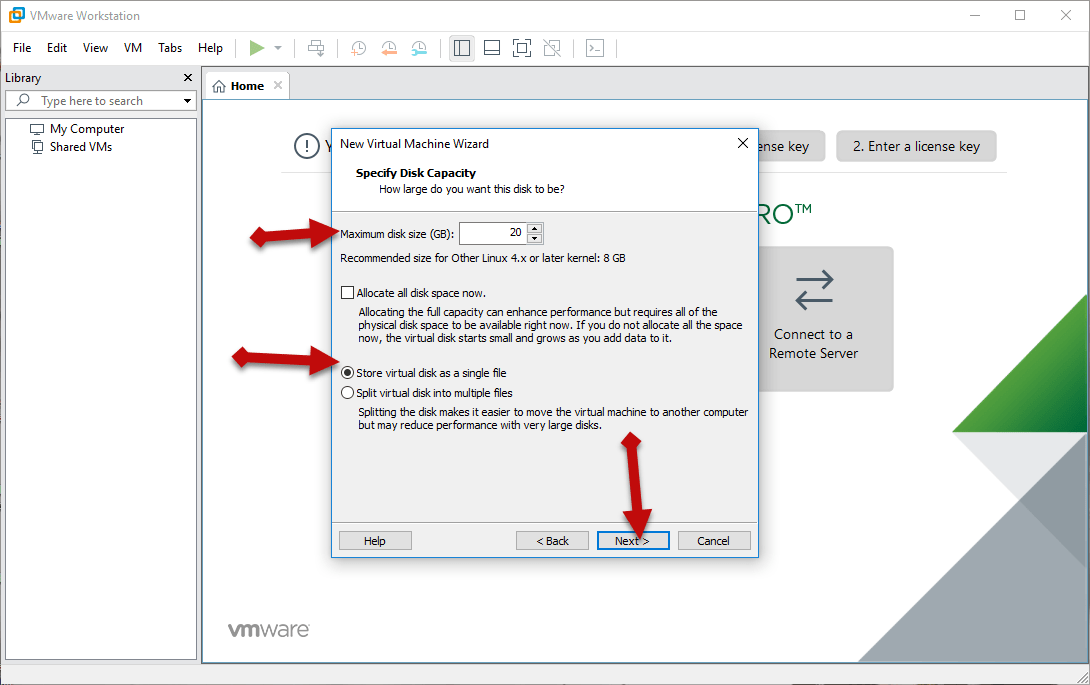 Select the amount disk capacity
 Step 14: After that, specify the disk file and click on the next button.
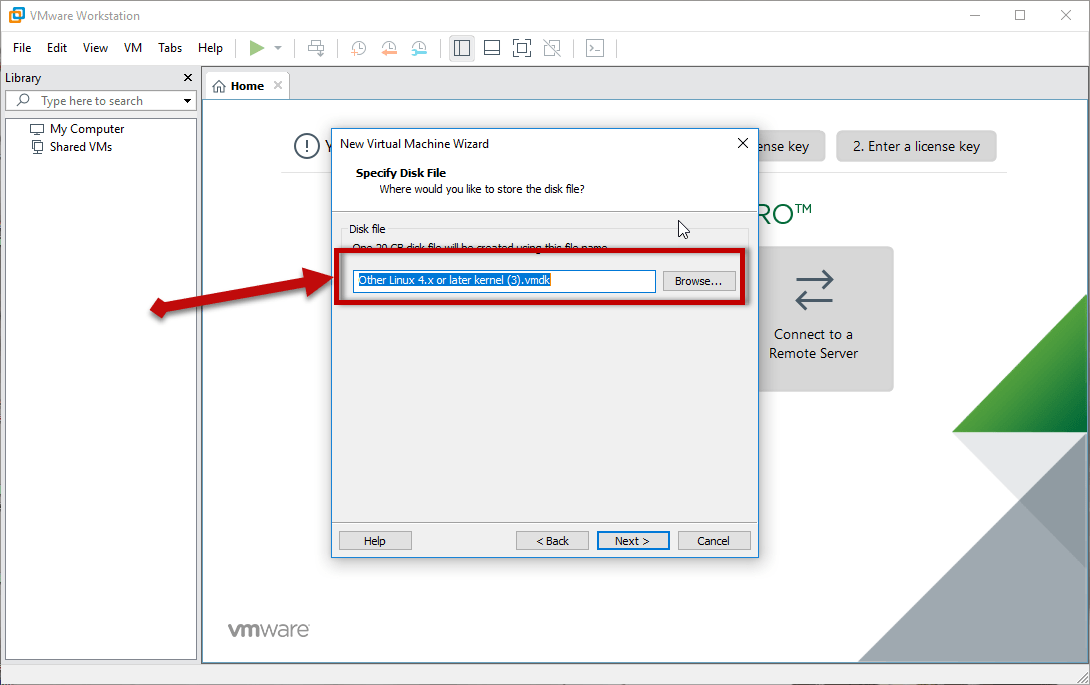 Specify the disk file
 Customize the hardware of the virtual machine.
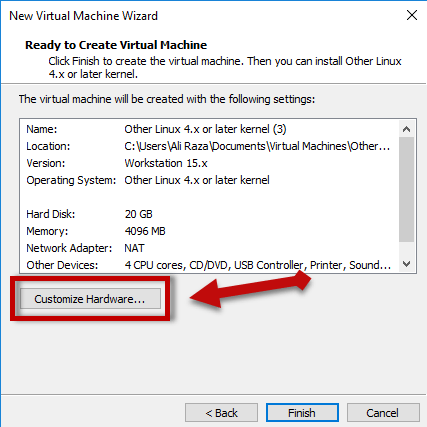 Customize hardware
 Step 2: Then hardware window will be opened, you need to click on the processor tab then select the Virtual intel VT-x/EPT or AMD-V/RVI.
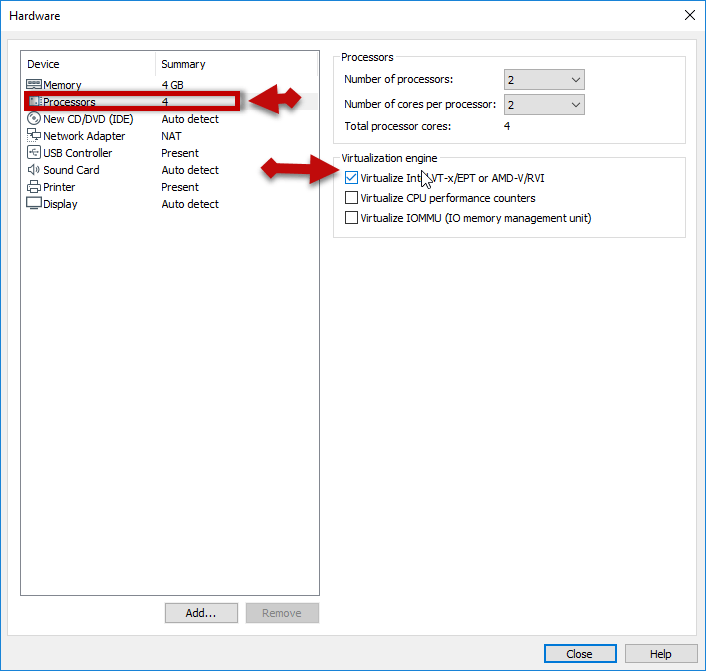 processor tab
 Step 3: After that, you have to go to New CD/DVD (IDE) tab, select the use iso image file then click on the browse and select kali Linux iso file which you have download the given above link select that one. And click close after that.
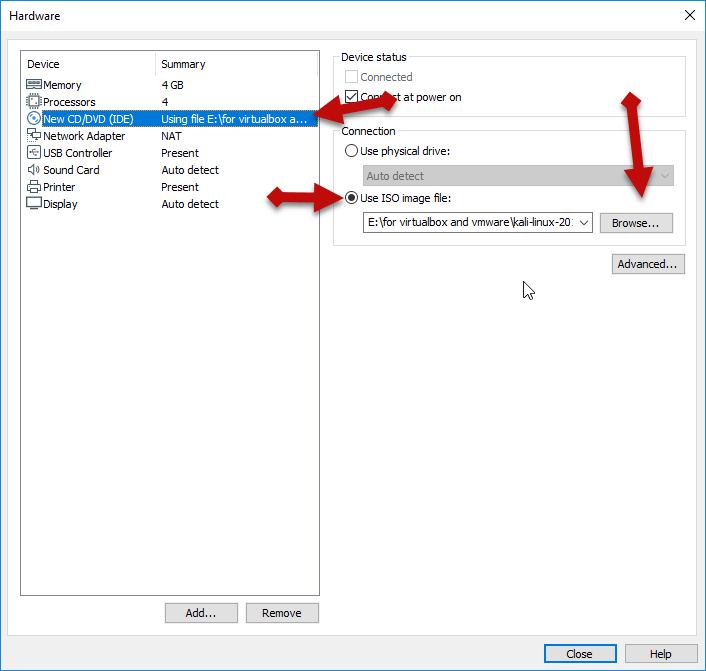 New CD/DVD (IDE) tab
 Step 4: Congratulations! You have created the virtual machine successfully. Click on the Finish.
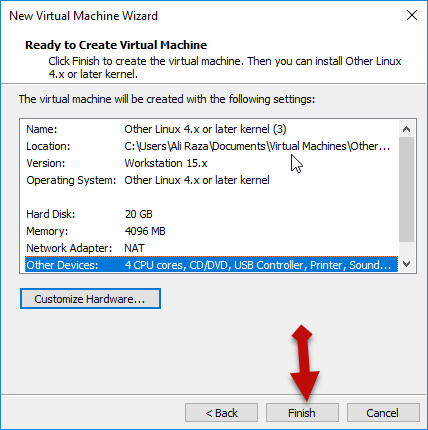 click finish
 Installation of Kali Linux:
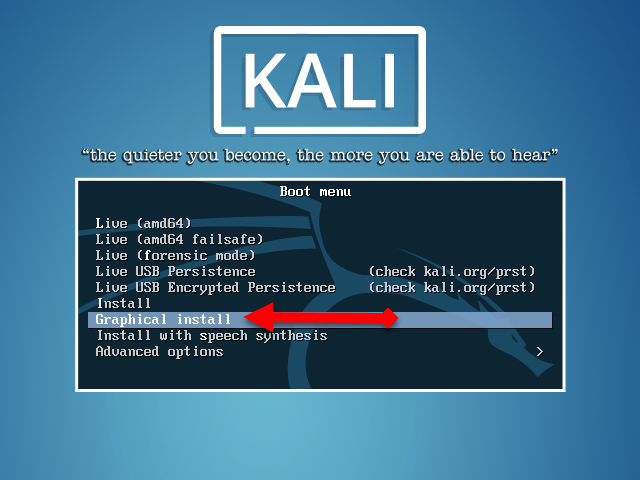 Graphical install
 Step 3: After that, select the language for your Kali Linux.
 Select language
 Step 4: Select your country simply I will choose Australia. You can choose wherever you live.
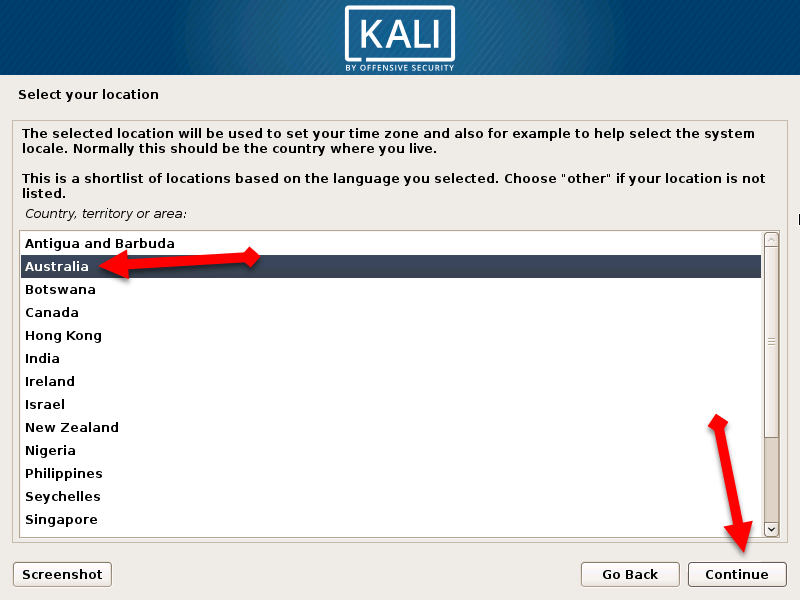 select your country
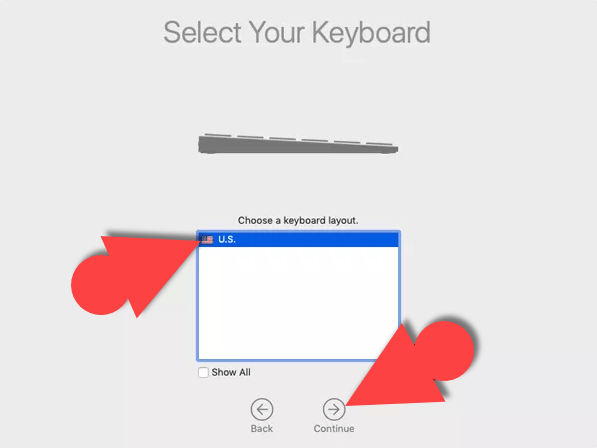
 Step 5: Now configure the keyboard you can choose whatever you want then click on continue.
Step 6: type a Hostname you can type which you want but I will go as a default name Kali.
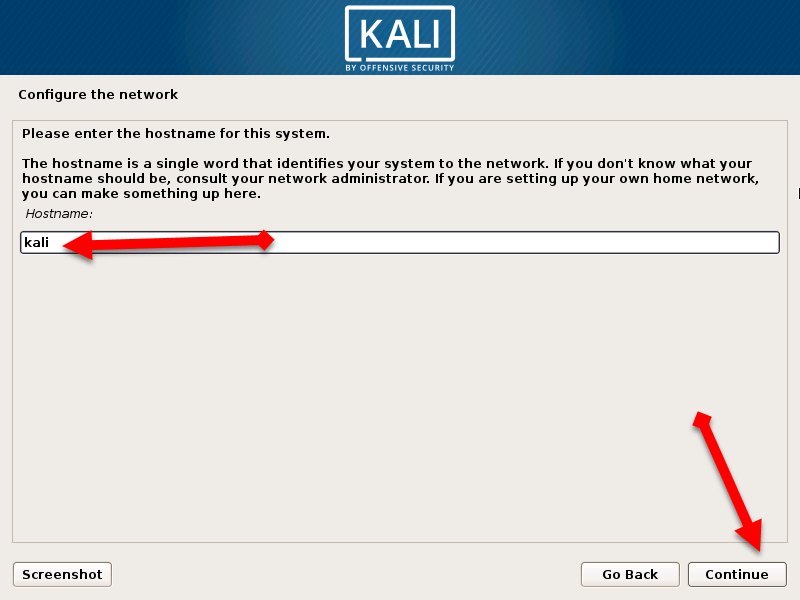 Hostname
 Step 7: After that, give a domain name to your Kali Linux simply I will give techspite website.
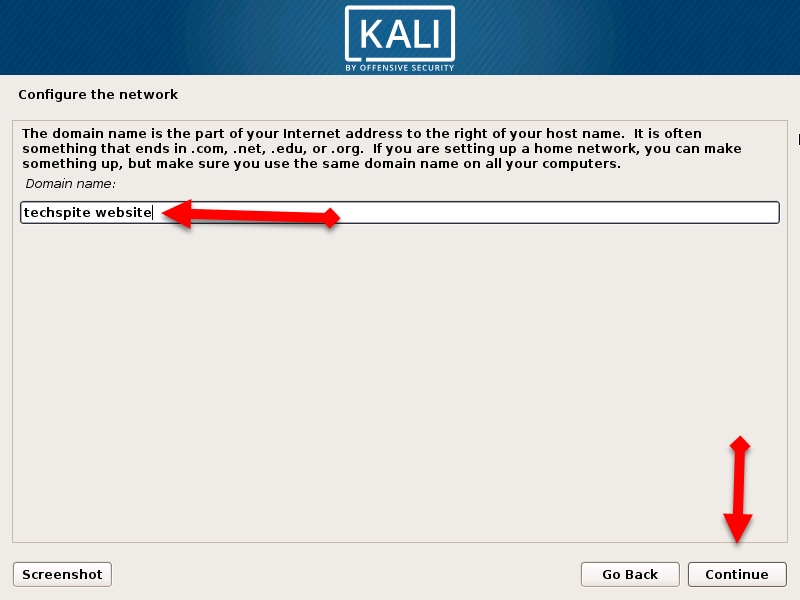 Domain name
 How to Install Kali Linux on VMware on Windows
Step 8: Now type a password, your password should be strong because they will not accept week password.
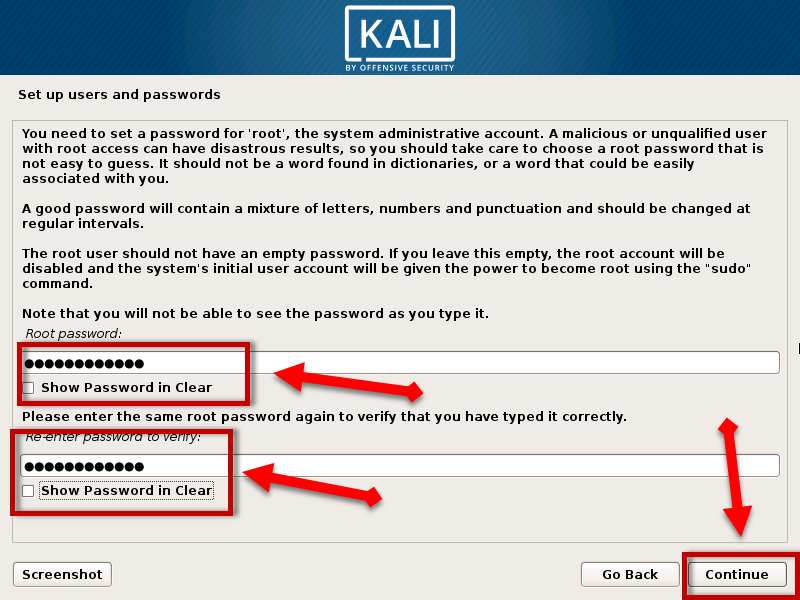 Password for user name
 Step 9: After that, choose a time zone which you want.
Step 10: Then, choose the partition disk, select the Guide – use entire disk.
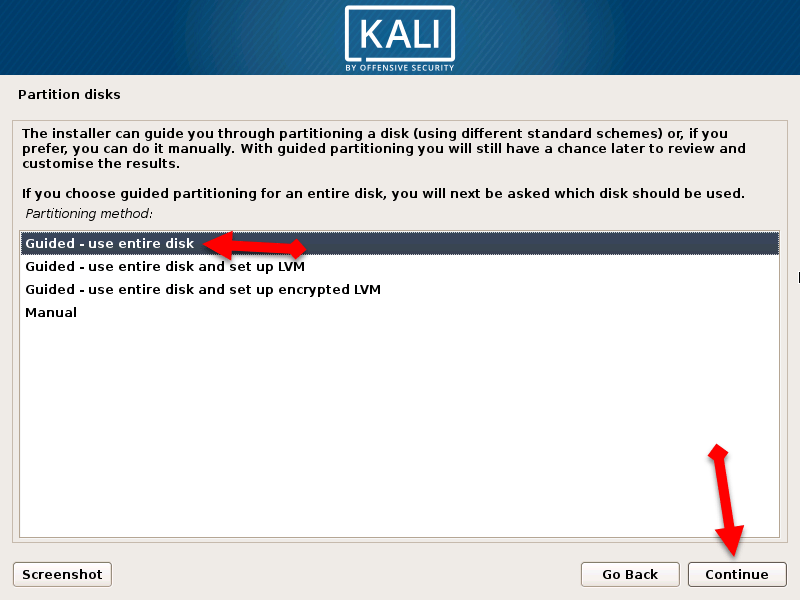 Choose the partition disk
 Step 11: A new windows will be opened you should select the SCS13 (0,0,0) (sda) 21.5GB VMware virtual S.
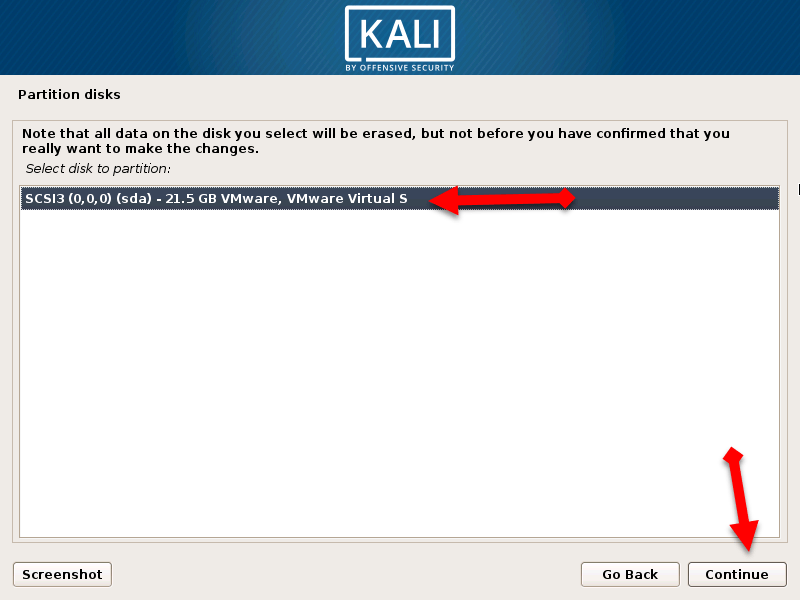 click continue
 Step 12: Select the All files in one partition (recommended for new user) then click on the continue.
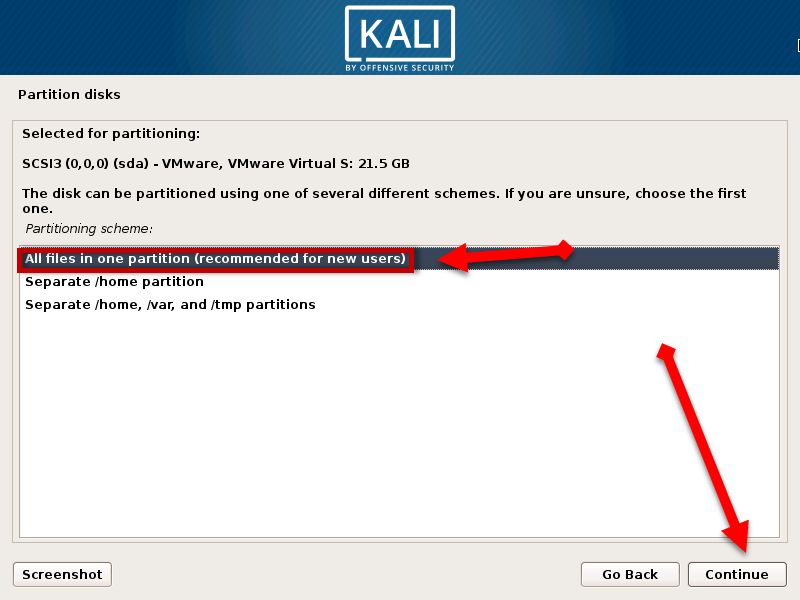 Select the All files in one partition (recommended for new user)
 Step 13: After that, you will see lots of option then you need to click on the Finish partitioning and write changes to disk. And click on the continue button.
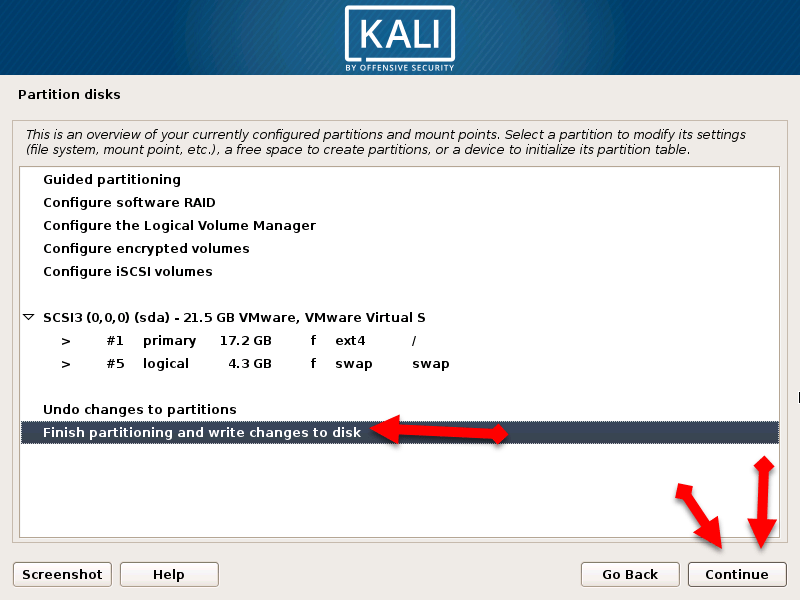 Continue
 Step 14: Select the yes option because listed below will be written to the disk then click on the continue.
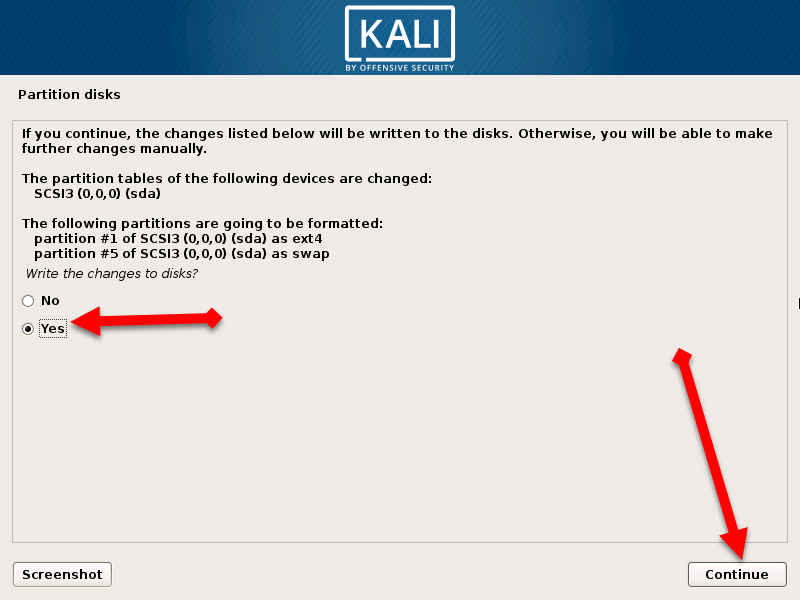 click yes
 Step 15: A new window will be opened you will be asked to use a network mirror? then click on yes and click on the continue.
Step 16: After that, you should leave the blank direct click on the continue.
Step 17: In this step, you should click on the yes.
Step 18: Then click on the /dev/sda then click continue.
Share This Article
Hello and welcome in today’s article I am going to guide you guys How to Install Kali Linux on VMware on Windows. In the previous article, I have guided you How to Install Kali Linux on VirtualBox on Windows 10. So I think you will also need that installing Kali Linux on VirtualBox if yes then click on the link above to get know. Therefore, Today I will guide step by step installing Kali Linux on VMware. It might be easier to install Kali Linux on VMware then VirtualBox. And follow the steps by steps below to install the Kali Linux in a better way.
Download the Required files Below:
- SEDNA- PCIE 4X 4 Port Giga LAN Adapter (Intel I350AM4 chip set) with low profile bracket (Support VMware ESXi 5.5)
- Download Kali Linux ISO file.
- Download the VMware Workstation software.
Create a Virtual Machine For Kali Linux:
Create a new virtual machine Step 2: Now, select configuration type you have to select the 2nd one which is Custom (Advanced).
Custom (Advanced) Step 3: In this step, you will be asked to choose the hardware compatibility. You should leave it as default don’t change the feature. Click on the Next.
click next Step 4: A new window will be opened then you will have three options then click on the last one which is I will install the operating system later.
I will install the operating system later Step 5: Select the guest operating system Linux because we are going to install Linux. And the version should be Other Linux 4.x or later kernel.
Linux Step 6: Name the virtual machine as you want. I will simply name as Kali Linux spite.
name your virtual machine Step 7: In this step, you have to configure the processor then both processor should 2 and total processor core should 4.
Configure the processor How to Install Kali Linux on VMware on Windows
Step 8: Select the amount of memory for the virtual machine then the memory should be at least 4GB.
Memory amount Step 9: In this step, you have to choose the network type then you need to choose use network address translation (NAT).
Network type Step 10: Choose the controller type then you need to choose LSI Logic which is as the default selected.
Controller type Step 11: Selec the disk type as SCSI.
create a new virtual disk Step 13: After that, a new window will be opened to select 20GB amount of disk size then select the store virtual disk as a single file.
Select the amount disk capacity Step 14: After that, specify the disk file and click on the next button.
Specify the disk file Customize the hardware of the virtual machine.
Customize hardware Step 2: Then hardware window will be opened, you need to click on the processor tab then select the Virtual intel VT-x/EPT or AMD-V/RVI.
processor tab Step 3: After that, you have to go to New CD/DVD (IDE) tab, select the use iso image file then click on the browse and select kali Linux iso file which you have download the given above link select that one. And click close after that.
New CD/DVD (IDE) tab Step 4: Congratulations! You have created the virtual machine successfully. Click on the Finish.
click finish Installation of Kali Linux:
Graphical install Step 3: After that, select the language for your Kali Linux.
Select language Step 4: Select your country simply I will choose Australia. You can choose wherever you live.
select your country Step 5: Now configure the keyboard you can choose whatever you want then click on continue.
Step 6: type a Hostname you can type which you want but I will go as a default name Kali.
Hostname Step 7: After that, give a domain name to your Kali Linux simply I will give techspite website.
Domain name How to Install Kali Linux on VMware on Windows
Step 8: Now type a password, your password should be strong because they will not accept week password.
Password for user name Step 9: After that, choose a time zone which you want.
Step 10: Then, choose the partition disk, select the Guide – use entire disk.
Choose the partition disk Step 11: A new windows will be opened you should select the SCS13 (0,0,0) (sda) 21.5GB VMware virtual S.
click continue Step 12: Select the All files in one partition (recommended for new user) then click on the continue.
Select the All files in one partition (recommended for new user) Step 13: After that, you will see lots of option then you need to click on the Finish partitioning and write changes to disk. And click on the continue button.
Continue Step 14: Select the yes option because listed below will be written to the disk then click on the continue.
click yes Step 15: A new window will be opened you will be asked to use a network mirror? then click on yes and click on the continue.
Step 16: After that, you should leave the blank direct click on the continue.
Step 17: In this step, you should click on the yes.
Step 18: Then click on the /dev/sda then click continue.


