

How to Install Grammarly Extension For Firefox Browser
 Azaz Shaikh
You might know about Grammarly extension, it is a tool especially for bowsers in order to check their mistake while typing something. Writers and bloggers need Grammarly Extension pretty much in order to not do mistakes in spelling and grammar. However, if you want to not mistake spelling and grammar then I suggest you install Grammarly extension for a better experience. Therefore, you can check the spelling and grammar mistakes on Facebook, Google, Gmail, Twitter, and other social media. So, installing Grammarly on Google Chrome with some simple steps but for Firefox Browser the steps are changed, due to this most people don’t know to install Grammarly. Therefore, in this article, I am going to guide you on How to Install Grammarly Extension For Firefox Browser.
Once you have installed Grammarly for Firefox, then the systems of Grammarly will work automatically. So, when you write something work if it is spelling or grammar then it will be underlined with red. When it gets red then you have to know that something is wrong. Anyway, with installing the Grammarly, it is better to know about its features also.
What is Grammarly?
Grammarly is a Ukrainian technology company which develops a free and valuable writing tool. And Grammarly’s app automatically detects potential grammar, spelling, punctuation, word choice, and style mistakes in writing, following common linguistic prescription. Algorithms flag potential issues in the text and suggest context-specific corrections for grammar, spelling, wordiness, style, punctuation, and plagiarism.
Main Features of Grammarly are:
- Comma splice
- Comma usage
- Integration with Gmail
- Integration with social media
- Missing articles
- Misspelled words
- Outdated spelling
- Repetitive words
- Weak adjectives
How to Install Grammarly Extension For Firefox Browser
Installing Grammarly for Firefox needs some different steps than Google Chrome. Therefore, you have to follow every step below so that you should install successfully.
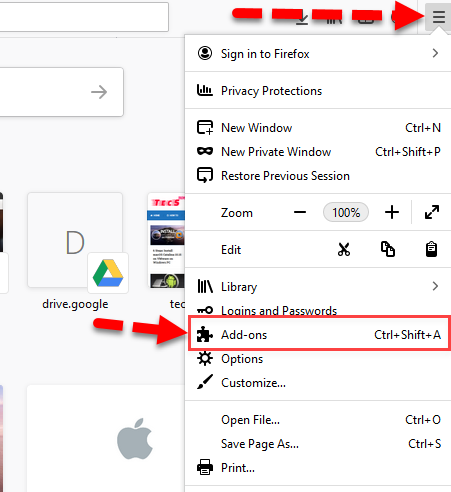
Step 1. First of all, you have to open the Firefox Browser, then click on the three-line icon from the top left corner, a new slide will be opened and you have to click on the Add-ons.
 Add-ons
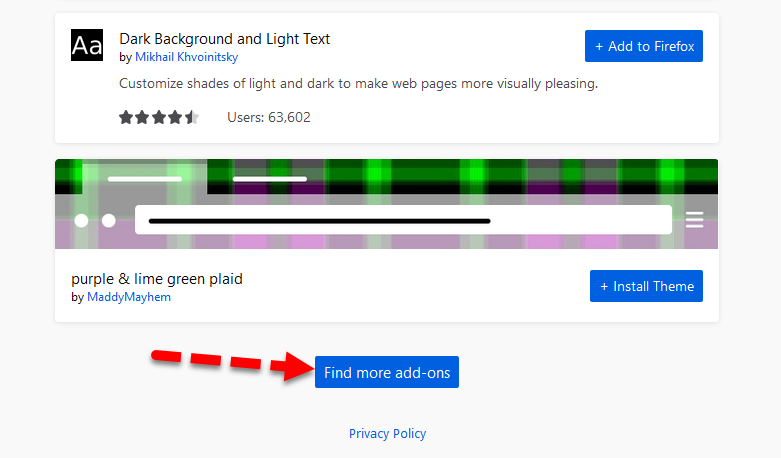
 Step 2. Once the window appears, you have to scroll down till the end of the window, then make sure to click on the Find more add-ons.
 Find more add-ons
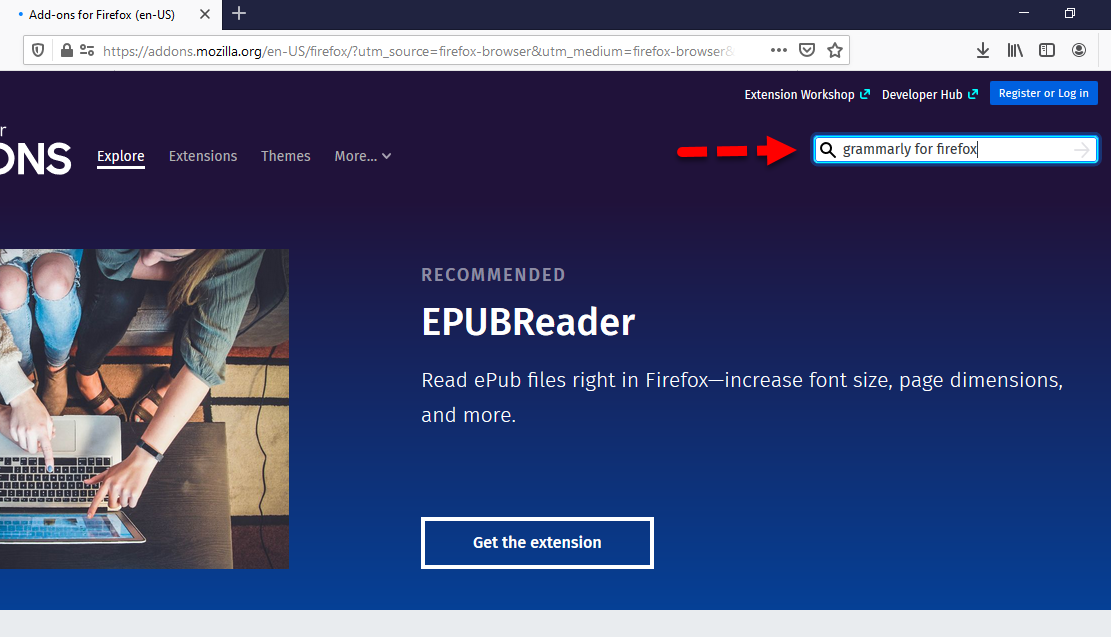
 Step 3. In the Add-ons window, you will see a search bar at the left top corner and type there Grammarly for Firefox the hit the Enter button from the keyboard.
 Grammarly for Firefox
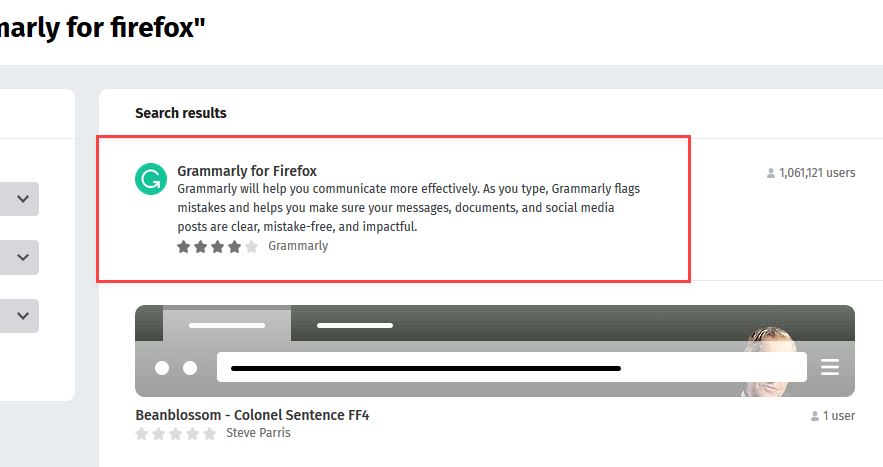
 Step 4. After that, you will have the search results, you have to click on the first result which is Grammarly for Firefox.
 Search results
 Step 5. Now, you will have the option to install that, for that make sure to click on the Add to Firefox button so that it should be added at the top right corner like Google Chrome.
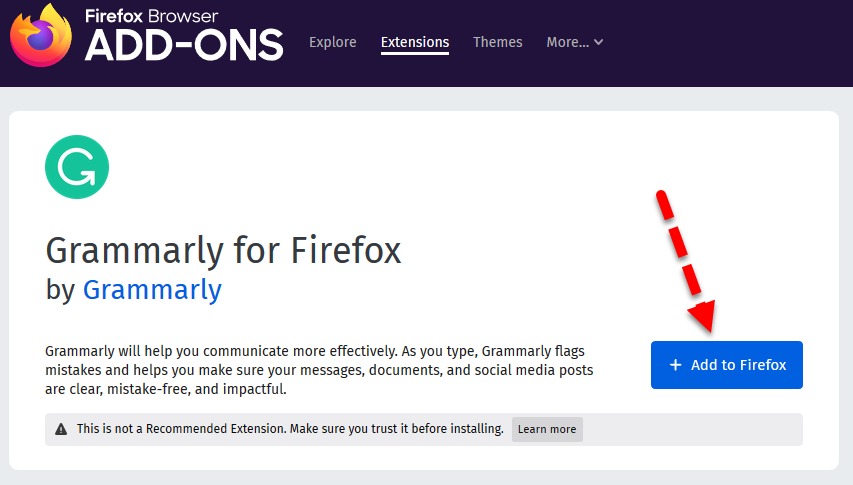 Add to Firefox
 After clicking on that, you will need to wait for a while until the installation process gets finished. And it completes, it will be automatically added to the Firefox.
Related Posts:
- How to Activate Microsoft Office 2019 without Product Key on Windows 10 PC.
- How to Increase C Drive Space in Windows 10 without Formatting 2020
Final Words:
That’s all about How to Install Grammarly Extension For Firefox Browser. It is the simples in order to install and add Grammarly for Firefox successfully. Many users don’t the method because they always use Google Chrome for each and everything. So, if you have any questions or suggestions then feel free to comment below, I will give a response as fast as possible.
Share This Article
You might know about Grammarly extension, it is a tool especially for bowsers in order to check their mistake while typing something. Writers and bloggers need Grammarly Extension pretty much in order to not do mistakes in spelling and grammar. However, if you want to not mistake spelling and grammar then I suggest you install Grammarly extension for a better experience. Therefore, you can check the spelling and grammar mistakes on Facebook, Google, Gmail, Twitter, and other social media. So, installing Grammarly on Google Chrome with some simple steps but for Firefox Browser the steps are changed, due to this most people don’t know to install Grammarly. Therefore, in this article, I am going to guide you on How to Install Grammarly Extension For Firefox Browser.
Once you have installed Grammarly for Firefox, then the systems of Grammarly will work automatically. So, when you write something work if it is spelling or grammar then it will be underlined with red. When it gets red then you have to know that something is wrong. Anyway, with installing the Grammarly, it is better to know about its features also.
What is Grammarly?
Grammarly is a Ukrainian technology company which develops a free and valuable writing tool. And Grammarly’s app automatically detects potential grammar, spelling, punctuation, word choice, and style mistakes in writing, following common linguistic prescription. Algorithms flag potential issues in the text and suggest context-specific corrections for grammar, spelling, wordiness, style, punctuation, and plagiarism.
Main Features of Grammarly are:
- Comma splice
- Comma usage
- Integration with Gmail
- Integration with social media
- Missing articles
- Misspelled words
- Outdated spelling
- Repetitive words
- Weak adjectives
How to Install Grammarly Extension For Firefox Browser
Installing Grammarly for Firefox needs some different steps than Google Chrome. Therefore, you have to follow every step below so that you should install successfully.
Step 1. First of all, you have to open the Firefox Browser, then click on the three-line icon from the top left corner, a new slide will be opened and you have to click on the Add-ons.
Add-ons Step 2. Once the window appears, you have to scroll down till the end of the window, then make sure to click on the Find more add-ons.
Find more add-ons Step 3. In the Add-ons window, you will see a search bar at the left top corner and type there Grammarly for Firefox the hit the Enter button from the keyboard.
Grammarly for Firefox Step 4. After that, you will have the search results, you have to click on the first result which is Grammarly for Firefox.
Search results Step 5. Now, you will have the option to install that, for that make sure to click on the Add to Firefox button so that it should be added at the top right corner like Google Chrome.
Add to Firefox After clicking on that, you will need to wait for a while until the installation process gets finished. And it completes, it will be automatically added to the Firefox.
Related Posts:
- How to Activate Microsoft Office 2019 without Product Key on Windows 10 PC.
- How to Increase C Drive Space in Windows 10 without Formatting 2020
Final Words:
That’s all about How to Install Grammarly Extension For Firefox Browser. It is the simples in order to install and add Grammarly for Firefox successfully. Many users don’t the method because they always use Google Chrome for each and everything. So, if you have any questions or suggestions then feel free to comment below, I will give a response as fast as possible.


