

How to Install Debian 9 on Virtualbox on Windows 10
 Azaz Shaikh
Welcome! In this article, I will show How to Install Debian 9 on Virtualbox on Windows 10. So, we should check and work once the Debian operating system. I recommend you to Install Debian 9 Virtualbox on Windows 10 because Debian is a Linux version that’s why we should check out. I will show you in windows 10 because I am using windows operating system you can install it if your windows are 7/8/9. It is very free of cost those who like Linux version and you can install it on VMware or Virtualbox and another virtual machine you like.
If you are looking for the version Debian version 9.8 then you are in the right place which you are looking for. 9.8 version of Debian is released on February 16, 2019. 9.8 is the latest version Debian that’ why I am going to guide How to Install Debian 9 on Virtualbox on Windows 10.
How to Install Debian 9 on Virtualbox on Windows 10
From the first step, you need to do is to download click on the link below and install Virtualbox on your windows pc it is very easy o download and install it from given link below. The second step you are going to do that install Debian iso file from the given link below and that will take to the official website of Debian from there download the iso file of Debian.
How to Install Lubuntu on VMware on Windows 10
How to Install Debian 9 on Virtualbox on Windows 10
Download the essential file for Debian:
When you download and install then you need to fully concentrate the steps which I am going to guide you below. And one thing more the iso file of Debian will be download late and if your computer is fast and the internet of the computer then I am sure the downloading will not take too much time. And after download and install then you will be in need of virtual machine in Virtualbox for that follow the steps below.
How to Install Debian 9 on Virtualbox on Windows 10
Create a virtual machine for Debian 9:
Step 1. Double-click on the downloaded and installed Virtualbox then click on the new button.
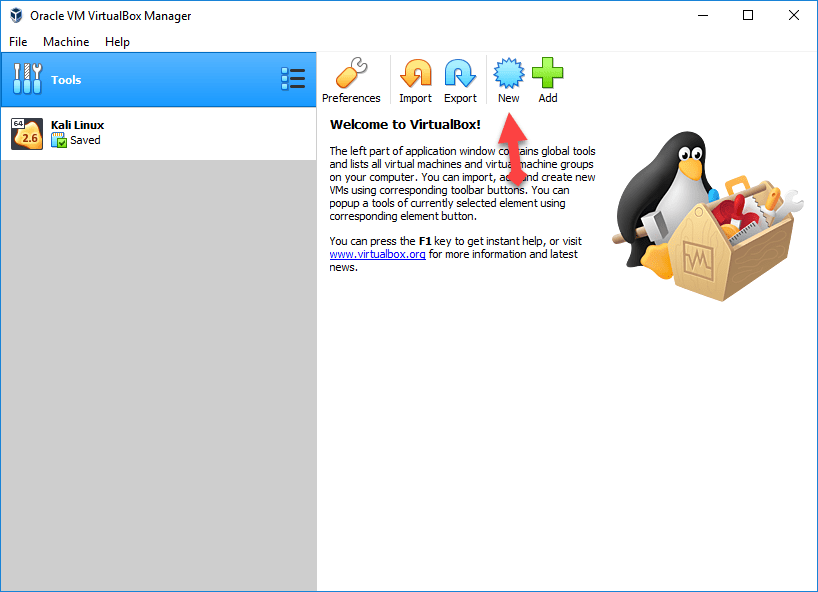 New
New Step 2. Then you will be asked to fill some blanks, first you should give the name of your virtual machine, select the location, you should choose the type as Linux, and the version should be Debian 64-bit if your pc is 64-bit if you are pc is 34-bit you can also choose Debian 34-bit. And click on the next button.
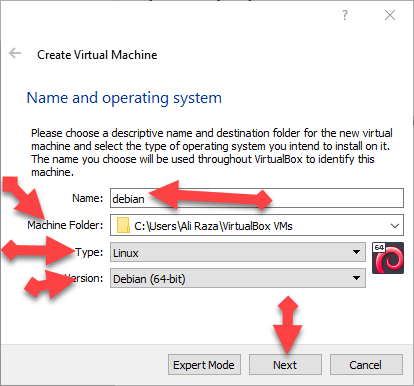 name and operating system
 Step 3. In this step, you have select memory size for virtual machine I recommend you to select the memory size up to 2048MB (2GB) then click next.
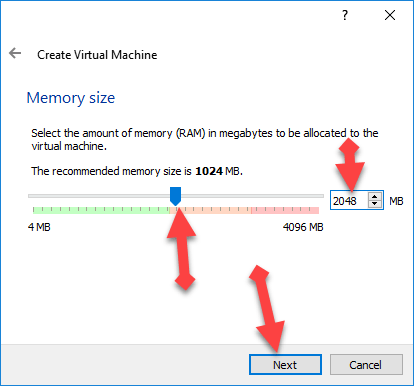 memory size
 Step 4. Now, select the disk for the virtual machine you should select Create a virtual hard disk now. And click create.
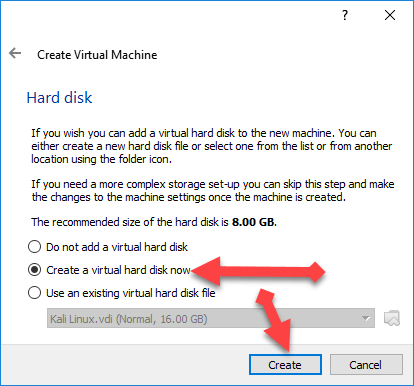 disk
disk Step 5. After that, choose the hard disk file type, you should choose VDI (VirtualBox disk image).
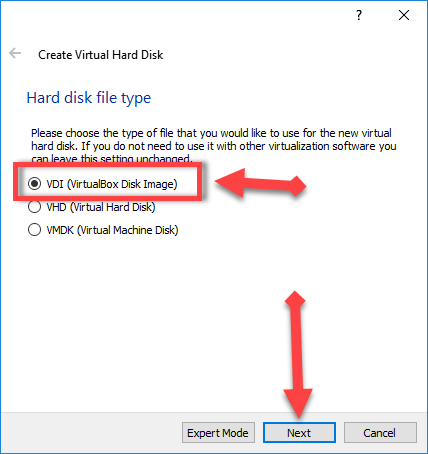 virtual disk file type
 Step 6. In this step, you will be asked to choose Storage on the physical hard disk. you have to choose dynamically allocated.
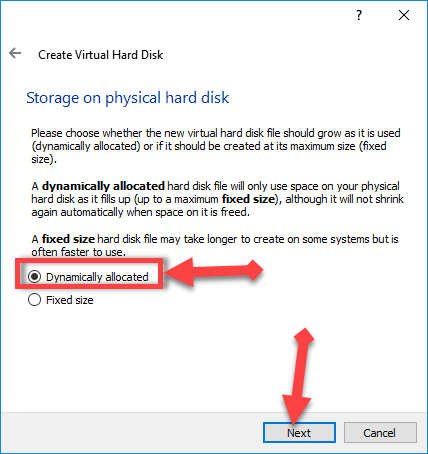 physical hard disk.
 Step 7. then you should select the file location then sie of the file should be up to 8GB.
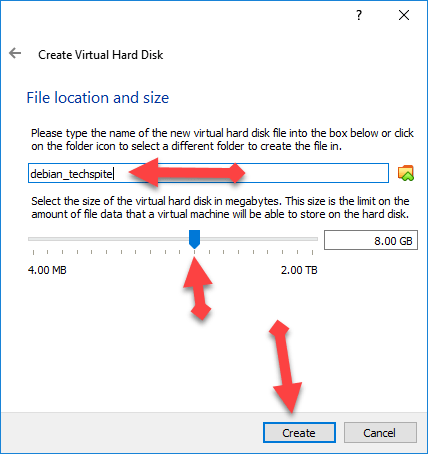 Location and file size
 How to Install Debian 9 on Virtualbox on Windows 10
Configure the setting of virtual Machine:
So, When you successfully created the virtual machine then you have to configure the setting of that virtual machine for that fully concentrate on the steps which I am going to guide right now below. In configuring you need to add the iso file Debian and some other setting.
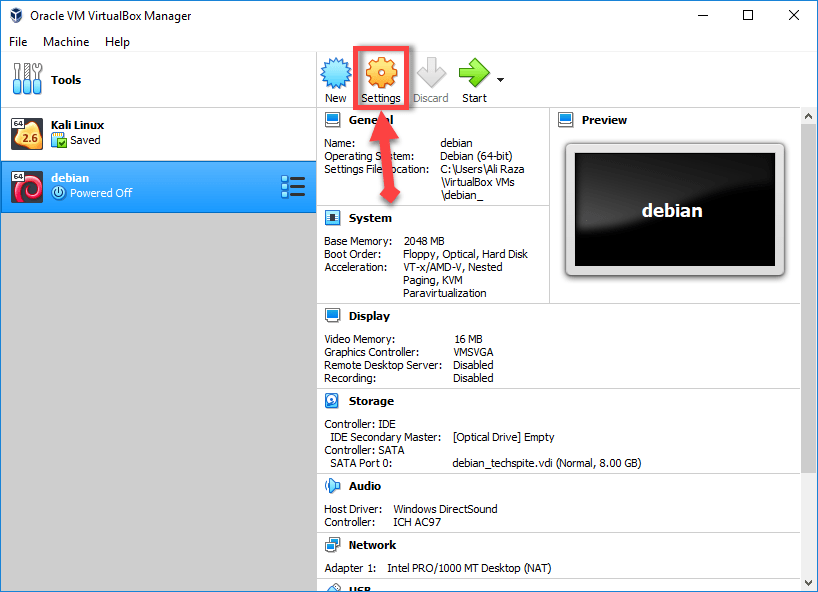
Step 1. In the first step, click on the virtual machine which you created then click on setting option.
 setting
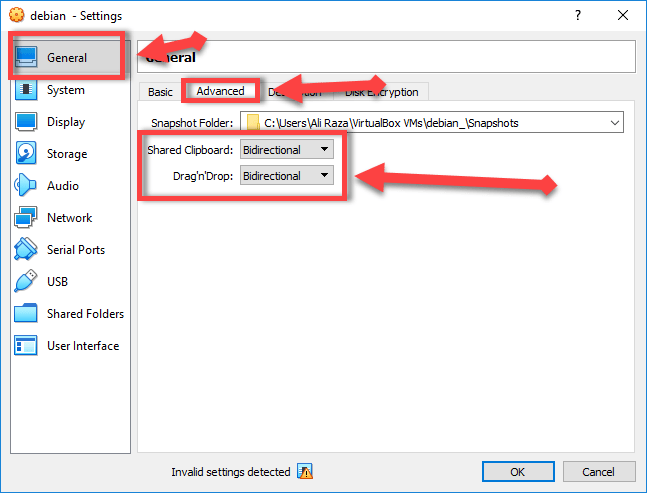
 Step 2. Then, go to the general tab then click on the advanced option, so you need to select the Bidrectional in both option you should the same.
 General tab
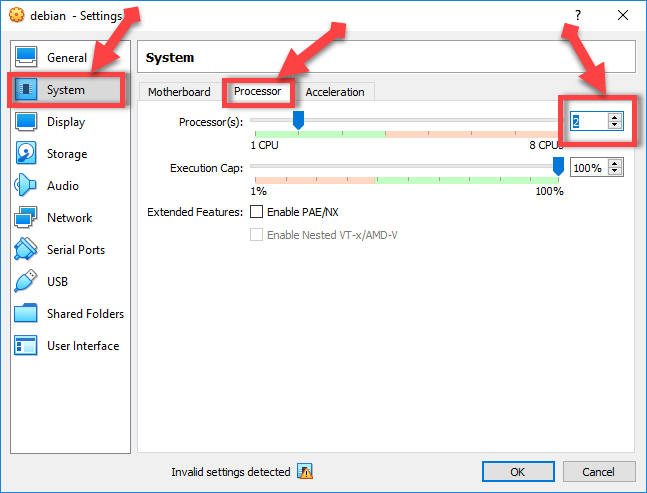
 Step 3. After that, go to the system tab, click on processor option then increase the processor value up to 2.
 system tab
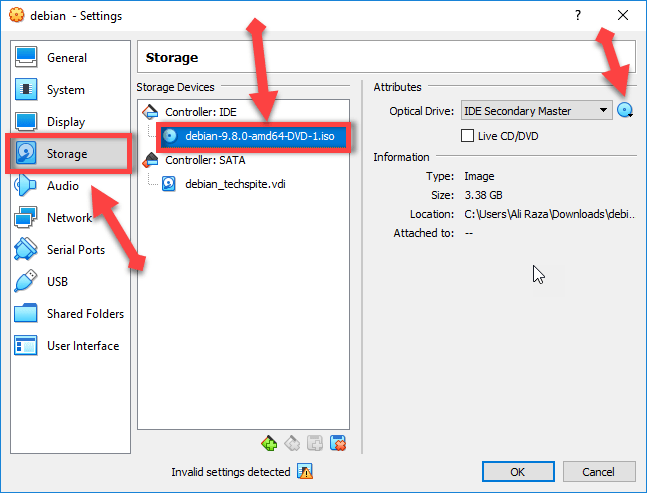
 Step 4: Then, go to the storage tab, click empty, then click on the CD icon and choose the Debian iso file which you have download from the given link from their official website.
 select the iso file
 How to Install Debian 9 on Virtualbox on Windows 10
The installation method of Debian 9 on Virtualbox:
So, When you have done all steps and if everything is fully ready then what are you waiting for let’s get started and remember one thing that there is not remaining any step these were all step which I have guided. Therefore, follow all step in order to install Debian 9 on Virtualbox and don’t miss any step otherwise you will face difficulties. And click on the start option on your right hand after following the steps below.
Step 1. In the first, you will see a beautiful welcome screen of Debian and you need to choose Graphical install.
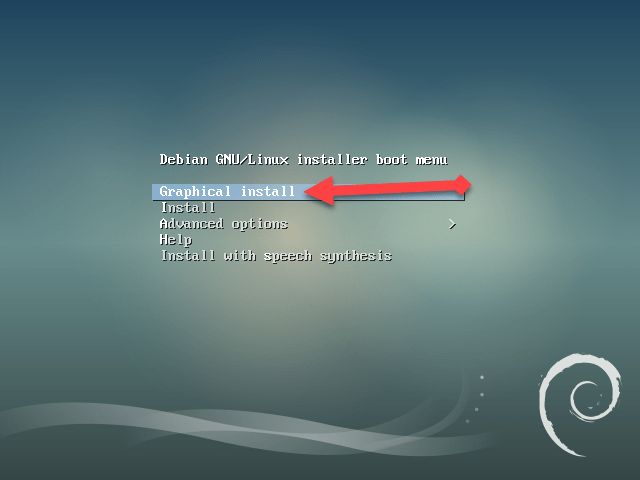 welcome screen
 Step 2. Then select the language which you in the Debian operating system.
Step 3. Choose your location then it will automatically find your time zone.
Step 4. In this step, configure the keyboard which you want to be set as the keyboard of your Debian operating system.
Step 5. After some loading you will be asked to detect network hardware, you will see lots of options, then select the first one no ethernet card and click continue.
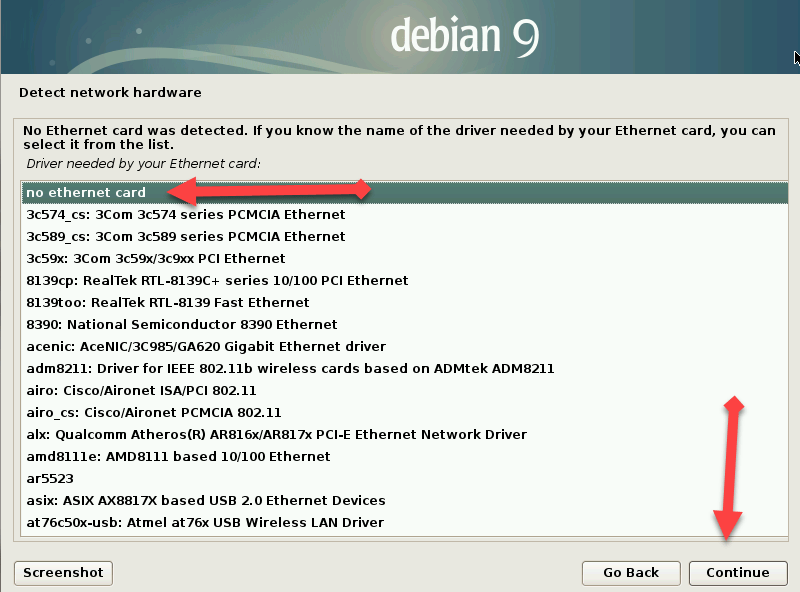 detect network hardware
 Step 6. In this step, you should configure the network. So, Directly click on the continue option.
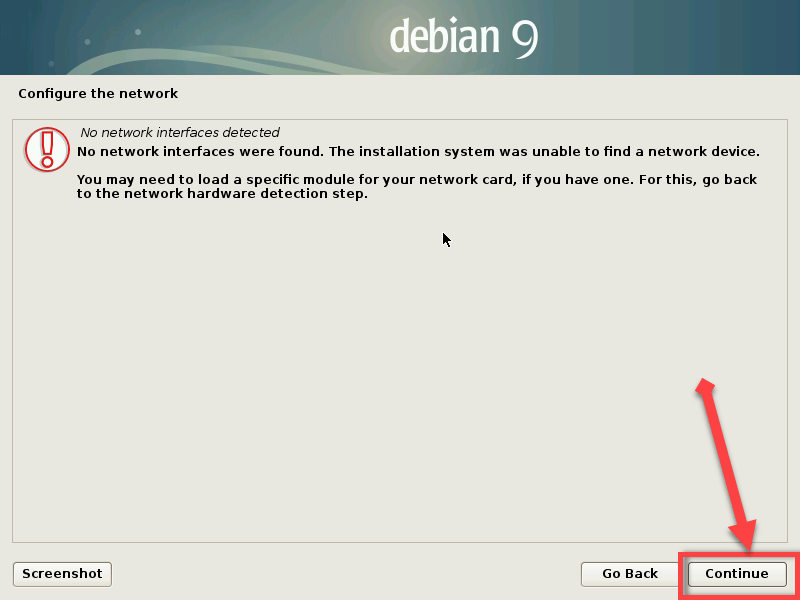 continue
 Step 7. Now, give a hostname to your Debian system. And click on the continue button below of that window.
Step 8. Then a new will be opened, you will be asked to give user password but you should give a strong password for your system.
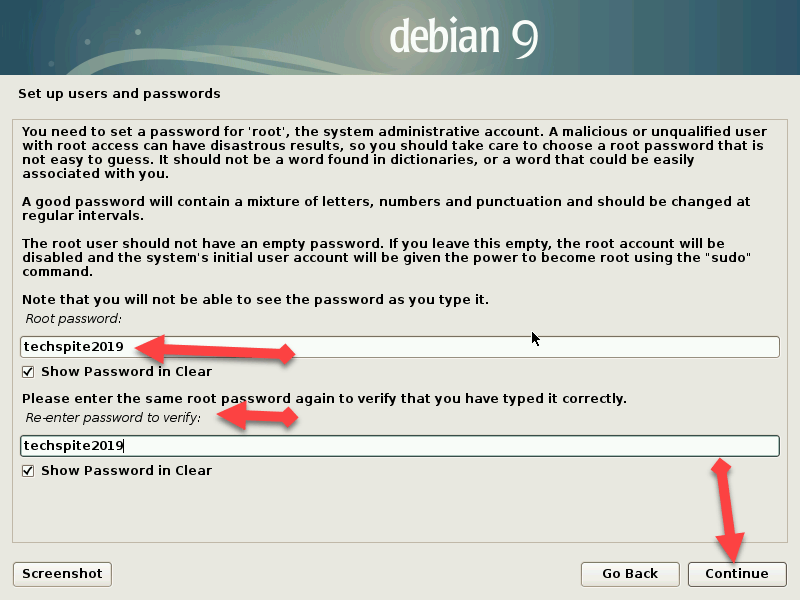 password
 Step 9. Give a user name for the new user.
Step 10. Then again give a username to your account then click on the continue button below.
Step 11. In this step, so again choose a new password for a new user, the password must be strong then click continue.
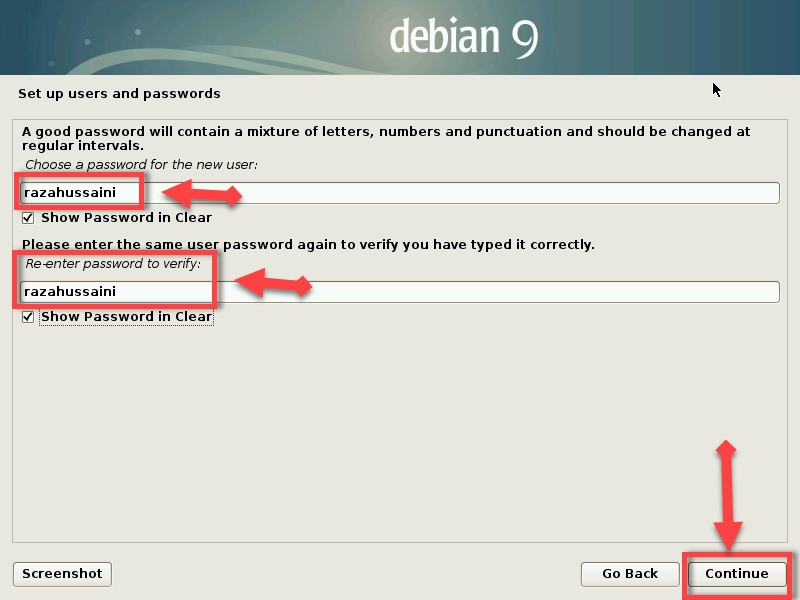 password for the new user
 How to Install Debian 9 on Virtualbox on Windows 10
Step 12. Then choose a time zone to activate your time simply I will select central.
Step 13. Now, after some loading you need to select partition disk then select the first one which is Guided – user entire disk and click continue to go one step ahead.
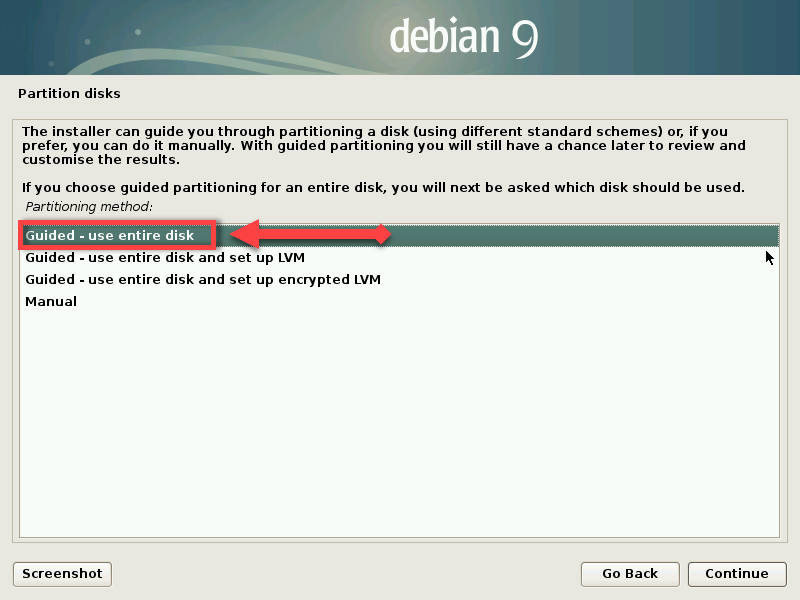 partition disk
 How to Install Debian 9 on Virtualbox on Windows 10
Step 14. In this step, you will be asked to select the disk to partition, so you are not to allowed touch any option just leave it as a default options click on the continue.
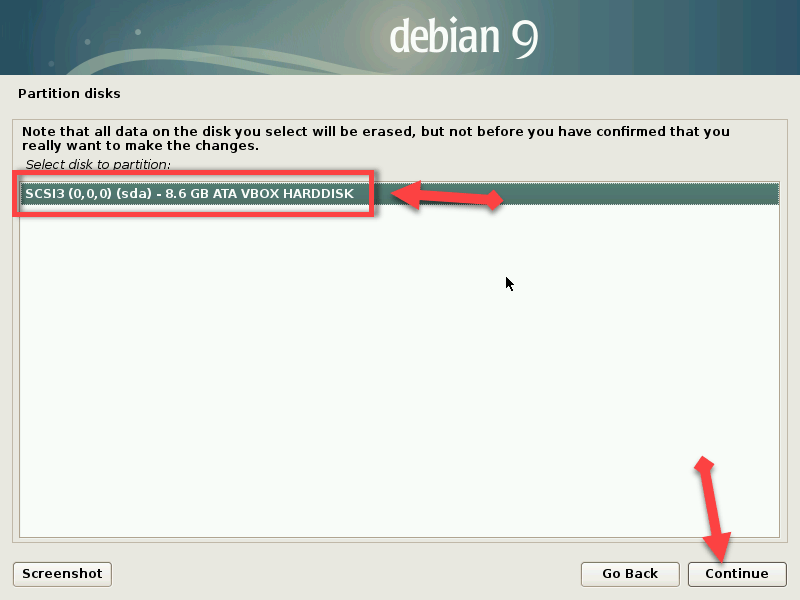 select the disk partition
 Step 15. In the next step, you will see three option, select the first option which is All files in one partition (recommended for new users).
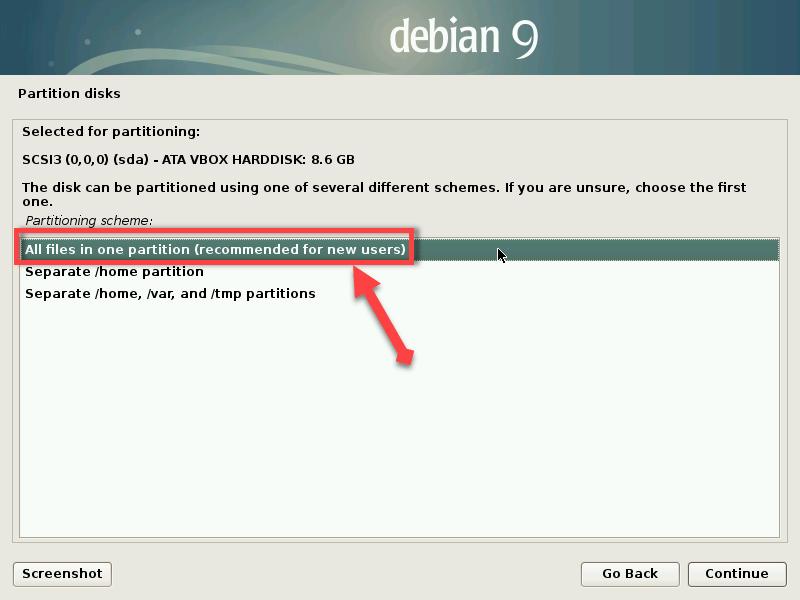 partitioning
 Step 16. In the next step, you will automatically select on the default option finish partitioning and write changes to disk.
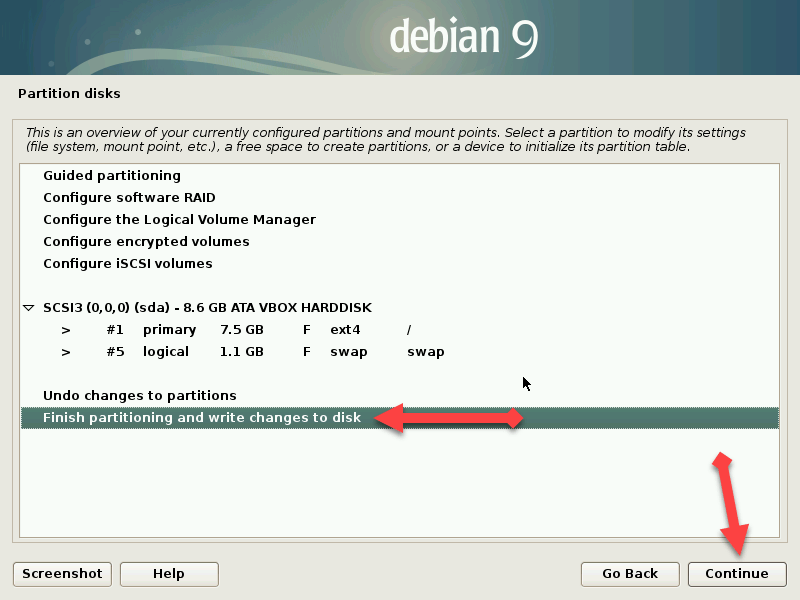 finish partitioning
 Step 17. Then you will see two option yes or no so you need to select yes option then click on the continue option.
Step 18. After some minutes to install the base system, so a new window will be opened, you will have two options yes or no I recommend you to select no. And click on the continue option.
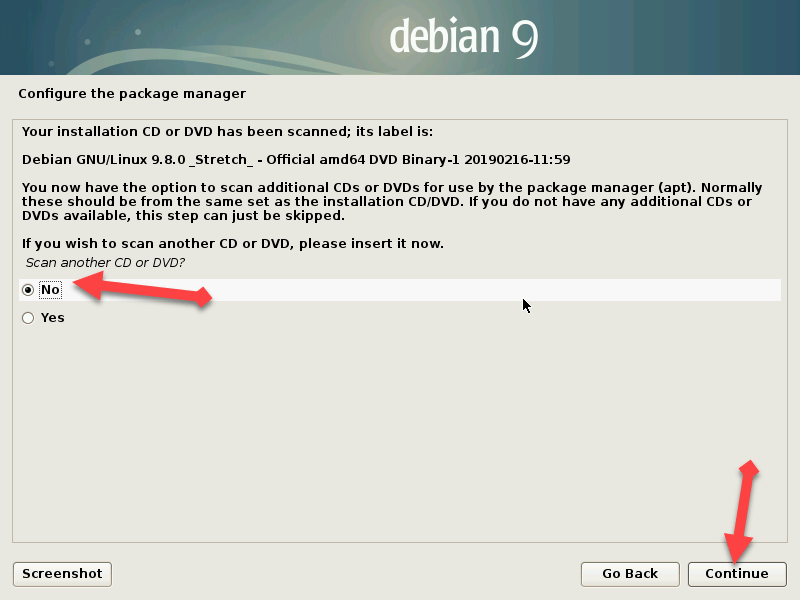 select no
 Step 19. A new window will be opened, so configure the package manager, then select the country you want.
Step 20. Then choose a Debian archive mirror, you will see lots of option, just select the first option which is ftp..us.debian.org then click continue.
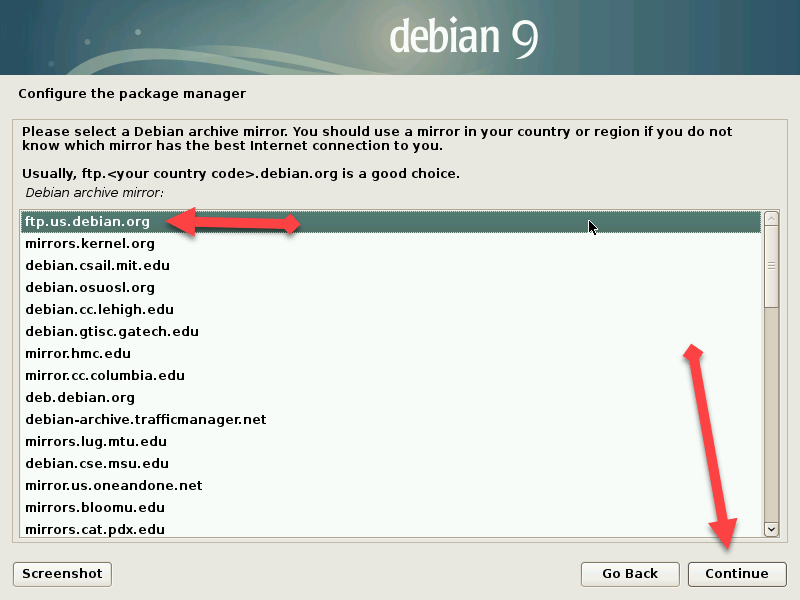 Debian archive mirror
 Step 21. Leave the blank just click on the continue button.
Step 22. Next, you should select no option which is the default option for Debian.
Step 23. In the software selection so select Debian desktop environment.
Step 24. Select GRUP Boot loader select yes option.
Step 25. So, In the last option select the last option. Then continue.
So Congrats, therefore, you can use the Debian 9 on Virtualbox.
Conclusion:
Therefore, It was all about How to Install Debian 9 on Virtualbox on Windows 10. Hope so it was a great experience for you. So if you face in difficulties then feel free to ask it. And thanks for visiting.
Share This Article
Welcome! In this article, I will show How to Install Debian 9 on Virtualbox on Windows 10. So, we should check and work once the Debian operating system. I recommend you to Install Debian 9 Virtualbox on Windows 10 because Debian is a Linux version that’s why we should check out. I will show you in windows 10 because I am using windows operating system you can install it if your windows are 7/8/9. It is very free of cost those who like Linux version and you can install it on VMware or Virtualbox and another virtual machine you like.
If you are looking for the version Debian version 9.8 then you are in the right place which you are looking for. 9.8 version of Debian is released on February 16, 2019. 9.8 is the latest version Debian that’ why I am going to guide How to Install Debian 9 on Virtualbox on Windows 10.
How to Install Debian 9 on Virtualbox on Windows 10
From the first step, you need to do is to download click on the link below and install Virtualbox on your windows pc it is very easy o download and install it from given link below. The second step you are going to do that install Debian iso file from the given link below and that will take to the official website of Debian from there download the iso file of Debian.
How to Install Lubuntu on VMware on Windows 10
How to Install Debian 9 on Virtualbox on Windows 10
Download the essential file for Debian:
When you download and install then you need to fully concentrate the steps which I am going to guide you below. And one thing more the iso file of Debian will be download late and if your computer is fast and the internet of the computer then I am sure the downloading will not take too much time. And after download and install then you will be in need of virtual machine in Virtualbox for that follow the steps below.
How to Install Debian 9 on Virtualbox on Windows 10
Create a virtual machine for Debian 9:
Step 1. Double-click on the downloaded and installed Virtualbox then click on the new button.
New Step 2. Then you will be asked to fill some blanks, first you should give the name of your virtual machine, select the location, you should choose the type as Linux, and the version should be Debian 64-bit if your pc is 64-bit if you are pc is 34-bit you can also choose Debian 34-bit. And click on the next button.
name and operating system Step 3. In this step, you have select memory size for virtual machine I recommend you to select the memory size up to 2048MB (2GB) then click next.
memory size Step 4. Now, select the disk for the virtual machine you should select Create a virtual hard disk now. And click create.
disk Step 5. After that, choose the hard disk file type, you should choose VDI (VirtualBox disk image).
virtual disk file type Step 6. In this step, you will be asked to choose Storage on the physical hard disk. you have to choose dynamically allocated.
physical hard disk. Step 7. then you should select the file location then sie of the file should be up to 8GB.
Location and file size How to Install Debian 9 on Virtualbox on Windows 10
Configure the setting of virtual Machine:
So, When you successfully created the virtual machine then you have to configure the setting of that virtual machine for that fully concentrate on the steps which I am going to guide right now below. In configuring you need to add the iso file Debian and some other setting.
Step 1. In the first step, click on the virtual machine which you created then click on setting option.
setting Step 2. Then, go to the general tab then click on the advanced option, so you need to select the Bidrectional in both option you should the same.
General tab Step 3. After that, go to the system tab, click on processor option then increase the processor value up to 2.
system tab Step 4: Then, go to the storage tab, click empty, then click on the CD icon and choose the Debian iso file which you have download from the given link from their official website.
select the iso file How to Install Debian 9 on Virtualbox on Windows 10
The installation method of Debian 9 on Virtualbox:
So, When you have done all steps and if everything is fully ready then what are you waiting for let’s get started and remember one thing that there is not remaining any step these were all step which I have guided. Therefore, follow all step in order to install Debian 9 on Virtualbox and don’t miss any step otherwise you will face difficulties. And click on the start option on your right hand after following the steps below.
Step 1. In the first, you will see a beautiful welcome screen of Debian and you need to choose Graphical install.
welcome screen Step 2. Then select the language which you in the Debian operating system.
Step 3. Choose your location then it will automatically find your time zone.
Step 4. In this step, configure the keyboard which you want to be set as the keyboard of your Debian operating system.
Step 5. After some loading you will be asked to detect network hardware, you will see lots of options, then select the first one no ethernet card and click continue.
detect network hardware Step 6. In this step, you should configure the network. So, Directly click on the continue option.
continue Step 7. Now, give a hostname to your Debian system. And click on the continue button below of that window.
Step 8. Then a new will be opened, you will be asked to give user password but you should give a strong password for your system.
password Step 9. Give a user name for the new user.
Step 10. Then again give a username to your account then click on the continue button below.
Step 11. In this step, so again choose a new password for a new user, the password must be strong then click continue.
password for the new user How to Install Debian 9 on Virtualbox on Windows 10
Step 12. Then choose a time zone to activate your time simply I will select central.
Step 13. Now, after some loading you need to select partition disk then select the first one which is Guided – user entire disk and click continue to go one step ahead.
partition disk How to Install Debian 9 on Virtualbox on Windows 10
Step 14. In this step, you will be asked to select the disk to partition, so you are not to allowed touch any option just leave it as a default options click on the continue.
select the disk partition Step 15. In the next step, you will see three option, select the first option which is All files in one partition (recommended for new users).
partitioning Step 16. In the next step, you will automatically select on the default option finish partitioning and write changes to disk.
finish partitioning Step 17. Then you will see two option yes or no so you need to select yes option then click on the continue option.
Step 18. After some minutes to install the base system, so a new window will be opened, you will have two options yes or no I recommend you to select no. And click on the continue option.
select no Step 19. A new window will be opened, so configure the package manager, then select the country you want.
Step 20. Then choose a Debian archive mirror, you will see lots of option, just select the first option which is ftp..us.debian.org then click continue.
Debian archive mirror Step 21. Leave the blank just click on the continue button.
Step 22. Next, you should select no option which is the default option for Debian.
Step 23. In the software selection so select Debian desktop environment.
Step 24. Select GRUP Boot loader select yes option.
Step 25. So, In the last option select the last option. Then continue.
So Congrats, therefore, you can use the Debian 9 on Virtualbox.
Conclusion:
Therefore, It was all about How to Install Debian 9 on Virtualbox on Windows 10. Hope so it was a great experience for you. So if you face in difficulties then feel free to ask it. And thanks for visiting.


