

How to Install Android P on Vmware on Windows 10
 Azaz Shaikh
Welcome! in this article I am going to guide How to Install Android P on Vmware on Windows 10. So everyone wants to use Android P (pie) but every android phone doesn’t accept it so don’t worry you can use it on your computer easily. You can install it various software like VMware and VirtualBox etc. And android p (pie) is one of the best and loving versions that’s why today I am going to guide How to Install Android P on Vmware on Windows 10. But before getting started you should install the required file which given below.
How to Install Android P on Vmware on Windows 10
Required file for Android Pie:
Download both the required file and installation method is very easy.
How to create a virtual machine for android pie:
Step 1: If the downloading and installation is done then first of all open the Vmware then click on the Create a New Virtual Machine.
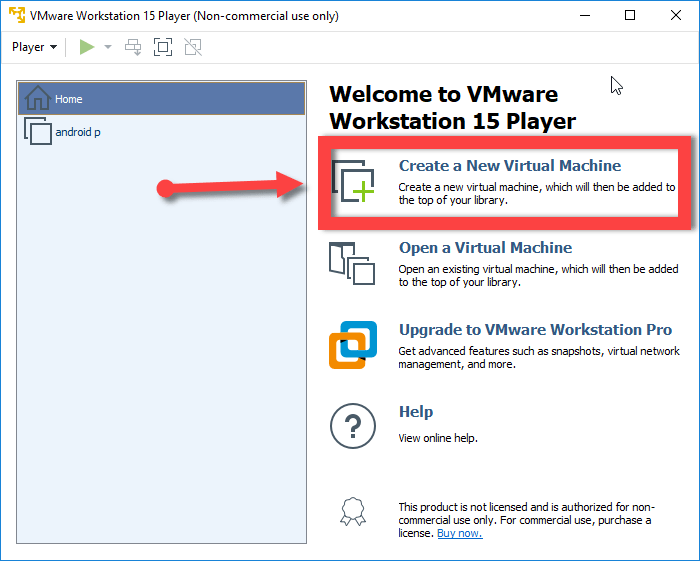 Create a new virtual machine
 Step 2: Now click on the Installer disc image then select the iso file from the location which you downloaded from above. And click on the next.
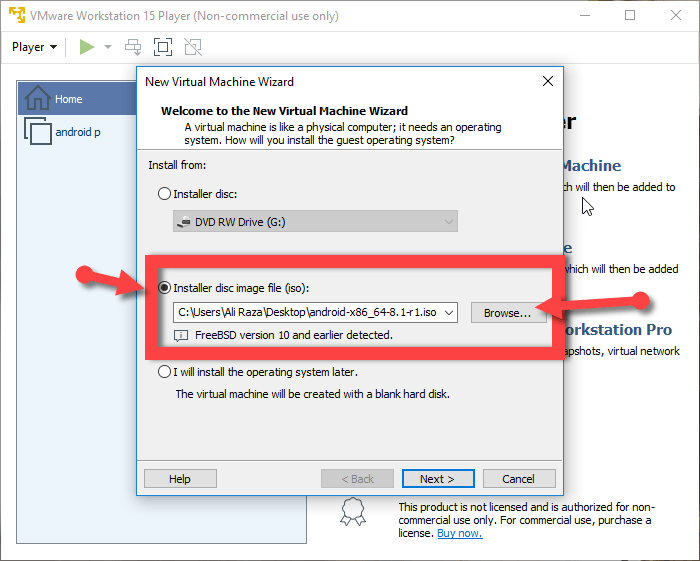 select the iso file
 Step 3: Give the name to your virtual machine as I will give the name Android P. Then click next.
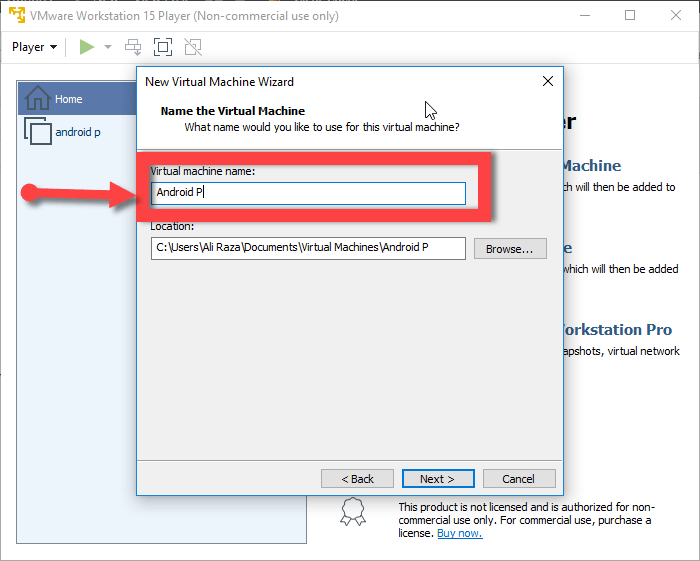 Name to the virtual machine
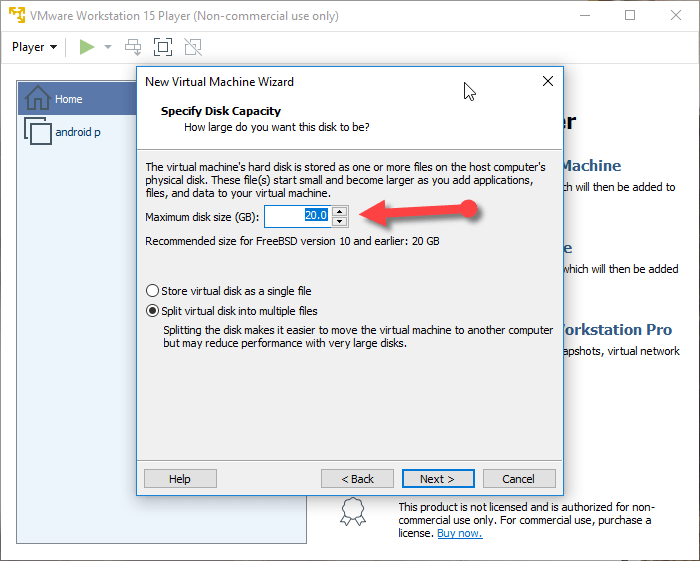
 Step 4: Specify the storage of the virtual machine leaves as default storage. Click on the next.
 select the storage
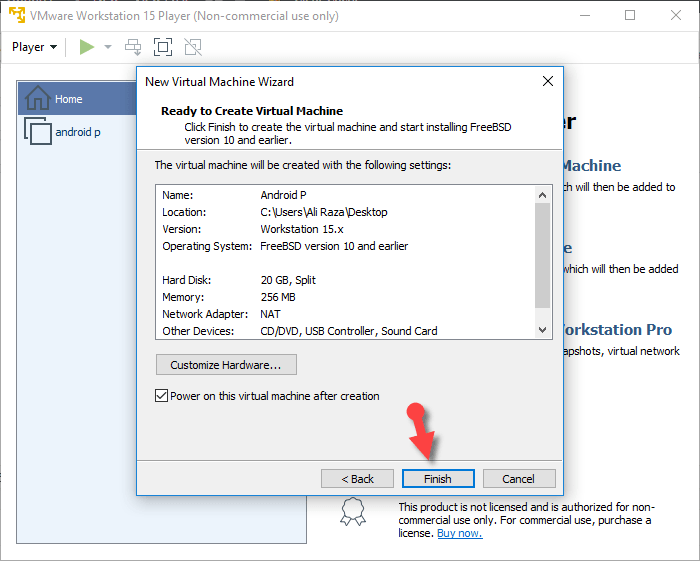
 Step 5: At last you will be asked are you are ready to make a virtual machine. If yes then click on the finish.
 finish
 How to create a virtual machine for android pie:
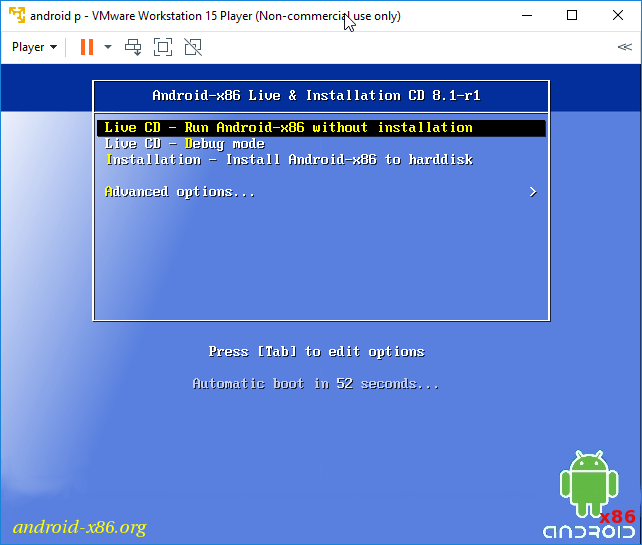
Step 6: If your made virtual machine successfully then it is to run the installation android p on a virtual machine. So click on the third option Installation – Install Android-x86 to harddisk.
 Installation – Install Android-x86 to harddisk
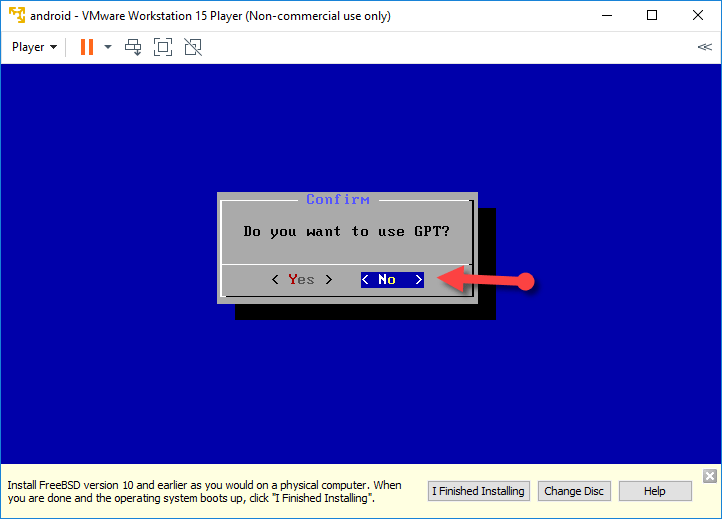
 Step: Click on the no option.
 no
no Step 8: After that, it will be loading for a while then you will get a new window then click on the Create/modify partitions. Then Enter.
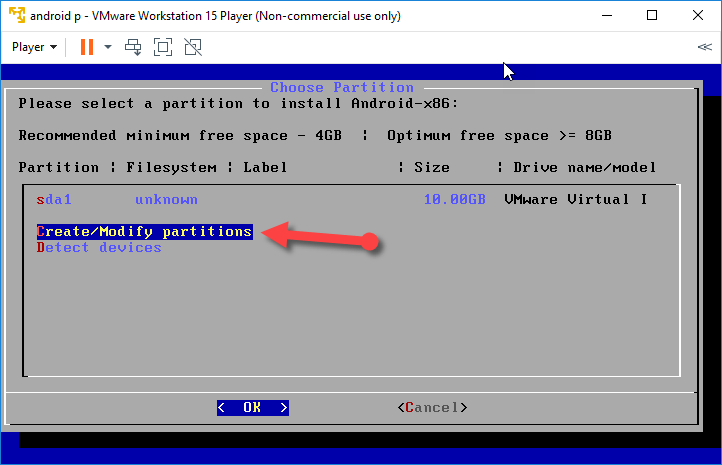 Create/modify partitions.
 How to create a virtual machine for android pie:
Step 9: After that, a black screen will be open then select the new option.
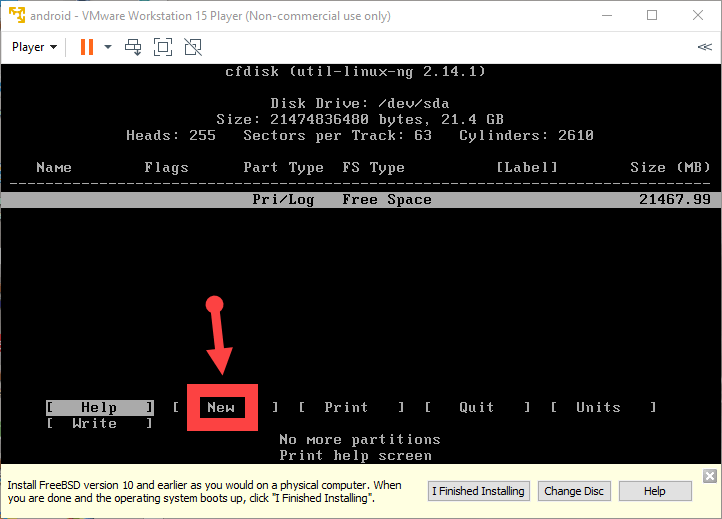 select new option
 Step 10: Then your partition should be primary because of the partition for Android P.
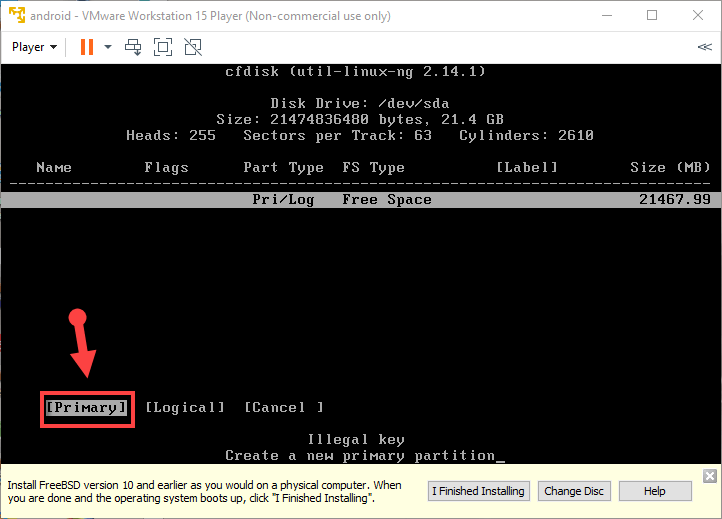 Select the primary partition
 Step 11: Select the write option then write Yes.
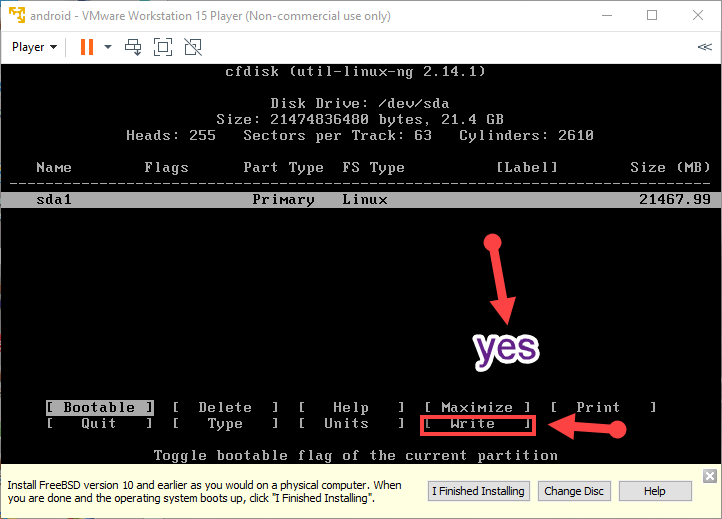 Select the write option then type yes
 Step 12: After typing yes then select the bootable option then quit that by pressing enter.
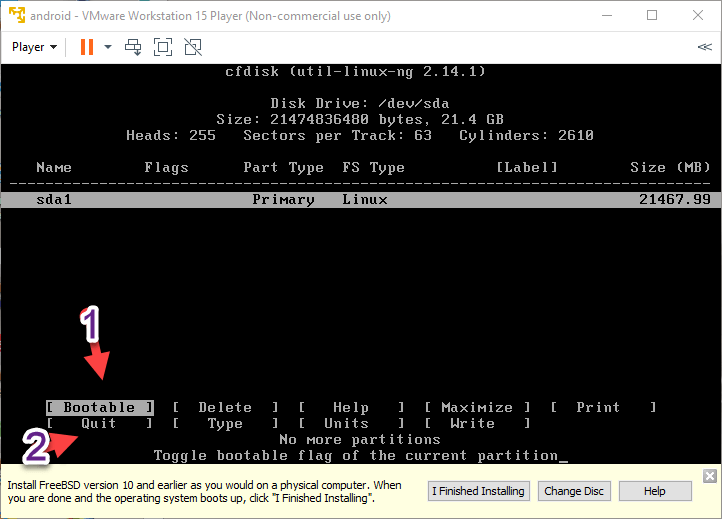 Select bootable then quit that
 Step 13: Once you quit that then a new window will be opened then select the sda1 then enter.
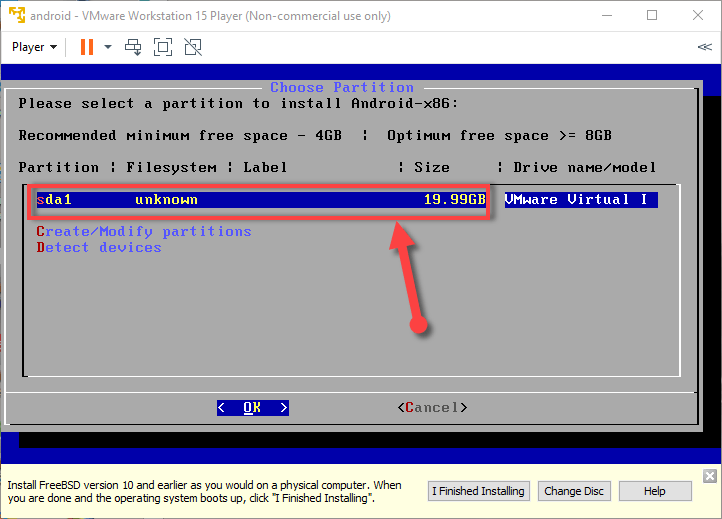 select sda1
 Step 13: When you select sda1 then select ext4 by pressing by entering.
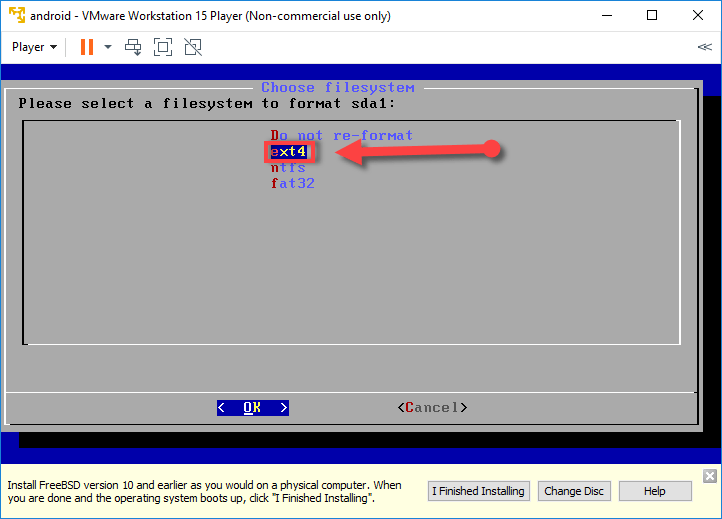 select ext4
 Step 14: A window will be open then you will be asked you choose to format sda1 to ext4 simply click on the yes.
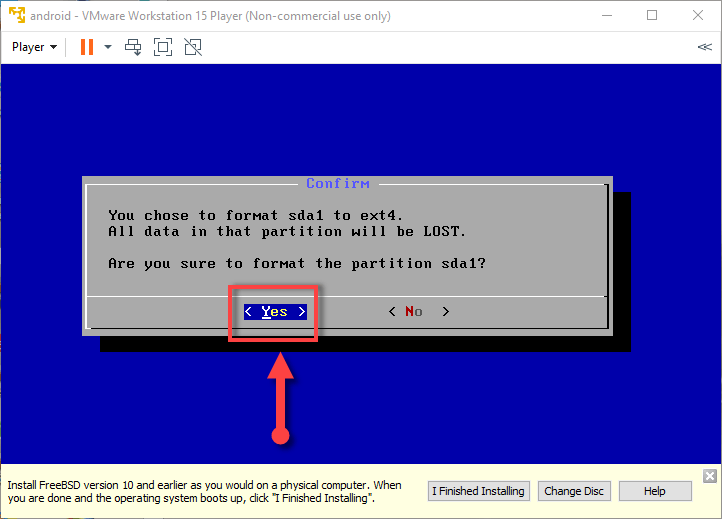 click yes
 Step 15: Then you will be asked Do you want to install boot loader GRUB you have to click on the Yes.
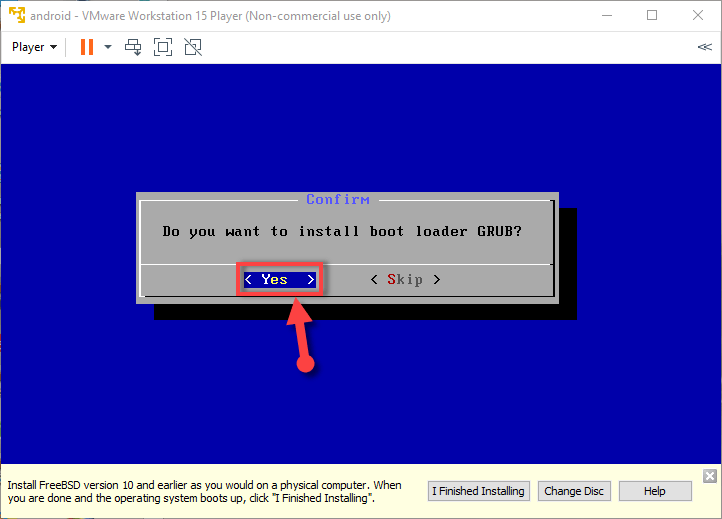 click yes
 Step 16: After doing all things then simply you need to select on the NO.
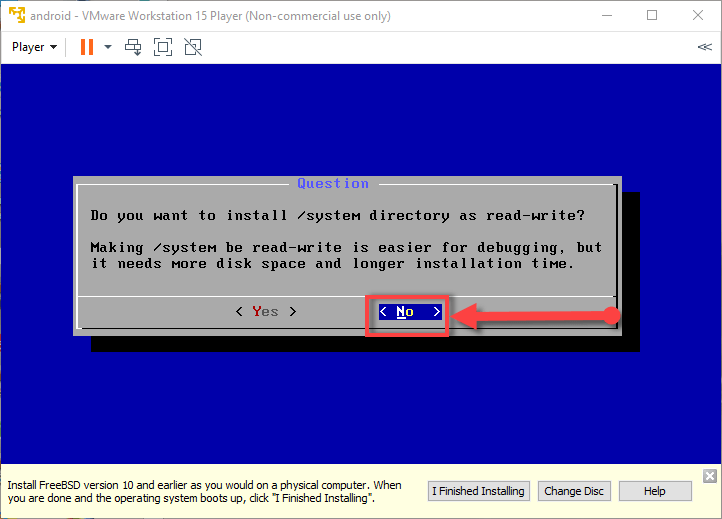 select No
 Step 17: Once you have done all then reboot the VMware Workstation.
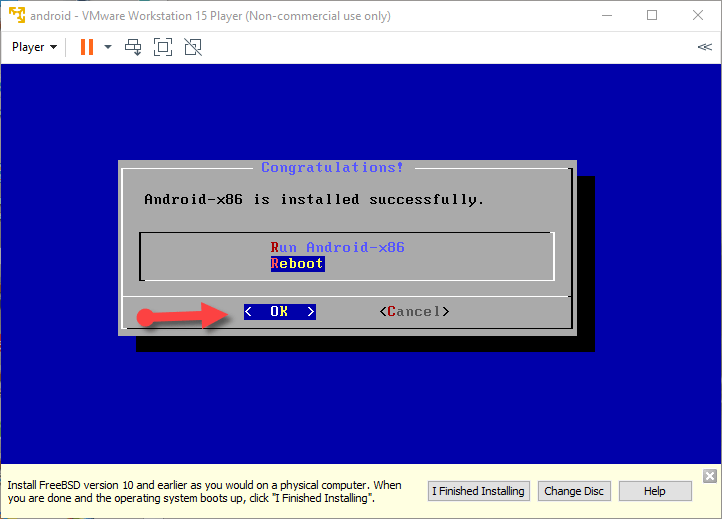 Then reboot
 Step 18: After rebooting that then you will see a screen window then select the first option then press enter.
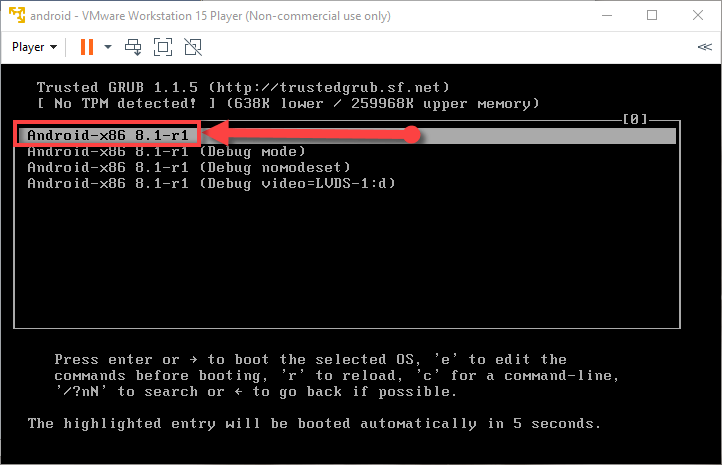 first option
 Congratulations! you have done great now enjoy using android p on your PC.
How to Install Android P on PC Using Android Studio
Conclusion:
It was all about How to Install Android P on Vmware on Windows 10. Hopefully, you have learned step by step to install android p. If you face any problem then feel free to comment below. Thanks for visiting my site.
Share This Article
Welcome! in this article I am going to guide How to Install Android P on Vmware on Windows 10. So everyone wants to use Android P (pie) but every android phone doesn’t accept it so don’t worry you can use it on your computer easily. You can install it various software like VMware and VirtualBox etc. And android p (pie) is one of the best and loving versions that’s why today I am going to guide How to Install Android P on Vmware on Windows 10. But before getting started you should install the required file which given below.
How to Install Android P on Vmware on Windows 10
Required file for Android Pie:
Download both the required file and installation method is very easy.
How to create a virtual machine for android pie:
Step 1: If the downloading and installation is done then first of all open the Vmware then click on the Create a New Virtual Machine.
Create a new virtual machine Step 2: Now click on the Installer disc image then select the iso file from the location which you downloaded from above. And click on the next.
select the iso file Step 3: Give the name to your virtual machine as I will give the name Android P. Then click next.
Name to the virtual machine Step 4: Specify the storage of the virtual machine leaves as default storage. Click on the next.
select the storage Step 5: At last you will be asked are you are ready to make a virtual machine. If yes then click on the finish.
finish How to create a virtual machine for android pie:
Step 6: If your made virtual machine successfully then it is to run the installation android p on a virtual machine. So click on the third option Installation – Install Android-x86 to harddisk.
Installation – Install Android-x86 to harddisk Step: Click on the no option.
no Step 8: After that, it will be loading for a while then you will get a new window then click on the Create/modify partitions. Then Enter.
Create/modify partitions. How to create a virtual machine for android pie:
Step 9: After that, a black screen will be open then select the new option.
select new option Step 10: Then your partition should be primary because of the partition for Android P.
Select the primary partition Step 11: Select the write option then write Yes.
Select the write option then type yes Step 12: After typing yes then select the bootable option then quit that by pressing enter.
Select bootable then quit that Step 13: Once you quit that then a new window will be opened then select the sda1 then enter.
select sda1 Step 13: When you select sda1 then select ext4 by pressing by entering.
select ext4 Step 14: A window will be open then you will be asked you choose to format sda1 to ext4 simply click on the yes.
click yes Step 15: Then you will be asked Do you want to install boot loader GRUB you have to click on the Yes.
click yes Step 16: After doing all things then simply you need to select on the NO.
select No Step 17: Once you have done all then reboot the VMware Workstation.
Then reboot Step 18: After rebooting that then you will see a screen window then select the first option then press enter.
first option Congratulations! you have done great now enjoy using android p on your PC.
How to Install Android P on PC Using Android Studio
Conclusion:
It was all about How to Install Android P on Vmware on Windows 10. Hopefully, you have learned step by step to install android p. If you face any problem then feel free to comment below. Thanks for visiting my site.


