

How to Zip and Unzip Files or Folders on Windows 11?
 Azaz Shaikh
In this article, you will learn How to Zip and Unzip Files or Folders on Windows 11? Nowadays, if you have too many files inside your one folder. Then you want to send your many files to someone after that you can not send them by email. You need to send the files individually by email to someone. Moreover, if you have files and folders and that is empty then you can not zip the file. If you want to send many files at one time then you can compress them in a zip. But most of the people don’t know the way that they can compress the files in a zip. However, don’t worry I am here to solve your problem. If you want to zip or unzip files or folders then you need to read this article. So, without wasting any time let’s get has started.
Method 1: How to Zip Files or Folders With Right-Click Context Menu
Step 1. At first, you need to right-click on the files or folders that you want to zip or compress the files.
Step 2. Then tap on the Compress to ZIP File.
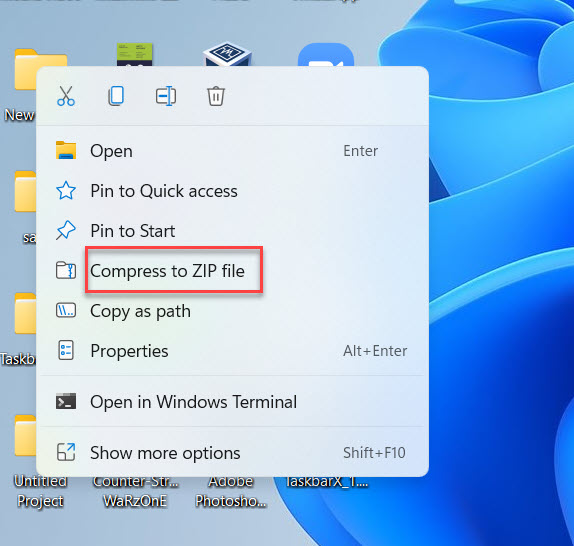 Tap on the Compress to ZIP File
 Step 3. Finally, when you click on the compress to ZIP file then it will create the zip or compress and that will create a zip file in the same location.
Method 2: How to Zip Files or Folders With the Help of 7 Zip
Step 1. First of all, click on this link after that download and install 7 Zip on your PC.
Step 2. Now, right-click on any of the files that you want to zip it after that tap on the Show More Options.
Step 3. In this step, you need to select the 7-Zip then click on the Add to Filename.zip or tap on the Add to Filename.7z.
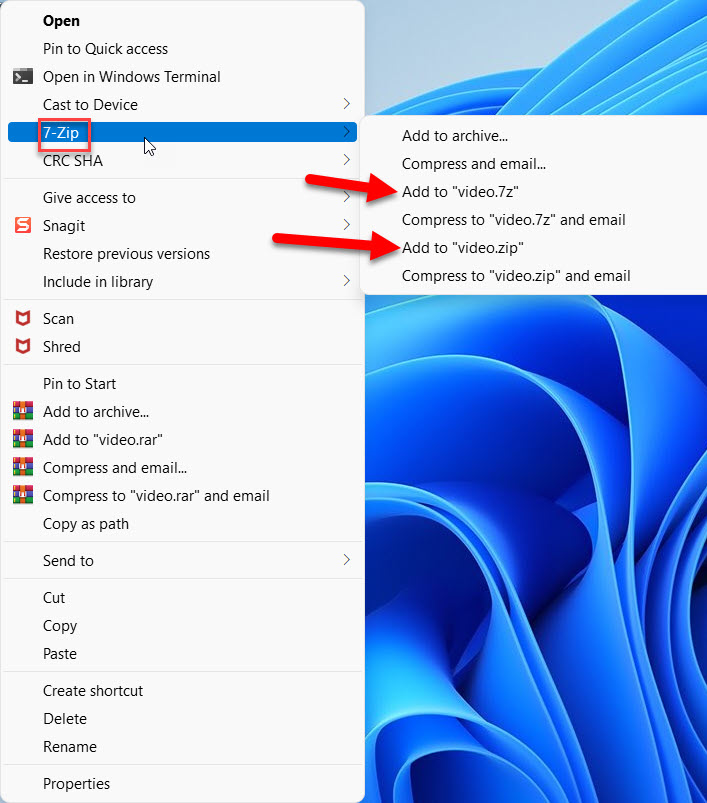 Select 7-Zip
 Finally, your files or folders are successfully zip or compress.
How to Unzip Files or Folders With Right-Click Context Menu
Step 1. Firstly, to unzip the files and folders simply that file after that right-click on it then tap on the Extract All.
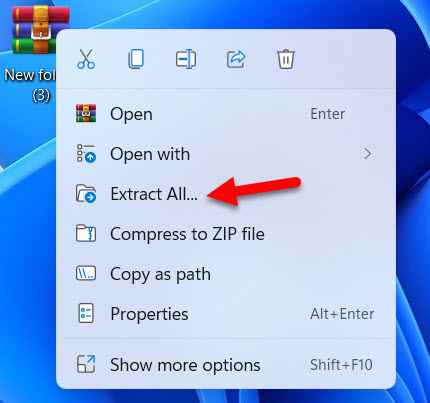 Tap on the Extract All
 Step 2. When the new window click on the Browser option select the location where you want to extract that files.
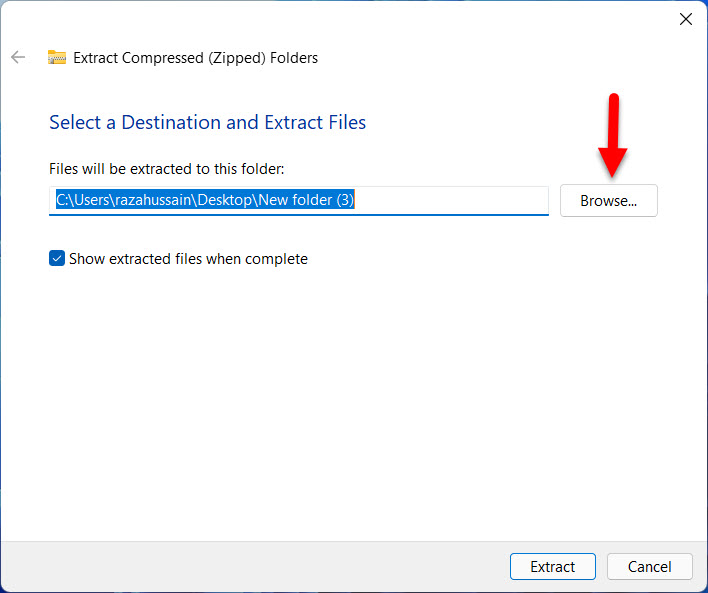 Click on the Browser
 Step 3. However, check the box of Show Extracted Files When Complete.
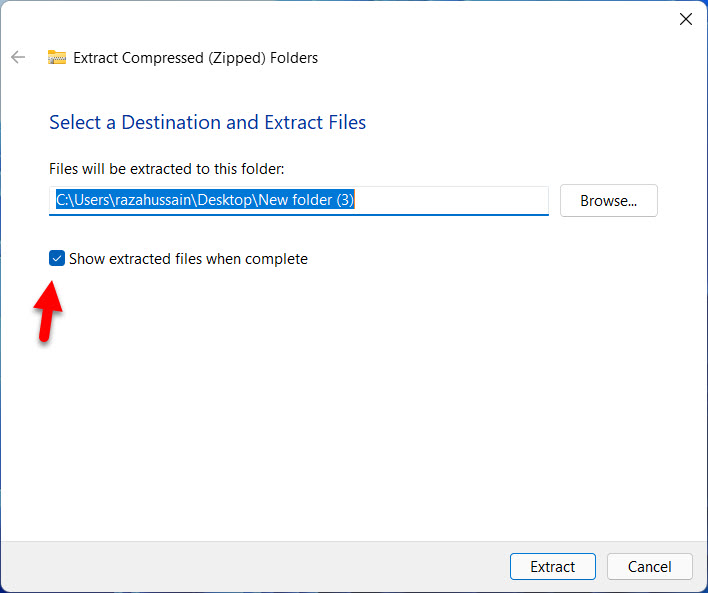 Check the Box of Show Extracted Files When Complete
 Step 4. At last, click on the Extract.
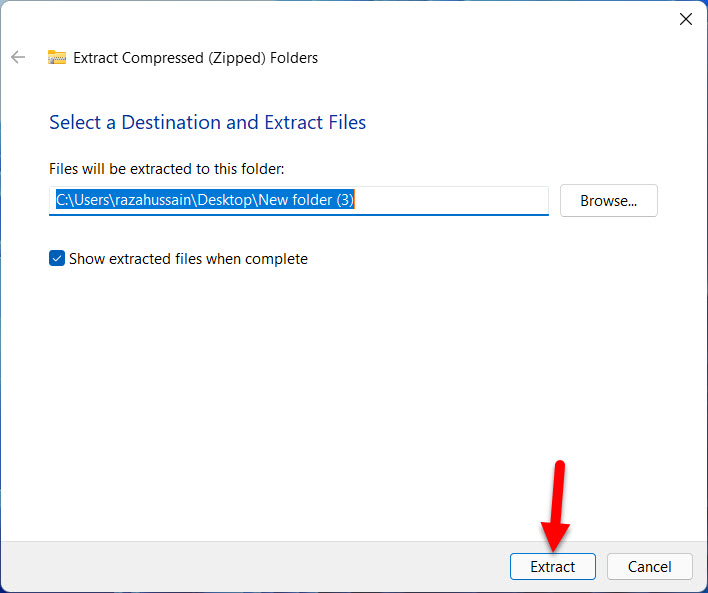 Click on the Extract
 Bottom Line
It was all about How to Zip and Unzip Files or Folders on Windows 11? I hope this article is very helpful for you to zip or unzip the files. From this article, you will get something good. This is the right place where you can easily solve your problem. After following these steps I hope you will not face any kind of problem. If you faced any kind of problem and if you have any type of suggestions then do comment.
Tagged
Share This Article
In this article, you will learn How to Zip and Unzip Files or Folders on Windows 11? Nowadays, if you have too many files inside your one folder. Then you want to send your many files to someone after that you can not send them by email. You need to send the files individually by email to someone. Moreover, if you have files and folders and that is empty then you can not zip the file. If you want to send many files at one time then you can compress them in a zip. But most of the people don’t know the way that they can compress the files in a zip. However, don’t worry I am here to solve your problem. If you want to zip or unzip files or folders then you need to read this article. So, without wasting any time let’s get has started.
Method 1: How to Zip Files or Folders With Right-Click Context Menu
Step 1. At first, you need to right-click on the files or folders that you want to zip or compress the files.
Step 2. Then tap on the Compress to ZIP File.
Tap on the Compress to ZIP File Step 3. Finally, when you click on the compress to ZIP file then it will create the zip or compress and that will create a zip file in the same location.
Method 2: How to Zip Files or Folders With the Help of 7 Zip
Step 1. First of all, click on this link after that download and install 7 Zip on your PC.
Step 2. Now, right-click on any of the files that you want to zip it after that tap on the Show More Options.
Step 3. In this step, you need to select the 7-Zip then click on the Add to Filename.zip or tap on the Add to Filename.7z.
Select 7-Zip Finally, your files or folders are successfully zip or compress.
How to Unzip Files or Folders With Right-Click Context Menu
Step 1. Firstly, to unzip the files and folders simply that file after that right-click on it then tap on the Extract All.
Tap on the Extract All Step 2. When the new window click on the Browser option select the location where you want to extract that files.
Click on the Browser Step 3. However, check the box of Show Extracted Files When Complete.
Check the Box of Show Extracted Files When Complete Step 4. At last, click on the Extract.
Click on the Extract Bottom Line
It was all about How to Zip and Unzip Files or Folders on Windows 11? I hope this article is very helpful for you to zip or unzip the files. From this article, you will get something good. This is the right place where you can easily solve your problem. After following these steps I hope you will not face any kind of problem. If you faced any kind of problem and if you have any type of suggestions then do comment.


