

How to Enable Screen Saver in Windows 11?
 Azaz Shaikh
In this article, you will learn How to Enable Screen Saver in Windows 11? When you have a PC then this screen saver is not enabled. This feature is disabled by default from the settings. However, once you enable this feature then when you leave your PC than on the screen of your PC it shows a display. Moreover, when you try to enable the screen saver then you don’t know the way that you can enable the screen saver. But don’t worry I am here to solve your problem. If you want to enable the screen saver then you need to read this article. So, without wasting any time let’s get has started.
Related Post: How to Install Android 12 on PC for free
How to Enable Screen Saver in Windows 11?
Step 1. First of all, you need to open the Start menu then go to the search bar after that type Change Screen Saver and press the Enter to open it.
Step 2. When the screen saver is open after in the section of screen saver tap on the drop-down to open the list and select any of them.
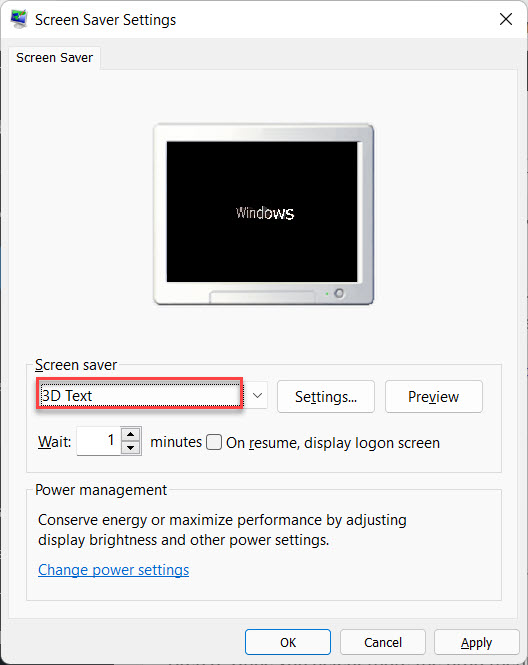
Step 3. Once you select more the drop-menu after that click on the Settings to customize it.
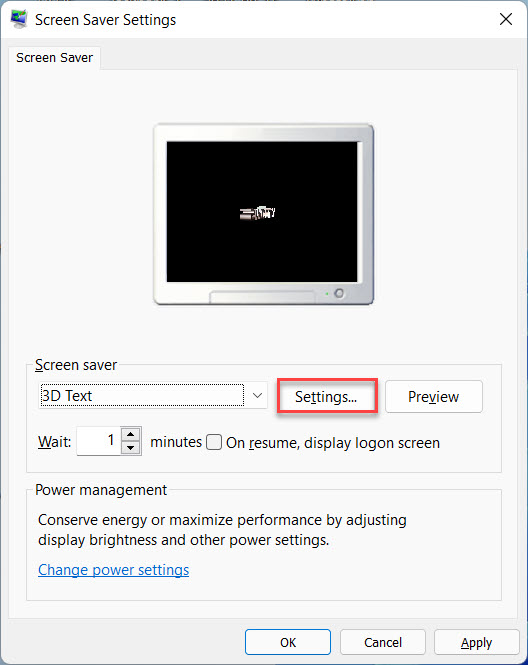 Click on the Settings
 Step 4. Now, if you want to change the waiting screen then under the section of the screen saver simply click on the up and down arrow to change the waiting screen.
Step 5. Finally, click on the Apply at the bottom right corner and tap on the Ok.
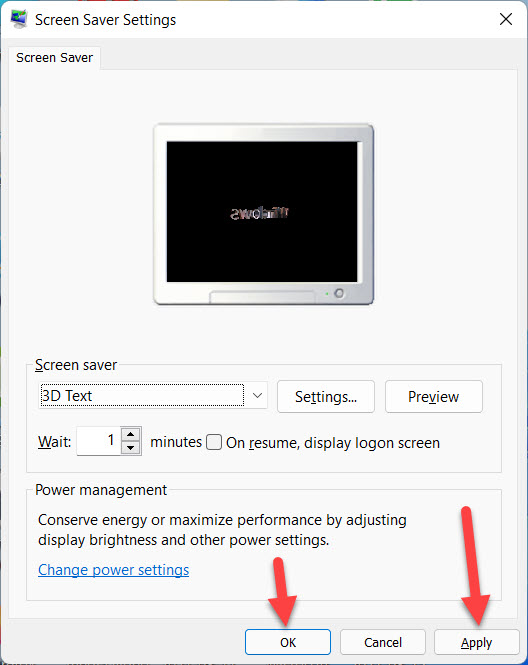 Click on the Apply
 Change Screen Saver Settings Shortcut on Windows 11
Step 1. At first, on your desktop screen, you need to right-click then click on the New after that select Shortcut.
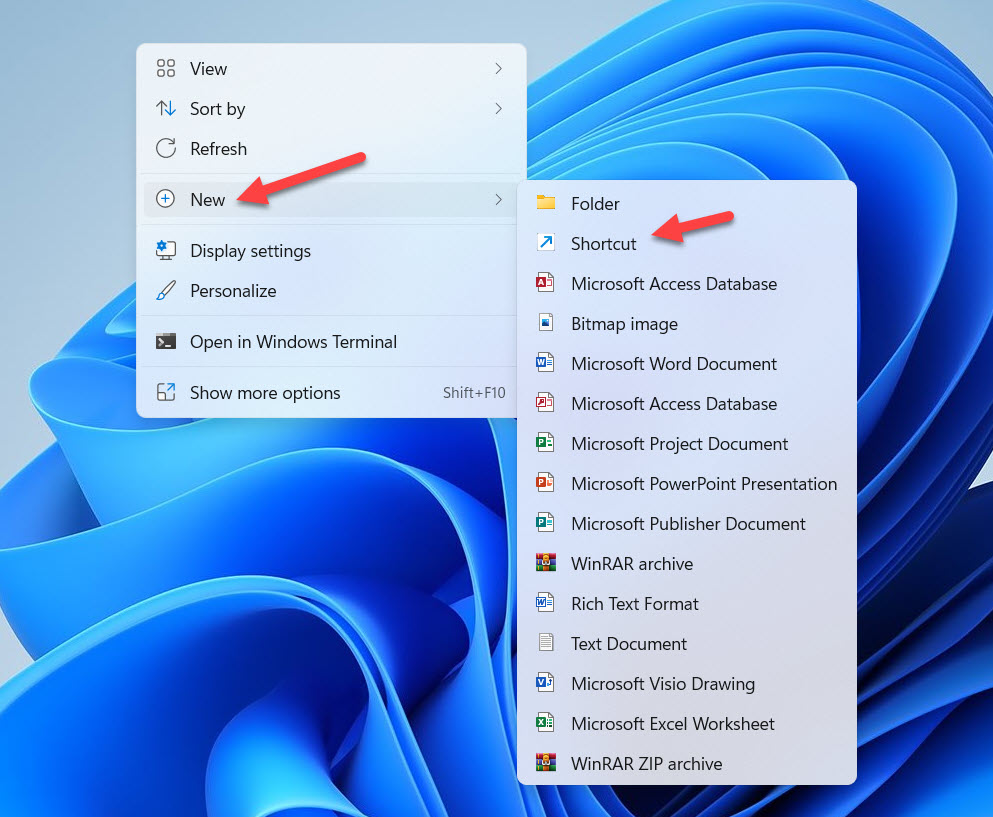 Select Shortcut
 Step 2. When you click on the shortcut then it will get you in the field of location simply copy and paste the code down below:
control desk.cpl,,@screensaver
then click on the Next to continue the process.
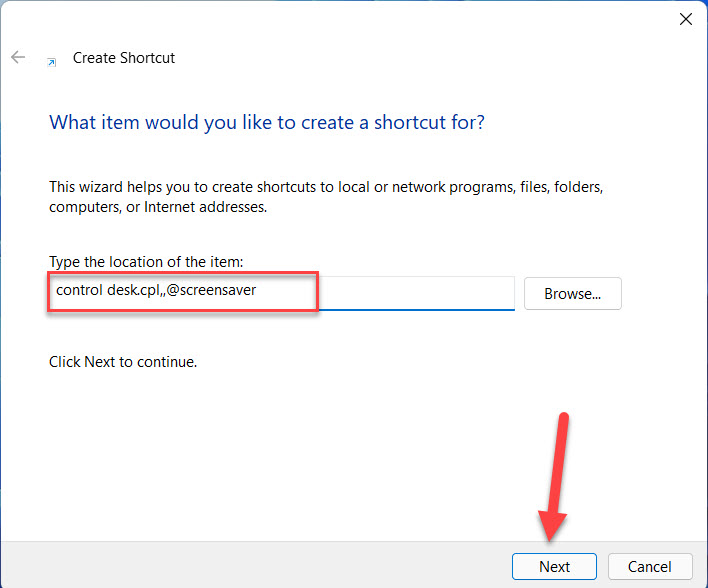 Click on the Next
 Step 3. After that type Screen Saver.
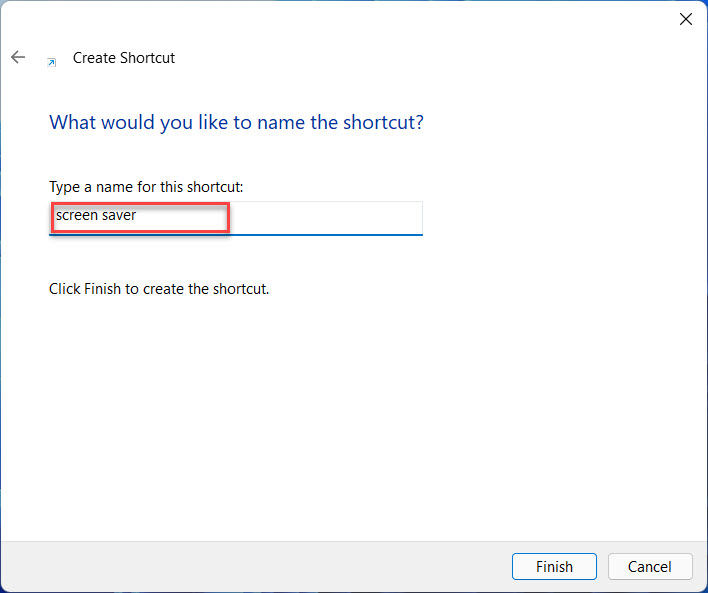 Type Screen Saver
 Step 4. At last, tap on the Finish.
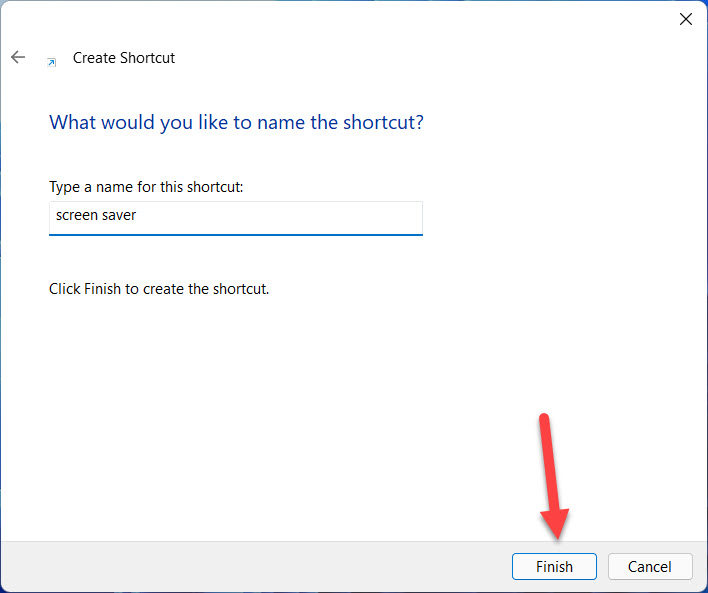 Tap on the Finish
 Related Post: How to Type Emojis in Windows Laptop and PC
Bottom Line
It was all about How to Enable Screen Saver in Windows 11? I hope this article is very helpful for you to enable the screen saver. From this article, you will get something good. This is the right place where you can easily solve your problem. After following these steps I hope you will not face any kind of problem. If you faced any kind of problem and if you have any type of suggestions then do comment.
Share This Article
In this article, you will learn How to Enable Screen Saver in Windows 11? When you have a PC then this screen saver is not enabled. This feature is disabled by default from the settings. However, once you enable this feature then when you leave your PC than on the screen of your PC it shows a display. Moreover, when you try to enable the screen saver then you don’t know the way that you can enable the screen saver. But don’t worry I am here to solve your problem. If you want to enable the screen saver then you need to read this article. So, without wasting any time let’s get has started.
Related Post: How to Install Android 12 on PC for free
How to Enable Screen Saver in Windows 11?
Step 1. First of all, you need to open the Start menu then go to the search bar after that type Change Screen Saver and press the Enter to open it.
Step 2. When the screen saver is open after in the section of screen saver tap on the drop-down to open the list and select any of them.
Step 3. Once you select more the drop-menu after that click on the Settings to customize it.
Click on the Settings Step 4. Now, if you want to change the waiting screen then under the section of the screen saver simply click on the up and down arrow to change the waiting screen.
Step 5. Finally, click on the Apply at the bottom right corner and tap on the Ok.
Click on the Apply Change Screen Saver Settings Shortcut on Windows 11
Step 1. At first, on your desktop screen, you need to right-click then click on the New after that select Shortcut.
Select Shortcut Step 2. When you click on the shortcut then it will get you in the field of location simply copy and paste the code down below:
control desk.cpl,,@screensaver
then click on the Next to continue the process.
Click on the Next Step 3. After that type Screen Saver.
Type Screen Saver Step 4. At last, tap on the Finish.
Tap on the Finish Related Post: How to Type Emojis in Windows Laptop and PC
Bottom Line
It was all about How to Enable Screen Saver in Windows 11? I hope this article is very helpful for you to enable the screen saver. From this article, you will get something good. This is the right place where you can easily solve your problem. After following these steps I hope you will not face any kind of problem. If you faced any kind of problem and if you have any type of suggestions then do comment.


