

How to Turn Off Siri in iOS on iPhone
 Azaz Shaikh
Siri is like a google assistant. With the help of Siri, you can control your phone. You can talk with them when you ask questions from Siri it gives you an answer to your question. Siri launched on Oct. 4, 2011. Siri is a voice assistant that gives you information about anything and you can call your friend and family members with the help of Siri you can directly call them. In iPhone has a great feature and that is Siri. However, Siri helps you anywhere. Moreover, Siri calls anyone, set alarm, set reminders, and much more thing. So if you want to disable Siri then this article is a guide to turn off them. Some more reason to turn it off. From this article, you will learn How to Turn Off Siri in iOS on the iPhone.
iPhone launched on June 29, 2007. Basically, Steve Jobs launched his first iPhone in San Francisco the launched then the iPhone famous all over the world. However, the iPhone is the first that has a touch screen after that the people get ideas from the iPhone then they launched a touch screen phone. When they launched the first iPhone then in 5 months they sell 13 million phones. Then 2010 they sell 17 million then they made a record of selling phones. In the iPhone app store 3.2 million apps have available and some of free and some the paid apps. in all over the world people mostly download the apple app. iPhone is a smartphone that uses as a computer because it involved the computer’s features in the iPhone.
How to Turn Siri Off in iOS on iPhone
Step 1. At first, open your Setting.
Step 2. Further, then click on your iCloud account.
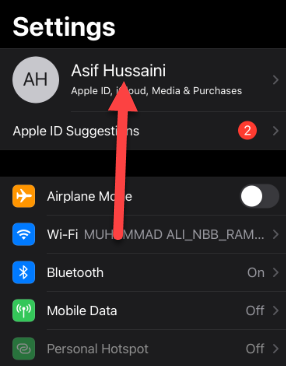 Click on your iCloud Account
Step 3. However, click on the iCloud.
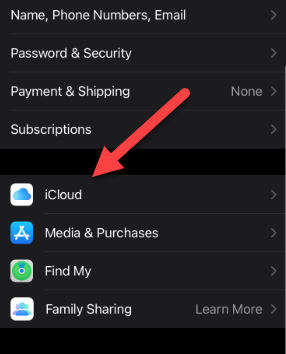 Click on the iCloud
Step 4. Moreover, find the Siri then turn off them.
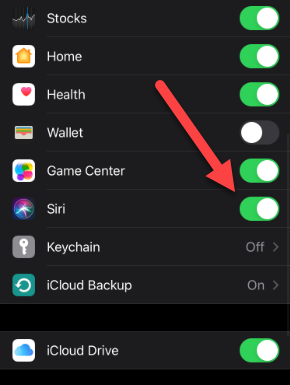 Find Siri the Turn Off Them
If you want to turn on them go to setting, iCloud name, iCloud, turn on.
Related Guide:
How to Hide Online Status on Instagram
How to change Your Account Picture in Windows 10
Bottom Line
It was all about How to Turn Off Siri on iOS on the iPhone. If you want to turn Siri off then read this article. I hope after reading his article you get something about Siri. So, if you are facing any kind of problem or any suggestion then you will give your suggestion in the comment box down below.
Share This Article
Siri is like a google assistant. With the help of Siri, you can control your phone. You can talk with them when you ask questions from Siri it gives you an answer to your question. Siri launched on Oct. 4, 2011. Siri is a voice assistant that gives you information about anything and you can call your friend and family members with the help of Siri you can directly call them. In iPhone has a great feature and that is Siri. However, Siri helps you anywhere. Moreover, Siri calls anyone, set alarm, set reminders, and much more thing. So if you want to disable Siri then this article is a guide to turn off them. Some more reason to turn it off. From this article, you will learn How to Turn Off Siri in iOS on the iPhone.
iPhone launched on June 29, 2007. Basically, Steve Jobs launched his first iPhone in San Francisco the launched then the iPhone famous all over the world. However, the iPhone is the first that has a touch screen after that the people get ideas from the iPhone then they launched a touch screen phone. When they launched the first iPhone then in 5 months they sell 13 million phones. Then 2010 they sell 17 million then they made a record of selling phones. In the iPhone app store 3.2 million apps have available and some of free and some the paid apps. in all over the world people mostly download the apple app. iPhone is a smartphone that uses as a computer because it involved the computer’s features in the iPhone.
How to Turn Siri Off in iOS on iPhone
Step 1. At first, open your Setting.
Step 2. Further, then click on your iCloud account.
Click on your iCloud Account
Step 3. However, click on the iCloud.
Click on the iCloud
Step 4. Moreover, find the Siri then turn off them.
Find Siri the Turn Off Them
If you want to turn on them go to setting, iCloud name, iCloud, turn on.
Related Guide:
How to Hide Online Status on Instagram
How to change Your Account Picture in Windows 10
Bottom Line
It was all about How to Turn Off Siri on iOS on the iPhone. If you want to turn Siri off then read this article. I hope after reading his article you get something about Siri. So, if you are facing any kind of problem or any suggestion then you will give your suggestion in the comment box down below.


