

How to Transfer Music from iPhone to Mac without iTunes 2020
 Azaz Shaikh
In this article, I am going to guide you on How to Transfer Music from iPhone to Mac without iTunes. As you might know that iTunes is the main way for iOS users for transferring music or data from iPods, iPhone, iPad directly to Mac. iTunes is for Mac and as well as for Windows too so that the users should in Windows also. Most of the users are really tired of this iTunes. And they don’t want to use it anymore because it is somehow complicated for beginner users. iTunes is completely free of cost but it is pretty complicated and task difficult to understand. Many users face a really tough time while connecting their iPhone with iTunes. However, you can leave the iTunes right now and easily transfer music from iPhone to Mac.
Moreover, there are many Softwares available on the market for transferring music from iPhone to Mac. But most of the Softwares really don’t work properly at all. After much exploring, we have found software which work similarly to iTunes. There is software by the name of Anytrans which is pretty free to download it. So, you can use it on Windows 10 PC too for transferring music from iPhone to Windows the same as iTunes.
Transfer Music from iPhone to Mac without iTunes using AnyTrans
However, AnyTrans is one of the popular helpful software when we want to transfer iOS music to Windows or Mac. The main thing about AnyTrans software is that it will automatically convert the videos to iOS supported formats such as MWV, AVI, MKV.
It worths giving a try in order to test whether it helps or not. First of all, you need to download the AnyTrans on your computer and make sure to install it which is completely straightforward. Therefore, once you have successfully downloaded and installed it on your computer then you have to follow to transfer music from iPhone to Mac without iTunes.
Some Main Features of AnyTrans
- iDevice-to-iDevice Transfer
- Rebuild iTunes Library
- Complete App Transfer
- Copy Playlists and More
- Freely Add iPod Music
- Convert Video on the Fly
- Blazingly Fast Speed
How to Transfer Music from iPhone to Mac or Windows
Once you have successfully installed on your computer. After that. you need to run AnyTrans for iOS, make sure to connect your iPhone without your PC. And click on the device manager then select Music for the right side box.
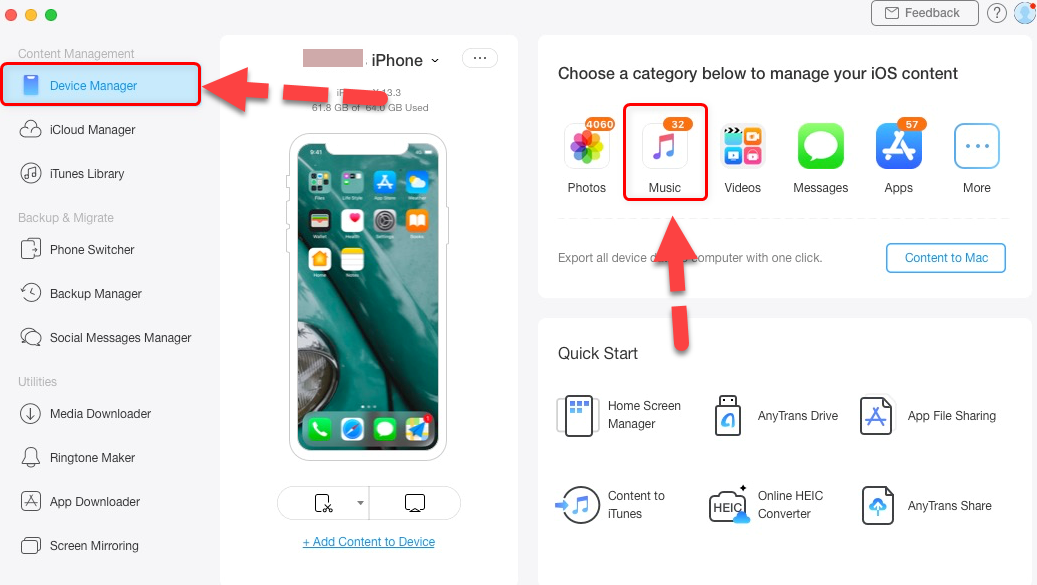 Connect you iPhone with PC
 After that, click on the Song then select any song which you want to transfer from iPhone to your Mac. And click on the Send Mac button in order to transfer it from iPhone to Mac.
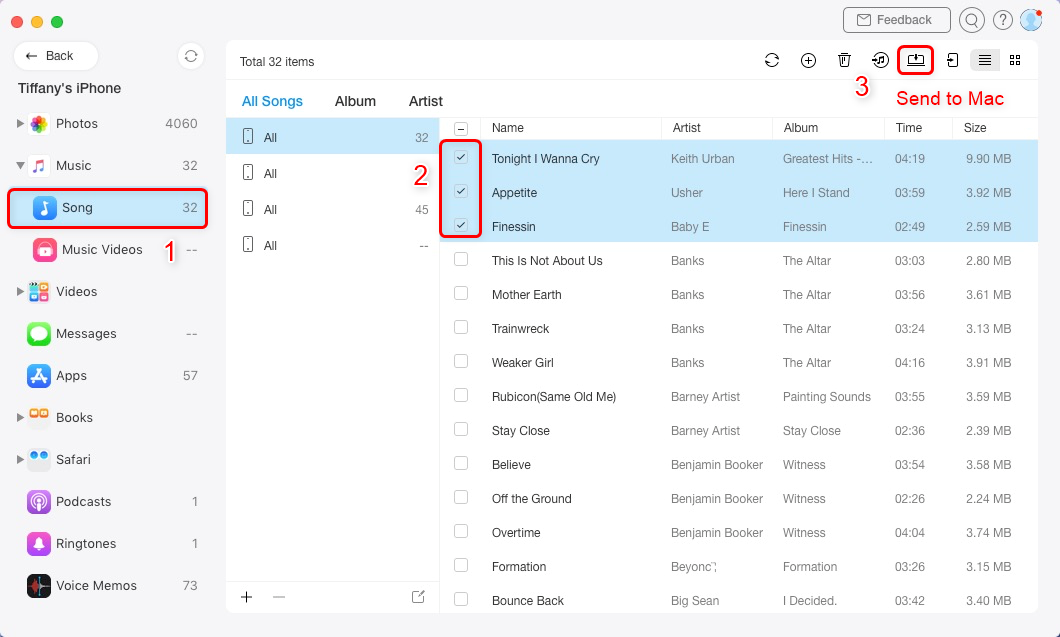 Transfer to Mac
 Then, check whether it is successfully transferred or not. You can see in the below screenshot that it is successfully transferred.
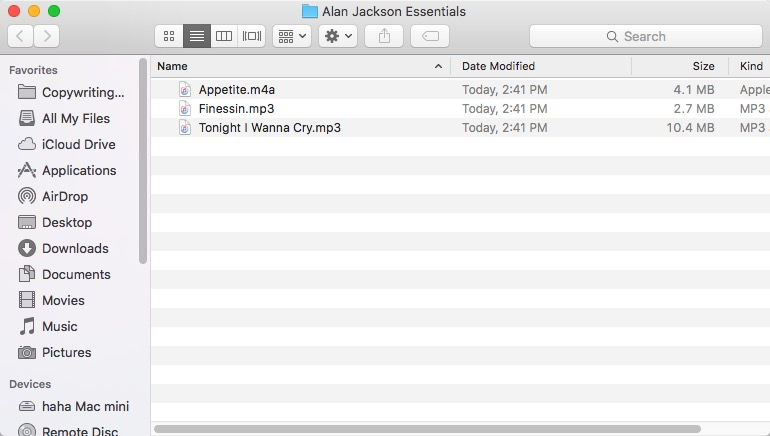 Transferred
 Related Posts:
- How to Use Two WhatsApp in one iPhone 2020 without Jailbreak.
- How to Fix iPhone/iPad Keyboard Missing or Disappeared in 2020
Bottom Line:
That’s all about How to Transfer Music from iPhone to Mac without iTunes 2020. So, it was the complete procedure of transferring music from iPhone to Mac. However, if you have any problem then don’t hesitate to comment in the comment section below.
Tagged
Share This Article
In this article, I am going to guide you on How to Transfer Music from iPhone to Mac without iTunes. As you might know that iTunes is the main way for iOS users for transferring music or data from iPods, iPhone, iPad directly to Mac. iTunes is for Mac and as well as for Windows too so that the users should in Windows also. Most of the users are really tired of this iTunes. And they don’t want to use it anymore because it is somehow complicated for beginner users. iTunes is completely free of cost but it is pretty complicated and task difficult to understand. Many users face a really tough time while connecting their iPhone with iTunes. However, you can leave the iTunes right now and easily transfer music from iPhone to Mac.
Moreover, there are many Softwares available on the market for transferring music from iPhone to Mac. But most of the Softwares really don’t work properly at all. After much exploring, we have found software which work similarly to iTunes. There is software by the name of Anytrans which is pretty free to download it. So, you can use it on Windows 10 PC too for transferring music from iPhone to Windows the same as iTunes.
Transfer Music from iPhone to Mac without iTunes using AnyTrans
However, AnyTrans is one of the popular helpful software when we want to transfer iOS music to Windows or Mac. The main thing about AnyTrans software is that it will automatically convert the videos to iOS supported formats such as MWV, AVI, MKV.
It worths giving a try in order to test whether it helps or not. First of all, you need to download the AnyTrans on your computer and make sure to install it which is completely straightforward. Therefore, once you have successfully downloaded and installed it on your computer then you have to follow to transfer music from iPhone to Mac without iTunes.
Some Main Features of AnyTrans
- iDevice-to-iDevice Transfer
- Rebuild iTunes Library
- Complete App Transfer
- Copy Playlists and More
- Freely Add iPod Music
- Convert Video on the Fly
- Blazingly Fast Speed
How to Transfer Music from iPhone to Mac or Windows
Once you have successfully installed on your computer. After that. you need to run AnyTrans for iOS, make sure to connect your iPhone without your PC. And click on the device manager then select Music for the right side box.
Connect you iPhone with PC After that, click on the Song then select any song which you want to transfer from iPhone to your Mac. And click on the Send Mac button in order to transfer it from iPhone to Mac.
Transfer to Mac Then, check whether it is successfully transferred or not. You can see in the below screenshot that it is successfully transferred.
Transferred Related Posts:
- How to Use Two WhatsApp in one iPhone 2020 without Jailbreak.
- How to Fix iPhone/iPad Keyboard Missing or Disappeared in 2020
Bottom Line:
That’s all about How to Transfer Music from iPhone to Mac without iTunes 2020. So, it was the complete procedure of transferring music from iPhone to Mac. However, if you have any problem then don’t hesitate to comment in the comment section below.


