

How to Share Instagram Posts Via QR Code in 4 Easy Steps?
 Azaz Shaikh
As QR code is for sharing URLs, and information. However, if you want to share the password of your internet then you can also make a QR code for that which that person can connect to your network. And now if you are wondering, how can I create a QR code for an internet connection then there are many apps and web pages that will easily make a QR code. And you can easily access that information which is shared by QR code just using the built-in camera of mobiles. From this article, you will learn How to Share Instagram Posts Via QR Code in 4 Easy Steps.
Instagram is on top because of introducing new features and users liked it the most. Usually, the Instagram team is trying to roll out new features. This time we are having a QR code option or feature which will help the users to share Instagram’s posts. So, as I told you earlier the QR code will provide you with information about the thing which you had created the QR code. The same in the Instagram app you can QR code for particular posts.
If you want to make a QR code for the post on Instagram then you need to follow the instruction which has given below. So, without wasting any time let’s get started.
Share a Post Via QR Code On Instagram
If we bring new features to an app or social media platform and that feature should be helpful. Like to make using that app more comfortable. Whenever that feature is used more then it will attract more users. And Instagram is doing the same and today it has many online users. Firstly, this feature had launched for the Japan version and now Instagram rolled out in the version of global on 2022 August which is a QR code.
Finally, we are having a useful feature which is a QR code. You can share reels, and posts with just one click, and that post or reel will share with them if you want. Before this feature people were sharing posts or reels of someone through direct messages, mentioning them, or via URLs. But now it will save you some time like if you have created a QR code for a post then you can share wherever you want. And the receiver just needs to scan it with the default camera of phones.
How to Share Instagram Posts Using QR Code
Before we have to start the method you don’t need to use Instagram from the browser because this feature is not available for the web version. And also update your Instagram app to the latest version otherwise you will not see this feature.
Step 1. First of all, open the Instagram app on your device.
Step 2. Once you open the Instagram app then search for that post that you want to share.
Step 3. Click on the Three Dots at the right corner of the post after that tap on the QR Code.
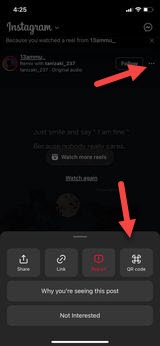 QR Code
 Step 4. Finally, a QR code will generate for that post. You can also select a color for the QR code by simply choosing a color for the QR code. Once you are done with changing the color of the QR code then click on the Save QR Code or Save to Camera Roll. Now, the QR code has been saved to the gallery for your phone, and share it with anyone that you want.
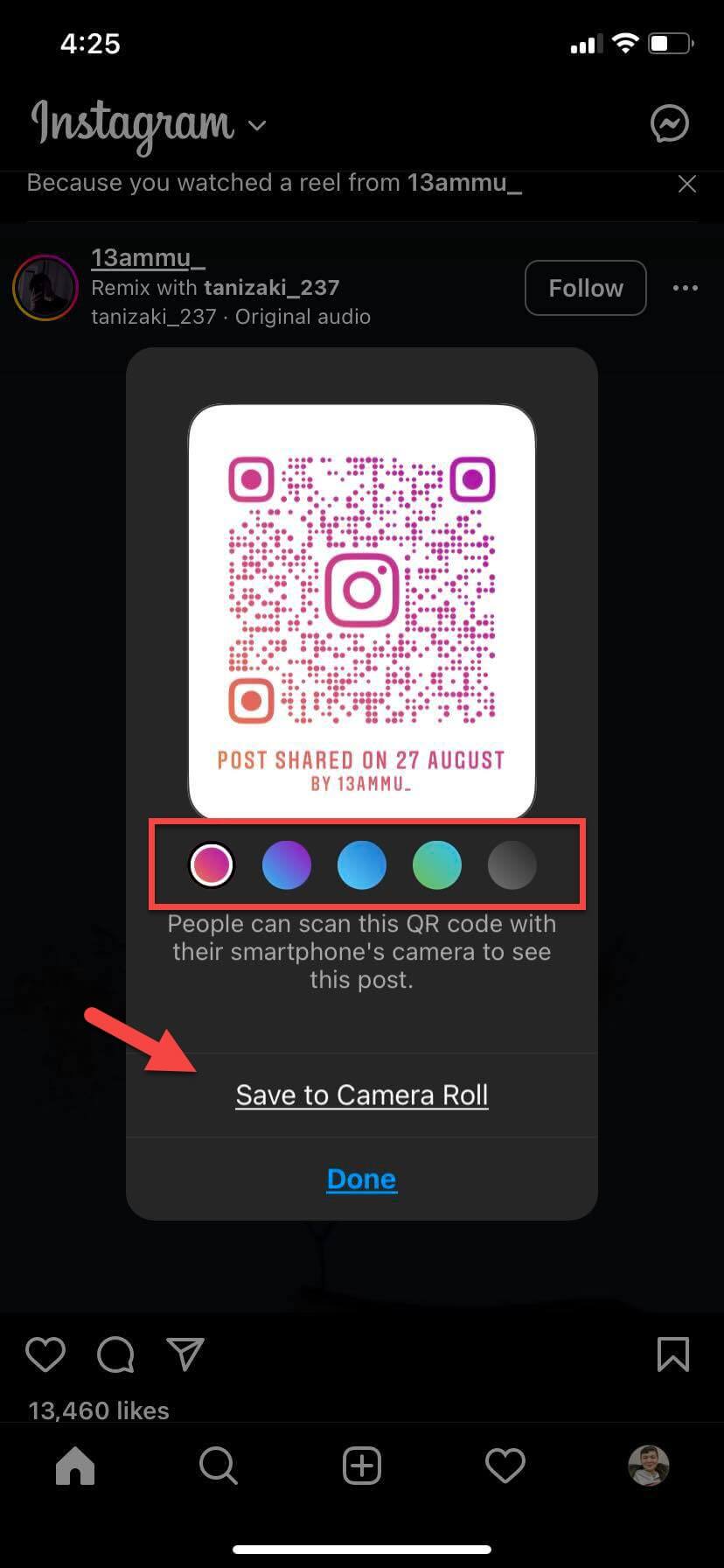 Save to Camera Roll
 Final Words
It was all about How to Share Instagram Posts Via QR Code in 4 Easy Steps. I hope this article was very helpful for you to send posts on Instagram with the help of a QR code. From this article, you will get something good. This was step by step guide that you were searching for it. Further, this is the right place where you can easily solve your problem. After following these steps I hope you will not face any kind of problem. However, If you faced any kind of problem and if you have any type of suggestion then do comment.
Explore More:
Share This Article
As QR code is for sharing URLs, and information. However, if you want to share the password of your internet then you can also make a QR code for that which that person can connect to your network. And now if you are wondering, how can I create a QR code for an internet connection then there are many apps and web pages that will easily make a QR code. And you can easily access that information which is shared by QR code just using the built-in camera of mobiles. From this article, you will learn How to Share Instagram Posts Via QR Code in 4 Easy Steps.
Instagram is on top because of introducing new features and users liked it the most. Usually, the Instagram team is trying to roll out new features. This time we are having a QR code option or feature which will help the users to share Instagram’s posts. So, as I told you earlier the QR code will provide you with information about the thing which you had created the QR code. The same in the Instagram app you can QR code for particular posts.
If you want to make a QR code for the post on Instagram then you need to follow the instruction which has given below. So, without wasting any time let’s get started.
Share a Post Via QR Code On Instagram
If we bring new features to an app or social media platform and that feature should be helpful. Like to make using that app more comfortable. Whenever that feature is used more then it will attract more users. And Instagram is doing the same and today it has many online users. Firstly, this feature had launched for the Japan version and now Instagram rolled out in the version of global on 2022 August which is a QR code.
Finally, we are having a useful feature which is a QR code. You can share reels, and posts with just one click, and that post or reel will share with them if you want. Before this feature people were sharing posts or reels of someone through direct messages, mentioning them, or via URLs. But now it will save you some time like if you have created a QR code for a post then you can share wherever you want. And the receiver just needs to scan it with the default camera of phones.
How to Share Instagram Posts Using QR Code
Before we have to start the method you don’t need to use Instagram from the browser because this feature is not available for the web version. And also update your Instagram app to the latest version otherwise you will not see this feature.
Step 1. First of all, open the Instagram app on your device.
Step 2. Once you open the Instagram app then search for that post that you want to share.
Step 3. Click on the Three Dots at the right corner of the post after that tap on the QR Code.
QR Code Step 4. Finally, a QR code will generate for that post. You can also select a color for the QR code by simply choosing a color for the QR code. Once you are done with changing the color of the QR code then click on the Save QR Code or Save to Camera Roll. Now, the QR code has been saved to the gallery for your phone, and share it with anyone that you want.
Save to Camera Roll Final Words
It was all about How to Share Instagram Posts Via QR Code in 4 Easy Steps. I hope this article was very helpful for you to send posts on Instagram with the help of a QR code. From this article, you will get something good. This was step by step guide that you were searching for it. Further, this is the right place where you can easily solve your problem. After following these steps I hope you will not face any kind of problem. However, If you faced any kind of problem and if you have any type of suggestion then do comment.
Explore More:


