

How to Scan Documents on iPhone without Third-party Apps
 Azaz Shaikh
When sometimes you want to print the document then, first of all, you want to scan it. When you try to scan the document then you don’t know to scan the documents. When you try to find a third-party app to scan the document after that the most of the apps are fake scan the document. And when you search on YouTube to find the way that you can scan the document then those are you watch might be fake. But I will find a way to scan the document without any third-party software. If you want to scan a document then you need to read this article. So, without wasting any time let’s get has started. From this article, you will learn How to Scan Documents on iPhone without Third-party Apps.
Related Post: How to Enable Picture-in-Picture Mode on Android Phone
How to Scan Documents on iPhone without Third-party Apps
Step 1. At first, open the note on your device.
Step 2. Once the notes are open successfully then create the new note then click on the Three Dots at the top right corner.
 Click on the Three Dots
 Step 3. Now, select the Scan from the options.
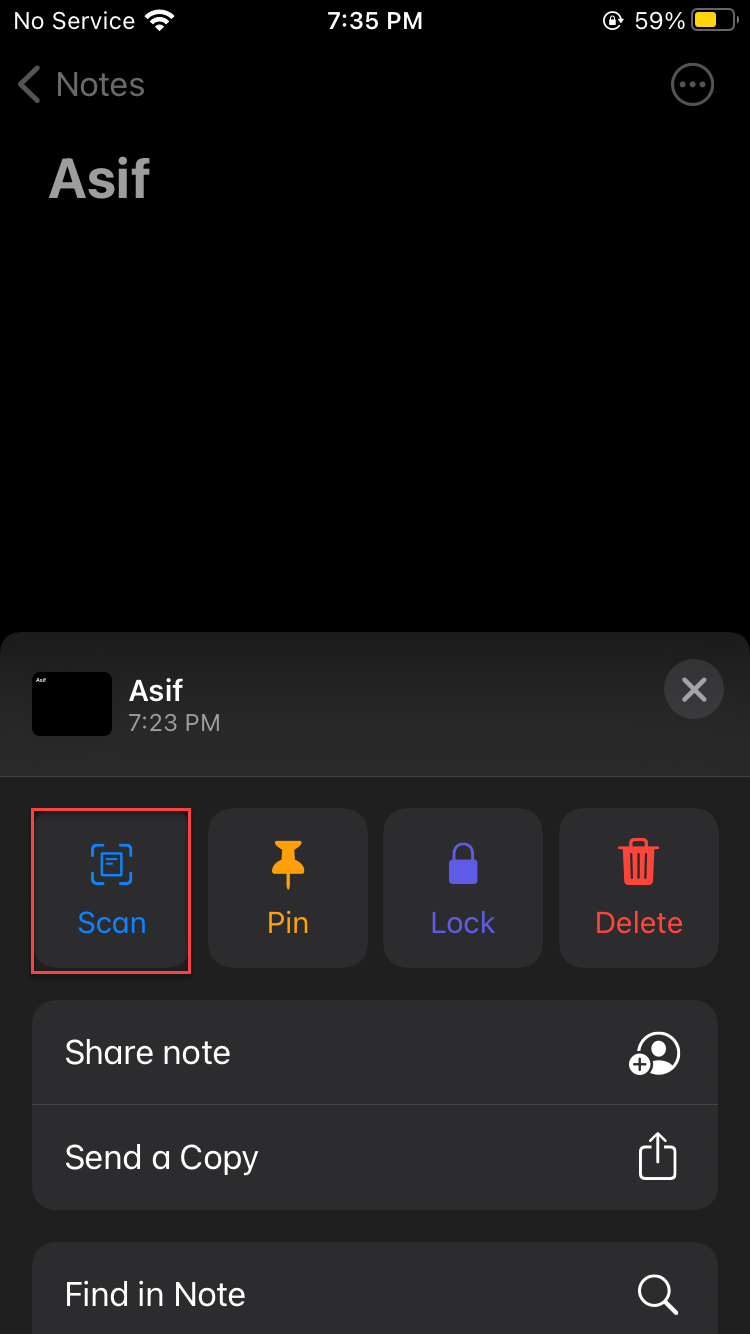 Select Scan
 Step 4. Next, adjust the camera that you want to scan, once you adjust then click on the Circle Shape.
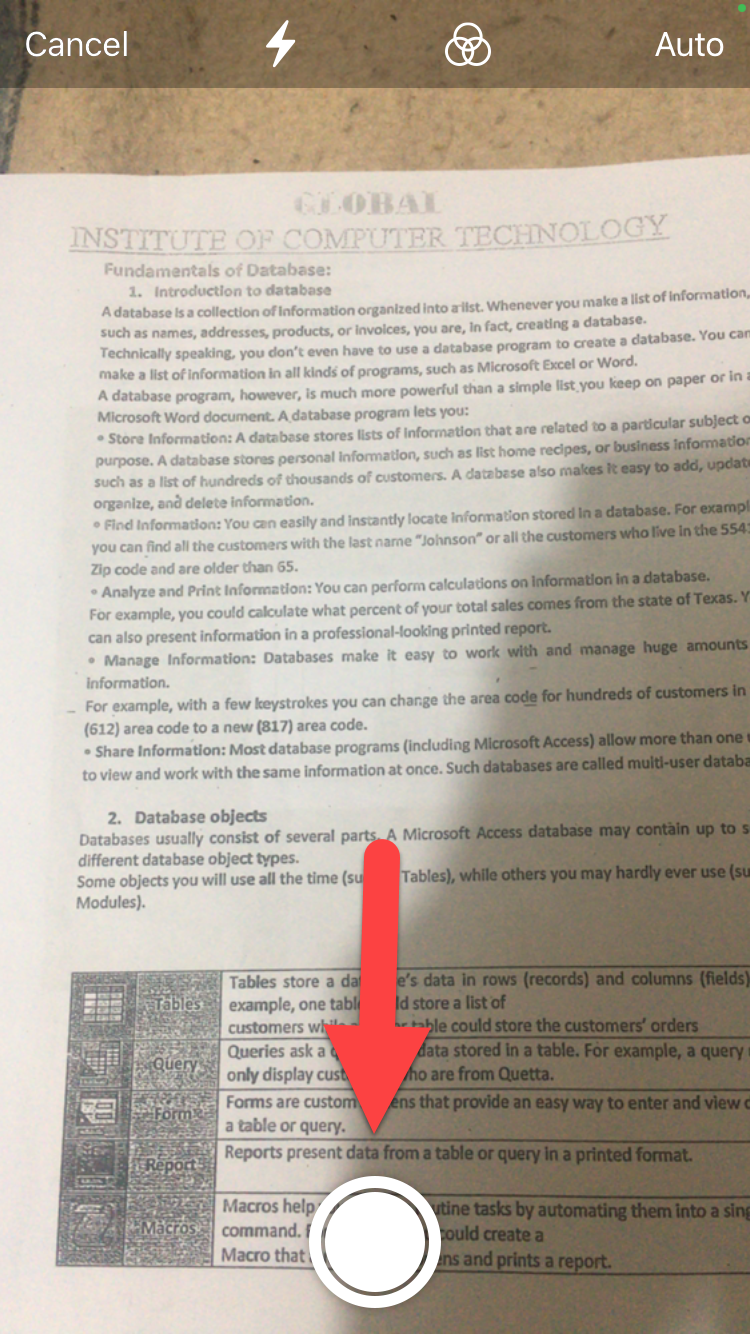 Click on the Circle Shapes
 Step 5. When you take the picture for a scan then. open the picture after that click on the Keep Scan at the bottom right corner.
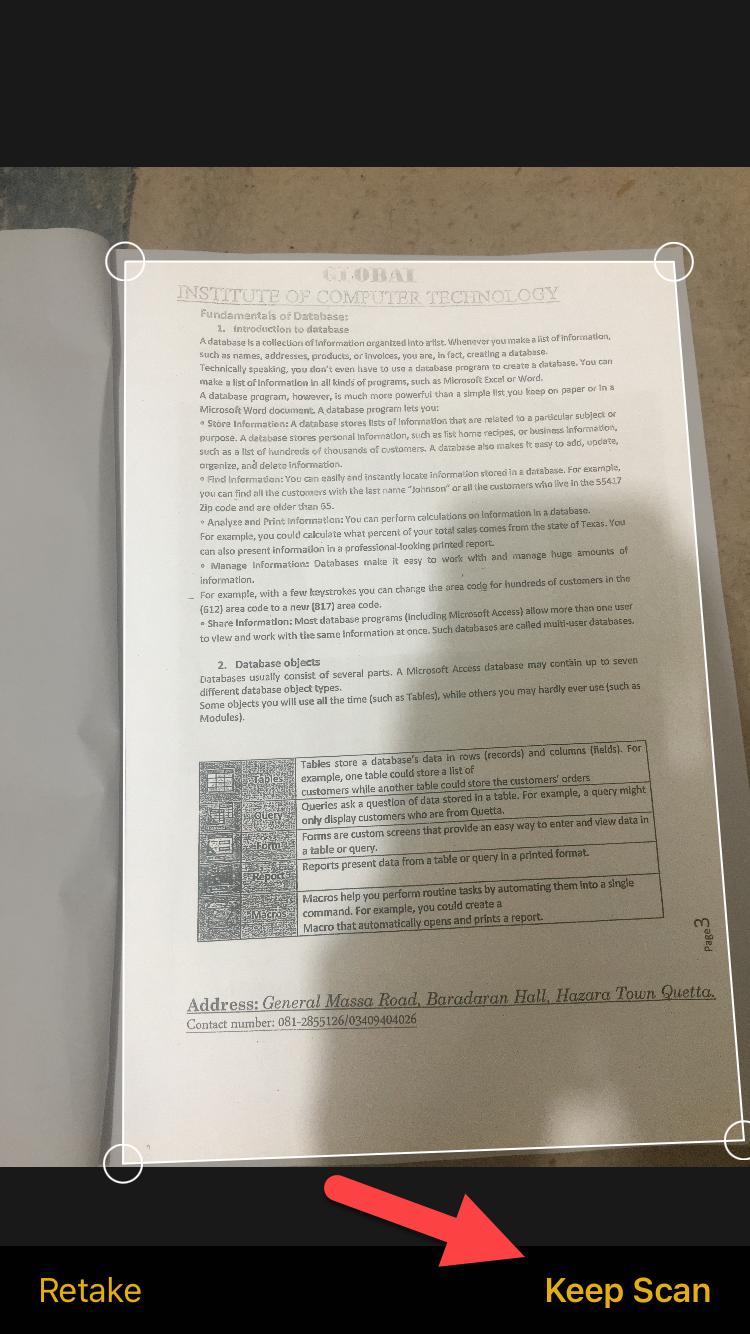 Click on the Keep Scan
 Step 6. At last, click on the Save to save the scan picture on your notes.
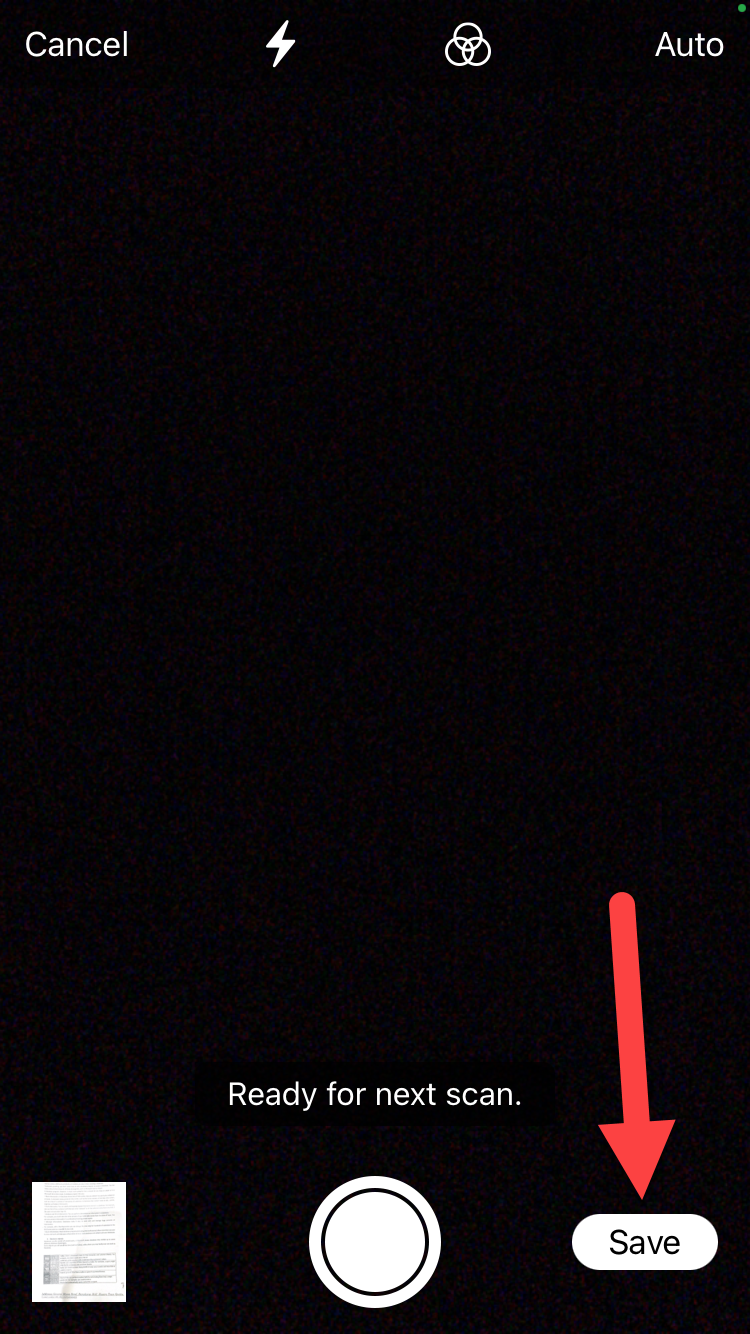 Click on the Save
 When you click on the save then you will successfully scan the document. Once the steps will not work then you need to follow the steps above.
Using Note
If the above steps will not work then follow these steps. This method is very easy and simple you don’t need any third-party app.
Step 1. On your phone hold on the Notes then you need to click on the Scan Document.
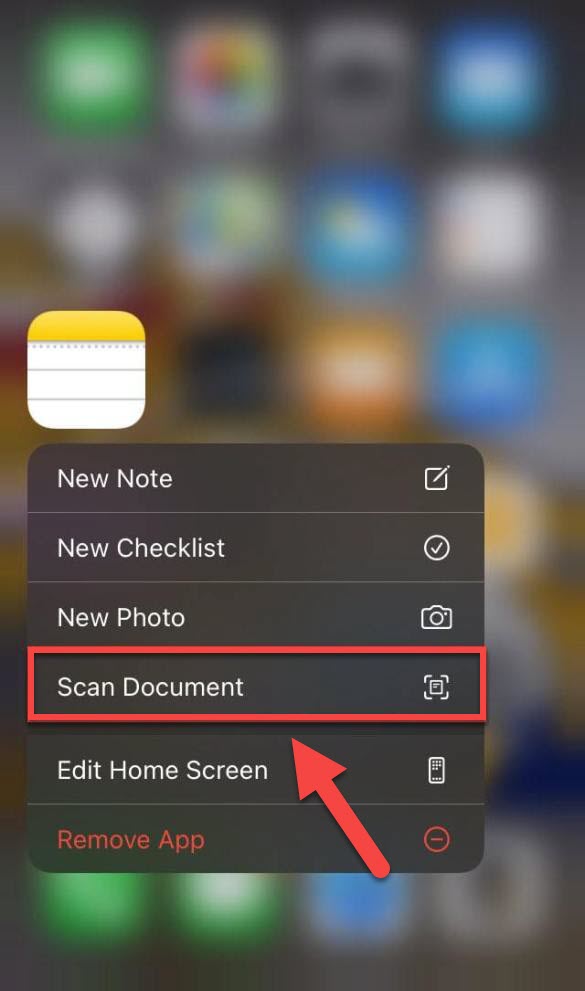 Click on the Scan Document
 Step 2. Here adjust the camera to scan the document, once you adjust then simply click on the Circle Shape.
Click on the Circle Shapes Step 3. When you scan the document then click on the Save.
Click on the Save Related Searches
- How to Scan Document Using Notes
- Scan Document Without PC
- Scan Document on iPhone
- How to Scan Document on iPad
- Scan Document on iOS 14
- How to Scan Document Without Third-Party App
Related Post: How to Enable Two Factor Authentication on WordPress
Bottom Line
It was all about How to Scan Documents on iPhone without Third-party Apps. I hope this article is very helpful for you to scan the document. From this article, you will get something good. After following these steps you will not face any kind of problem. So, if you are facing any kind of problem then don’t hesitate to leave comments in the comment section down below.
Related Post: 8 Best Operating Systems for Laptops and Computers in 2021
Tagged
Share This Article
When sometimes you want to print the document then, first of all, you want to scan it. When you try to scan the document then you don’t know to scan the documents. When you try to find a third-party app to scan the document after that the most of the apps are fake scan the document. And when you search on YouTube to find the way that you can scan the document then those are you watch might be fake. But I will find a way to scan the document without any third-party software. If you want to scan a document then you need to read this article. So, without wasting any time let’s get has started. From this article, you will learn How to Scan Documents on iPhone without Third-party Apps.
Related Post: How to Enable Picture-in-Picture Mode on Android Phone
How to Scan Documents on iPhone without Third-party Apps
Step 1. At first, open the note on your device.
Step 2. Once the notes are open successfully then create the new note then click on the Three Dots at the top right corner.
Click on the Three Dots Step 3. Now, select the Scan from the options.
Select Scan Step 4. Next, adjust the camera that you want to scan, once you adjust then click on the Circle Shape.
Click on the Circle Shapes Step 5. When you take the picture for a scan then. open the picture after that click on the Keep Scan at the bottom right corner.
Click on the Keep Scan Step 6. At last, click on the Save to save the scan picture on your notes.
Click on the Save When you click on the save then you will successfully scan the document. Once the steps will not work then you need to follow the steps above.
Using Note
If the above steps will not work then follow these steps. This method is very easy and simple you don’t need any third-party app.
Step 1. On your phone hold on the Notes then you need to click on the Scan Document.
Click on the Scan Document Step 2. Here adjust the camera to scan the document, once you adjust then simply click on the Circle Shape.
Click on the Circle Shapes Step 3. When you scan the document then click on the Save.
Click on the Save Related Searches
- How to Scan Document Using Notes
- Scan Document Without PC
- Scan Document on iPhone
- How to Scan Document on iPad
- Scan Document on iOS 14
- How to Scan Document Without Third-Party App
Related Post: How to Enable Two Factor Authentication on WordPress
Bottom Line
It was all about How to Scan Documents on iPhone without Third-party Apps. I hope this article is very helpful for you to scan the document. From this article, you will get something good. After following these steps you will not face any kind of problem. So, if you are facing any kind of problem then don’t hesitate to leave comments in the comment section down below.
Related Post: 8 Best Operating Systems for Laptops and Computers in 2021


