

How to Reset macOS Monterey Forgotten Password?
 Azaz Shaikh
In this article, I am going to show you How to Reset macOS Monterey Forgotten Password. Forgetting passwords is a common thing nowadays. If you change your Mac password per day for security reasons then you will surely forget that. However, you can easily reset the password on any platform because they have many options and ways to reset your password.
If you are using macOS Monterey for the first time and you have forgotten the password then this guide is really helpful for you. macOS Monterey’s setting is really changed than the older operating systems that’s why most of the people don’t know the accurate way to reset.
Method 1: Reset macOS Monterey Forgotten Password using Terminal
Step 1 First of all, open the System Start and launch the Mac OS X Bootloader after that hold Option.
Step 2. Now, here you need to select the recovery mode drive.
Step 3. At last, simply wait till the screen of Utilities of not shown to you.
Step 4. In the Utilities, you need to click on the Terminal.
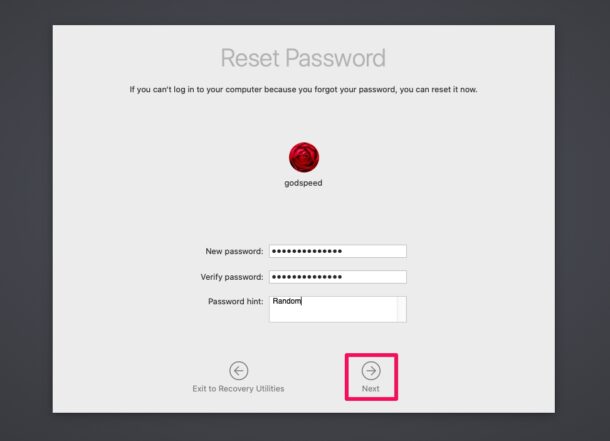
Step 5. In this step type Reset Password.
Step 6. At last, Confirm the new password and reboot your mac.
Method 2: Reset macOS Monterey Forgotten Password by Resetting
Step 1. At first, you need to Restart your PC while restarting your PC then fastly press Command + R from the keyboard of your Mac after that choose the Option.
Step 2. Now, hold the keys until you could not see the macOS Utility.
Step 3. Next, tap on the Disk Utility.
Step 4. When the disk utility is open then at the left side of your screen tap on the Erase after that once the drive is erased and comes back to the section of macOS Utility.
Step 5. And here you will see one more option and that is Install macOS the option will help you to download a copy of macOS.
Step 6. However, when the file is successfully downloaded then the process will start automatically and choose the drive of mac to install a new copy of macOS.
Step 7. Finally, you can use the new mac.
Method 3: Reset macOS Monterey Forgotten Password
Step 1. First, turn on your mac to the login screen after that type the wrong password until the hint password is not come then click on the Arrow.
Step 2. Here, enter your apple id with a correct password that you can use your apple id to access your iCloud and app store.
Step 3. Then the message will popup simply you need to tap on the Ok.
Step 4. Next, tap on the Forgot All Password.
Step 5. Now, if you have two accounts then you will see two same options Set Password you need to tap on both of the options one by one and enter a new password.
Step 6. Click on the Next at the bottom of your screen.
Step 7. At last, tap on the Restart.
Finally, set up your mac and you won’t lose any of your data inside your mac.
Bottom Line
It was all about How to Reset macOS Monterey Forgotten Password? I hope this article is very helpful for you to reset your macOS forgotten password. From this article, you will get something good. This is the right place where you can easily solve your problem. So, after following these steps I hope you will not face any kind of problem. If you faced any kind of problem and if you have any type of suggestions then do comment.
Explore more:
Tagged
Share This Article
In this article, I am going to show you How to Reset macOS Monterey Forgotten Password. Forgetting passwords is a common thing nowadays. If you change your Mac password per day for security reasons then you will surely forget that. However, you can easily reset the password on any platform because they have many options and ways to reset your password.
If you are using macOS Monterey for the first time and you have forgotten the password then this guide is really helpful for you. macOS Monterey’s setting is really changed than the older operating systems that’s why most of the people don’t know the accurate way to reset.
Method 1: Reset macOS Monterey Forgotten Password using Terminal
Step 1 First of all, open the System Start and launch the Mac OS X Bootloader after that hold Option.
Step 2. Now, here you need to select the recovery mode drive.
Step 3. At last, simply wait till the screen of Utilities of not shown to you.
Step 4. In the Utilities, you need to click on the Terminal.
Step 5. In this step type Reset Password.
Step 6. At last, Confirm the new password and reboot your mac.
Method 2: Reset macOS Monterey Forgotten Password by Resetting
Step 1. At first, you need to Restart your PC while restarting your PC then fastly press Command + R from the keyboard of your Mac after that choose the Option.
Step 2. Now, hold the keys until you could not see the macOS Utility.
Step 3. Next, tap on the Disk Utility.
Step 4. When the disk utility is open then at the left side of your screen tap on the Erase after that once the drive is erased and comes back to the section of macOS Utility.
Step 5. And here you will see one more option and that is Install macOS the option will help you to download a copy of macOS.
Step 6. However, when the file is successfully downloaded then the process will start automatically and choose the drive of mac to install a new copy of macOS.
Step 7. Finally, you can use the new mac.
Method 3: Reset macOS Monterey Forgotten Password
Step 1. First, turn on your mac to the login screen after that type the wrong password until the hint password is not come then click on the Arrow.
Step 2. Here, enter your apple id with a correct password that you can use your apple id to access your iCloud and app store.
Step 3. Then the message will popup simply you need to tap on the Ok.
Step 4. Next, tap on the Forgot All Password.
Step 5. Now, if you have two accounts then you will see two same options Set Password you need to tap on both of the options one by one and enter a new password.
Step 6. Click on the Next at the bottom of your screen.
Step 7. At last, tap on the Restart.
Finally, set up your mac and you won’t lose any of your data inside your mac.
Bottom Line
It was all about How to Reset macOS Monterey Forgotten Password? I hope this article is very helpful for you to reset your macOS forgotten password. From this article, you will get something good. This is the right place where you can easily solve your problem. So, after following these steps I hope you will not face any kind of problem. If you faced any kind of problem and if you have any type of suggestions then do comment.
Explore more:


