

How to Reset CentOS Root Password?
 Azaz Shaikh
In order to keep any device private or safe from strangers then we need to password protect the device. A strong password will be better and difficult to be predicted by someone. I usually add a strong password to my laptop so that no one should think to get access. But remembering a strong password is really difficult because one day we might forget that. At that time, we have to reset the password which will be pretty time-consuming. Whenever I password protects my gadget or social media accounts, I try to note them down on a notebook so that I should not forget that. Therefore, in this article, I will show you how to reset CentOS root password.
Most of the time, it happens that we may forget the password. If you forget the password of your CentOS, then don’t worry because there is a simple solution. It happens when you don’t log in as a root user for a long time. I have also installed CentOS on a virtual machine but now I forgot the root password, I researched and found out an easy procedure to reset CentOS’s lost password. I have tried many times and it worked very well, you can also try the below procedure to Reset CentOS Root Password.
How to Reset CentOS Root Password
Step 1. At first, make sure to reboot your CentOS system, on the boot page, you need to select CentOS Linux 7 or 8 and press E to edit the selected option.
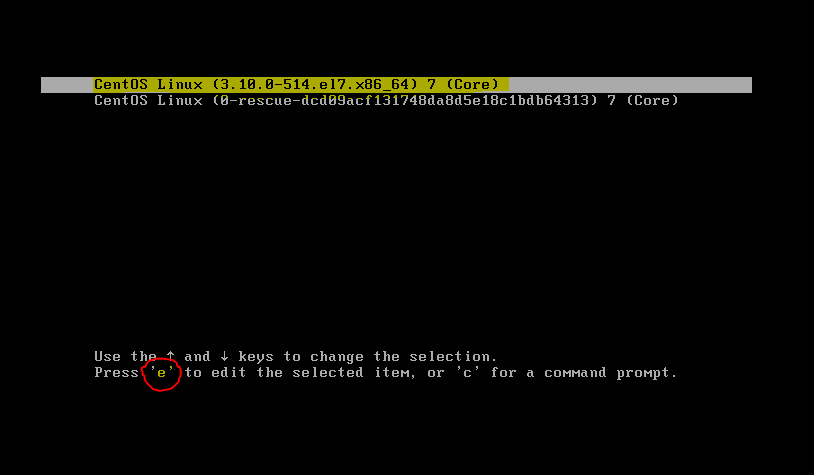 CentOS 7 or 8
 Step 2. Now, scroll down until you find the underlined below ro. You have to delete the selected yellow code and replace it with the next screenshot code.
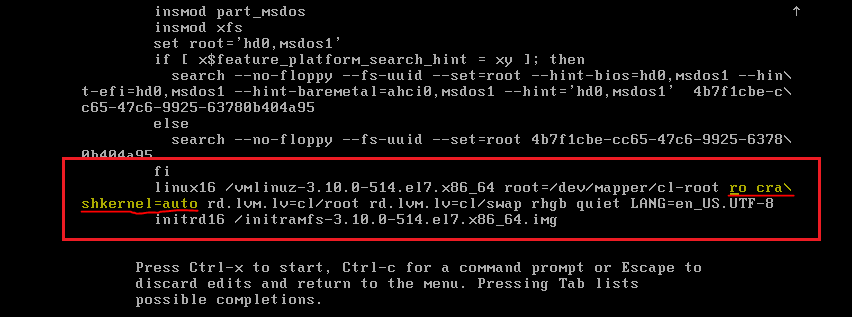 Bring Changes
 Step 3. Here you have to change the ro into rw to start into a bash shell. It should look like rw init=/sysroot/bin/sh.
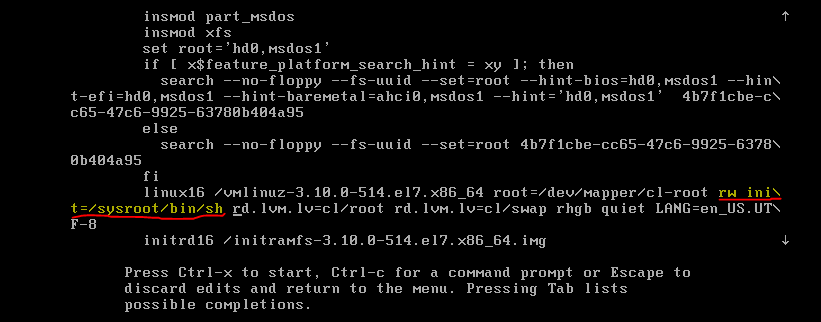 Change the command
 Step 4. When you did that, just press ctrl + X from your keyboard in order to start single-user mode using the bash shell.
 Reset CentOS Root Password Now
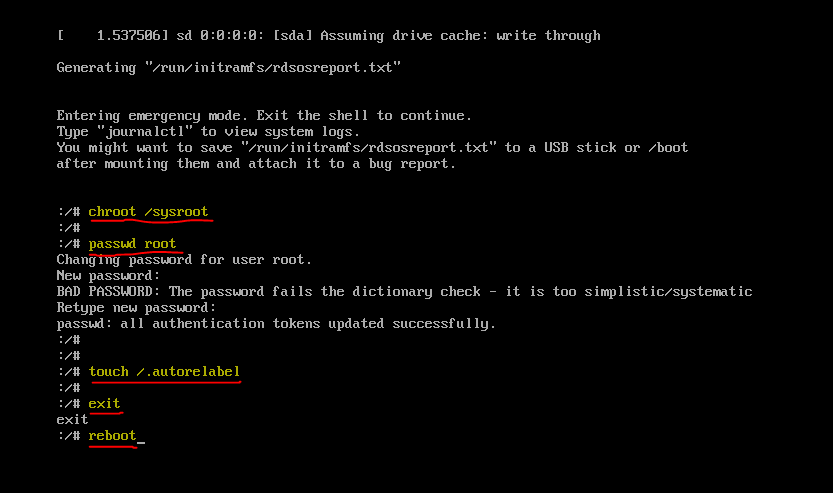
 Step 5. At last, type chroot /sysroot command and press enter. Then type password root in order to change the root password. Type your new password two times and you are done with your password of CentOS.
Step 6. Finally, after changing the root password, type touch /.autorelabel to update SELinux parameter. When you have done everything, exit and reboot the system.
Bottom Line
It was step by step guide on How to Reset CentOS Root Password. Whenever you forget the password of the CentOS system, you can follow up the above method. Therefore, I hope you found this article helpful. If you faced any kind of problem while resetting CentOS forgotten password, then you comment down below.
Explore more:
Tagged
Share This Article
In order to keep any device private or safe from strangers then we need to password protect the device. A strong password will be better and difficult to be predicted by someone. I usually add a strong password to my laptop so that no one should think to get access. But remembering a strong password is really difficult because one day we might forget that. At that time, we have to reset the password which will be pretty time-consuming. Whenever I password protects my gadget or social media accounts, I try to note them down on a notebook so that I should not forget that. Therefore, in this article, I will show you how to reset CentOS root password.
Most of the time, it happens that we may forget the password. If you forget the password of your CentOS, then don’t worry because there is a simple solution. It happens when you don’t log in as a root user for a long time. I have also installed CentOS on a virtual machine but now I forgot the root password, I researched and found out an easy procedure to reset CentOS’s lost password. I have tried many times and it worked very well, you can also try the below procedure to Reset CentOS Root Password.
How to Reset CentOS Root Password
Step 1. At first, make sure to reboot your CentOS system, on the boot page, you need to select CentOS Linux 7 or 8 and press E to edit the selected option.
CentOS 7 or 8 Step 2. Now, scroll down until you find the underlined below ro. You have to delete the selected yellow code and replace it with the next screenshot code.
Bring Changes Step 3. Here you have to change the ro into rw to start into a bash shell. It should look like rw init=/sysroot/bin/sh.
Change the command Step 4. When you did that, just press ctrl + X from your keyboard in order to start single-user mode using the bash shell.
Reset CentOS Root Password Now Step 5. At last, type chroot /sysroot command and press enter. Then type password root in order to change the root password. Type your new password two times and you are done with your password of CentOS.
Step 6. Finally, after changing the root password, type touch /.autorelabel to update SELinux parameter. When you have done everything, exit and reboot the system.
Bottom Line
It was step by step guide on How to Reset CentOS Root Password. Whenever you forget the password of the CentOS system, you can follow up the above method. Therefore, I hope you found this article helpful. If you faced any kind of problem while resetting CentOS forgotten password, then you comment down below.
Explore more:


