

How to Remove Internet Explorer on Windows 10 Permanently
 Azaz Shaikh
Internet Explorer is a search engine and famous web browsers. Basically, As you know most people use internet explorer. The developers of internet explorer are Microsoft corporation and the programming language is C++. Moreover, internet explorer has launched on August 16, 1995. The original author is Thomas Reardon. This internet explorer 11 is the eleventh and final version of the internet explorer web browsers by Microsoft corporation. When you on your computer and you are using windows so with windows you will use internet explorer. Internet Explorer is slow to load a page after that google chrome is release and it’s very fast to load a page. So, when you have internet explorer you will face problems while using internet explorer. And many some reason to remove internet explorer. From this tutorial, you will learn How to Remove Internet Explorer on Windows 10 Permanently.
Method 1: How to Disable Internet Explorer From Windows 10 Using Control Panel
Step 1. At first, open your Control Panel.
Step 2. However, click on the Programs and Features.
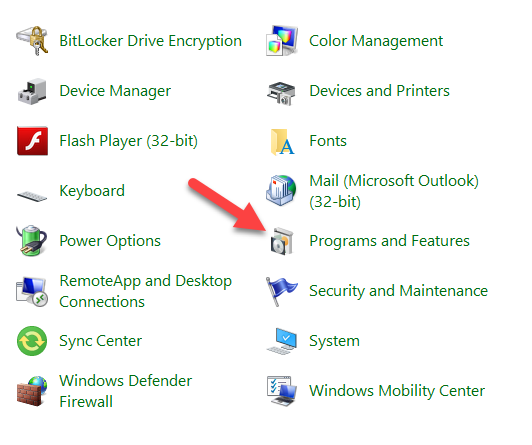 Click on the Program and Features
Step 3. Moreover, click on the Turn Windows Features on or off from the top left side.
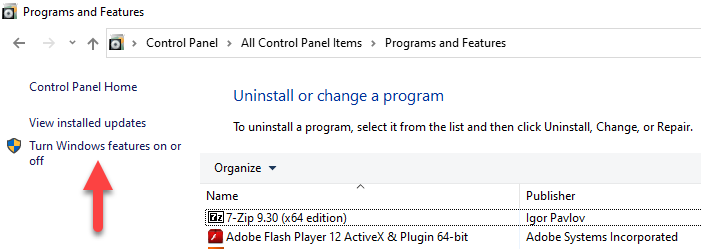 Click on the Turn Windows Features on or off
Step 4. Next, From the list you need to find Internet Explorer 11 then uncheck the box after that click on the OK.
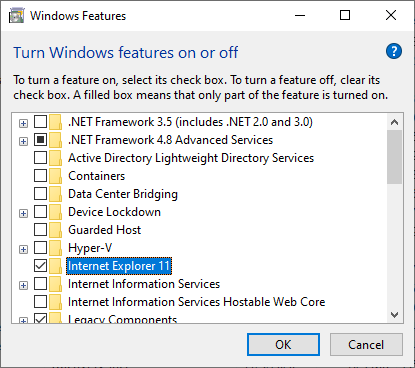 Uncheck the Box
Step 5. Basically, click on the OK.
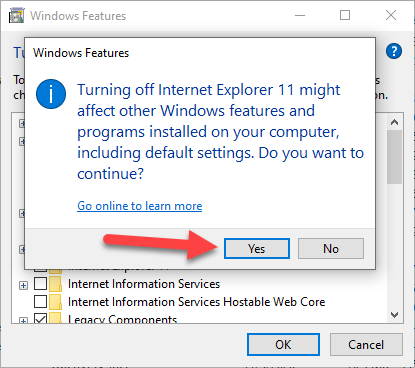 Click on the OK
Once the above-mentioned steps have been completed, Internet Explorer 11 will be removed from your computer. In the Start menu, searching for the Internet Explorer will highlight Microsoft Edge and the Open with Internet Explorer option will be available on the main menu but it will not work.
Method 2: How to Permanently Remove Internet Explorer From Windows 10 using Setting
Step 1. First of all, you need to open Setting.
Step 2. Moreover, click on the Apps.
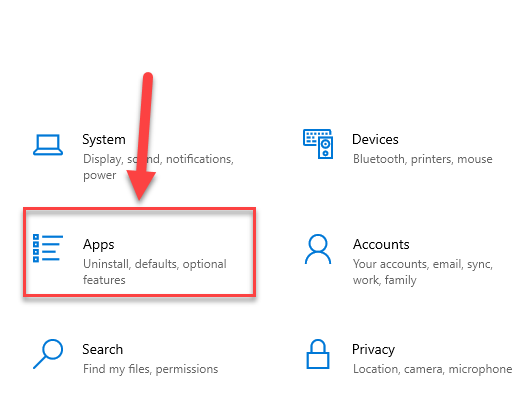 Click on the Apps
Step 3. However, click on the Optional Features under the Apps & Features.
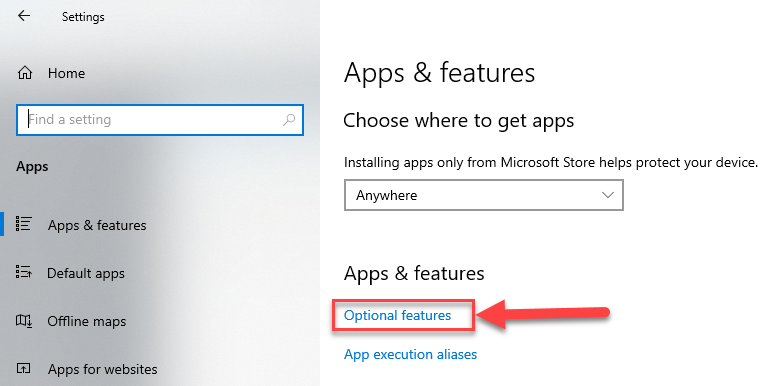 Click on the Optional Features Under the Apps & Features.
Step 4. Next, from here you need to find Internet Explorer 11 click on it and click on the Uninstall.
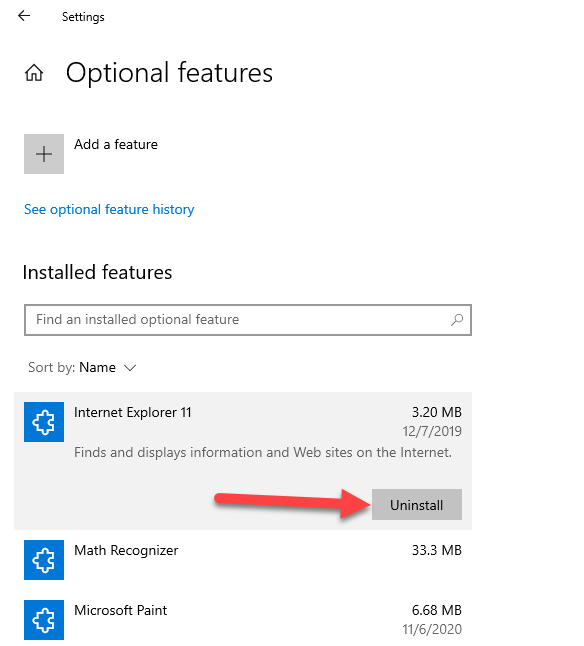 Click on the Uninstall
By following these steps you will remove internet explorer 11 successfully.
Related Guide:
How to Change Your Display Name on Gmail
How to Disable Cortana Windows 10 Permanently
Bottom Line
It was all about How to Remove Internet Explorer on Windows 10 Permanently. This article is helpful for you to remove internet explorer 11 without facing any kind of problem. I hope after reading this article you will learn something about internet explorer. So, if you are facing a problem so leave a comment in the comment section down below.
Share This Article
Internet Explorer is a search engine and famous web browsers. Basically, As you know most people use internet explorer. The developers of internet explorer are Microsoft corporation and the programming language is C++. Moreover, internet explorer has launched on August 16, 1995. The original author is Thomas Reardon. This internet explorer 11 is the eleventh and final version of the internet explorer web browsers by Microsoft corporation. When you on your computer and you are using windows so with windows you will use internet explorer. Internet Explorer is slow to load a page after that google chrome is release and it’s very fast to load a page. So, when you have internet explorer you will face problems while using internet explorer. And many some reason to remove internet explorer. From this tutorial, you will learn How to Remove Internet Explorer on Windows 10 Permanently.
Method 1: How to Disable Internet Explorer From Windows 10 Using Control Panel
Step 1. At first, open your Control Panel.
Step 2. However, click on the Programs and Features.
Click on the Program and Features
Step 3. Moreover, click on the Turn Windows Features on or off from the top left side.
Click on the Turn Windows Features on or off
Step 4. Next, From the list you need to find Internet Explorer 11 then uncheck the box after that click on the OK.
Uncheck the Box
Step 5. Basically, click on the OK.
Click on the OK
Once the above-mentioned steps have been completed, Internet Explorer 11 will be removed from your computer. In the Start menu, searching for the Internet Explorer will highlight Microsoft Edge and the Open with Internet Explorer option will be available on the main menu but it will not work.
Method 2: How to Permanently Remove Internet Explorer From Windows 10 using Setting
Step 1. First of all, you need to open Setting.
Step 2. Moreover, click on the Apps.
Click on the Apps
Step 3. However, click on the Optional Features under the Apps & Features.
Click on the Optional Features Under the Apps & Features.
Step 4. Next, from here you need to find Internet Explorer 11 click on it and click on the Uninstall.
Click on the Uninstall
By following these steps you will remove internet explorer 11 successfully.
Related Guide:
How to Change Your Display Name on Gmail
How to Disable Cortana Windows 10 Permanently
Bottom Line
It was all about How to Remove Internet Explorer on Windows 10 Permanently. This article is helpful for you to remove internet explorer 11 without facing any kind of problem. I hope after reading this article you will learn something about internet explorer. So, if you are facing a problem so leave a comment in the comment section down below.


