
How to Remove Camera on iPhone From the Lock Screen
 Azaz Shaikh
When you are using your mobile that once you turn off your phone. Then on your lock screen when you swipe left then the camera is open. However, when is open then you will very angry. Or while you have argent work then when you turn on the lock screen then by mistake you swipe left after that the camera will open. Moreover, once the camera is open then you want to find the solution for that you remove the camera from the lock screen. Then when you can not find it after that you will search on YouTube then you are watching maybe it is not real. But dint worry I am here to solve your problem. If you want to remove the camera on your iPhone from the lock screen then you need to read this article. So, without wasting any time let’s get has started. From this article, you will learn How to Remove Camera on iPhone From the Lock Screen.
What are the Disadvantages of Remove Camera on iPhone
When you remove the camera on your iPhone then you can not call someone with a video call. Because the camera is close to the setting. If you remove the camera then you can call with the help of an audio call.
Related Post: 5 Best Mice for Mac Users in 2021
How to Remove Camera on iPhone From the Lock Screen
Step 1. At first, launch the Settings after that tap on the Screen Time.
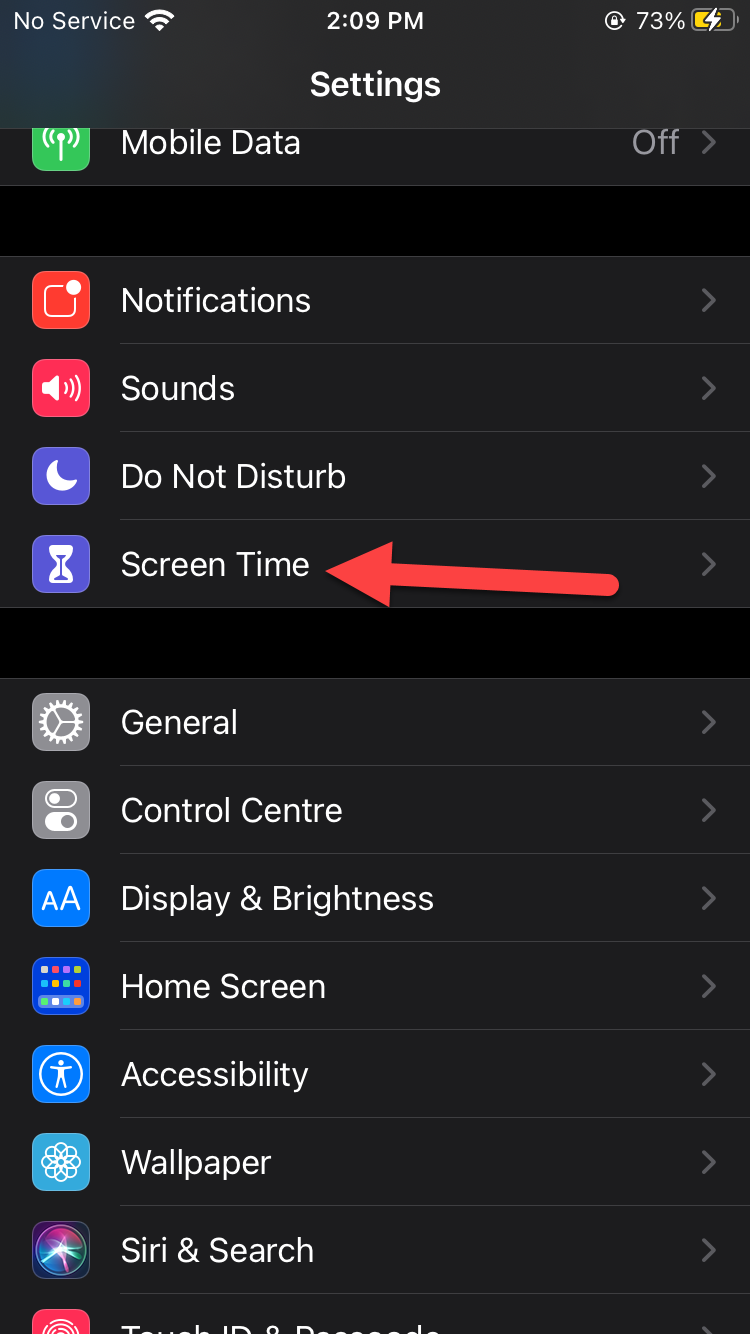 Tap on the Screen Time
 Step 2. Once the screen time is open then simply you need to click on the Content & Privacy Restrictions.
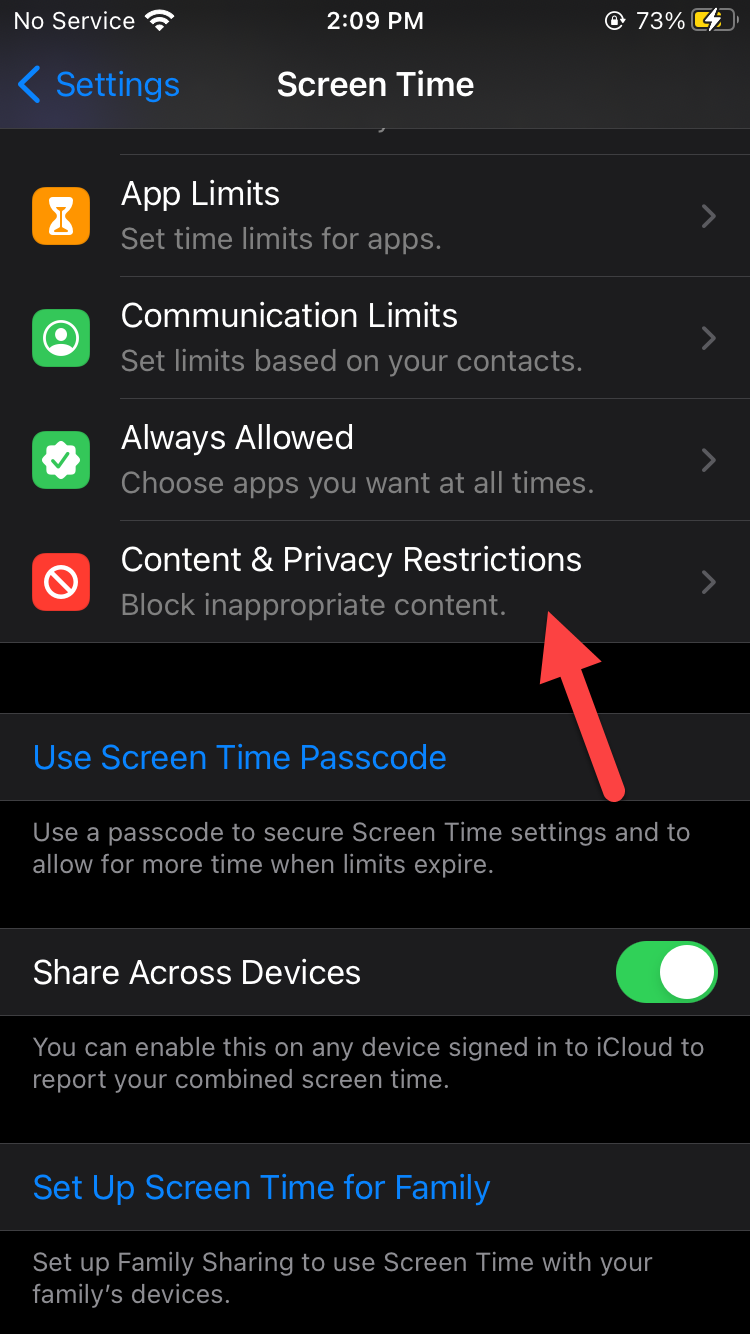 Click on the Content & Privacy Restrictions
 Step 3. Now, turn on the toggle of Content & Privacy Restrictions.
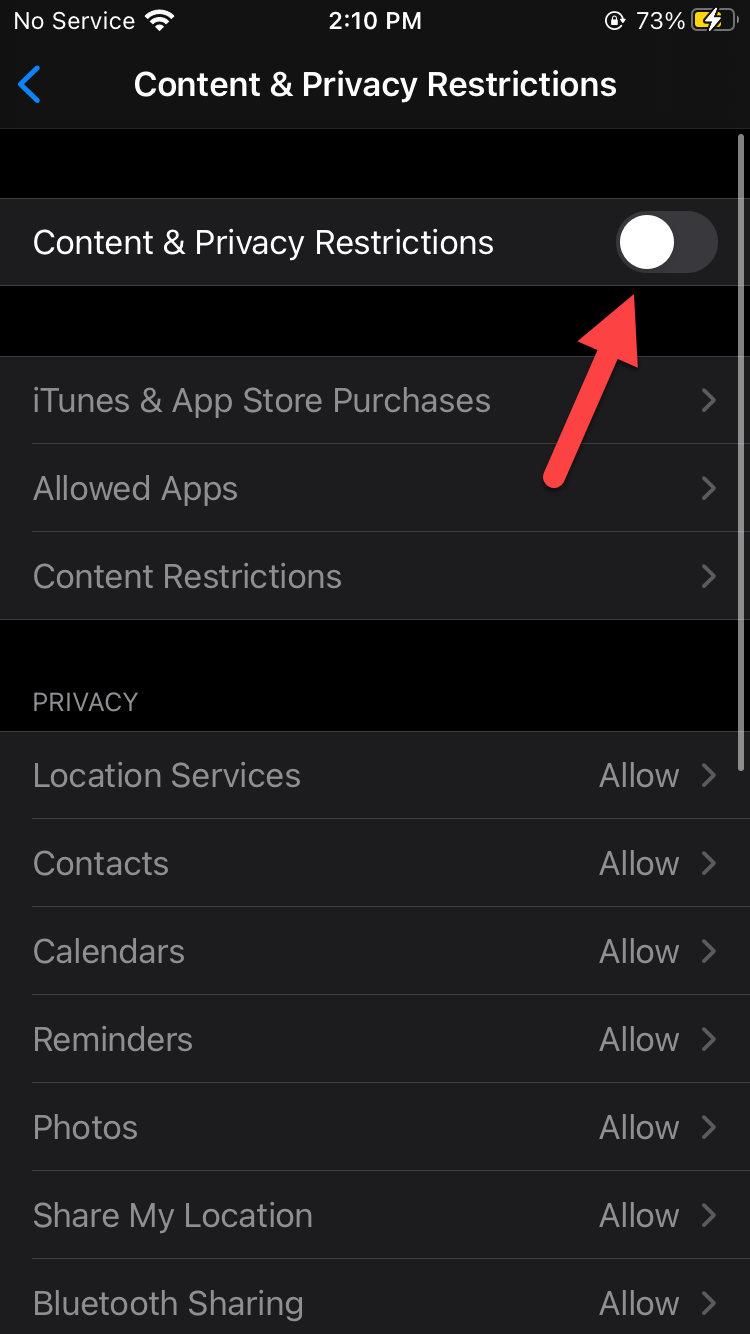 Turn on the Toggle of Content & Privacy Restrictions
 Step 4. When the toggle is on then click on the Allowed Apps.
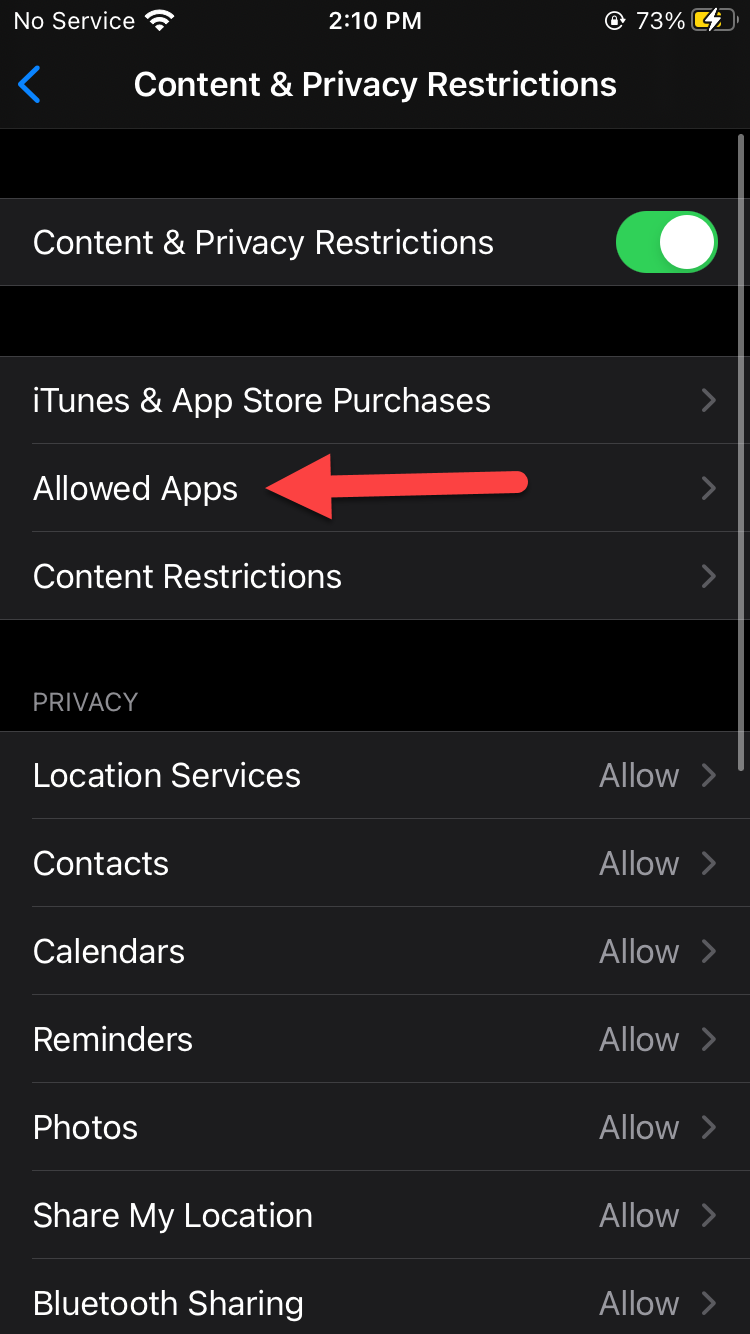 Click on the Allowed
 Step 5. Next, find the camera then turn off the toggle of the Camera.
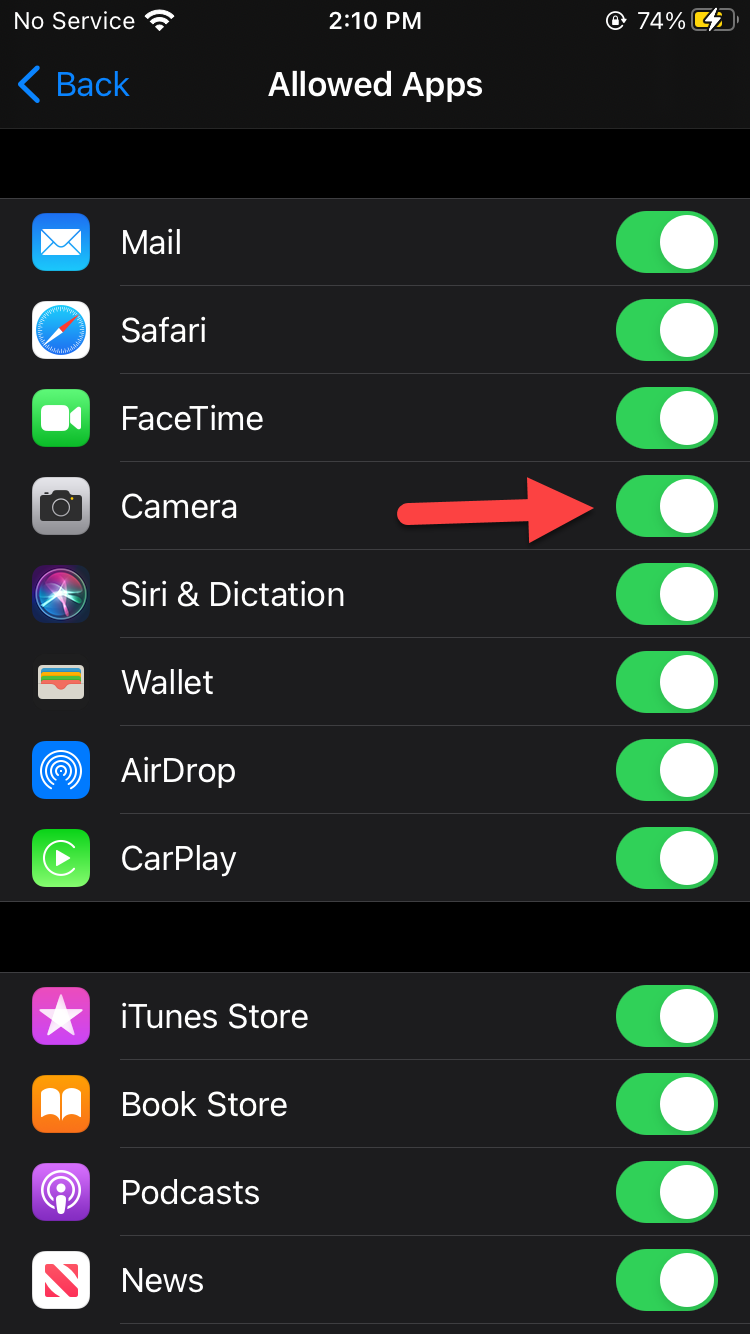 Turn Off
 Related Post: How to Download and Install Binance App on Windows
Bottom Line
It was all about How to Remove Camera on iPhone From the Lock Screen. I hope this article is very helpful for you to remove the camera on your iPhone. From this article, you will get something good. This is the right to solve your problem. After following these steps I hope you will not face any kind of problem. If you faced any kind of problem and if you have any type of suggestions then do comment.
Related Post: How to Block Website on Safari Browser on iPhone, iPad, and Mac
Tagged
Share This Article
When you are using your mobile that once you turn off your phone. Then on your lock screen when you swipe left then the camera is open. However, when is open then you will very angry. Or while you have argent work then when you turn on the lock screen then by mistake you swipe left after that the camera will open. Moreover, once the camera is open then you want to find the solution for that you remove the camera from the lock screen. Then when you can not find it after that you will search on YouTube then you are watching maybe it is not real. But dint worry I am here to solve your problem. If you want to remove the camera on your iPhone from the lock screen then you need to read this article. So, without wasting any time let’s get has started. From this article, you will learn How to Remove Camera on iPhone From the Lock Screen.
What are the Disadvantages of Remove Camera on iPhone
When you remove the camera on your iPhone then you can not call someone with a video call. Because the camera is close to the setting. If you remove the camera then you can call with the help of an audio call.
Related Post: 5 Best Mice for Mac Users in 2021
How to Remove Camera on iPhone From the Lock Screen
Step 1. At first, launch the Settings after that tap on the Screen Time.
Tap on the Screen Time Step 2. Once the screen time is open then simply you need to click on the Content & Privacy Restrictions.
Click on the Content & Privacy Restrictions Step 3. Now, turn on the toggle of Content & Privacy Restrictions.
Turn on the Toggle of Content & Privacy Restrictions Step 4. When the toggle is on then click on the Allowed Apps.
Click on the Allowed Step 5. Next, find the camera then turn off the toggle of the Camera.
Turn Off Related Post: How to Download and Install Binance App on Windows
Bottom Line
It was all about How to Remove Camera on iPhone From the Lock Screen. I hope this article is very helpful for you to remove the camera on your iPhone. From this article, you will get something good. This is the right to solve your problem. After following these steps I hope you will not face any kind of problem. If you faced any kind of problem and if you have any type of suggestions then do comment.
Related Post: How to Block Website on Safari Browser on iPhone, iPad, and Mac