

How to Install & Get macOS Dynamic Wallpapers on Windows 10
 Azaz Shaikh
The dynamic wallpaper will give better lock your desktop screen. When you want to try to set the macOS dynamic wallpaper on windows 10 then don’t worry I here to solve your problem. You can set the time in sunrise you can set the time that in sunrise your wallpaper in the morning mode. But in the sunset, you can set the time that in sunset your macOS wallpaper will in night mode. If you want to set the macOS dynamic wallpaper then must read this article because. We are using third-party software to set macOS dynamic wallpaper on windows. Without wasting any time let’s begin. From this article, you will learn How to Install & Get macOS Dynamic Wallpapers on Windows 10.
The operating system that powers every apple computer is has called macOS. And if you haven’t used Apple products for very long, you may not be familiar with the operating system history. The first version was has released in 1984 and completely changed the computer industry. Similar to how iOS on the first iPhone completely changed the smartphone industry. But the history of macOS spans a number of decades, which has resulted in the operating system appearing and behaving much differently today than it had over thirty years ago.
How to Install & Get macOS Dynamic Wallpapers on Windows 10
Step 1. First of all, open your Microsoft Store then go to the search bar type WinDynamicDesktop after that click on the Get. Or click on this link to directly reach the software.
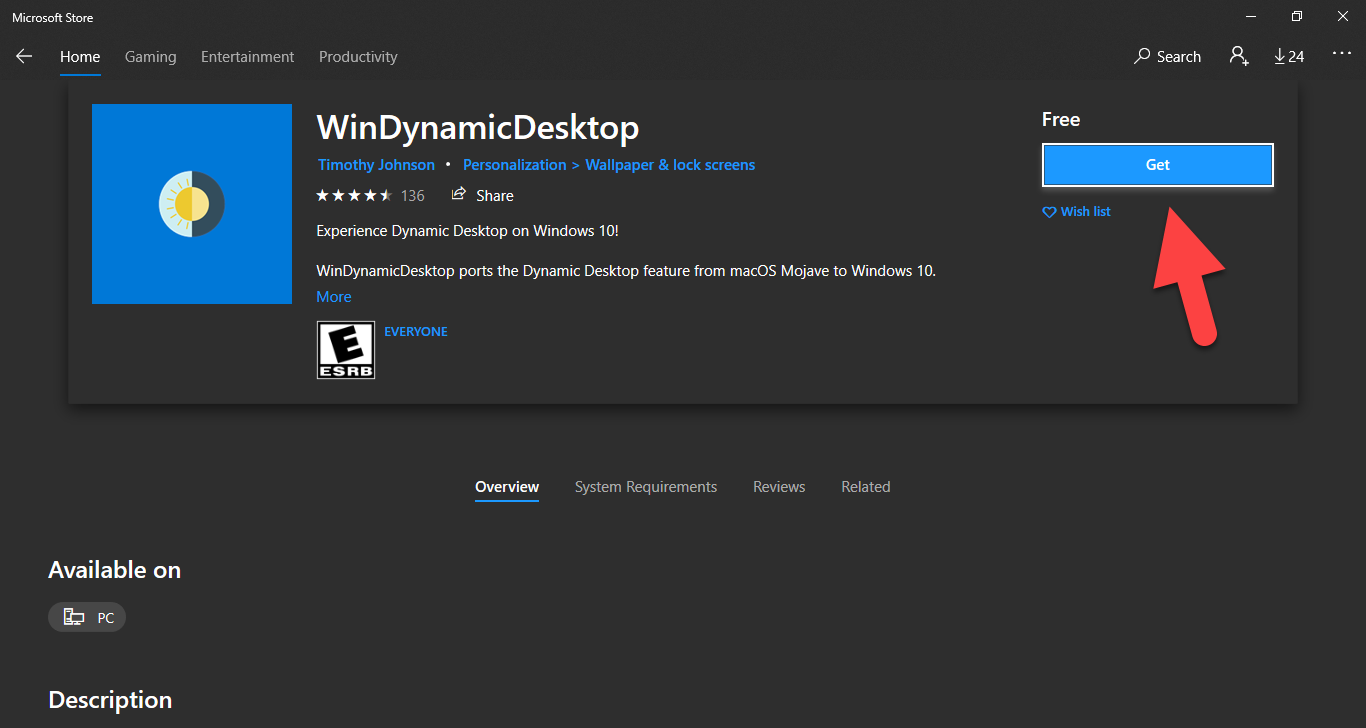 Click on the Get
 Step 2. When the downloading is done then simply launch the software.
Step 3. Once the software will launch then write your location and set the sunrise and sunset according to you.
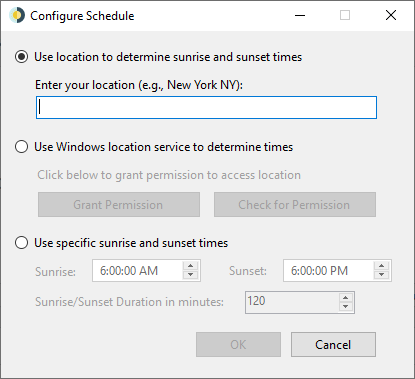 Write Your Location
 Step 4. Now, choose the wallpaper that you want then click on the Apply.
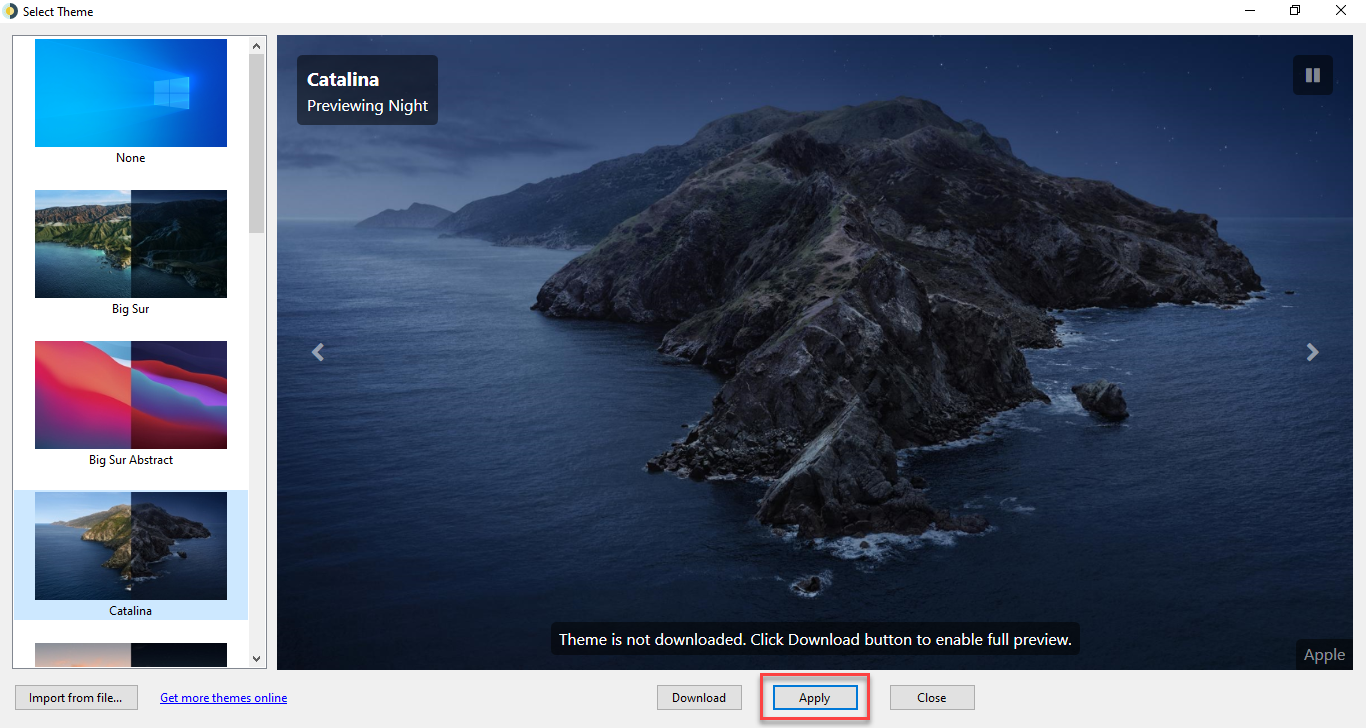 Click on the Apply
 Step 5. After click on the apply the wallpaper will download automatically and apply automatcally.
Related Posts:
How to Hide Photos on iPhone and iPad in 2021
How to Block YouTube Ads on Safari Mac in 2021
8 Best Operating System for Laptops and Computers in 2021
Best AdSense Alternatives to Consider for Your Websites in 2021
Bottom Line
It was all about How to Install & Get macOS Dynamic Wallpapers on Windows 10. I hope after following my step you will successfully set macOS dynamic wallpaper on windows 10. And I hope after following these steps you will not face any kind of problem. So, if you are facing any kind of problem then don’t hesitate to leave comments in the comment section down below.
Tagged
Share This Article
The dynamic wallpaper will give better lock your desktop screen. When you want to try to set the macOS dynamic wallpaper on windows 10 then don’t worry I here to solve your problem. You can set the time in sunrise you can set the time that in sunrise your wallpaper in the morning mode. But in the sunset, you can set the time that in sunset your macOS wallpaper will in night mode. If you want to set the macOS dynamic wallpaper then must read this article because. We are using third-party software to set macOS dynamic wallpaper on windows. Without wasting any time let’s begin. From this article, you will learn How to Install & Get macOS Dynamic Wallpapers on Windows 10.
The operating system that powers every apple computer is has called macOS. And if you haven’t used Apple products for very long, you may not be familiar with the operating system history. The first version was has released in 1984 and completely changed the computer industry. Similar to how iOS on the first iPhone completely changed the smartphone industry. But the history of macOS spans a number of decades, which has resulted in the operating system appearing and behaving much differently today than it had over thirty years ago.
How to Install & Get macOS Dynamic Wallpapers on Windows 10
Step 1. First of all, open your Microsoft Store then go to the search bar type WinDynamicDesktop after that click on the Get. Or click on this link to directly reach the software.
Click on the Get Step 2. When the downloading is done then simply launch the software.
Step 3. Once the software will launch then write your location and set the sunrise and sunset according to you.
Write Your Location Step 4. Now, choose the wallpaper that you want then click on the Apply.
Click on the Apply Step 5. After click on the apply the wallpaper will download automatically and apply automatcally.
Related Posts:
How to Hide Photos on iPhone and iPad in 2021
How to Block YouTube Ads on Safari Mac in 2021
8 Best Operating System for Laptops and Computers in 2021
Best AdSense Alternatives to Consider for Your Websites in 2021
Bottom Line
It was all about How to Install & Get macOS Dynamic Wallpapers on Windows 10. I hope after following my step you will successfully set macOS dynamic wallpaper on windows 10. And I hope after following these steps you will not face any kind of problem. So, if you are facing any kind of problem then don’t hesitate to leave comments in the comment section down below.


