TechSpite
TechSpite
Contact
  • Home
  • About Us
  • How To
  • Windows
  • MAC OS
  • iOS

About TechSpite

  • About Us
  • Contact

Explore Topics

  • Conversational AI – Game Changer Talking Tech
  • Top Business Intelligence Tools For Data Analysis
  • How RPA Enhances Customer Service
  • Understanding Autonomous Vehicle Technology

Help & Support

  • Contact

Terms & Privacy

  • Privacy Policy
  • Terms & Conditions
  • Return and Refund Policy
TechSpite

© 2025 TechSpite. All rights reserved.

TOP
  1. Home
  2. /
  3. How To
  4. /
  5. How to Format SD and MicroSD in macOS?
How To

How to Format SD and MicroSD in macOS?

Azaz ShaikhAzaz Shaikh
•Mar 18, 2022•2 MIN READ
How to Format SD and MicroSD in macOS?

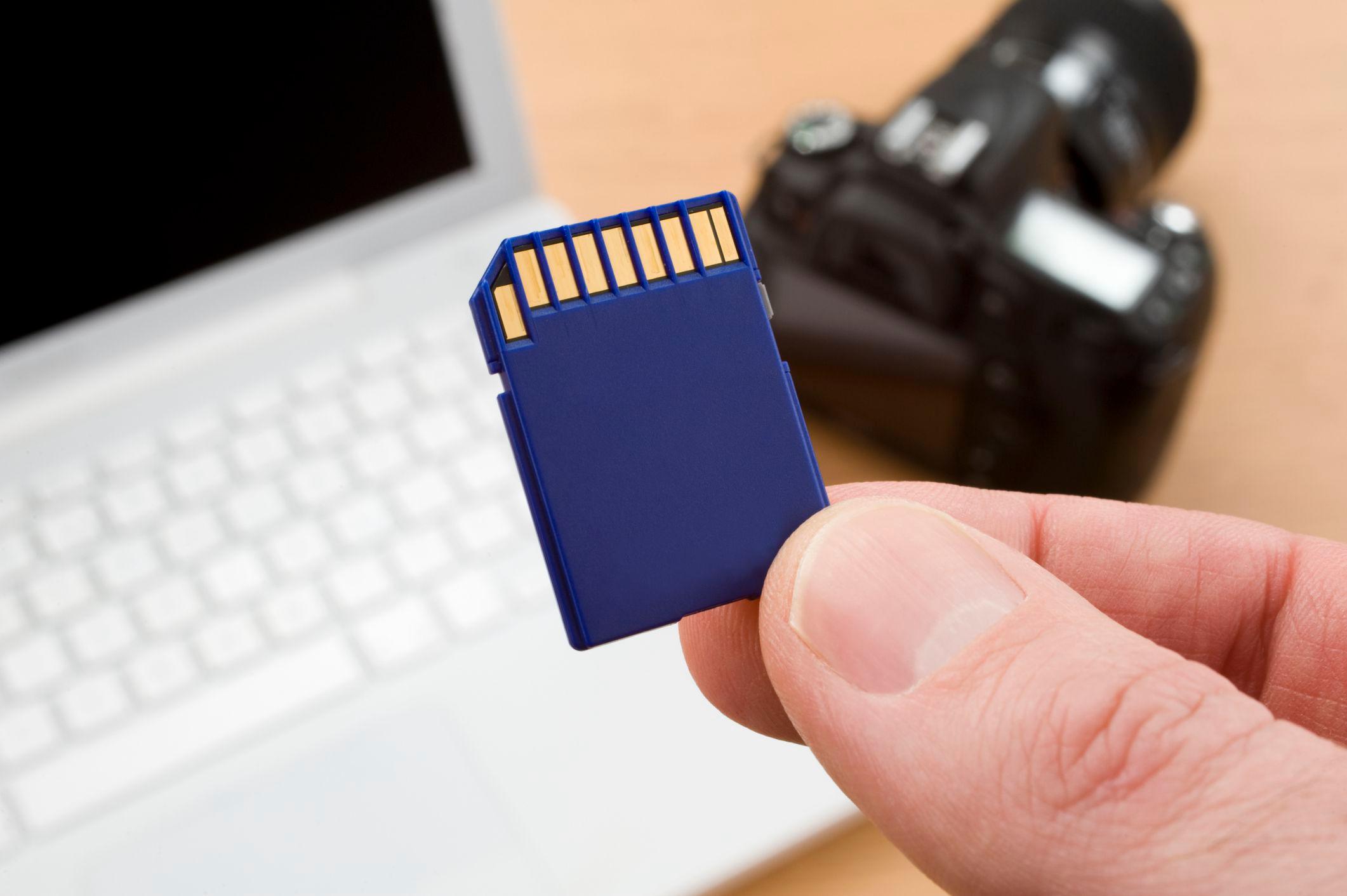
For a photographer is important to have lots of memory cards. If you are a photographer then it’s your passion to take pictures. When your SD or MicroSD then storage of it will be full of pictures. If you don’t want those pictures obviously you will delete that picture. Or if you want that pictures after that you have to format them somewhere else. The best destination to format those pictures in MacOS. When you try to format it then you don’t know the way that you can format it, then you will search on YouTube then the video you are watching maybe not be clear. But don’t worry I am here to solve your problems. If you want to format SD and MicroSD then you need to read this article. From this article, I’ll guide you about How to Format SD and MicroSD in MacOS? So, without wasting time let’s get started.

How to Format SD and MicroSD in macOS?

This is the process to format SD and MicroSD in your Mac. You don’t require any kind of third-party software to do this method. Simply follow the down below steps to solve the problem of formating SD.

Step 1. First of all, you need to take your SD or MicroSD then simply insert them into the adapter.

Step 2. Once you inserted them then go to Disk Utility then go to the Application section after that click on the Utility.

Step 3. Now, in this step find or search the name of your memory card, and don’t forget to select Volume of it.

Step 4. Next, click on the Erase.

Step 5. The next window is that you have to enter the name of memory.

Step 6. However, select the Format for your memory card.

Step 7. Tap on the Erase.

Step 8. Finally, when all is done click on the Done.

Final Words

It was all about How to Format SD and MicroSD in MacOS? I hope this article is very helpful for you to format SD and MicroSD.From this article, you will get something good. This is the right place where you can easily solve your problem. After following these steps I hope you will not face any kind of problem. If you faced any kind of problem and if you have any type of suggestions then do comment.

Explore More:

  • How to Change Windows 11 Wallpaper without Activating
  • How to Find and Identify Music in iPhone 14

Tagged

#Format MicroSD in macOS#Format SD and MicroSD in macOS Monterey#macos#MicroSD#SD Card

Share This Article

Recent Articles

Fresh content from our blog

Instagram Marketing: 10 Trends To Follow In 2023
Featured

Instagram Marketing: 10 Trends To Follow In 2023

May 23, 2023
11 Must-Know TikTok Tips for Going Viral!
Featured

11 Must-Know TikTok Tips for Going Viral!

May 17, 2023
17 Epic Facebook Tips And Tricks You Never Knew Existed!
Featured

17 Epic Facebook Tips And Tricks You Never Knew Existed!

May 14, 2023
12 Beginner-Friendly iPhone Photography Tips for Instagram
Featured

12 Beginner-Friendly iPhone Photography Tips for Instagram

May 3, 2023
12 Windows 11 Tips and Tricks To Make Your PC Awesome!
Featured

12 Windows 11 Tips and Tricks To Make Your PC Awesome!

May 1, 2023

For a photographer is important to have lots of memory cards. If you are a photographer then it’s your passion to take pictures. When your SD or MicroSD then storage of it will be full of pictures. If you don’t want those pictures obviously you will delete that picture. Or if you want that pictures after that you have to format them somewhere else. The best destination to format those pictures in MacOS. When you try to format it then you don’t know the way that you can format it, then you will search on YouTube then the video you are watching maybe not be clear. But don’t worry I am here to solve your problems. If you want to format SD and MicroSD then you need to read this article. From this article, I’ll guide you about How to Format SD and MicroSD in MacOS? So, without wasting time let’s get started.

How to Format SD and MicroSD in macOS?

This is the process to format SD and MicroSD in your Mac. You don’t require any kind of third-party software to do this method. Simply follow the down below steps to solve the problem of formating SD.

Step 1. First of all, you need to take your SD or MicroSD then simply insert them into the adapter.

Step 2. Once you inserted them then go to Disk Utility then go to the Application section after that click on the Utility.

Step 3. Now, in this step find or search the name of your memory card, and don’t forget to select Volume of it.

Step 4. Next, click on the Erase.

Step 5. The next window is that you have to enter the name of memory.

Step 6. However, select the Format for your memory card.

Step 7. Tap on the Erase.

Step 8. Finally, when all is done click on the Done.

Final Words

It was all about How to Format SD and MicroSD in MacOS? I hope this article is very helpful for you to format SD and MicroSD.From this article, you will get something good. This is the right place where you can easily solve your problem. After following these steps I hope you will not face any kind of problem. If you faced any kind of problem and if you have any type of suggestions then do comment.

Explore More:

  • How to Change Windows 11 Wallpaper without Activating
  • How to Find and Identify Music in iPhone 14

Tagged

#Format MicroSD in macOS#Format SD and MicroSD in macOS Monterey#macos#MicroSD#SD Card

Share This Article

Recent Articles

Fresh content from our blog

Instagram Marketing: 10 Trends To Follow In 2023
Featured

Instagram Marketing: 10 Trends To Follow In 2023

May 23, 2023
11 Must-Know TikTok Tips for Going Viral!
Featured

11 Must-Know TikTok Tips for Going Viral!

May 17, 2023
17 Epic Facebook Tips And Tricks You Never Knew Existed!
Featured

17 Epic Facebook Tips And Tricks You Never Knew Existed!

May 14, 2023
12 Beginner-Friendly iPhone Photography Tips for Instagram
Featured

12 Beginner-Friendly iPhone Photography Tips for Instagram

May 3, 2023
12 Windows 11 Tips and Tricks To Make Your PC Awesome!
Featured

12 Windows 11 Tips and Tricks To Make Your PC Awesome!

May 1, 2023

About the Author

Azaz Shaikh

About Azaz Shaikh

Azaz Shaikh is a contributor to this blog, sharing expertise and insights on tech solutions.

You Might Also Like

How to change message background on Android
Android

How to change message background on Android

In the digital age, personalization is key. From customizing your ringtones to wallpapers that grace your screens, we love making our devices uniquely ours. One such personal touch that often gets overlooked is the background of text messages on Android. Gone are the days when users were confined to the standard, monotonous backgrounds that came

Sep 28, 2023
The Ultimate Guide to Casting Oculus Quest 2 to Firestick: Unlock a Whole New Dimension of VR
Entertainment

The Ultimate Guide to Casting Oculus Quest 2 to Firestick: Unlock a Whole New Dimension of VR

Virtual reality has become incredibly popular captivating users with its thrilling and immersive experiences that are truly unprecedented. There are two known devices that allow people to enter this world; the Oculus Quest 2 and the Amazon Firestick. In this guide, we will delve into the steps involved in casting your Oculus Quest 2 to

Sep 21, 2023
10 Best LinkedIn Tips To Boost Career Opportunities
Featured

10 Best LinkedIn Tips To Boost Career Opportunities

With over 700 million professionals on its platform, LinkedIn has become a powerhouse for networking, job hunting, and professional growth. This ultimate guide will help you explore the top 10 LinkedIn tips that can significantly boost your career opportunities in every possible way.  Did you know that LinkedIn has witnessed a staggering 55 million companies

May 19, 2023

Comments

Leave a Comment

Share your thoughts and join the conversation

Your email address will not be published. All fields marked with * are required.