

How to Fix Kernel Security Check Failure in Windows 11?
 Azaz Shaikh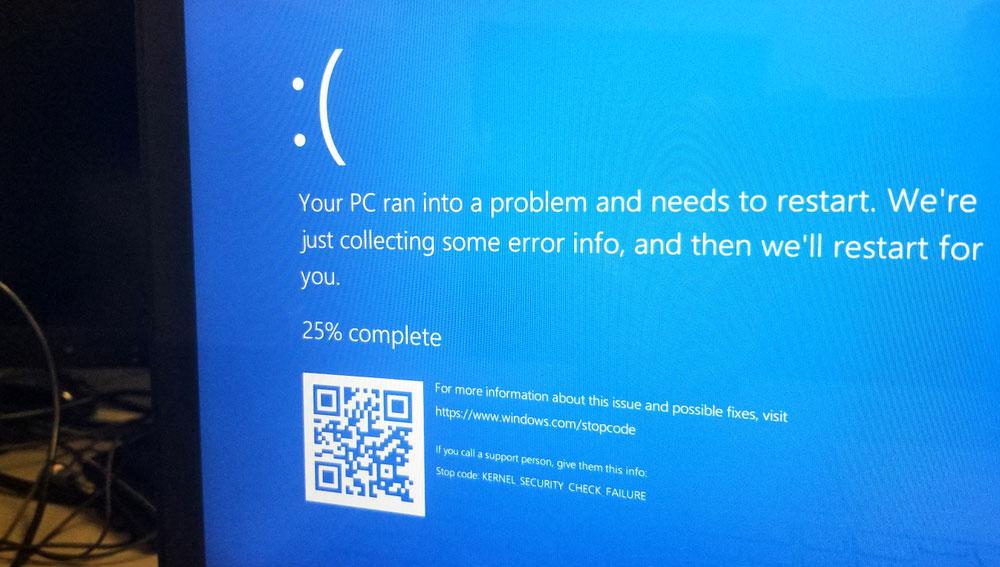
In this article, you will learn How to Fix Kernel Security Check Failure in Windows 11? Do you want to fix the Kernel Security Check Failure? If yes you will find here easy methods the problem that you are having. Everyone wants to fix this issue because they are facing this kind of problem every time. There are various ways to fix the Kernel Security Check Failure. When someone doesn’t know the way that they fix the problem then they will search on Youtube then the video that they are watching maybe it is not clear. If you want to fix the Kernel Security Check Failure then you need to read this article till the end.
Method 1: Update Windows
Step 1. First of all, you need to open the Settings by pressing Win Key + I.
Step 2. When the settings are open then go to the Windows Update from the left side.
Step 3. At last, click on the Install Now or Download Now to update your PC after that wait until the update should finish, and then click on the Check For Updates.
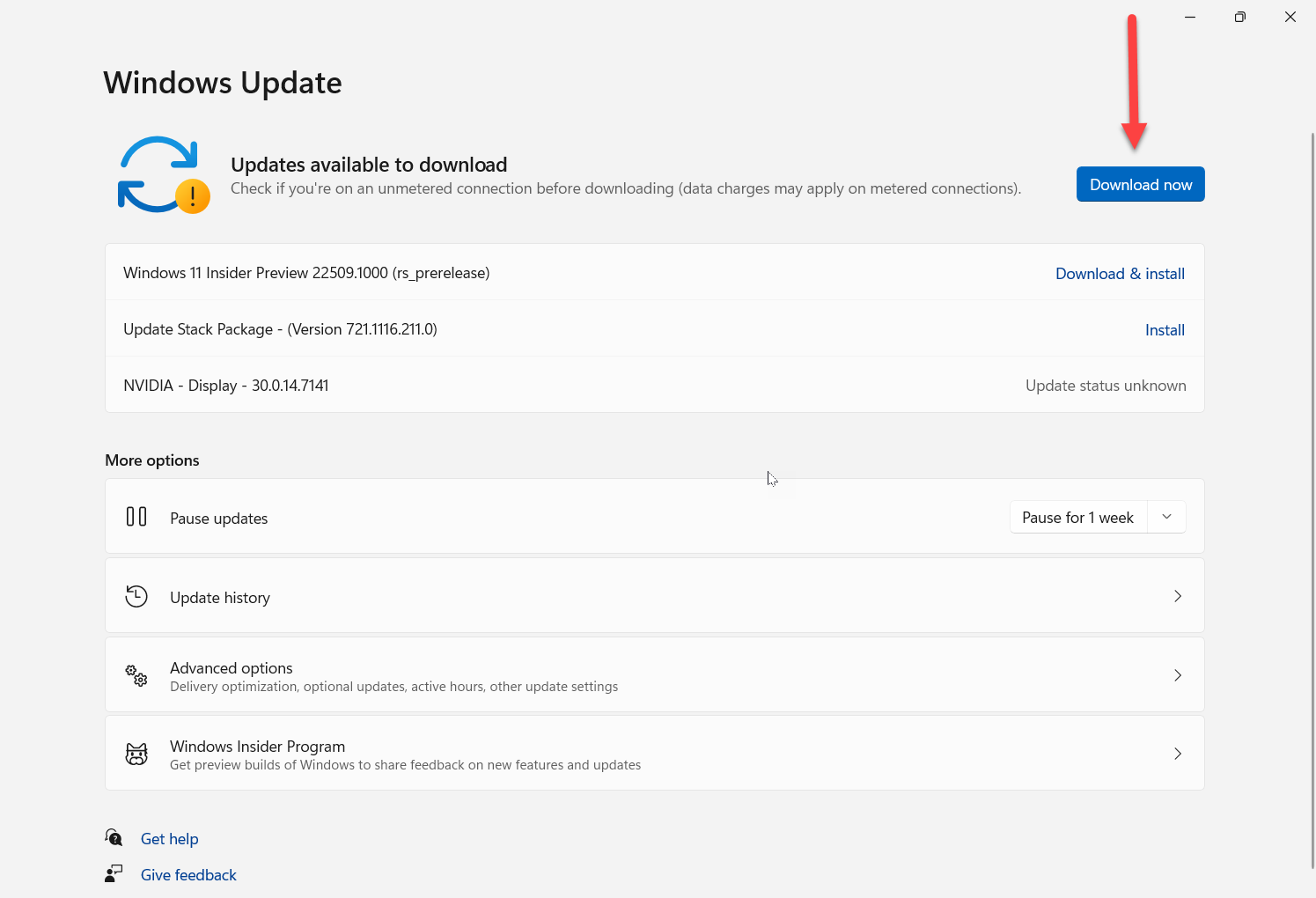 Download Now
 Method 2: Run the SFC (System File Checker) Scan
Step 1. At first, press or hold Windows + S to open the search section then search for Command Prompt after that click on the Run As Administrator from the right side.
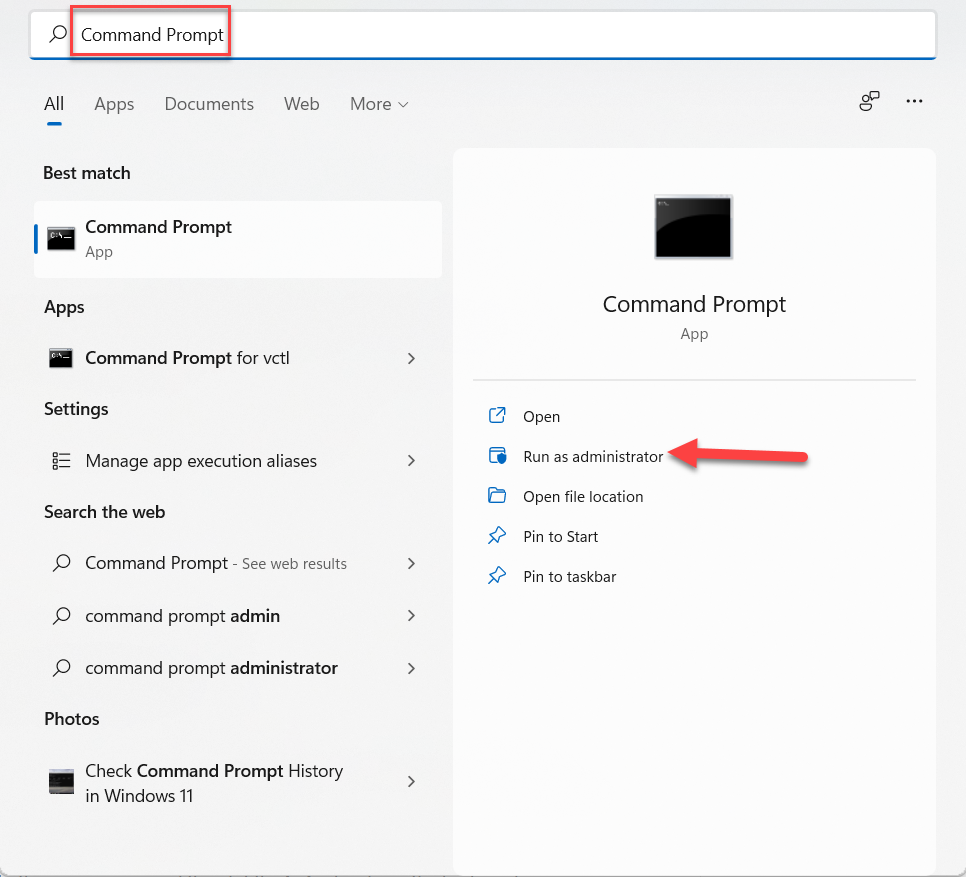 Run As Administrator
 Step 2. Now, copy and paste the following command then hit the Enter.
sfc /scannow
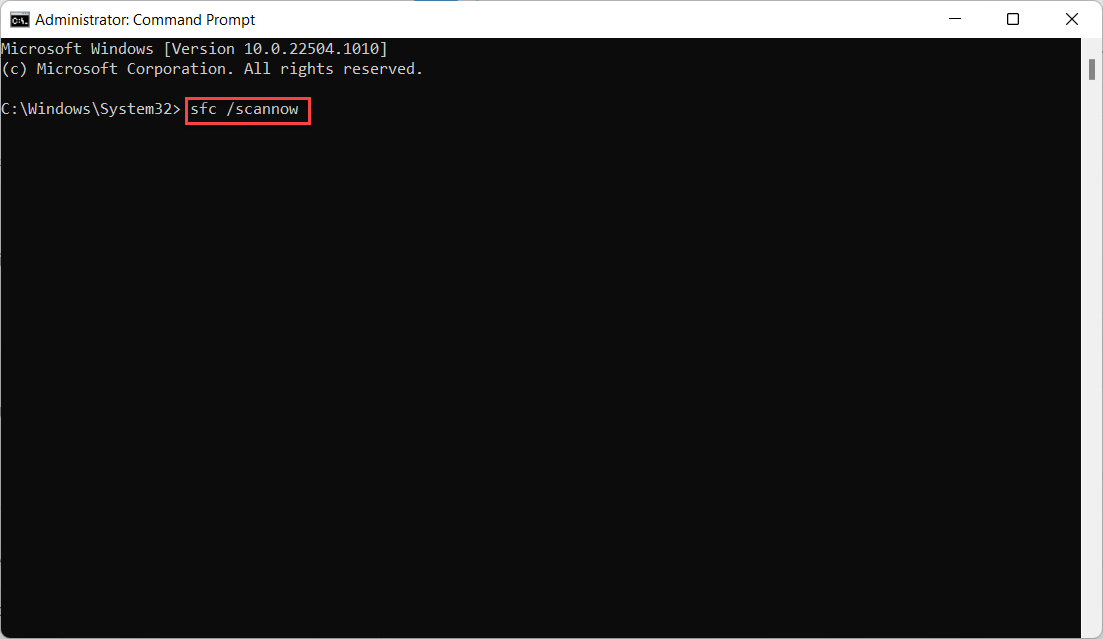 sfc /scannow
 Step 3. At last, wait for the process should finish after that simply restart your PC.
Method 3: Via CheckDisk Tool
If the above method doesn’t work then follow the below method. Follow the method down below.
Step 1. Firstly, press or hold Windows + S to open the search section then search for Command Prompt after that click on the Run As Administrator from the right side.
Click on the Run As Administrator Step 2. Next, copy and paste the given command then hit the Enter key from the keyboard.
chkdsk C: /f /r /x
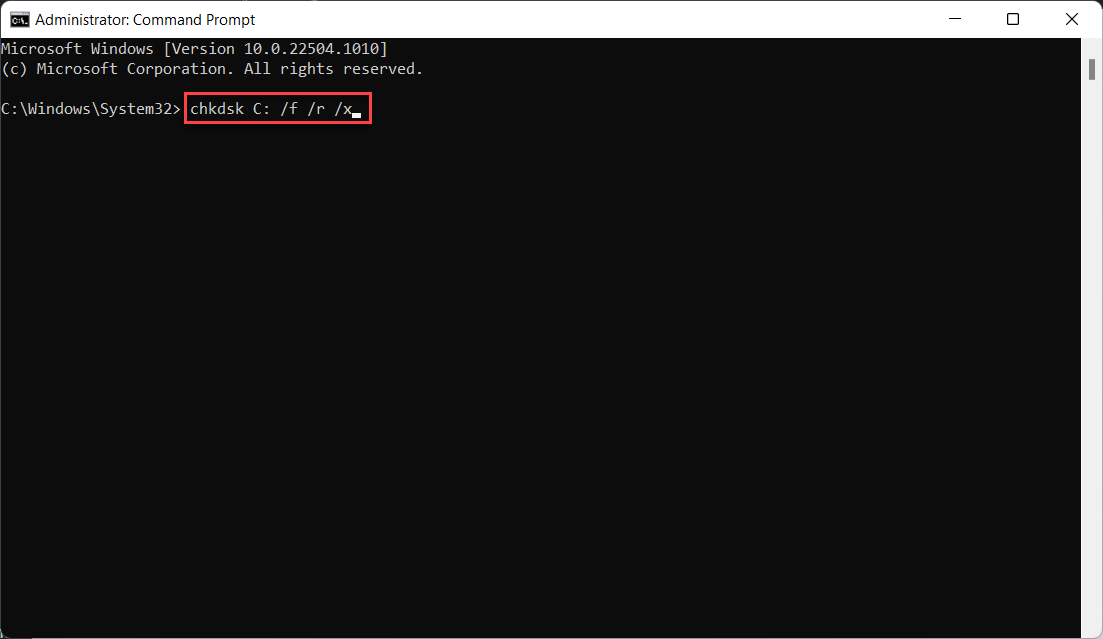 chkdsk C: /f /r /x
 Step 3. The same as the above one if the process is done then restart your machine.
Bottom Line
It was all about How to Fix Kernel Security Check Failure in Windows 11? From this article, you will get something beneficial and solve your problem easily without researching anymore. This is the right place where you can easily solve your problem. After following these steps I hope you will not face any kind of problem. If you faced any kind of problem and if you have any type of suggestions then do comment.
Related Posts:
Tagged
Share This Article
In this article, you will learn How to Fix Kernel Security Check Failure in Windows 11? Do you want to fix the Kernel Security Check Failure? If yes you will find here easy methods the problem that you are having. Everyone wants to fix this issue because they are facing this kind of problem every time. There are various ways to fix the Kernel Security Check Failure. When someone doesn’t know the way that they fix the problem then they will search on Youtube then the video that they are watching maybe it is not clear. If you want to fix the Kernel Security Check Failure then you need to read this article till the end.
Method 1: Update Windows
Step 1. First of all, you need to open the Settings by pressing Win Key + I.
Step 2. When the settings are open then go to the Windows Update from the left side.
Step 3. At last, click on the Install Now or Download Now to update your PC after that wait until the update should finish, and then click on the Check For Updates.
Download Now Method 2: Run the SFC (System File Checker) Scan
Step 1. At first, press or hold Windows + S to open the search section then search for Command Prompt after that click on the Run As Administrator from the right side.
Run As Administrator Step 2. Now, copy and paste the following command then hit the Enter.
sfc /scannow
sfc /scannow Step 3. At last, wait for the process should finish after that simply restart your PC.
Method 3: Via CheckDisk Tool
If the above method doesn’t work then follow the below method. Follow the method down below.
Step 1. Firstly, press or hold Windows + S to open the search section then search for Command Prompt after that click on the Run As Administrator from the right side.
Click on the Run As Administrator Step 2. Next, copy and paste the given command then hit the Enter key from the keyboard.
chkdsk C: /f /r /x
chkdsk C: /f /r /x Step 3. The same as the above one if the process is done then restart your machine.
Bottom Line
It was all about How to Fix Kernel Security Check Failure in Windows 11? From this article, you will get something beneficial and solve your problem easily without researching anymore. This is the right place where you can easily solve your problem. After following these steps I hope you will not face any kind of problem. If you faced any kind of problem and if you have any type of suggestions then do comment.
Related Posts:


