

How to Find Junk and Spam Email Folder on iPhone?
 Azaz Shaikh
From this article, I will guide you on How to Find Junk and Spam Email Folder on iPhone. Sometimes the useless or unwanted Emails it will save in a folder automatically which is known as a junk or spam folder. Further, When by mistake your Emails shits to a folder of junk or spam then you can easily find them from there. However, most of the people are using any third-party app or even a Mail app which will manage all the importance to display all of them for you. Furthermore, the moment will come when you want to find junk and spam Emails after that you don’t know the way. If you want to find junk and spam Email folders then you need to read this article.
Method 1: Check Junk and Spam Email Folder in Outlook
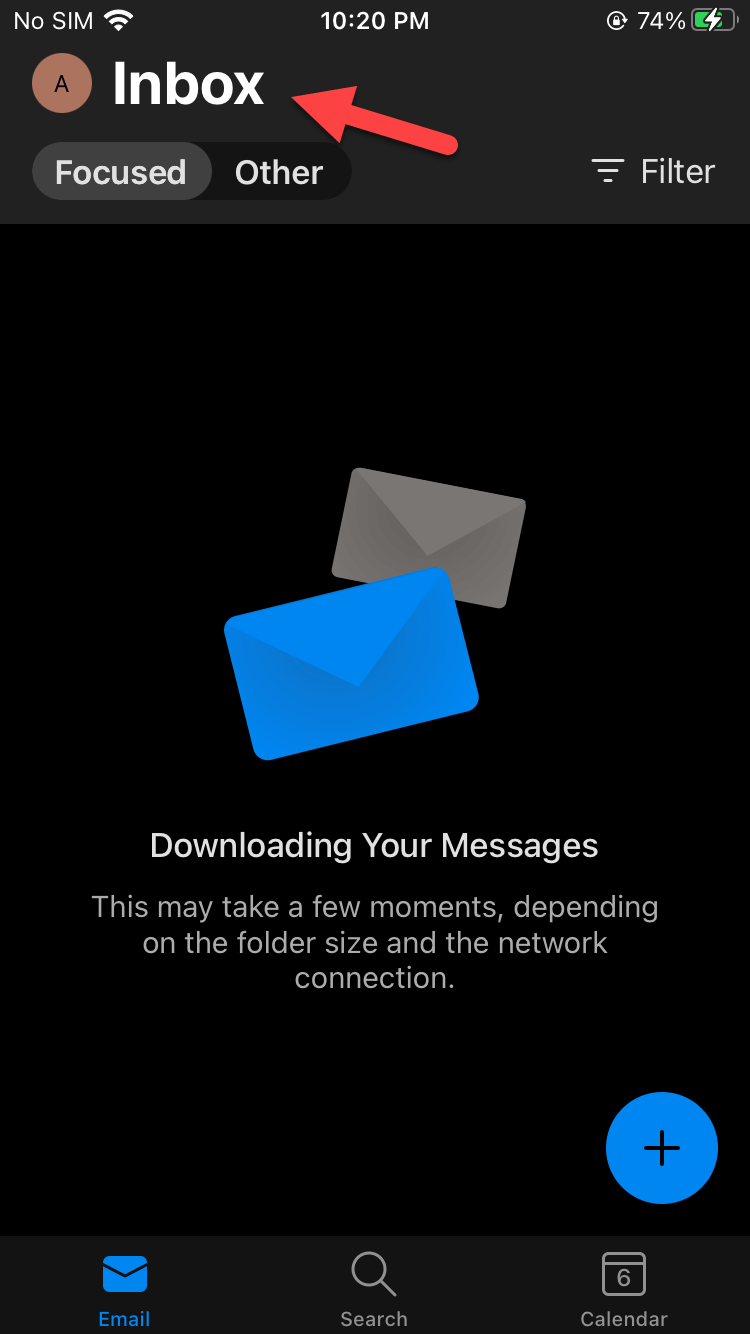
Step 1. First, open your Outlook app then click on the Inbox at the top left upper side or you can also swipe your screen from the left towards the right side.
Step 2. Then you will see the same option of Junk or Spam click on it.
And if you added more than one Gmail then select the Gmail account which you want to check its junk folder.
Method 2: Find Junk Email Folder in Gmail
Step 1. Launch the Gmail app.
Step 2. Click on the Three Lines at the top left side.
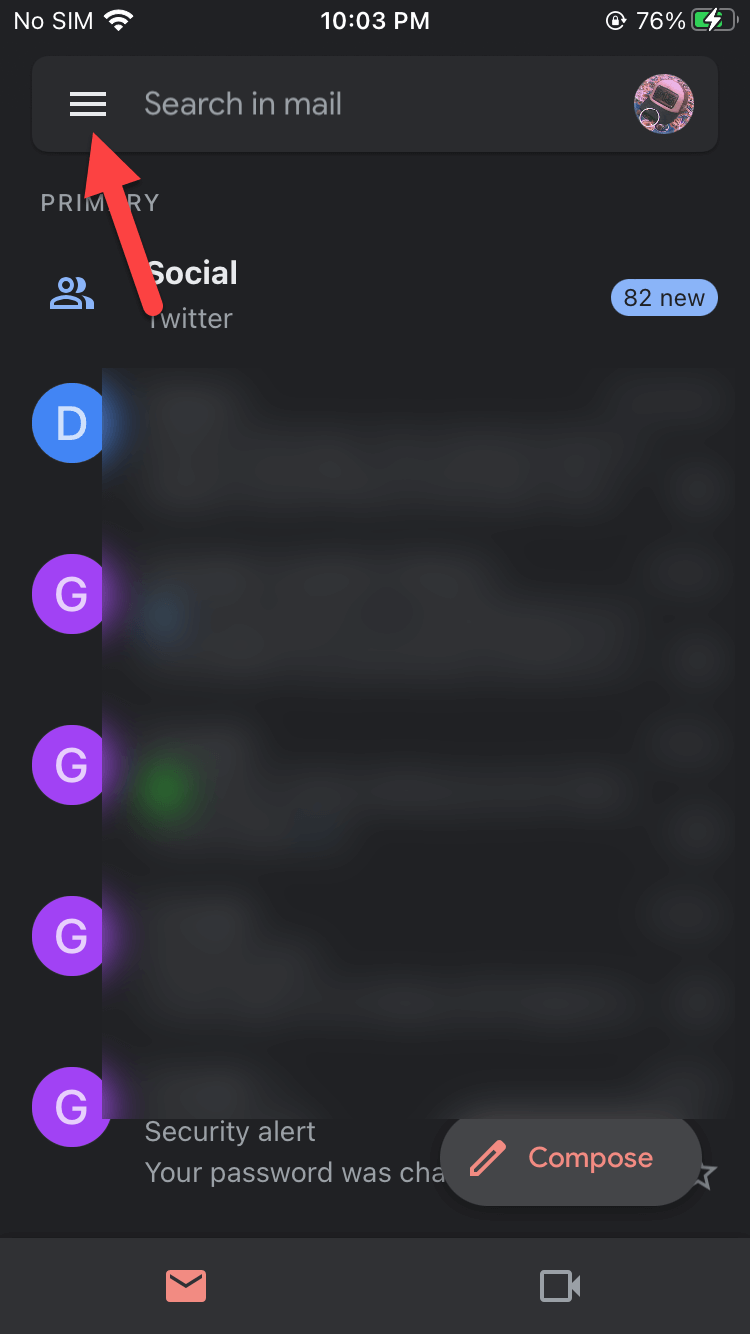 Click on the Three Lines
 Step 3. At last, tap on the Spam or Junk then you will get all the spam folders.
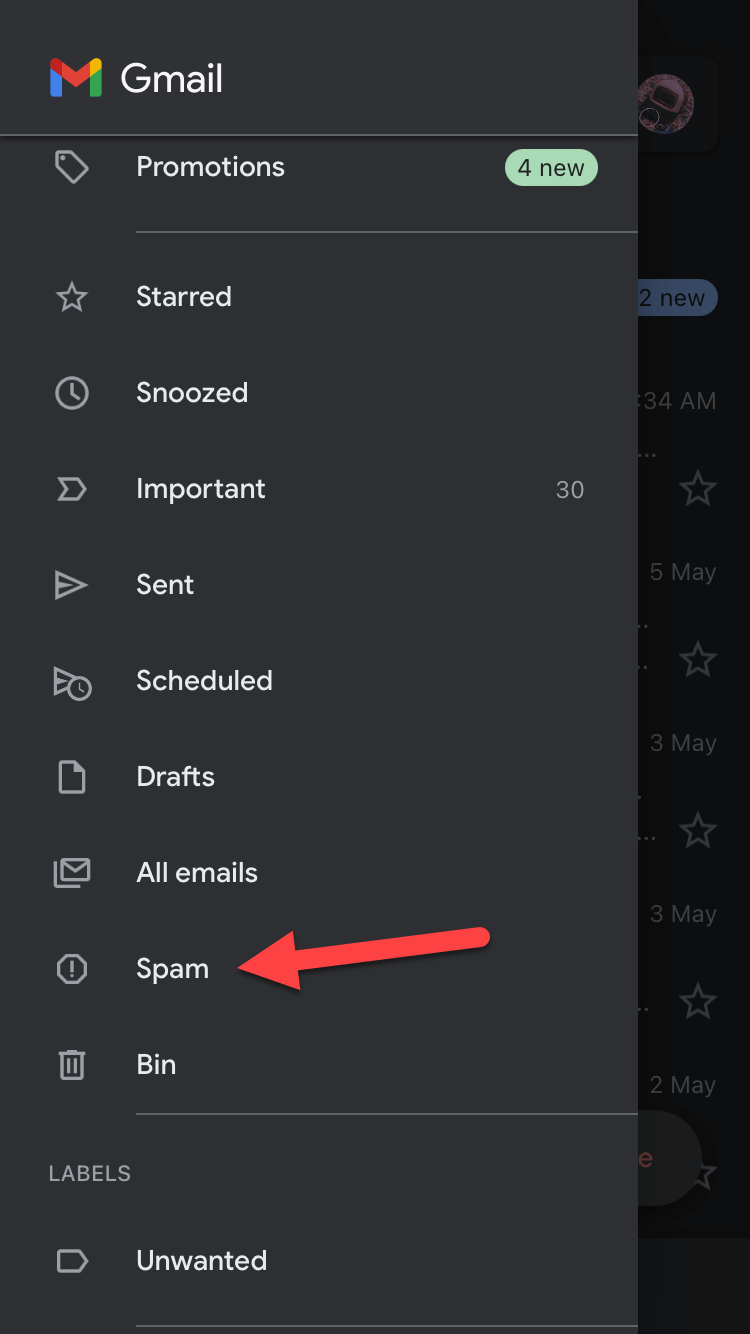 Tap on the Spam
 Method 3: Find Junk and Spam Email Folder in Mail App
Step 1. First of all, open the Mail app on your mobile.
Step 2. When it launched then click on the Mailbox at the top left corner side.
 Mailbox
 Step 3. Then you will get lots of options which you need to click on the Junk or Spam in the section of Outlook.
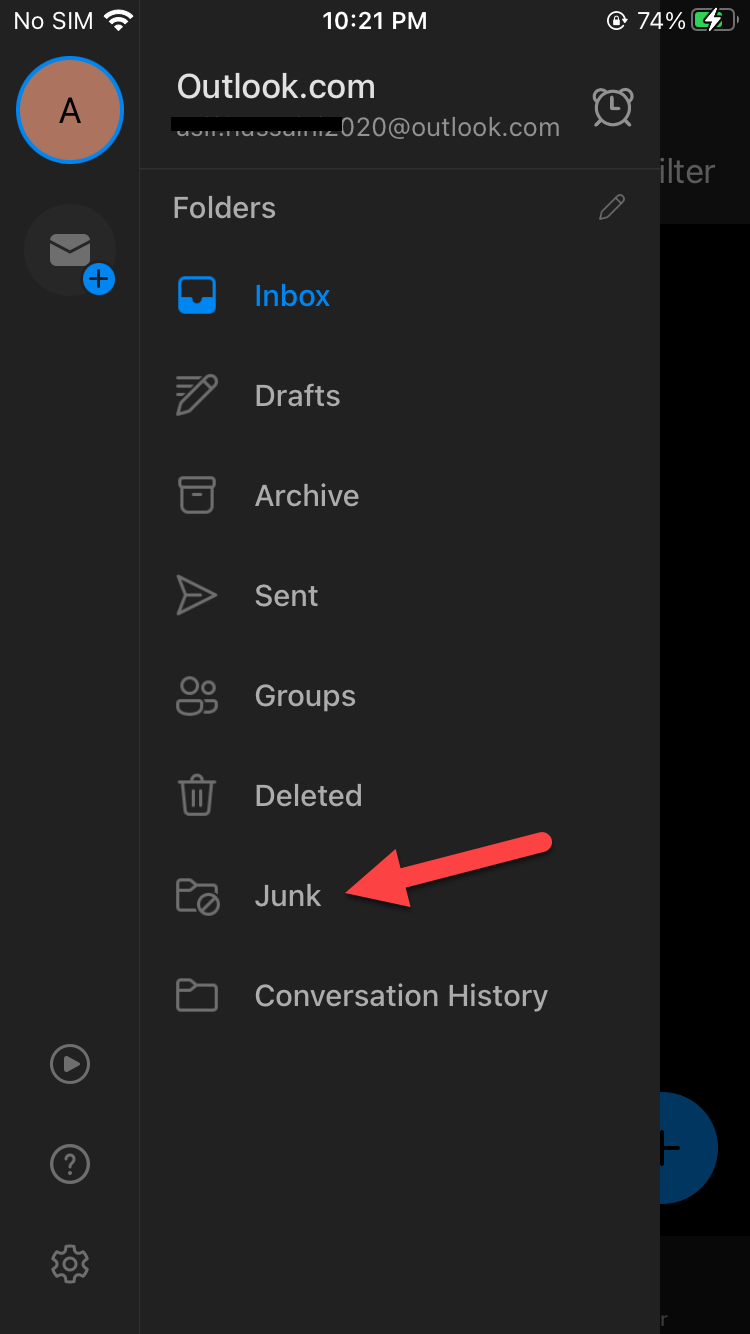 Click on the Junk
 Final Words
It was all about How to Find Junk and Spam Email Folder on iPhone. I hope this article is very helpful for you to find junk or spam email folders. From this article, you will get something great. This was step by step guide on finding junk and spam email folders. Moreover, This is the right place where you can easily solve your problem. After following these steps I hope you will not face any kind of problem. If you faced any kind of problem and if you have any type of suggestions then do comment.
Explore More:
Share This Article
From this article, I will guide you on How to Find Junk and Spam Email Folder on iPhone. Sometimes the useless or unwanted Emails it will save in a folder automatically which is known as a junk or spam folder. Further, When by mistake your Emails shits to a folder of junk or spam then you can easily find them from there. However, most of the people are using any third-party app or even a Mail app which will manage all the importance to display all of them for you. Furthermore, the moment will come when you want to find junk and spam Emails after that you don’t know the way. If you want to find junk and spam Email folders then you need to read this article.
Method 1: Check Junk and Spam Email Folder in Outlook
Step 1. First, open your Outlook app then click on the Inbox at the top left upper side or you can also swipe your screen from the left towards the right side.
Step 2. Then you will see the same option of Junk or Spam click on it.
And if you added more than one Gmail then select the Gmail account which you want to check its junk folder.
Method 2: Find Junk Email Folder in Gmail
Step 1. Launch the Gmail app.
Step 2. Click on the Three Lines at the top left side.
Click on the Three Lines Step 3. At last, tap on the Spam or Junk then you will get all the spam folders.
Tap on the Spam Method 3: Find Junk and Spam Email Folder in Mail App
Step 1. First of all, open the Mail app on your mobile.
Step 2. When it launched then click on the Mailbox at the top left corner side.
Mailbox Step 3. Then you will get lots of options which you need to click on the Junk or Spam in the section of Outlook.
Click on the Junk Final Words
It was all about How to Find Junk and Spam Email Folder on iPhone. I hope this article is very helpful for you to find junk or spam email folders. From this article, you will get something great. This was step by step guide on finding junk and spam email folders. Moreover, This is the right place where you can easily solve your problem. After following these steps I hope you will not face any kind of problem. If you faced any kind of problem and if you have any type of suggestions then do comment.
Explore More:


