

How to Enable Two Factor Authentication on WordPress
 Azaz Shaikh
When someone knows the username and passwords of your website after they will open your website. Once you know that someone finds the username and password of your website then again they will open your website. But I will find for you the way that they can not open your website easily. To protect your computer you need to download software. The software is safe to use and it is very helpful for you to protect your website. If you want to protect your website then you need to read this article very carefully. So, without wasting any time let’s get has started. From this article, you will learn How to Enable Two Factor Authentication on WordPress.
What is Two Factor Authentication?
Two-factor authentication or 2FA, adds a second method of identity verification to secure your account. First, the thing you know your password then something unique that you have like your phone or fingerprint. By combining your password with one of those factors, attackers cant access your account even if they have your password. The most common 2FA systems use a unique one-time code with every login attempt. This code is tied to your account and generated by a token, smartphone, or send to you by text message.
- Related Post: How to Transfer Files from Mega to Google Drive
How to Enable Two Factor Authentication on WordPress
To protect your website you need to fully focus on the steps down below. When you will do by your sight it might be your website will damage.
Step 1. Open your website then go to the Plugins then go to the search bar and type Wordfence after that click on the Install Now.
Step 2. Once the wordfence installing is done then click on the wordfence from the options after that you need to scan it.
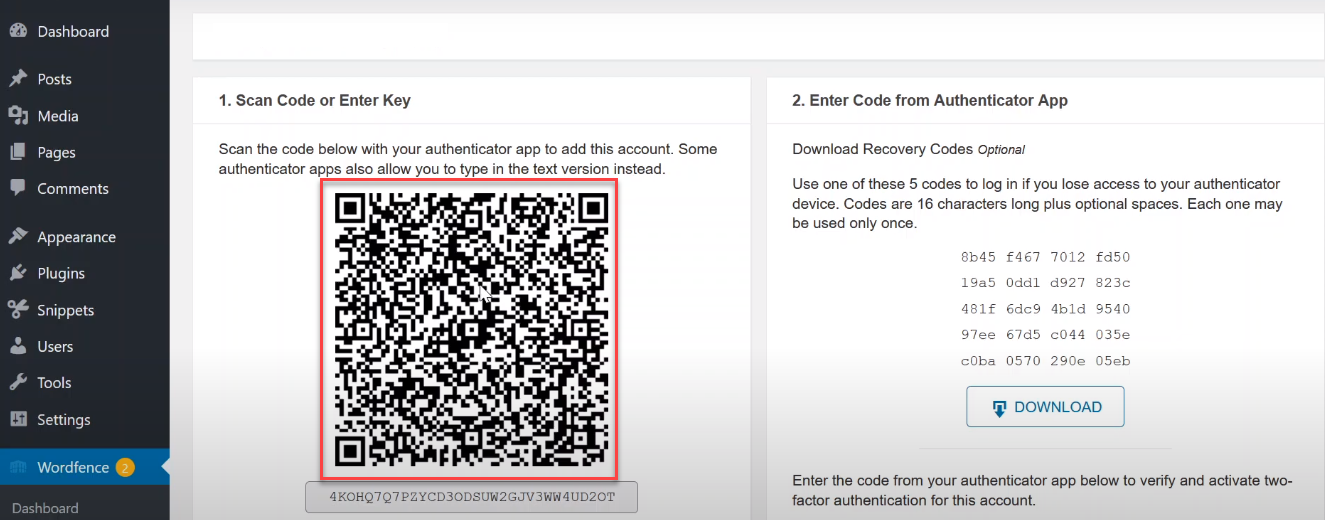
Step 3. To scan it you need to download Google Authenticator on your android phone. When you on the google play store then will download this app for free.
Step 4. launch the app on your device then click on the Plus icon at the top right corner.
 Click on the Plus icon
 Step 5. Once you click on the plus icon then simply click on the Scan Barcode.
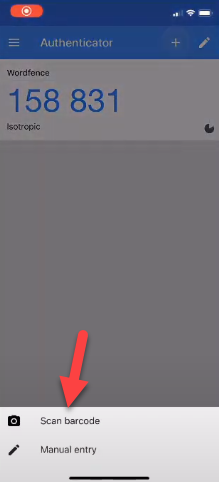 Click n the Scan Barcode
 Step 6. When you click on the scan barcode then scan the picture that you faced on the wordfence.
Step 7. Now, note the code that you will get new when you scan the picture.
 Note the Code
 Step 8. Enter the code from where you will get the code.
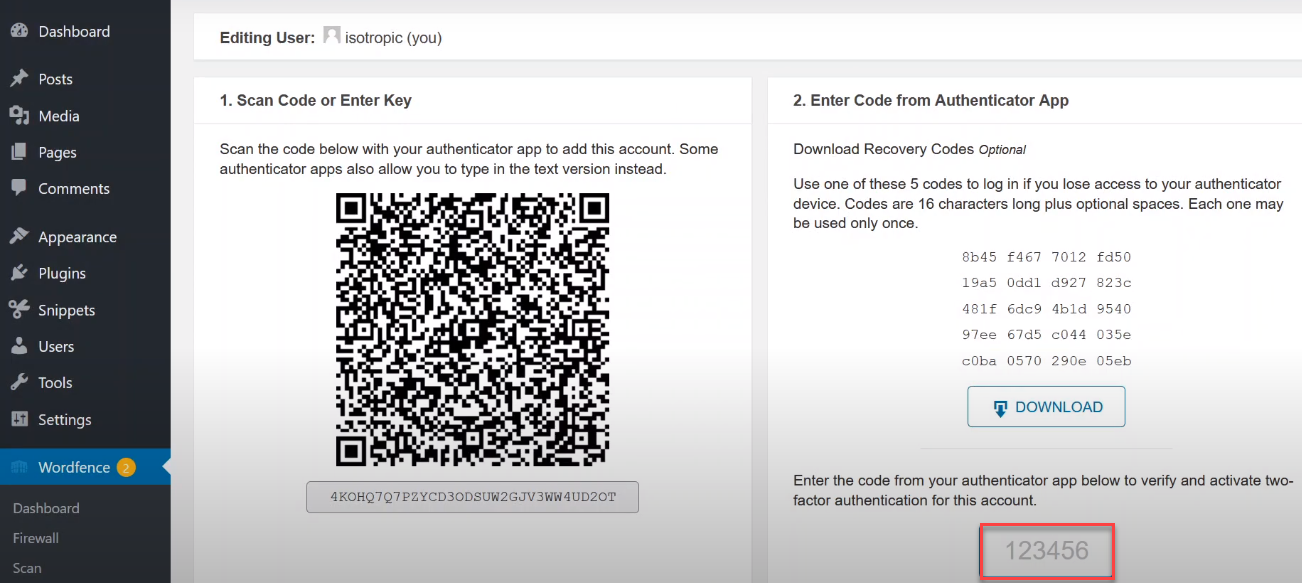 Enter the Code
 Step 9. At last, go and check it will successfully work.
When the steps will not work then follow the steps from the first.
- Related Post: How to Transfer Data From Android to iPhone 2021
Related Searches
- WordPress Two-Factor Authentication Using Plugin
- Wordfence Two-Factor Authentication
- WordPress Two-factor Authentication Plugin
- Two-Factor Authentication Login WordPress
- WordPress Two-Factor Authentication Using PC and Mobile
Bottom Line
It was all about How to Enable Two Factor Authentication on WordPress. I hope this article very helpful for you to protect your website from others. If you read this article and you will get something good. After following these steps you will not face any kind of problem. So, if you are facing any kind of problem then don’t hesitate to leave comments in the comment section down below.
Tagged
Share This Article
When someone knows the username and passwords of your website after they will open your website. Once you know that someone finds the username and password of your website then again they will open your website. But I will find for you the way that they can not open your website easily. To protect your computer you need to download software. The software is safe to use and it is very helpful for you to protect your website. If you want to protect your website then you need to read this article very carefully. So, without wasting any time let’s get has started. From this article, you will learn How to Enable Two Factor Authentication on WordPress.
What is Two Factor Authentication?
Two-factor authentication or 2FA, adds a second method of identity verification to secure your account. First, the thing you know your password then something unique that you have like your phone or fingerprint. By combining your password with one of those factors, attackers cant access your account even if they have your password. The most common 2FA systems use a unique one-time code with every login attempt. This code is tied to your account and generated by a token, smartphone, or send to you by text message.
- Related Post: How to Transfer Files from Mega to Google Drive
How to Enable Two Factor Authentication on WordPress
To protect your website you need to fully focus on the steps down below. When you will do by your sight it might be your website will damage.
Step 1. Open your website then go to the Plugins then go to the search bar and type Wordfence after that click on the Install Now.
Step 2. Once the wordfence installing is done then click on the wordfence from the options after that you need to scan it.
Step 3. To scan it you need to download Google Authenticator on your android phone. When you on the google play store then will download this app for free.
Step 4. launch the app on your device then click on the Plus icon at the top right corner.
Click on the Plus icon Step 5. Once you click on the plus icon then simply click on the Scan Barcode.
Click n the Scan Barcode Step 6. When you click on the scan barcode then scan the picture that you faced on the wordfence.
Step 7. Now, note the code that you will get new when you scan the picture.
Note the Code Step 8. Enter the code from where you will get the code.
Enter the Code Step 9. At last, go and check it will successfully work.
When the steps will not work then follow the steps from the first.
- Related Post: How to Transfer Data From Android to iPhone 2021
Related Searches
- WordPress Two-Factor Authentication Using Plugin
- Wordfence Two-Factor Authentication
- WordPress Two-factor Authentication Plugin
- Two-Factor Authentication Login WordPress
- WordPress Two-Factor Authentication Using PC and Mobile
Bottom Line
It was all about How to Enable Two Factor Authentication on WordPress. I hope this article very helpful for you to protect your website from others. If you read this article and you will get something good. After following these steps you will not face any kind of problem. So, if you are facing any kind of problem then don’t hesitate to leave comments in the comment section down below.


