How to Enable Picture-in-Picture Mode on Android Phone
 Azaz Shaikh
sometimes when you want to enable picture-in-picture on your android. Picture-in-picture is a very great way to see a small screen on your home screen. If you want to try to enable the picture-in-picture then don’t know to enable it. If you want to enable picture-in-picture mode then you need to read this article. You don’t need any third party software to enable the picture-in-picture mode. To enable the picture-in-picture you will get the features on the settings. So, without wasting any time let’s get has started. From this article, you will learn How to Enable Picture-in-Picture Mode on Android Phone.
What is Picture-in-Picture Mode?
As your watching a video and in this case, it is coming from YouTube either you hit on your home button or anything else it shrinks it down. So, this way you can do another application in the background giving you a picture-in-picture. When you enable the picture-in-picture mode on the video then you can watch them on the background of your screen after that you can work on the other app and watch the video.
Related Post: How to Download Photos from Google Photos to Your iPhone or Computer
How to Enable Picture-in-Picture Mode on Android Phone
Step 1. At first, on your device open the Settings then scroll down after that click on the Apps.
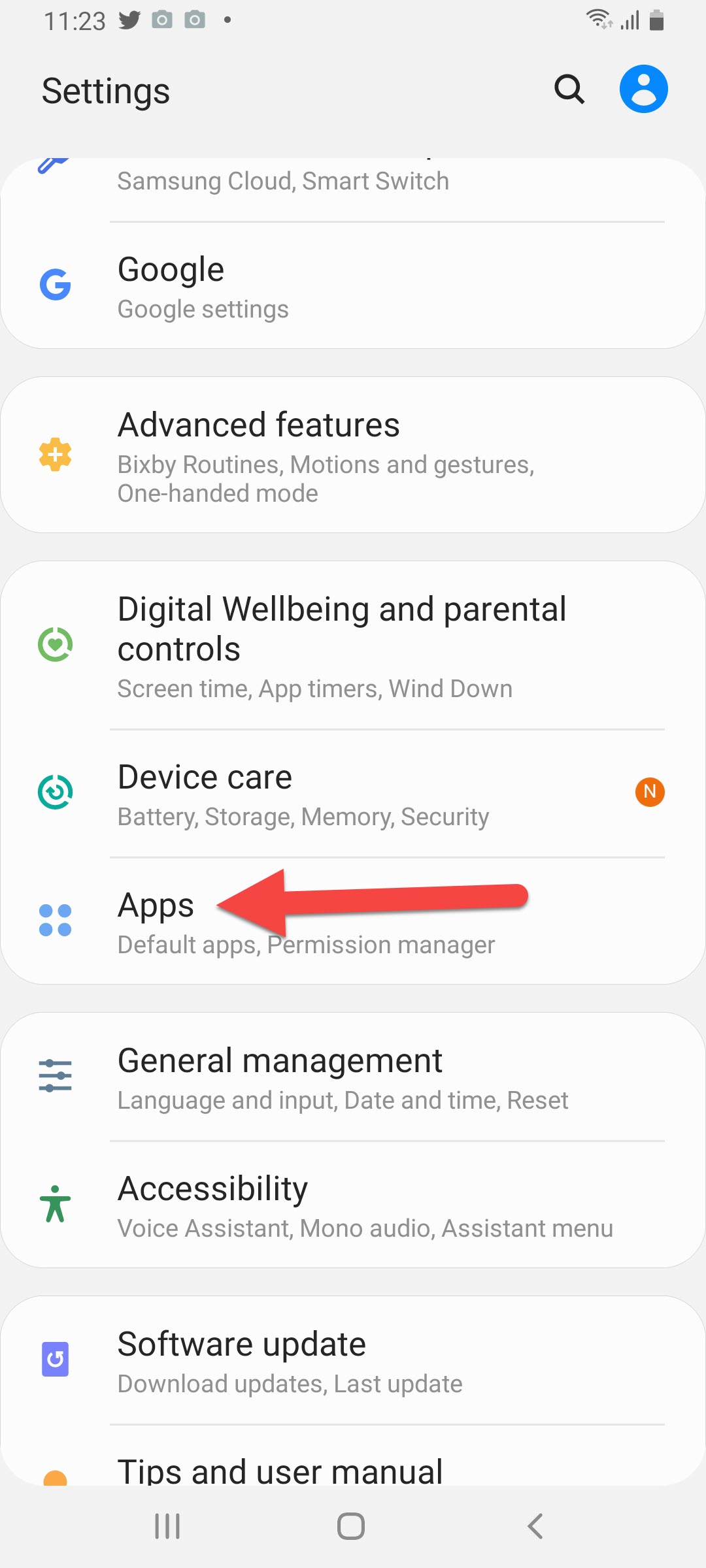 Click on the Apps
 Step 2. Now, select any app where you want to enable picture-in-picture.
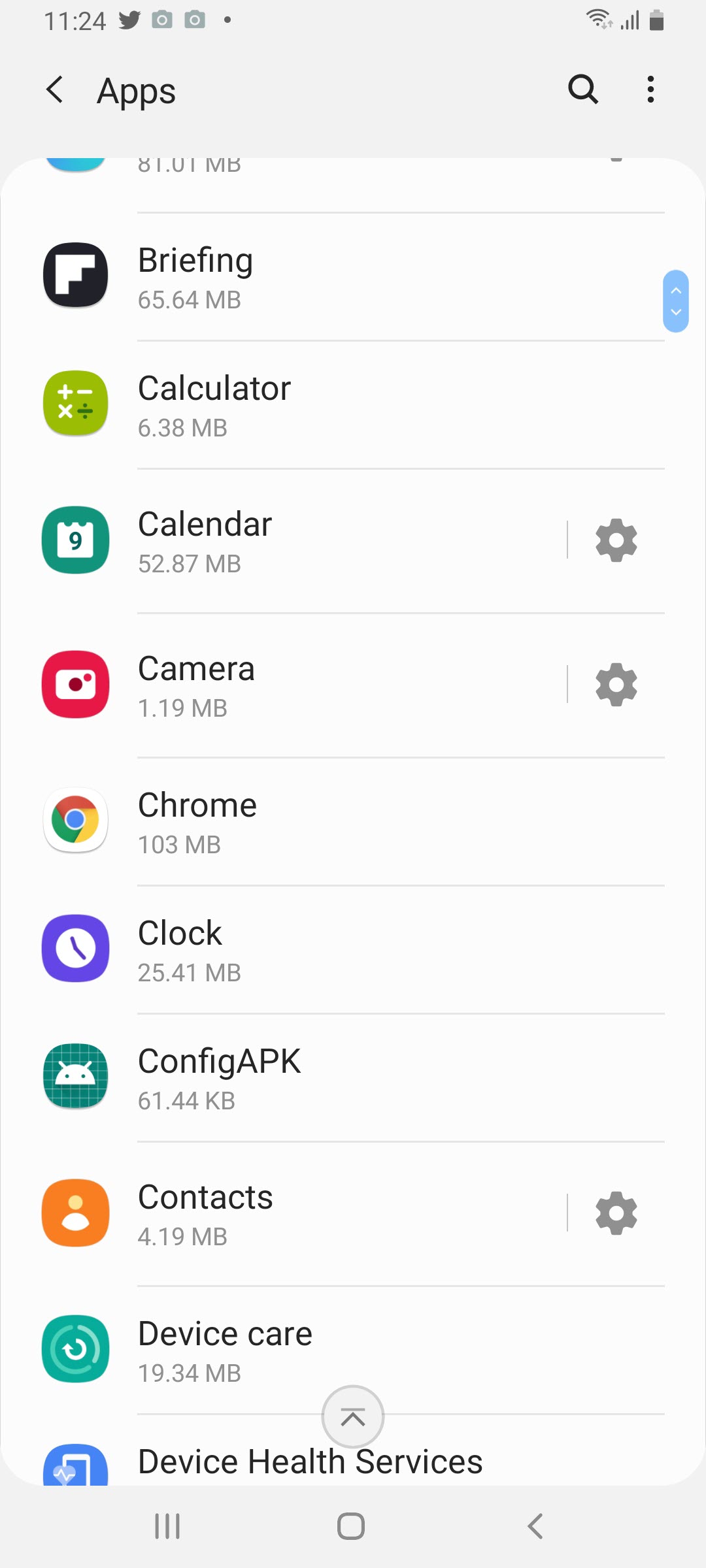 Select the App
 Step 3. Next, when you select the app then click on the Picture-in-picture or Advanced Option.
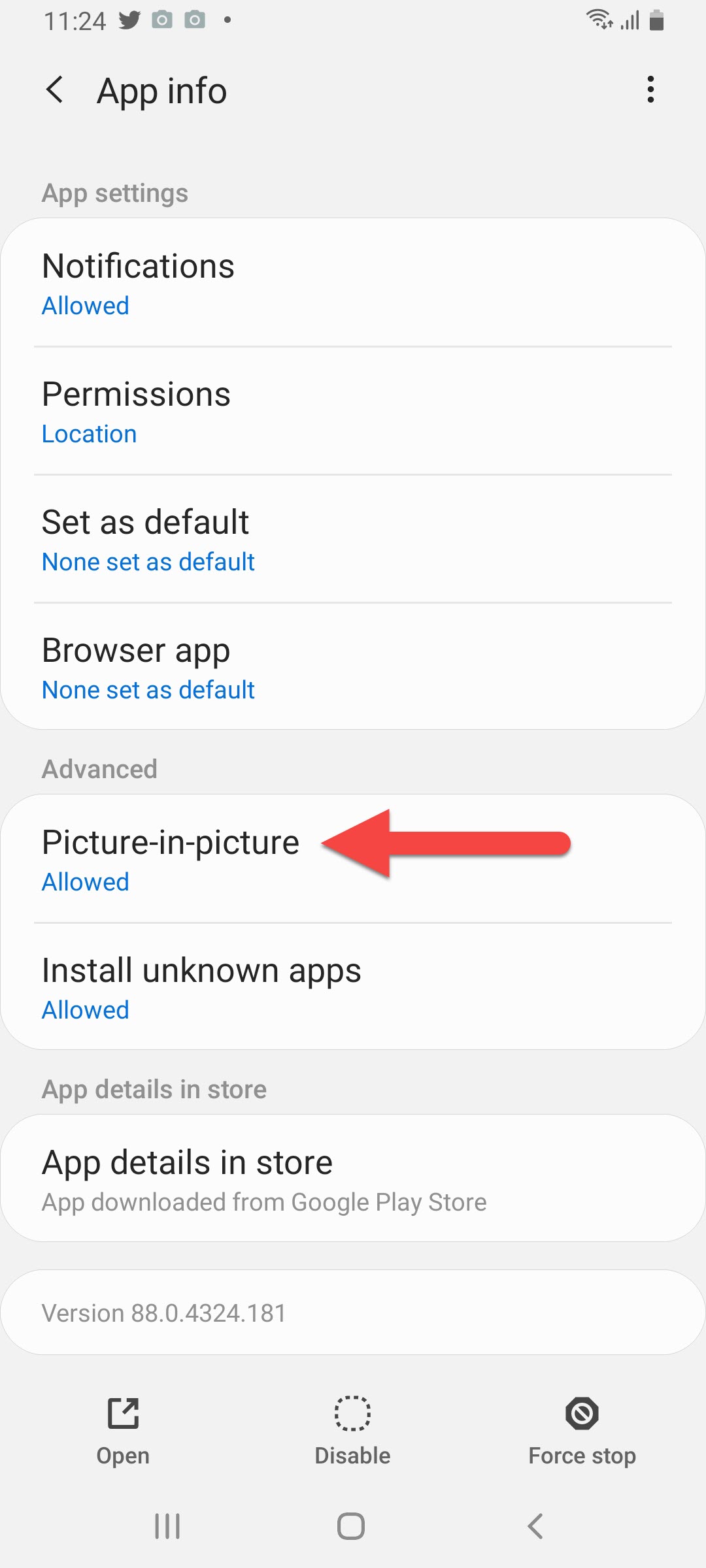 Click on the Picture-in-Picture
 Step 4. Turn on the toggle to enable the picture-in-picture.
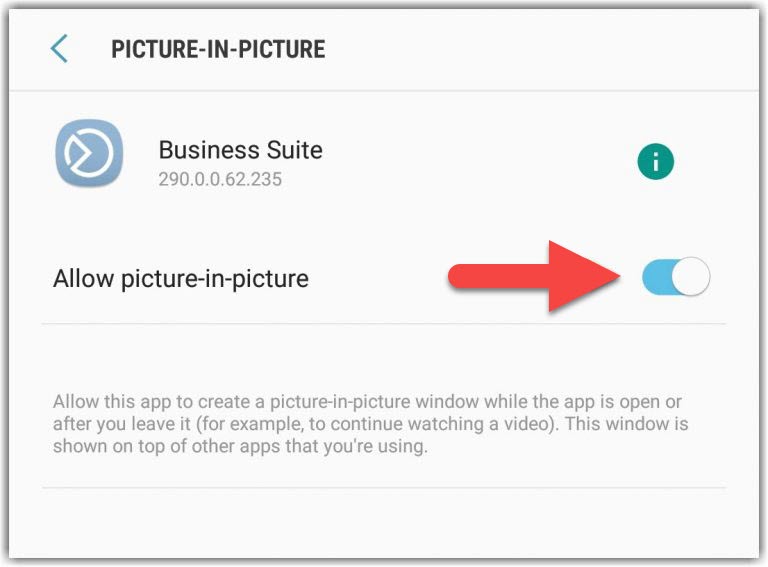 Turn On
 Launch Picture-in-Picture Mode in Google Chrome & YouTube
Step 1. Open the video on google chrome and YouTube then set the video in full screen.
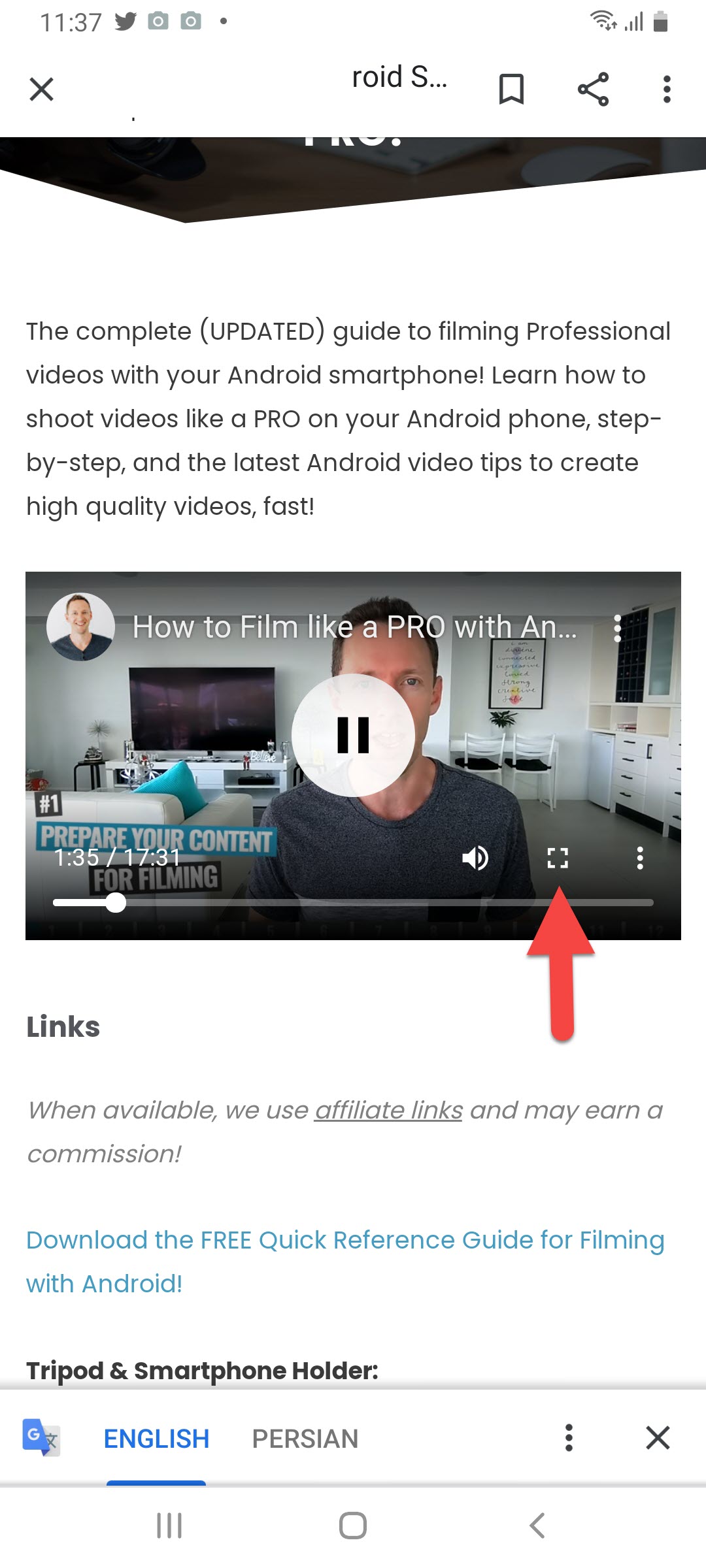
Step 2. When the video is on the full screen then play the video after that go to the home screen on your android device.
Step 3. Once the video on your home screen then drag the video where you want to set it.
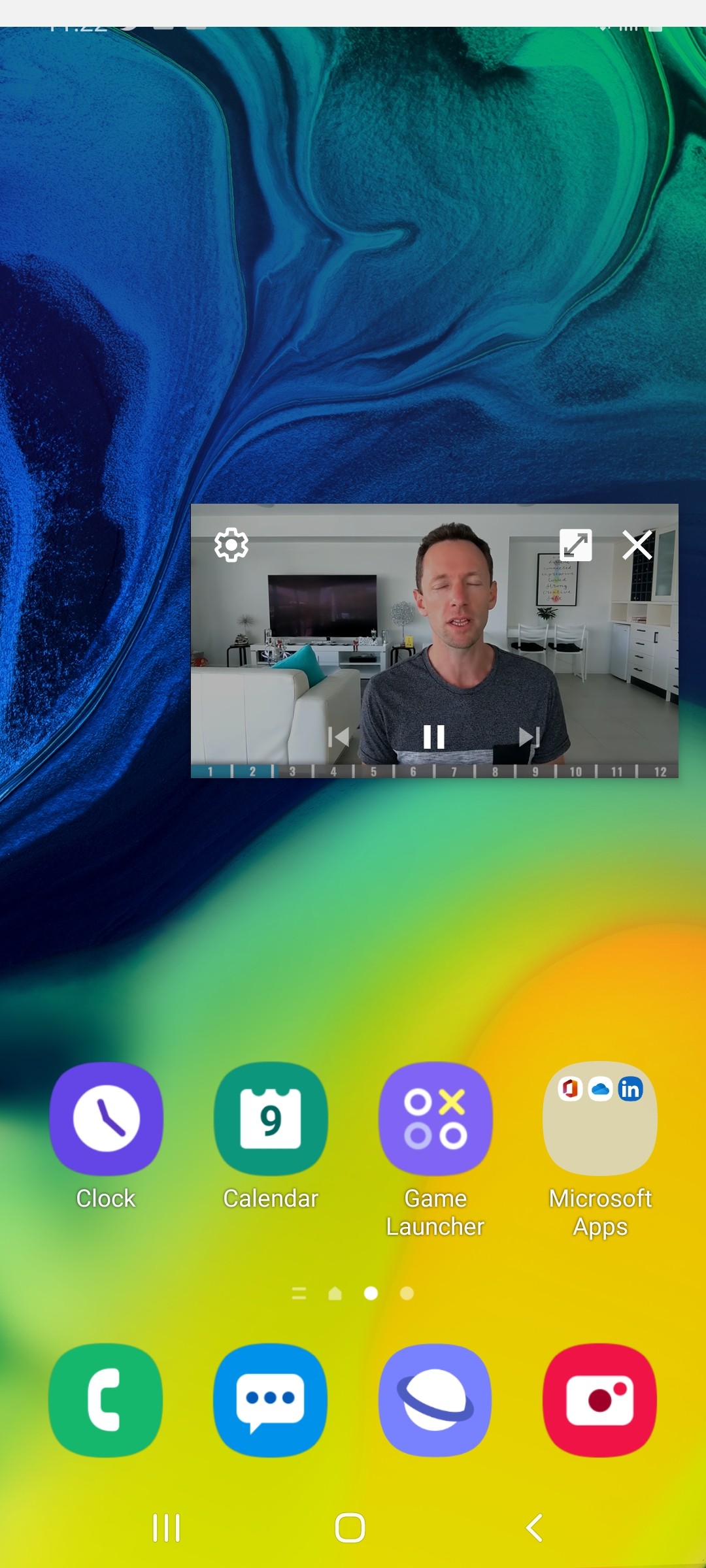 Drag the Video
 Step 4. However, once you watch the video then you want to close it then its simple just click on the Cross Icon.
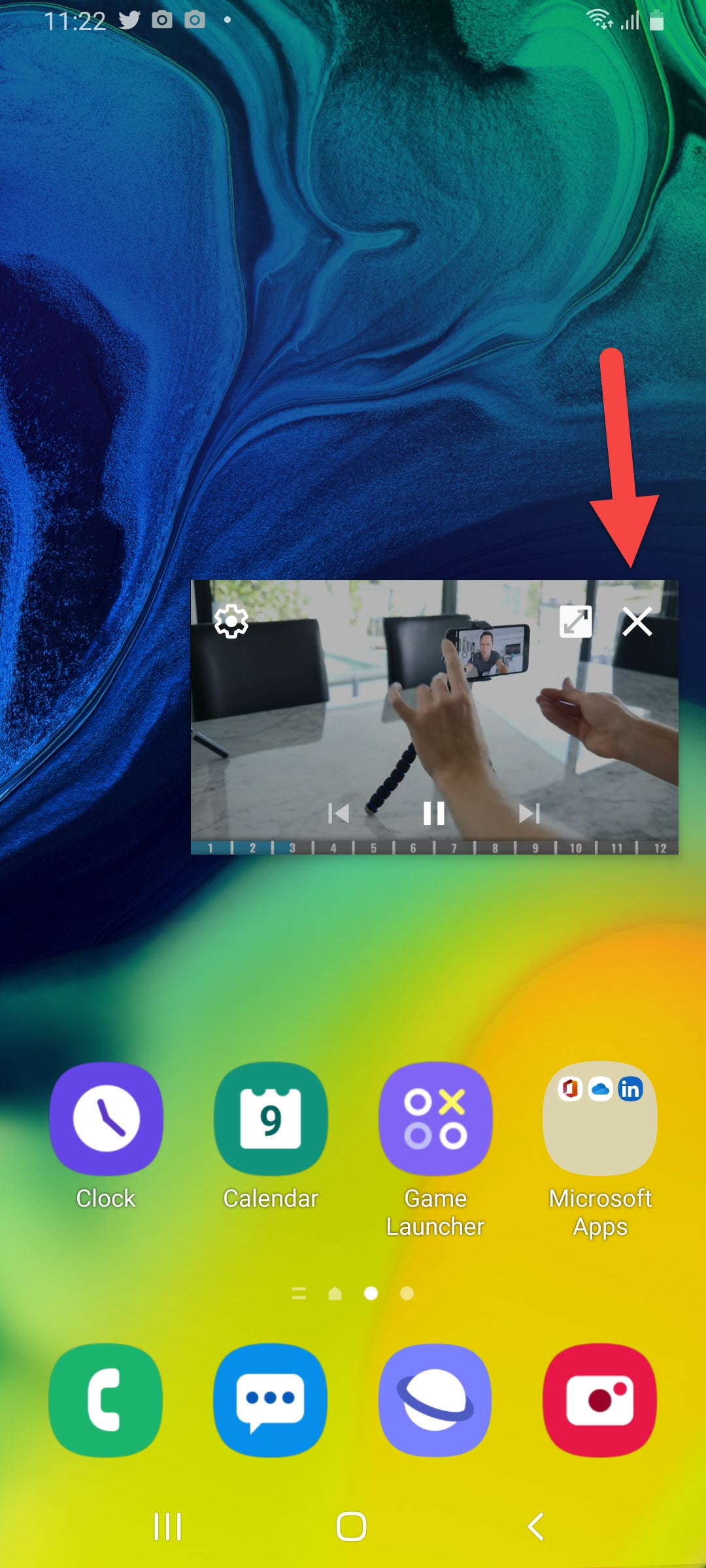 Click on the Cross Icon
 Disable Picture-in-Picture Mode on Android Phone
Step 1. Go to the Settings then scroll down and find Apps after that click on the Apps.
Click on the Apps Step 2. Click on the app that you want to disable picture-in-picture.
Click on the App Step 3. Tap on the Picture-in-Picture or if this option is not then click on the Advanced Option.
Tap on the Picture-in-Picture Step 4. Here you need to turn off the toggle of Picture-in-Picture.
Turn Off Related Searches
- Picture-in-Picture YouTube Android
- Enable Picture-in-Picture Without Third-Party App
- Chrome Picture-in-Picture Android
- Picture-in-Picture Without PC
Related Post: How to Enable Two Factor Authentication on WordPress
Bottom Line
It was all about How to Enable Picture-in-Picture Mode on Android Phone. I hope this article will help you to enable picture-in-picture. And I hope after reading this article you will get something good. After following these steps you will not face any kind of problem. So, if you are facing any kind of problem then don’t hesitate to leave comments in the comment section down below.
Tagged
Share This Article
sometimes when you want to enable picture-in-picture on your android. Picture-in-picture is a very great way to see a small screen on your home screen. If you want to try to enable the picture-in-picture then don’t know to enable it. If you want to enable picture-in-picture mode then you need to read this article. You don’t need any third party software to enable the picture-in-picture mode. To enable the picture-in-picture you will get the features on the settings. So, without wasting any time let’s get has started. From this article, you will learn How to Enable Picture-in-Picture Mode on Android Phone.
What is Picture-in-Picture Mode?
As your watching a video and in this case, it is coming from YouTube either you hit on your home button or anything else it shrinks it down. So, this way you can do another application in the background giving you a picture-in-picture. When you enable the picture-in-picture mode on the video then you can watch them on the background of your screen after that you can work on the other app and watch the video.
Related Post: How to Download Photos from Google Photos to Your iPhone or Computer
How to Enable Picture-in-Picture Mode on Android Phone
Step 1. At first, on your device open the Settings then scroll down after that click on the Apps.
Click on the Apps Step 2. Now, select any app where you want to enable picture-in-picture.
Select the App Step 3. Next, when you select the app then click on the Picture-in-picture or Advanced Option.
Click on the Picture-in-Picture Step 4. Turn on the toggle to enable the picture-in-picture.
Turn On Launch Picture-in-Picture Mode in Google Chrome & YouTube
Step 1. Open the video on google chrome and YouTube then set the video in full screen.
Step 2. When the video is on the full screen then play the video after that go to the home screen on your android device.
Step 3. Once the video on your home screen then drag the video where you want to set it.
Drag the Video Step 4. However, once you watch the video then you want to close it then its simple just click on the Cross Icon.
Click on the Cross Icon Disable Picture-in-Picture Mode on Android Phone
Step 1. Go to the Settings then scroll down and find Apps after that click on the Apps.
Click on the Apps Step 2. Click on the app that you want to disable picture-in-picture.
Click on the App Step 3. Tap on the Picture-in-Picture or if this option is not then click on the Advanced Option.
Tap on the Picture-in-Picture Step 4. Here you need to turn off the toggle of Picture-in-Picture.
Turn Off Related Searches
- Picture-in-Picture YouTube Android
- Enable Picture-in-Picture Without Third-Party App
- Chrome Picture-in-Picture Android
- Picture-in-Picture Without PC
Related Post: How to Enable Two Factor Authentication on WordPress
Bottom Line
It was all about How to Enable Picture-in-Picture Mode on Android Phone. I hope this article will help you to enable picture-in-picture. And I hope after reading this article you will get something good. After following these steps you will not face any kind of problem. So, if you are facing any kind of problem then don’t hesitate to leave comments in the comment section down below.