

How to Enable Picture-in-Picture in Windows 11?
 Azaz Shaikh
In this article, you will learn How to Enable Picture-in-Picture in Windows 11? Do you want to enable Picture-in-Picture? If yes then this article is for you. However, PIP (Picture-in-Picture) is a very interesting part of the PC. Whenever, if you are having googling something to do your work inside your PC. Then picture-in-picture mode will help to display a video at the corner of the screen. After that, you do your work also and watch a video also. You can watch videos in picture-in-picture mode on iPhone, iPad, Android. When the PIP feature is not launched then the people were switching the window to the video while working. If you want to enable picture-in-picture then you need to read this article. So, without wasting any time let’s get has started.
How to Enable Picture-in-Picture Via Movies & TV App
Movies & TV are some of the best features of Windows to watch a video in Picture-in-Picture. You don’t need to download this app it is downloaded by default. This method is very easy to enable picture-in-picture so follow the steps down below.
Step 1. Find the video that you want to watch in picture-in-picture then right-click on the video then go to Open With after that click on the Movies & TV.
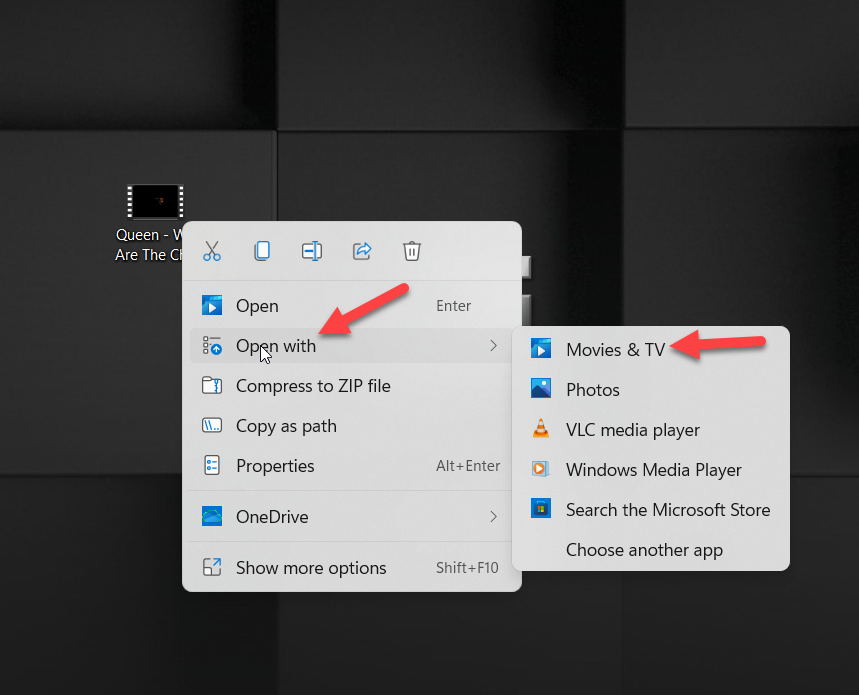 Click on the Movies & TV
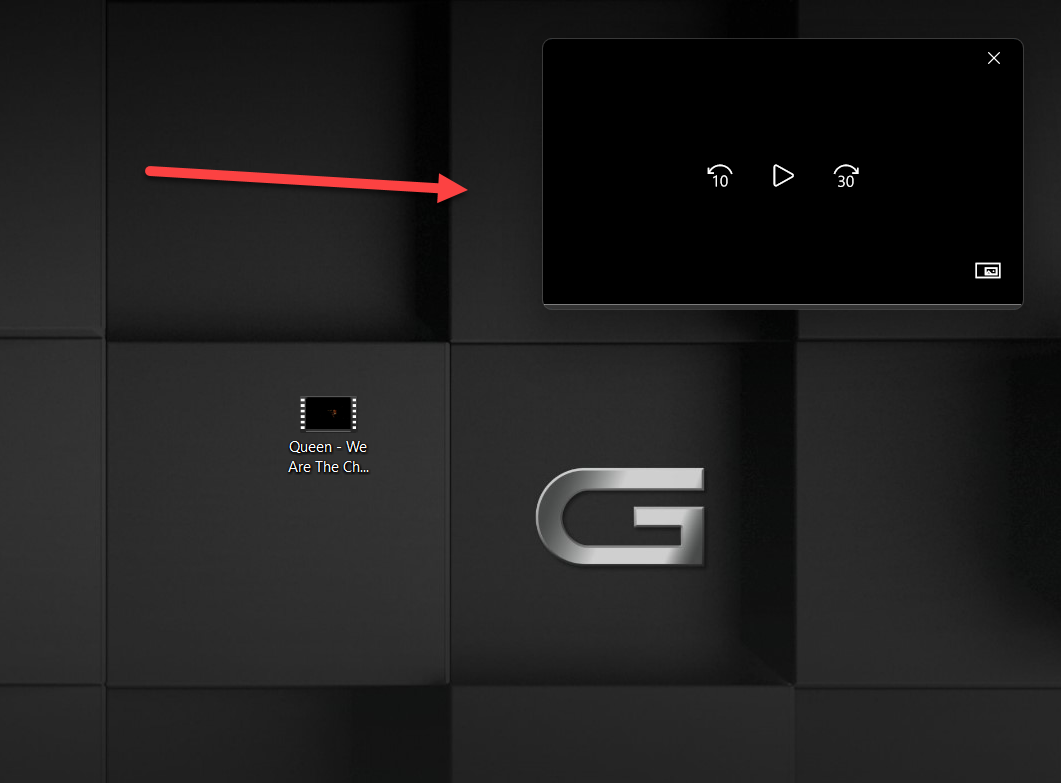
 Step 2. When the video is open then click on the Play in Mini View at the bottom right side.

Step 3. Once you play any kind of video then it will show at the top right corner. You can change the place of it by sliding from the title bar right to left it will move.
Enable Picture-in-Picture From VLC Media Player
If you are not having a VLC media player then you need to download it because it will help to enable Picture-in-Picture. VLC media players don’t the option to make a video in picture-in-picture. But if you use this VLC media player is like Movies & TV. If you enable picture-in-picture with a VLC media player then it will feel like you like Picture-in-picture just with one click you can watch. Follow the steps down below.
Step 1. First of all, you need to find that video you want to picture-in-picture it.
Step 2. Right-click on the video then click on the Open With after that select VLC Media Player.
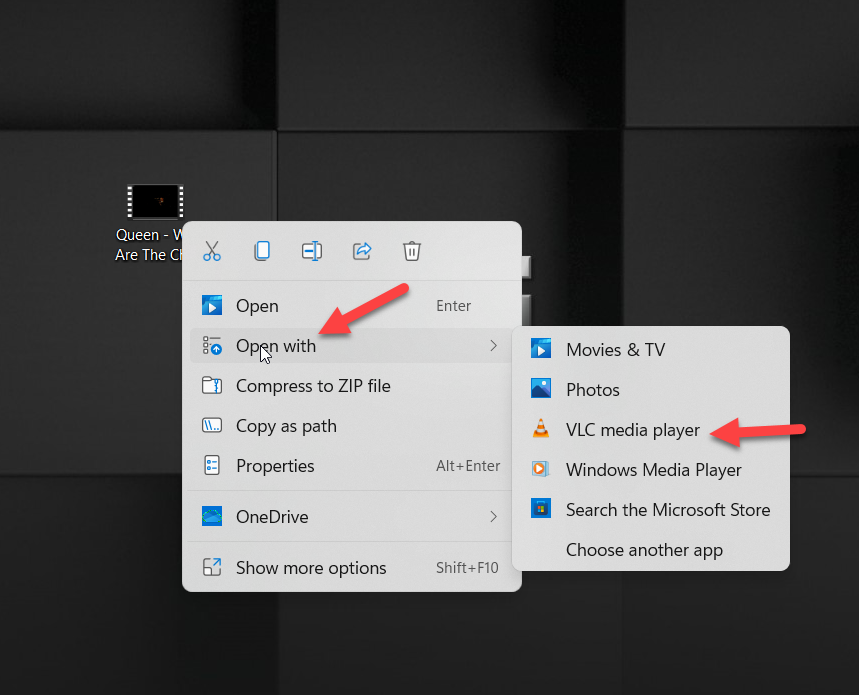 Select VLC Media Player
 Step 3. Go to the View tab after that enable the Always on Top by clicking on it.
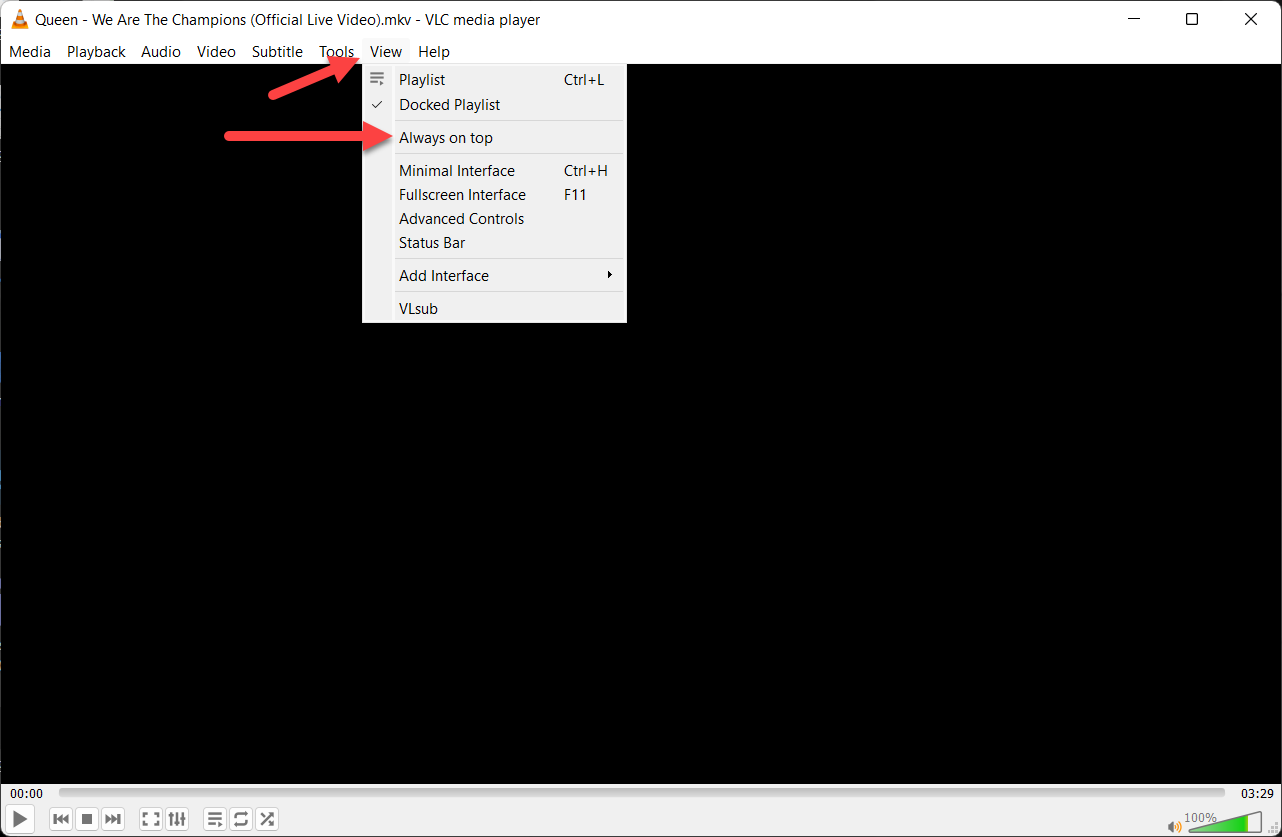 Enable Always on Top
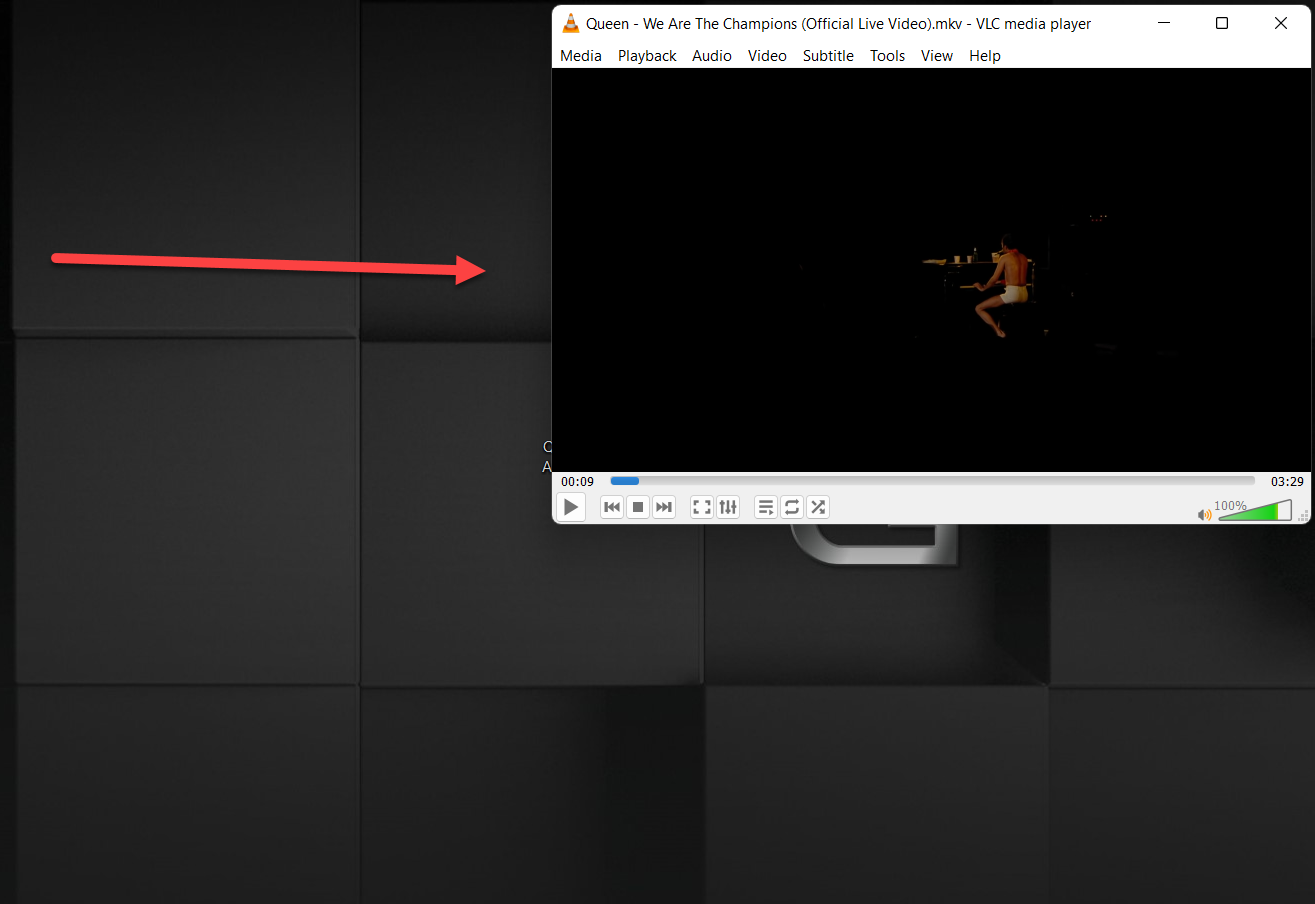
 Step 4. Here you go, as you can see that your video is picture-in-picture you can watch the example of it in the picture.
Bottom Line
It was all about How to Enable Picture-in-Picture in Windows 11? I hope this article is very helpful for you to enable Picture-in-picture. From this article, you will get something good. This is the right place where you can easily solve your problem. After following these steps I hope you will not face any kind of problem. If you faced any kind of problem and if you have any type of suggestions then do comment.
Related Posts:
Tagged
Share This Article
In this article, you will learn How to Enable Picture-in-Picture in Windows 11? Do you want to enable Picture-in-Picture? If yes then this article is for you. However, PIP (Picture-in-Picture) is a very interesting part of the PC. Whenever, if you are having googling something to do your work inside your PC. Then picture-in-picture mode will help to display a video at the corner of the screen. After that, you do your work also and watch a video also. You can watch videos in picture-in-picture mode on iPhone, iPad, Android. When the PIP feature is not launched then the people were switching the window to the video while working. If you want to enable picture-in-picture then you need to read this article. So, without wasting any time let’s get has started.
How to Enable Picture-in-Picture Via Movies & TV App
Movies & TV are some of the best features of Windows to watch a video in Picture-in-Picture. You don’t need to download this app it is downloaded by default. This method is very easy to enable picture-in-picture so follow the steps down below.
Step 1. Find the video that you want to watch in picture-in-picture then right-click on the video then go to Open With after that click on the Movies & TV.
Click on the Movies & TV Step 2. When the video is open then click on the Play in Mini View at the bottom right side.
Step 3. Once you play any kind of video then it will show at the top right corner. You can change the place of it by sliding from the title bar right to left it will move.
Enable Picture-in-Picture From VLC Media Player
If you are not having a VLC media player then you need to download it because it will help to enable Picture-in-Picture. VLC media players don’t the option to make a video in picture-in-picture. But if you use this VLC media player is like Movies & TV. If you enable picture-in-picture with a VLC media player then it will feel like you like Picture-in-picture just with one click you can watch. Follow the steps down below.
Step 1. First of all, you need to find that video you want to picture-in-picture it.
Step 2. Right-click on the video then click on the Open With after that select VLC Media Player.
Select VLC Media Player Step 3. Go to the View tab after that enable the Always on Top by clicking on it.
Enable Always on Top Step 4. Here you go, as you can see that your video is picture-in-picture you can watch the example of it in the picture.
Bottom Line
It was all about How to Enable Picture-in-Picture in Windows 11? I hope this article is very helpful for you to enable Picture-in-picture. From this article, you will get something good. This is the right place where you can easily solve your problem. After following these steps I hope you will not face any kind of problem. If you faced any kind of problem and if you have any type of suggestions then do comment.
Related Posts:


